

 Zyntra OS
 Zyntra Legal
 Zyntra Real Estate
 Zyntra Hotel
 Zyntra E-commerce
 Zyntra Appointments
 Zyntra Repair
 Zyntra Garage
 Zyntra Concierge
 Zyntra Contracting
 Zyntra Clinic
 Zyntra Call Center
 Zyntra OTA
Where
System › Setup › Shipping carriers · Inventory › Packing Lists · Logistic › ShippingWho
Switching a carrier on: anyone allowed to change the company's settings. A label on a packing list: anyone allowed to edit packing lists.Switch a carrier on
1
On Shipping carriers, choose the company, then press Open on the carrier's row. The list says whether each one is on, in test mode, and what it still needs before it can be switched on.
2
Type the keys the carrier gave you: for DHL Express its API key, API secret and Account number; for FedEx its API key, Secret key and Account number. They are kept sealed and never shown again; the box only says whether each is stored.
3
Leave Test mode on while you try it: labels are then made in the carrier's test account and cost nothing. Switch the carrier on and press Save this carrier.
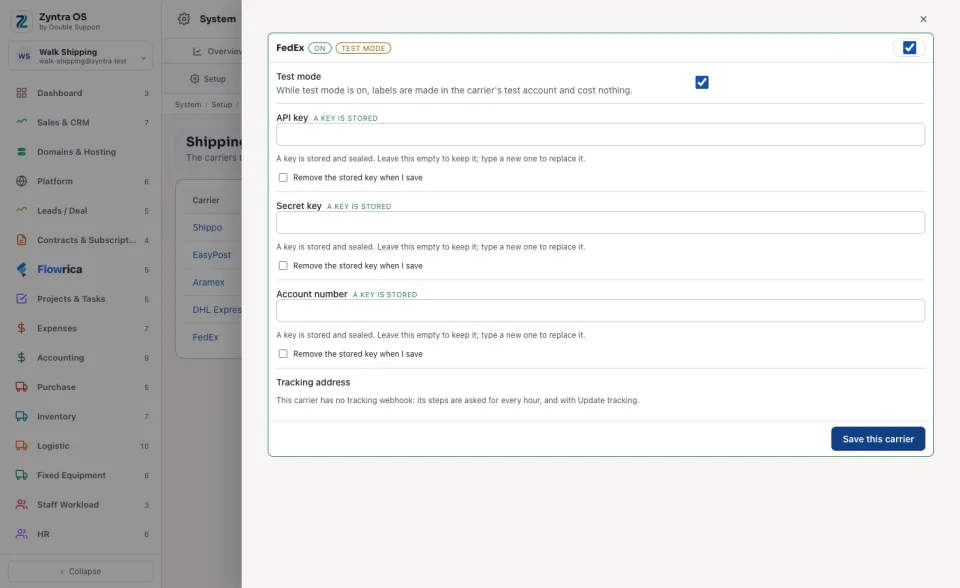
A label for a packing list
4
Open the packing list on Inventory › Packing Lists. Its shipping address, weight and sizes are what the carrier prices. In the Carrier card choose the carrier and press Get rates.
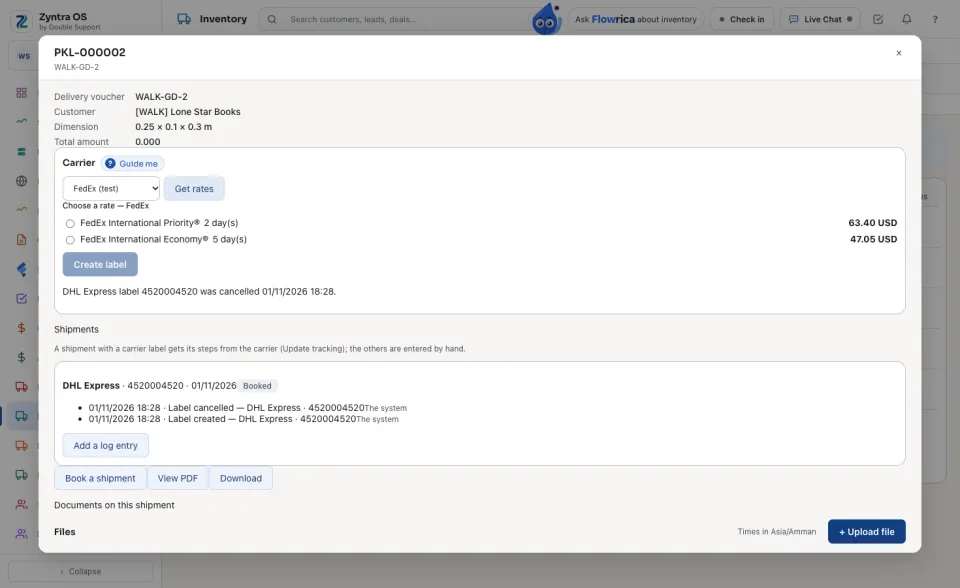
5
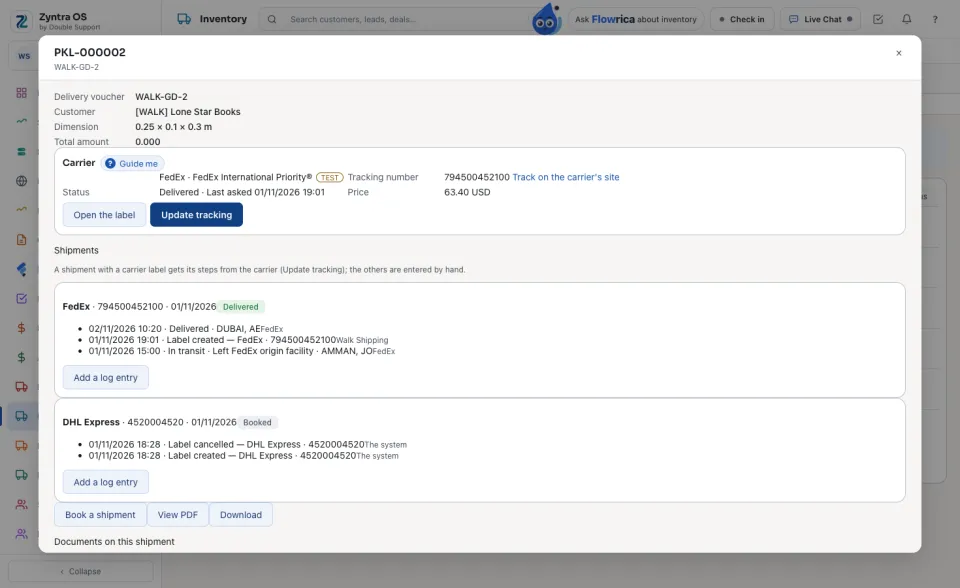
Under Choose a rate, pick one and press Create label. The card shows the carrier, the tracking number, the status and the price exactly as the carrier charged it, and a shipment with that tracking number is booked in the packing list's Shipments.
6
Press Open the label to print it. Update tracking asks the carrier now; the carrier's steps are also written into the shipment's log by themselves every hour. Track on the carrier's site opens the carrier's own page.
Cancel a label
7
Before the parcel moves, press Cancel label. FedEx voids the label at FedEx. DHL Express has no way to void a label from outside: it is cancelled here only, and a label that is never used is not charged by DHL. Either way the card then offers the rates again, and on a packing list the shipment the label booked says Cancelled in its shipping log. If a carrier makes the shipment but sends no label, the card keeps it with its tracking number, so pressing again never makes a second shipment: get its label from the carrier, or cancel it.
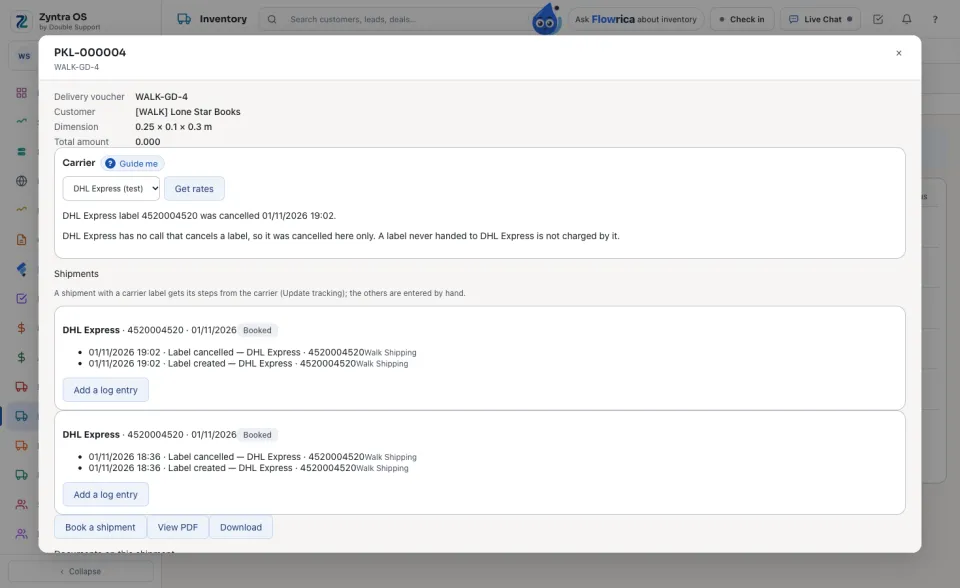
The same Carrier card is on a logistics shipment and on an online shop order, and works the same way there.
Questions
Where is “Shipping carriers” in Zyntra OS?
System › Setup › Shipping carriers · Inventory › Packing Lists · Logistic › Shipping
Who can use “Shipping carriers”?
Switching a carrier on: anyone allowed to change the company's settings. A label on a packing list: anyone allowed to edit packing lists.