Zyntra OS
 Zyntra Legal
 Zyntra Real Estate
 Zyntra Hotel
 Zyntra E-commerce
 Zyntra Appointments
 Zyntra Repair
 Zyntra Garage
 Zyntra Concierge
 Zyntra Contracting
 Zyntra Clinic
 Zyntra Call Center
 Zyntra OTA
Where
Logistic › Locker Packages · Shipping · Pickup · ConsolidatedWho
Anyone allowed to see logistics documents.The list
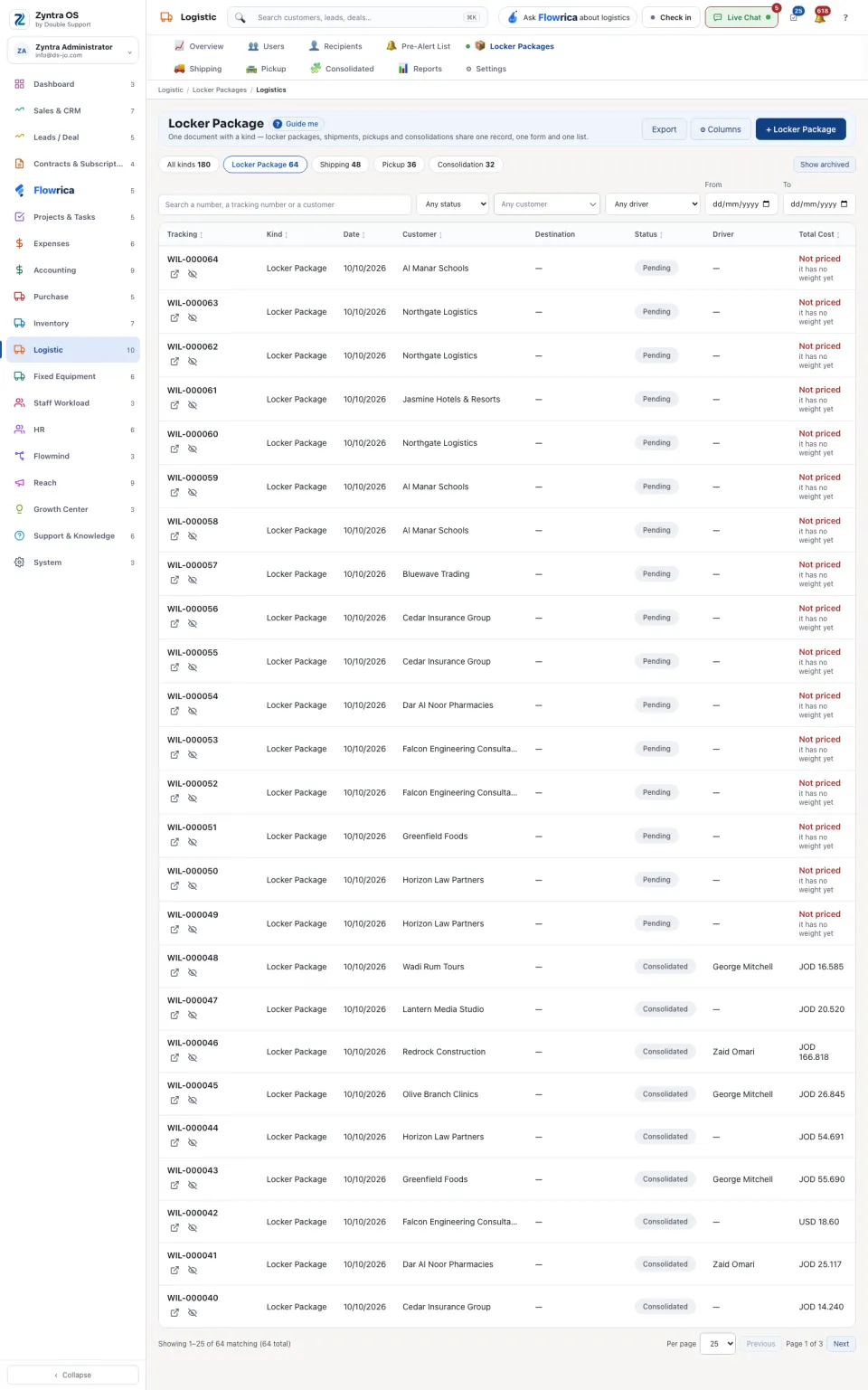
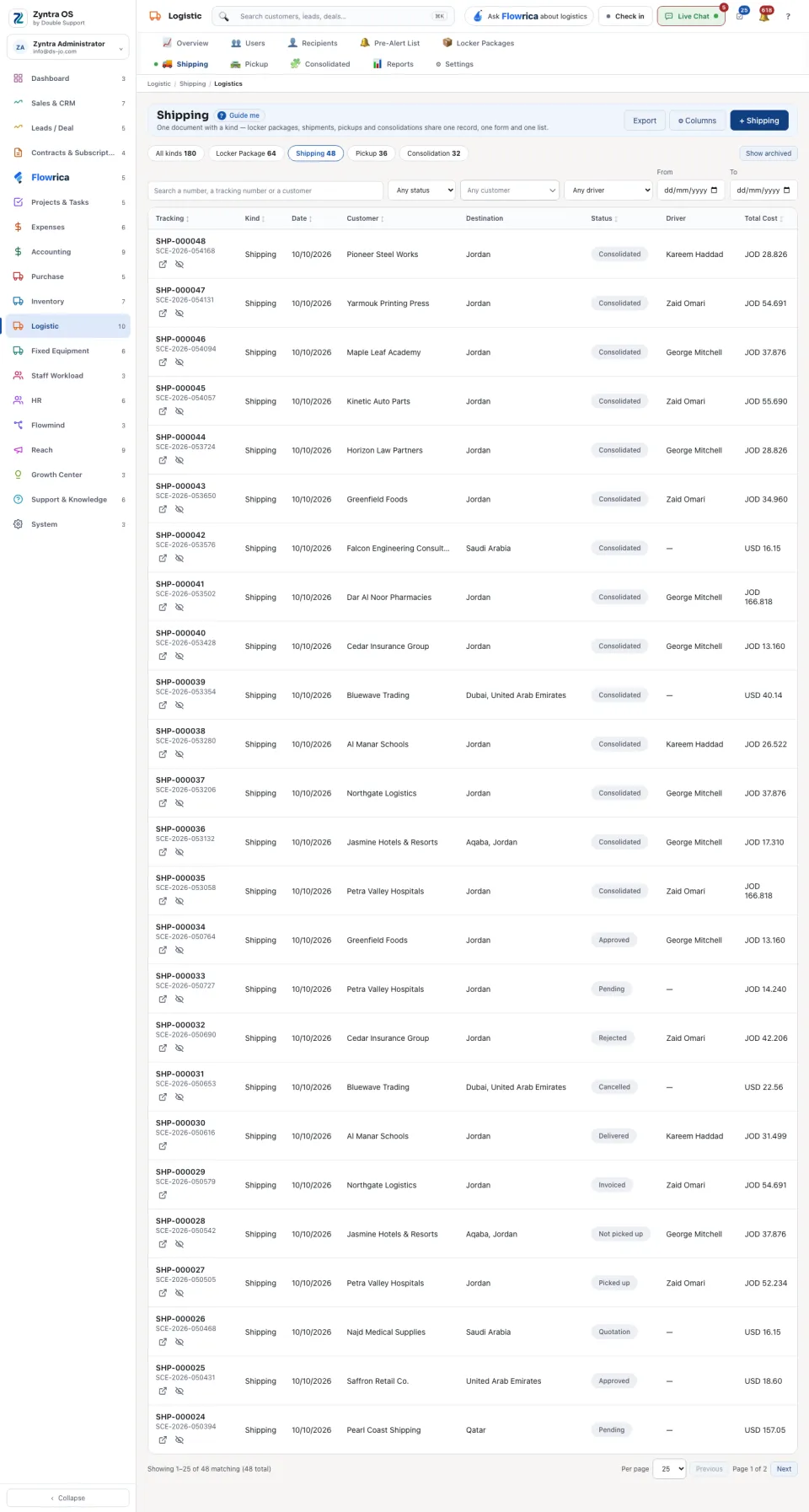
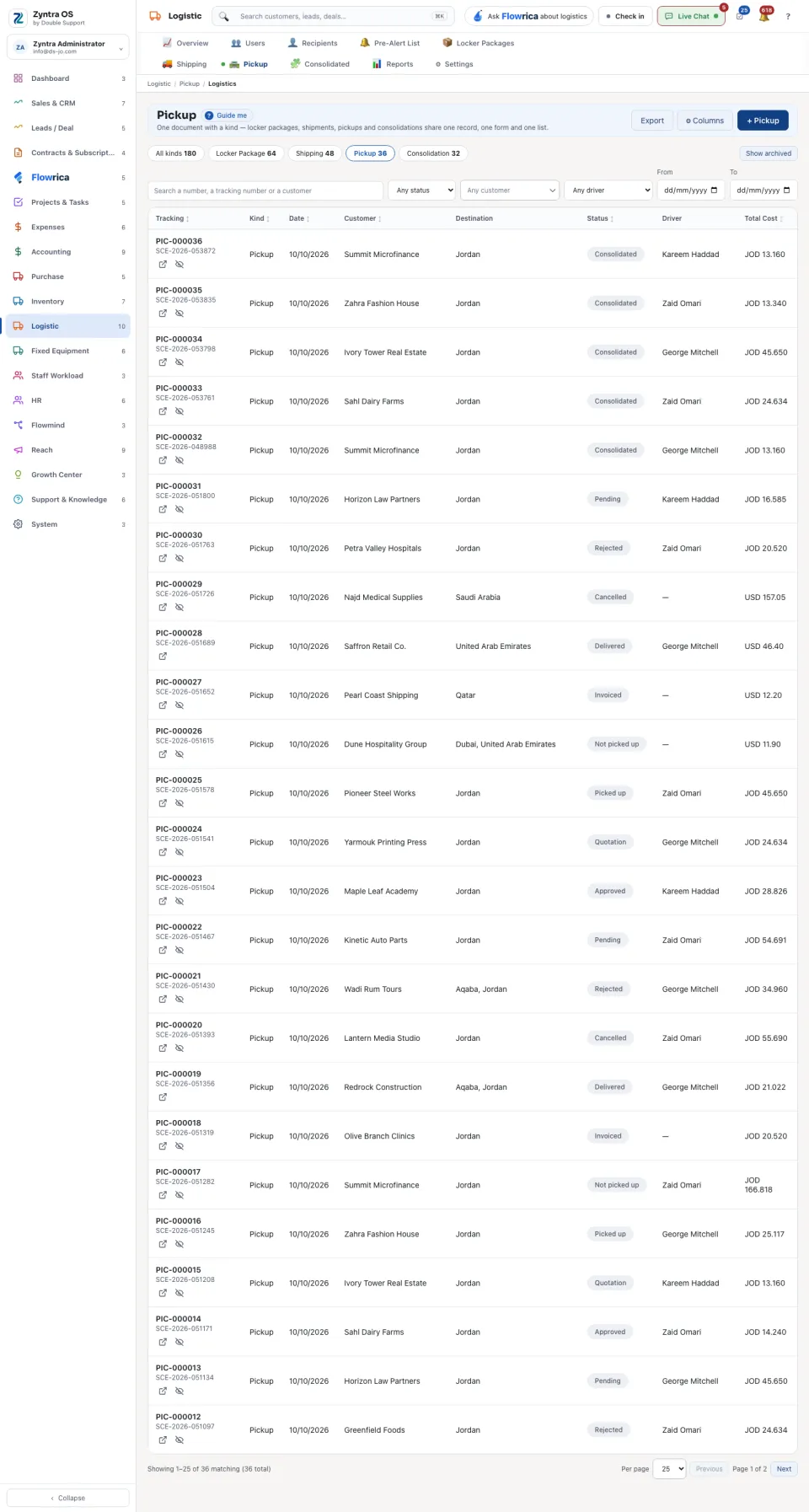
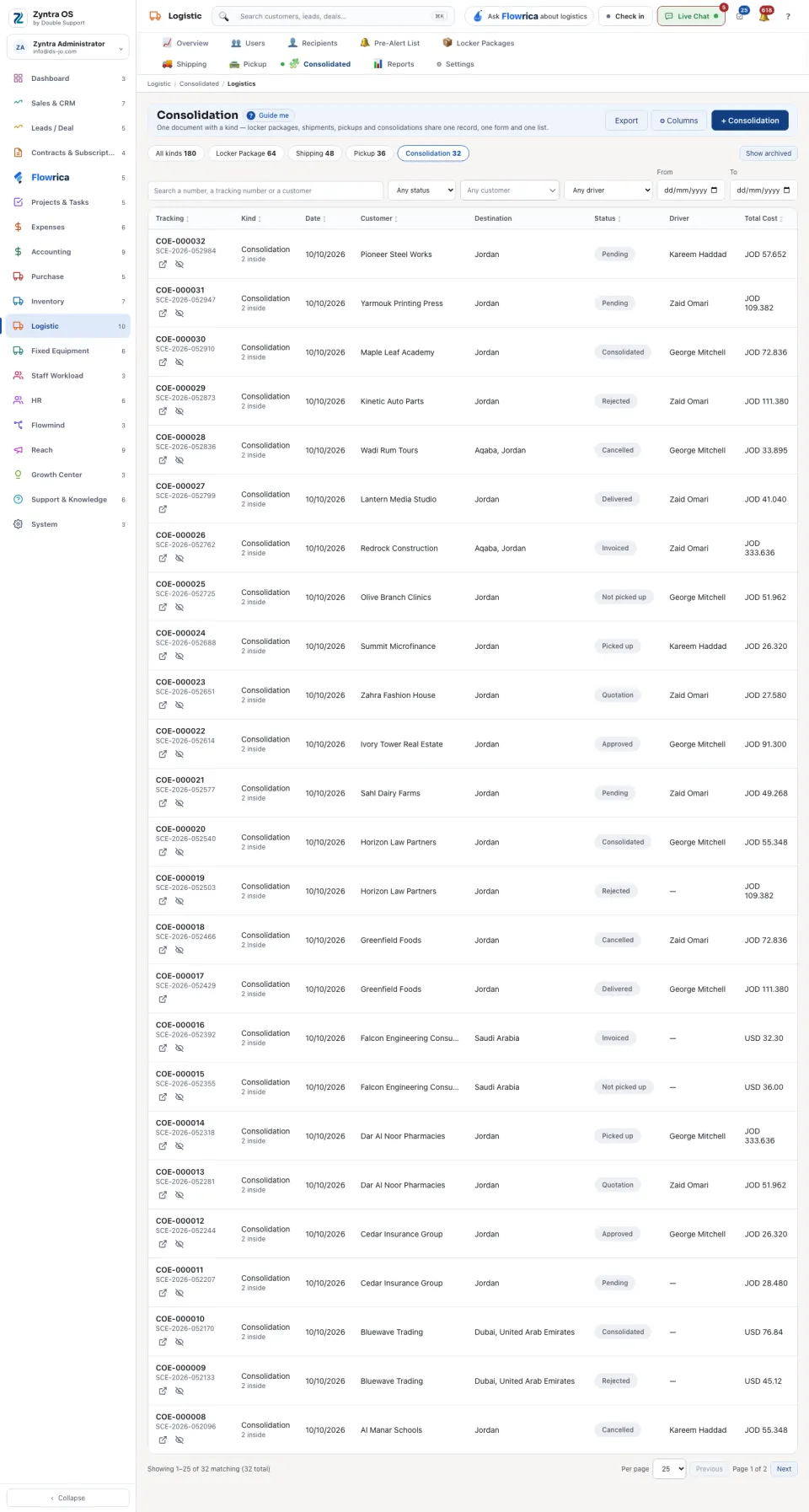
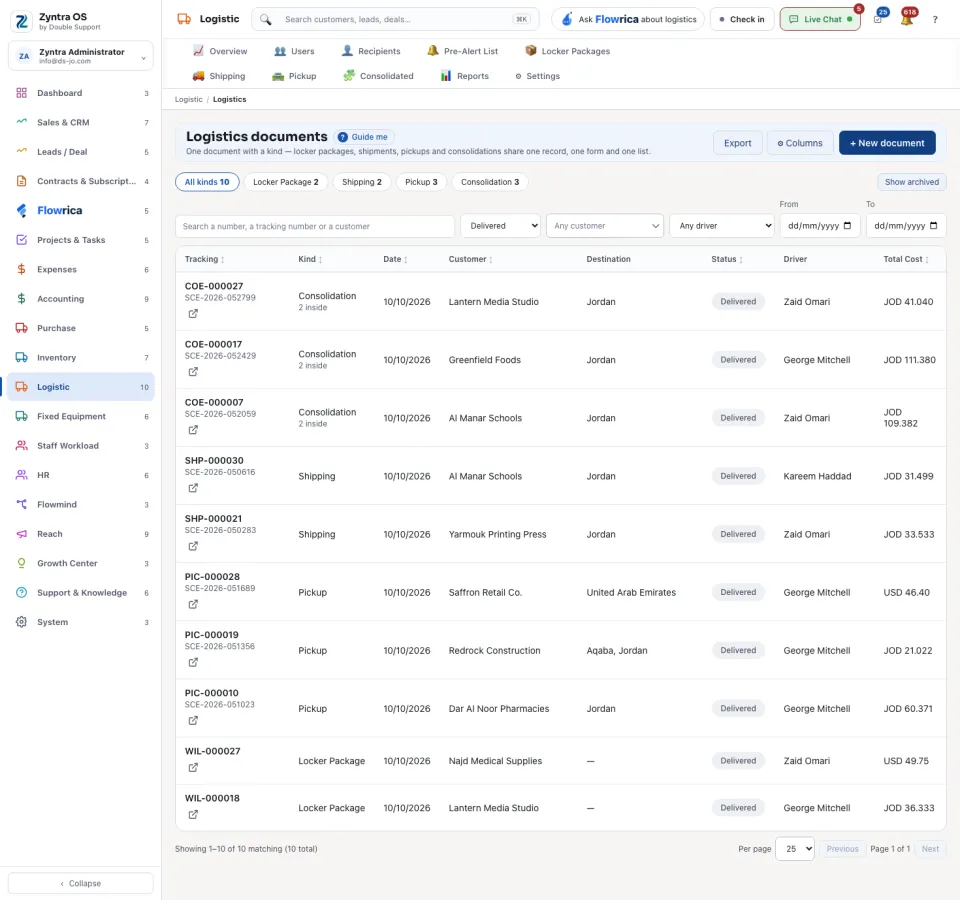
The four rows of the menu open the same list, each on its own kind. The chips above the list switch between them and count each one: All kinds, Locker Package, Shipping, Pickup and Consolidation.
The list shows Tracking, Kind, Date, Customer, Destination, Status, Driver and Total Cost. A document with no price says Not priced, and why. Search a number, a tracking number or a customer, or narrow the list by status, customer, driver and dates. Export and Columns are above the list; Show archived brings back what was put away. On a row: Open and Archive.
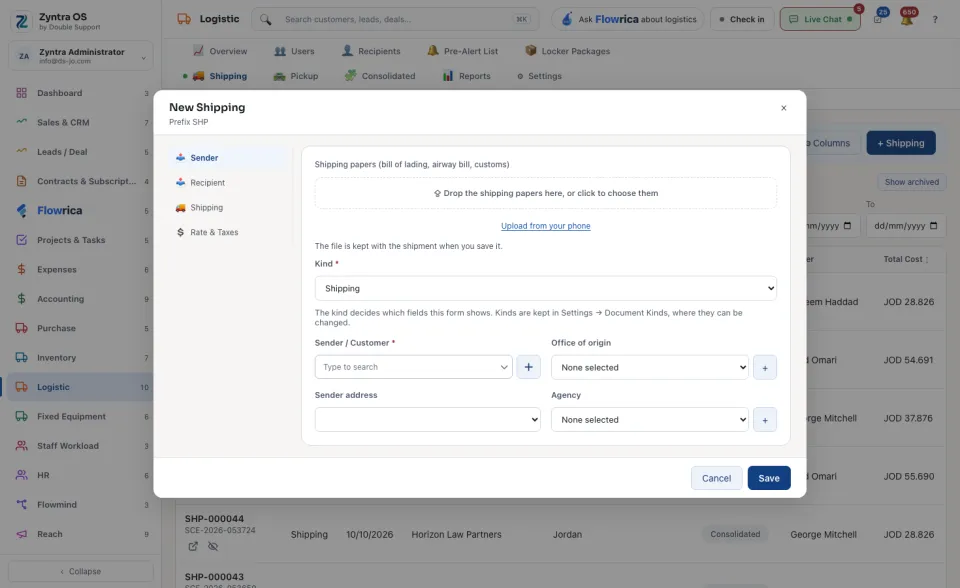
Make a document
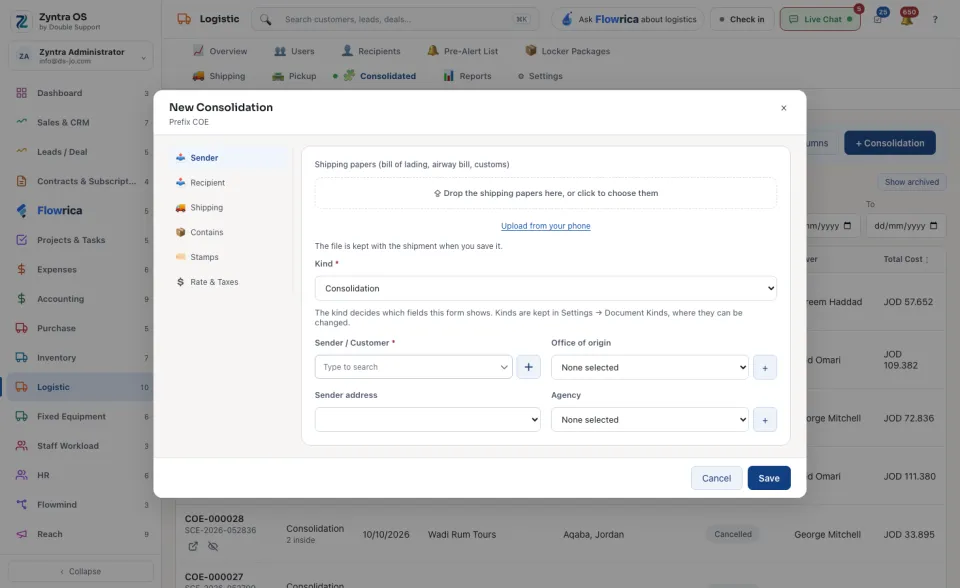
A consolidation has two more steps, Contains and Stamps. Under Contains choose What it consolidates and The documents it holds: at least two, of one kind and one currency. Saving moves them to Consolidated.
A document’s page
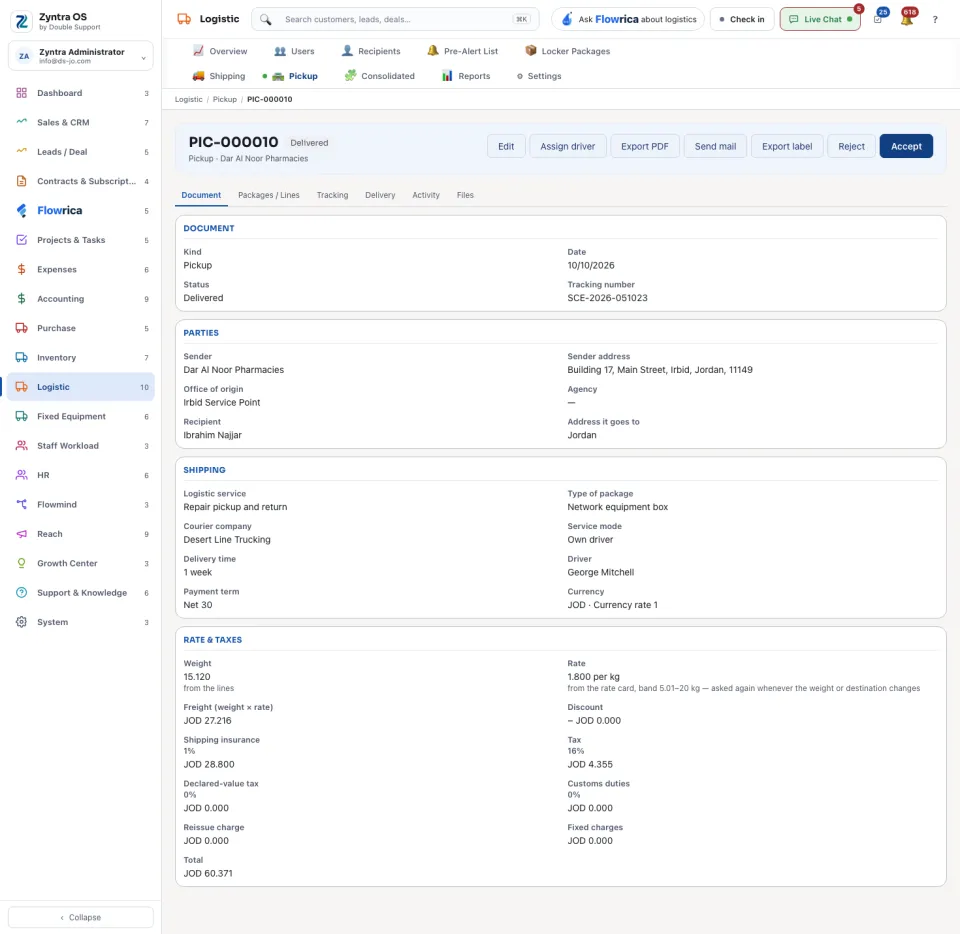
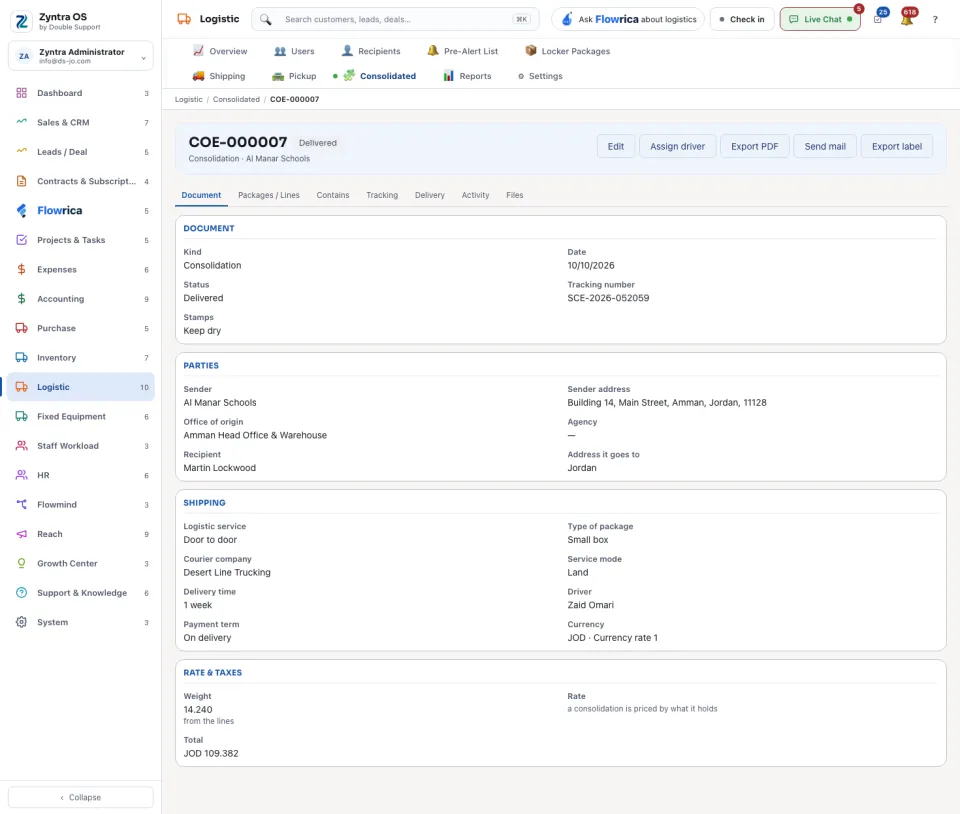
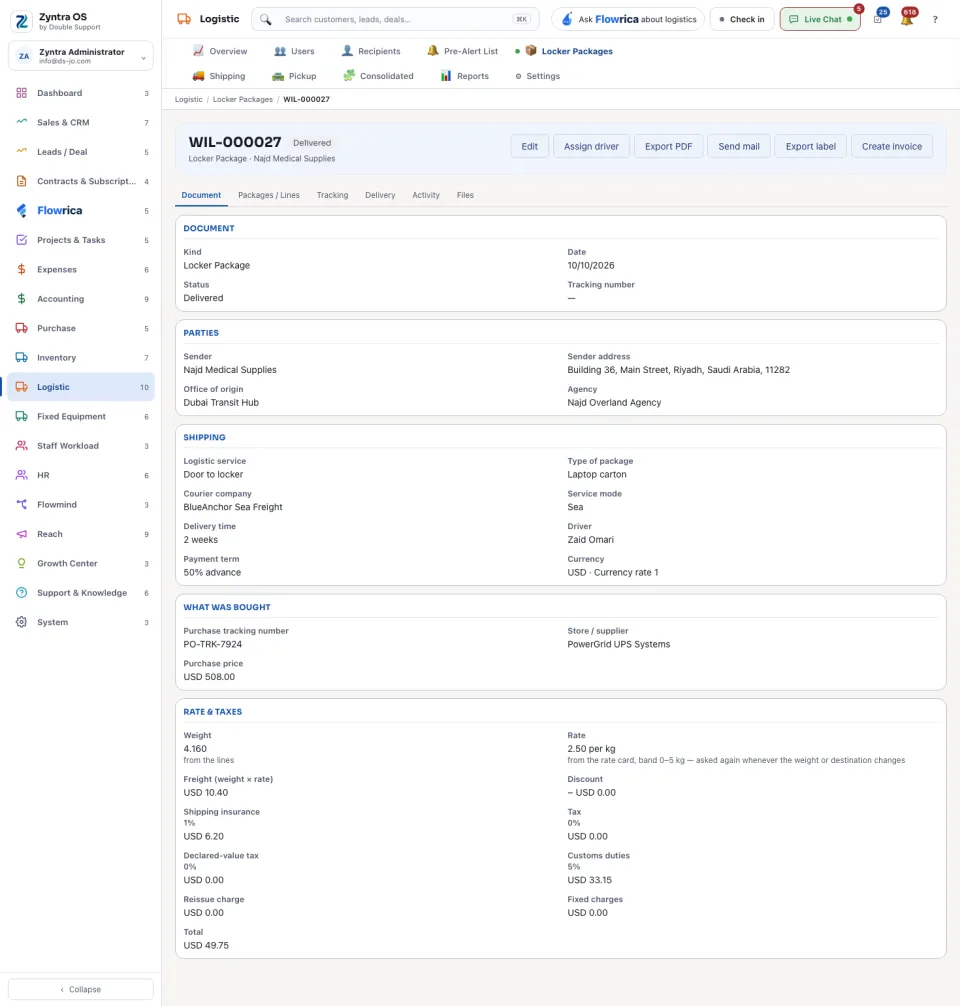
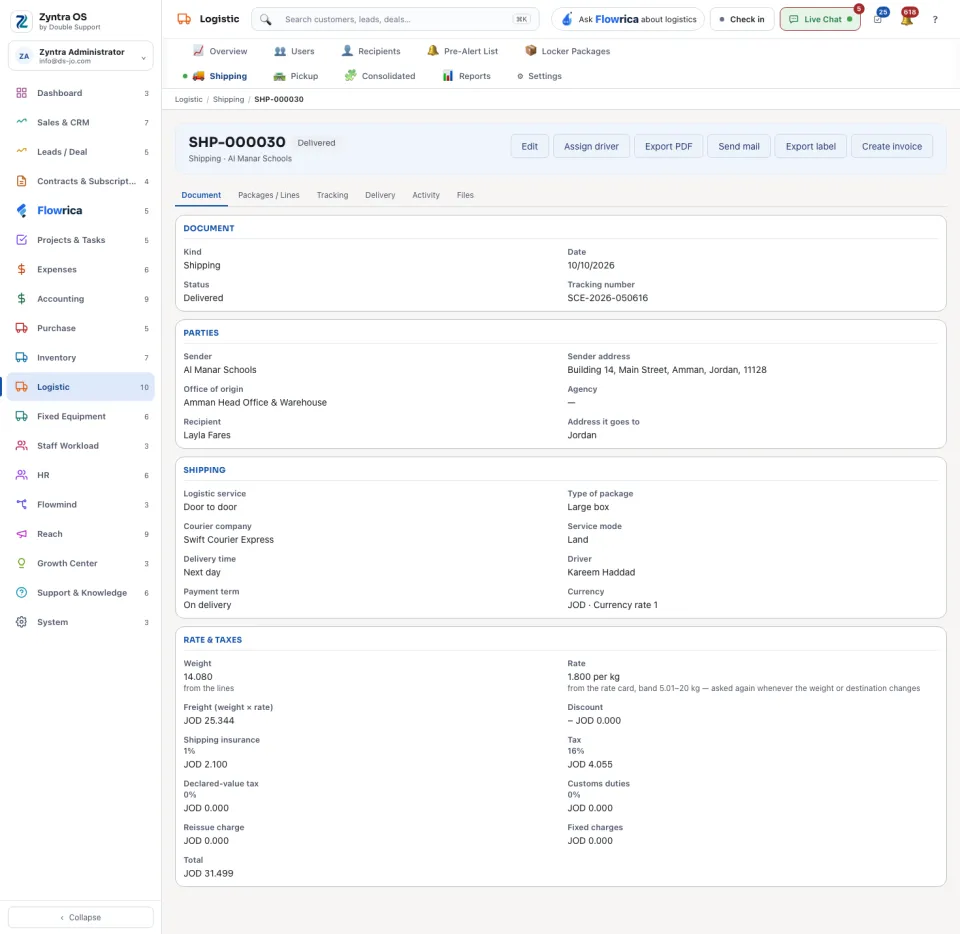
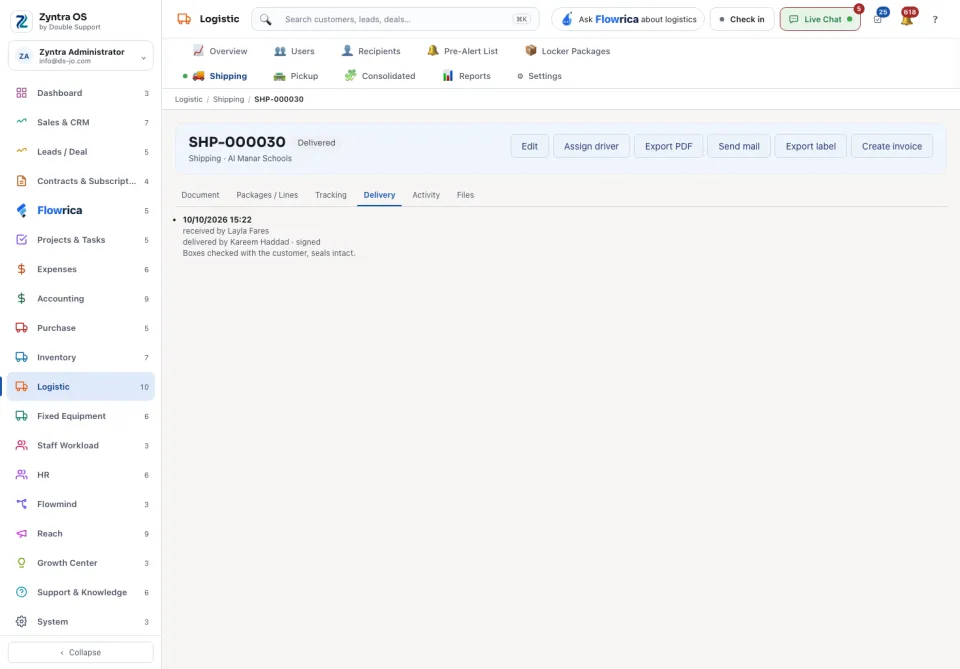
Press Open on a row. Under the document’s number the page says its status, its kind and its customer. It has these tabs:
| Tab | What it holds |
|---|---|
| Document | The kind, date, status and tracking number; the parties (sender, office of origin, agency, recipient and the address it goes to); the shipping choices; and the weight, rate and taxes. |
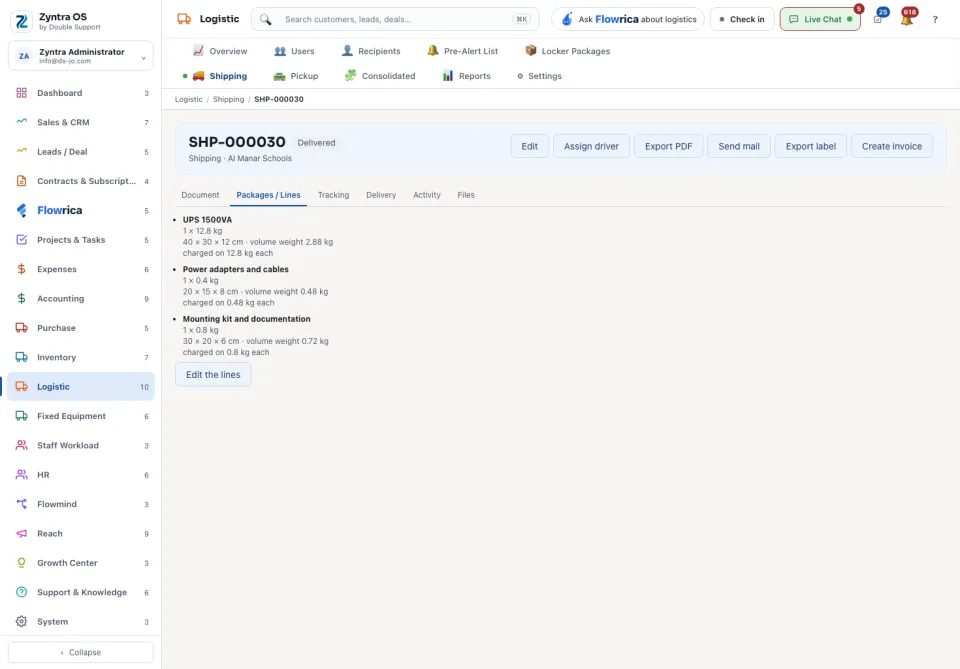
| Packages / Lines | What is inside, one row per parcel: Add lines. The lines are the document’s weight: saving them sets it and prices it again. |
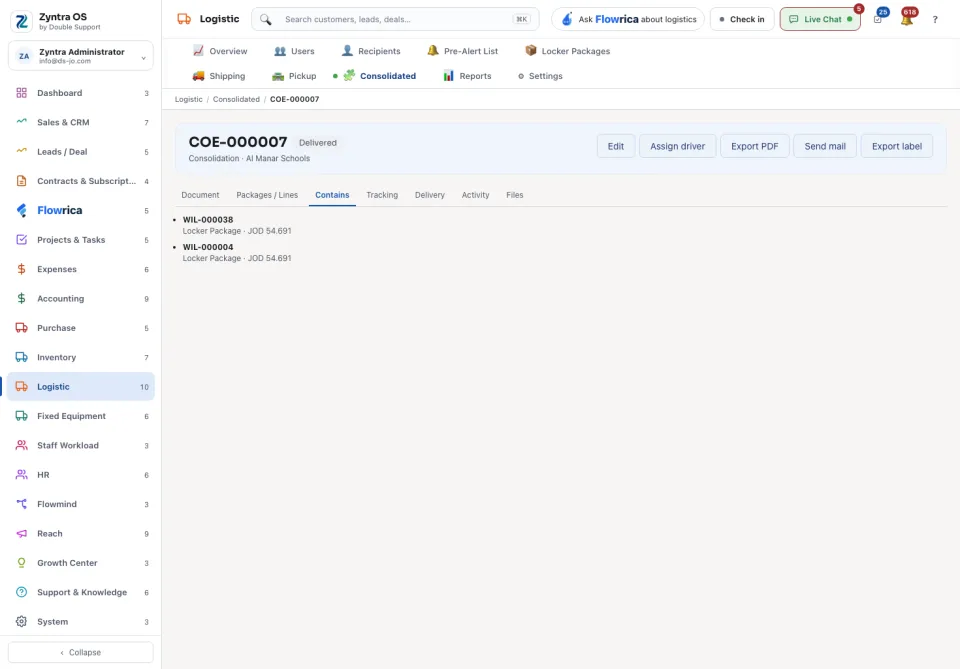
| Contains | On a consolidation only: the documents it holds. |
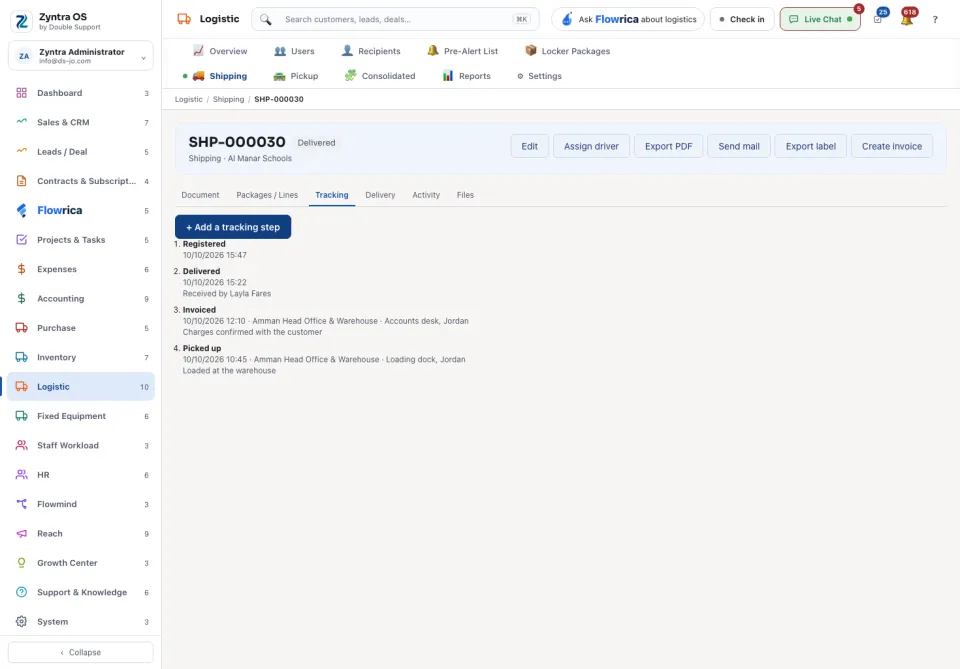
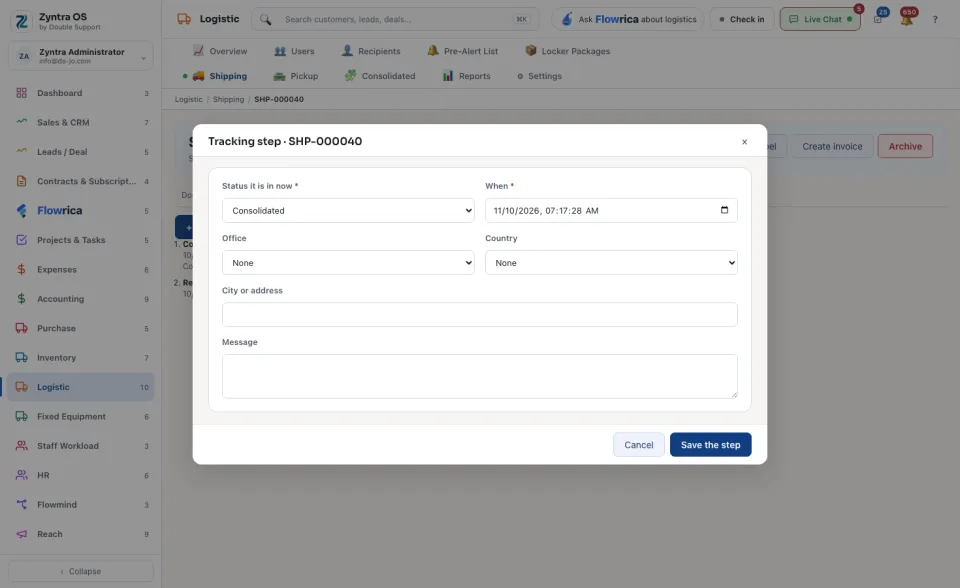
| Tracking | The journey, newest first. + Add a tracking step asks the Status it is in now, When, the Office, the Country, the City or address and a Message; press Save the step. |
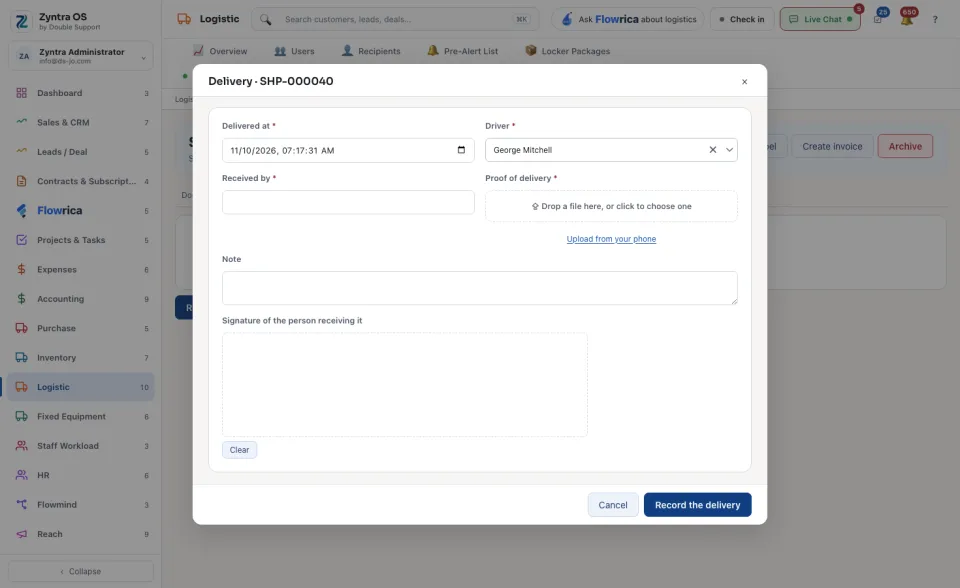
| Delivery | Who took it, when, and who signed for it. Record the delivery asks Delivered at, the Driver, Received by, the Proof of delivery and the Signature of the person receiving it. |
| Activity | Every change to the document, with who made it and when. |
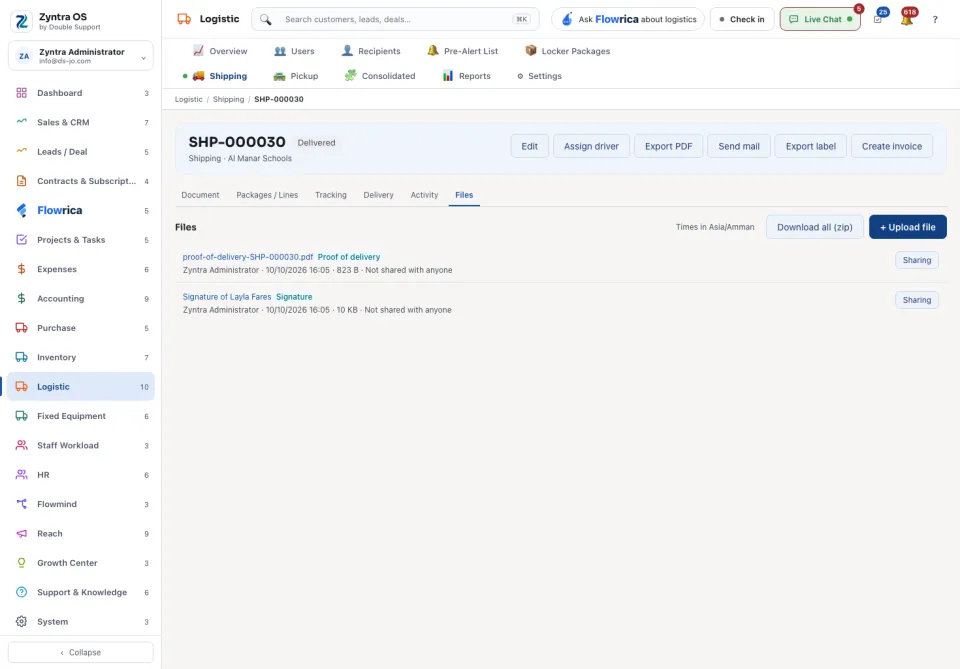
| Files | The files kept with it: + Upload file. |
| Button | What it does |
|---|---|
| Edit | Opens the document’s form again. |
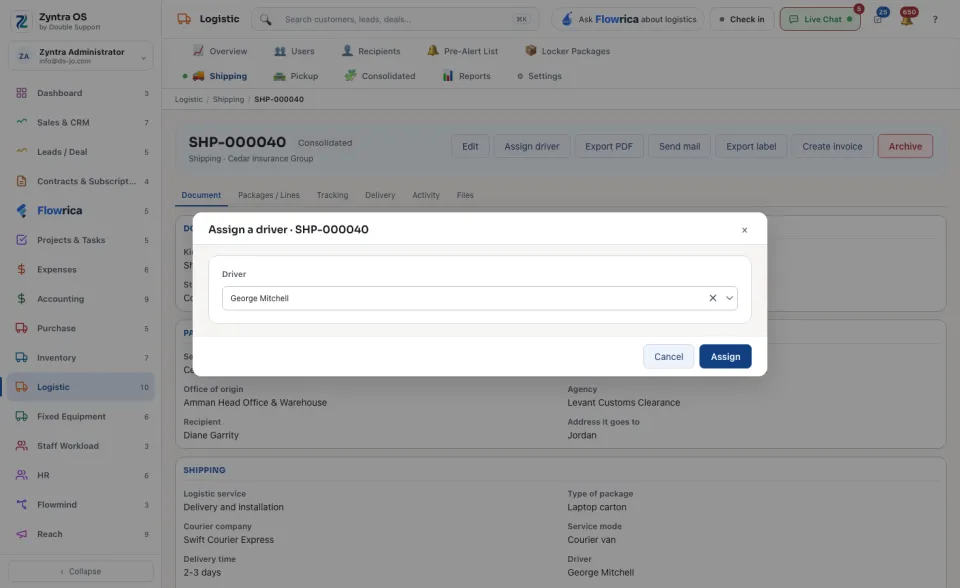
| Assign driver | Choose the Driver and press Assign. A driver is anyone whose role lets them drive. |
| Export PDF, Export label | The document, or its label, as a file. |
| Send mail | Sends the document to the customer’s contacts who may see shipments in their portal. You can add other addresses and tick Attach the PDF. |
| Create invoice | Bills the document, when it can still be billed. |
| Accept, Reject | On a pickup that is waiting. Accepting makes a shipment from the pickup, with its own number; the pickup keeps its number and links to it. Rejecting keeps it a pickup, with your reason on its journey. |
| Archive | Takes it off the list. Show archived brings it back. |