Zyntra OS
 Zyntra Legal
 Zyntra Real Estate
 Zyntra Hotel
 Zyntra E-commerce
 Zyntra Appointments
 Zyntra Repair
 Zyntra Garage
 Zyntra Concierge
 Zyntra Contracting
 Zyntra Clinic
 Zyntra Call Center
 Zyntra OTA
Where
Logistic › RecipientsWho
Anyone allowed to see recipients.Add a recipient
1
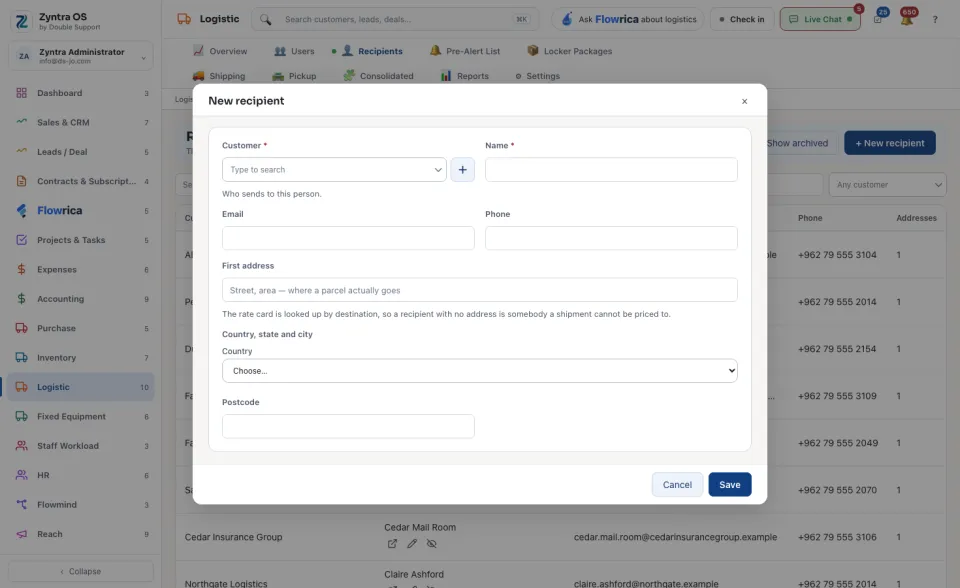
Press + New recipient.
2
Choose the Customer: who sends to this person. Type the Name, and the Email and Phone if you have them.
3
Fill the First address: the street, then the country, state and city, and the Postcode. The rate card is looked up by destination, so a shipment to a recipient with no address cannot be priced.
4
Press Save.
The list
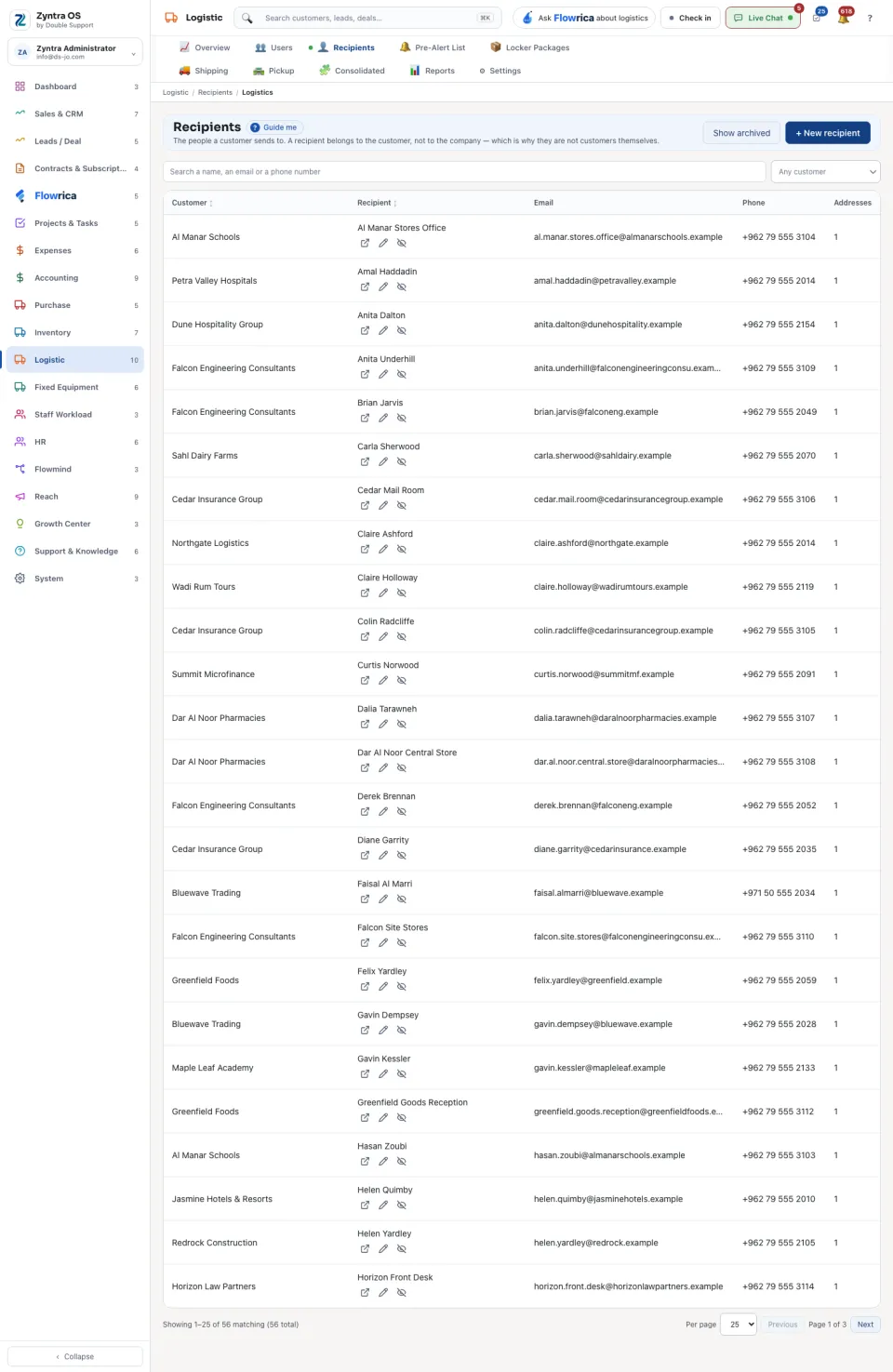
The list shows Customer, Recipient, Email, Phone and Addresses (how many the recipient has). Search a name, an email or a phone number, or narrow the list to one customer. Show archived brings back the ones put away.
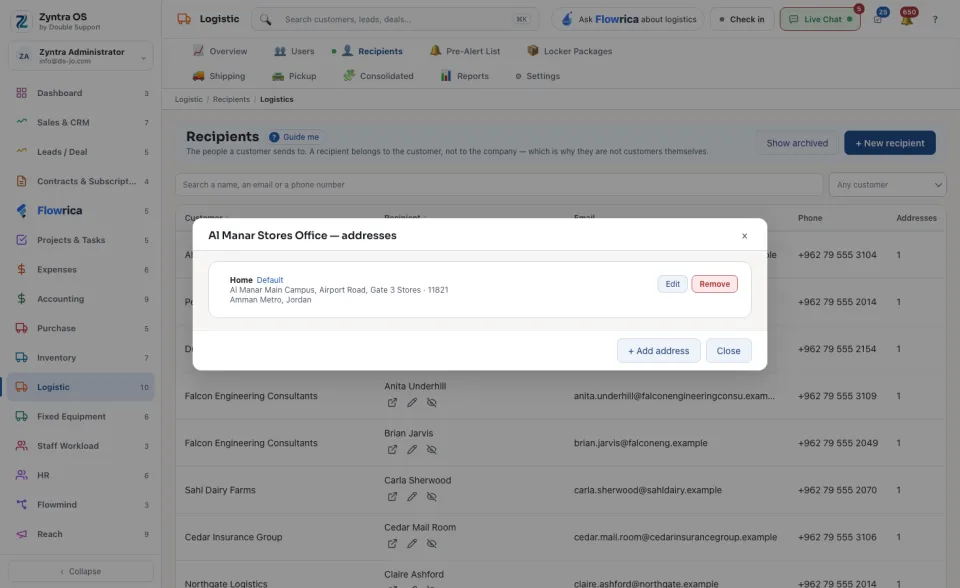
On a row: Addresses, Edit and Archive. Addresses opens the recipient’s addresses, with the default one marked: Edit or Remove an address, or press + Add address. Archiving deletes nothing.