

 Zyntra OS
 Zyntra Legal
 Zyntra Real Estate
 Zyntra Hotel
 Zyntra E-commerce
 Zyntra Appointments
 Zyntra Repair
 Zyntra Garage
 Zyntra Concierge
 Zyntra Contracting
 Zyntra Clinic
 Zyntra Call Center
 Zyntra OTA
Where
Appointments › Overview · CalendarWho
Appointments — View, or Appointments — View own for a person who sees only their own day.Switch it on
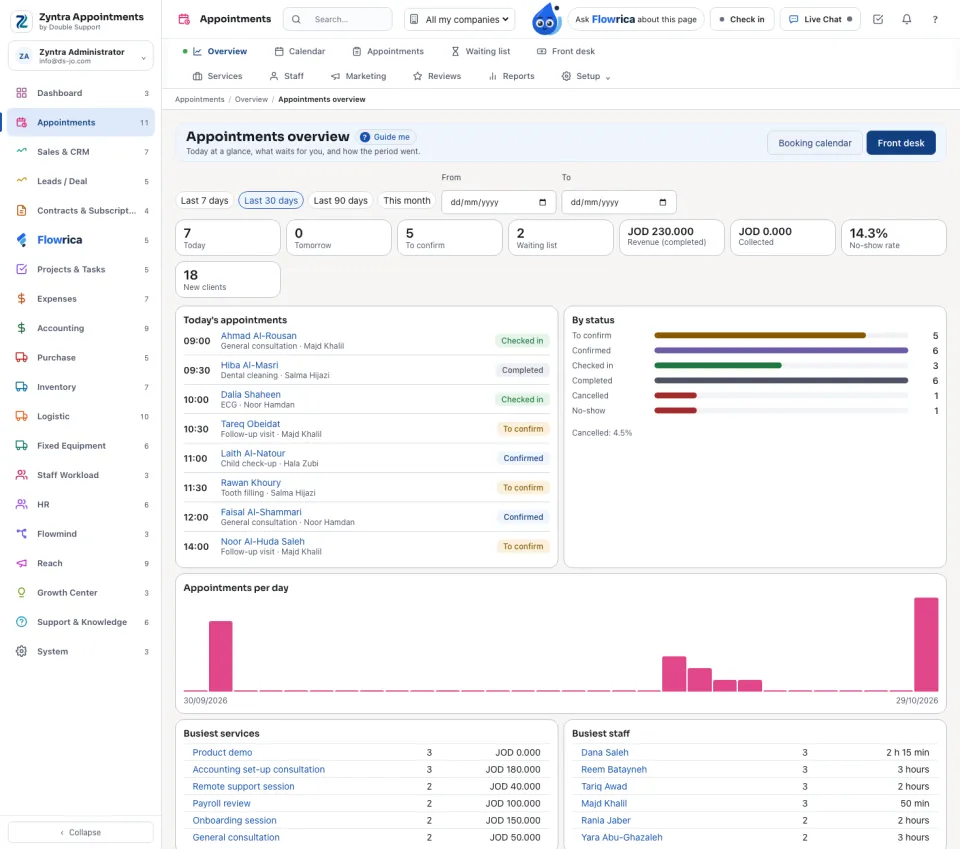
The overview
Today at a glance, what waits for you, and how the period went. Choose the period: Last 7 days, Last 30 days, Last 90 days or This month.
The figures: Today, Tomorrow, To confirm, Waiting list, Revenue (completed), Collected, No-show rate and New clients. Below them: Today's appointments, By status, Where bookings come from, Appointments per day, the busiest services and staff, and Reviews.
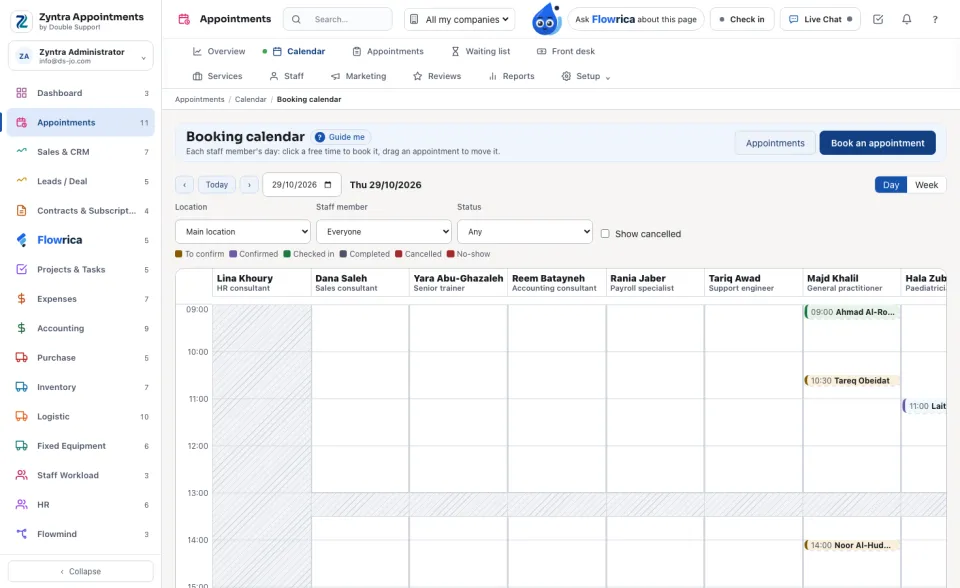
The booking calendar
Each staff member's day: click a free time to book it, drag an appointment to move it. Previous, Today and Next move through the days; Day and Week change the view; narrow it by location, staff and status, and tick Show cancelled to see the cancelled ones.
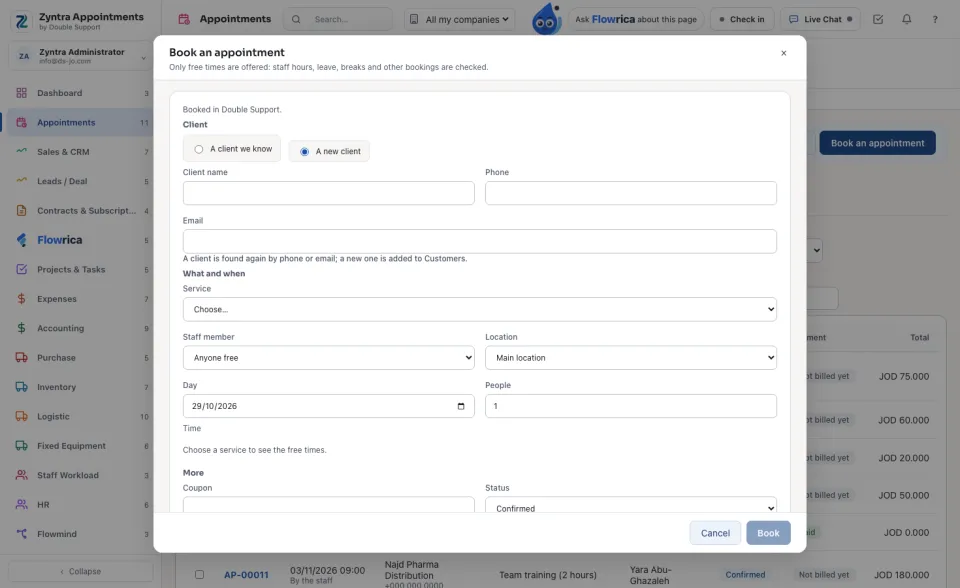
Book an appointment
Who may do what
| Right | What it lets a person do |
|---|---|
| Appointments — View · View own | Every appointment, or only their own (a therapist sees their day). Flowrica answers the same way. |
| Appointments — Create | Book, the front desk, the waiting list, selling a package. |
| Appointments — Edit | Confirm, check in, complete, cancel, move, bill and take payment. |
| Appointment Services, Appointment Staff and Hours | The services and categories; the staff and their groups. |
| Appointment Coupons, Packages and Reviews | Coupons, packages, booking-page offers and reviews. |
| Appointment Reports — View · Appointment Settings — Edit | The reports; the settings and locations. |
The top role holds all of them except View own.
Flowrica in Appointments
A person who sees only their own appointments sees on the overview and the reports only their own figures: their new clients, the waiting list and the reviews of their own appointments. The packages sold are the company's figure, so they are not shown to them.
Questions
Where is “Zyntra Appointments” in Zyntra OS?
Appointments › Overview · Calendar
Who can use “Zyntra Appointments”?
Appointments — View, or Appointments — View own for a person who sees only their own day.