
 Zyntra OS
 Zyntra Legal
 Zyntra Real Estate
 Zyntra Hotel
 Zyntra E-commerce
 Zyntra Appointments
 Zyntra Repair
 Zyntra Garage
 Zyntra Concierge
 Zyntra Contracting
 Zyntra Clinic
 Zyntra Dental
 Zyntra School
 Zyntra University
 Zyntra Social
 Zyntra Call Center
 Zyntra OTA
Zyntra OS features
The client portal of Zyntra OS
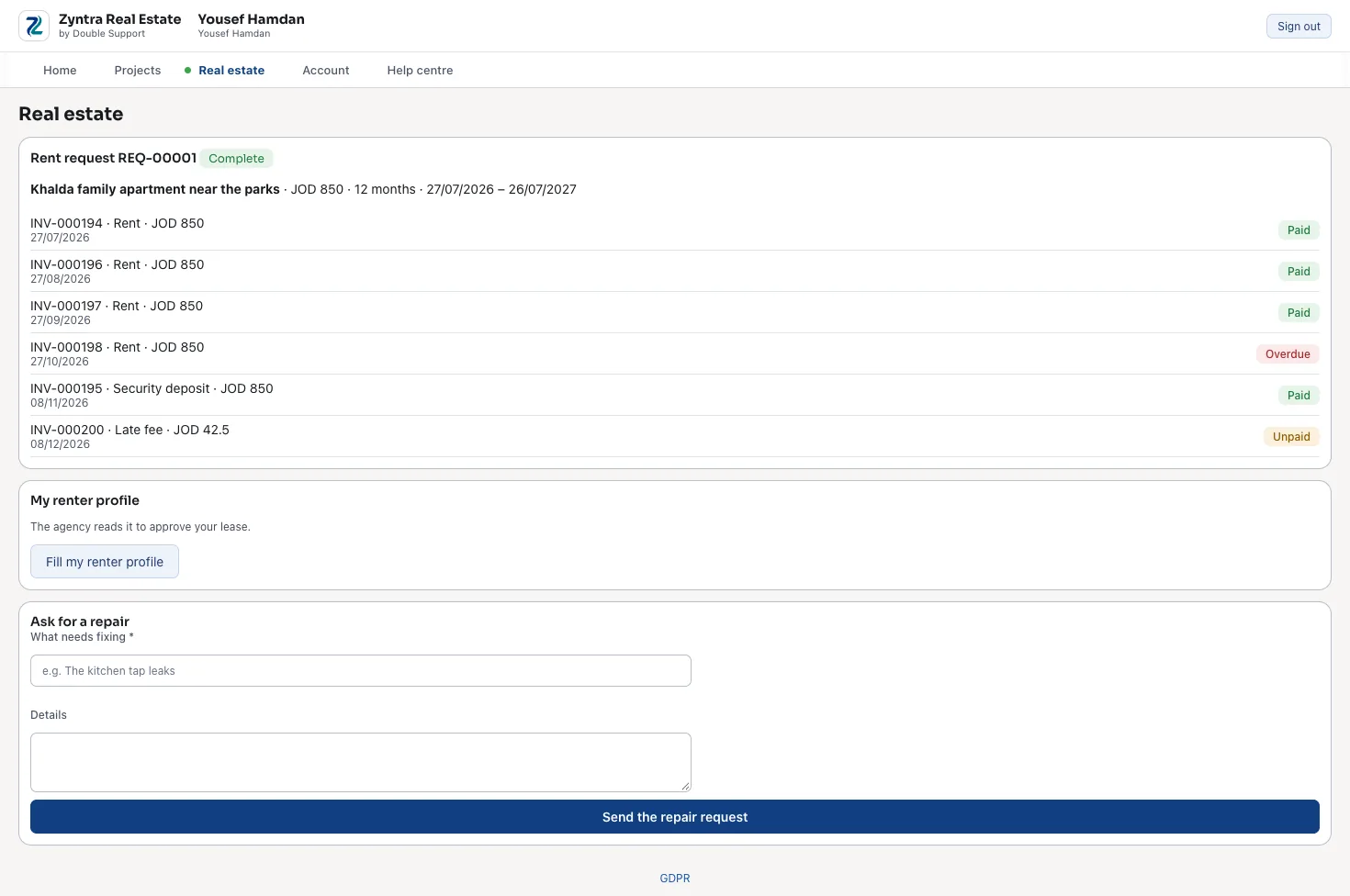
Your customers sign in to a portal of their own: they pay invoices, see their statement, accept proposals, sign contracts, open tickets and follow their projects — and see only what is theirs.
What it does
- Invoices paid online. Through your own payment gateway, recorded against the invoice.
- Estimates and proposals. Accepted or declined, optional lines chosen, with messages on them.
- Contracts signed and projects signed off. In the portal, with comments and files on tasks where the project allows it.
- Support in one place. Tickets opened and answered, the knowledge base and live chat.
- Their statement. What they owe and what they paid, on the screen; a cheque payment shows its number and state.
- Flowrica for your customers. They ask her about their own orders, invoices and projects — and only their own.
- Rights per contact. Each contact opens only the areas you give them; a stopped customer cannot get in by any door.
- In their language. Each contact works in their own language.
- Registration that waits. If you allow customers to register, each one waits until your staff confirm or refuse them.
How it works
- Invite a contactFrom the customer, invite their contact and choose what they may open.
- They sign inWith a password or a sign-in link sent by email.
- They do the restThey pay, accept, sign and ask in the portal; your team sees it at once.
An example: a customer's finance manager in the portal
Your customer's finance manager should pay invoices, but not see the projects. On the customer's Contacts tab, press + Add contact, type the first name, last name and email, and tick the role Billing contact. Under «What they may see on the portal», tick Invoices and leave Projects unticked: unticked means she cannot open it, even with a link. Press Generate for a portal password, or let the system mail her a welcome, then Save.
She signs in, in her own language, and sees only her company's invoices. She pays one through your own payment gateway, and the payment is recorded against the invoice; your team sees it at once. An invoice can only be sent to contacts allowed to see it, so the project manager at the same customer, given Projects, follows and signs off the projects instead.
Step by step, with pictures of the real screens: Add a contact, and give them the portal.
Questions
What can customers do in the client portal?
Pay invoices, see their statement, accept estimates and proposals, sign contracts, open tickets, follow and sign off projects, and ask Flowrica about their own records.
Do customers see each other's records?
No. Each contact sees only what is theirs, and only the areas you give them.
How many portal users are included?
The client portal comes with every product, with up to 50 portal users; for more, ask us for the price.
Can a contact sign in without a password?
Yes. A contact signs in with a password or with a sign-in link sent by email.
Can customers register for the portal themselves?
If you allow customers to register, each one waits until your staff confirm or refuse them.
Can a stopped customer still get in?
No. A stopped customer cannot get in by any door.
See it with your own work
Ask for a demo and our team will show it to you, in your language — Arabic too.