

 Zyntra OS
 Zyntra Legal
 Zyntra Real Estate
 Zyntra Hotel
 Zyntra E-commerce
 Zyntra Appointments
 Zyntra Repair
 Zyntra Garage
 Zyntra Concierge
 Zyntra Contracting
 Zyntra Clinic
 Zyntra Call Center
 Zyntra OTA
Where
Sales & CRM › Customers & Estimates › Customers › the customer › ContactsWho
Anyone allowed to edit the customer.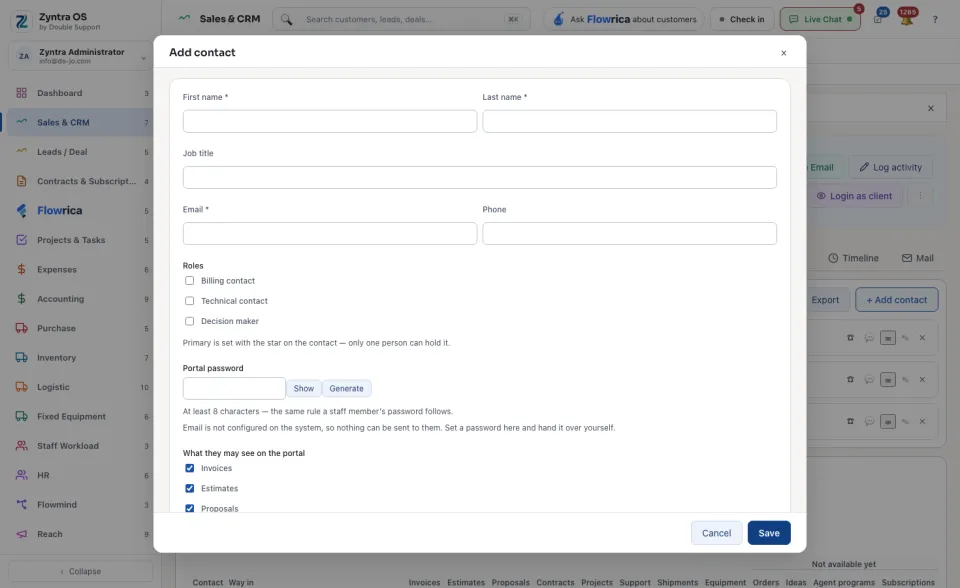
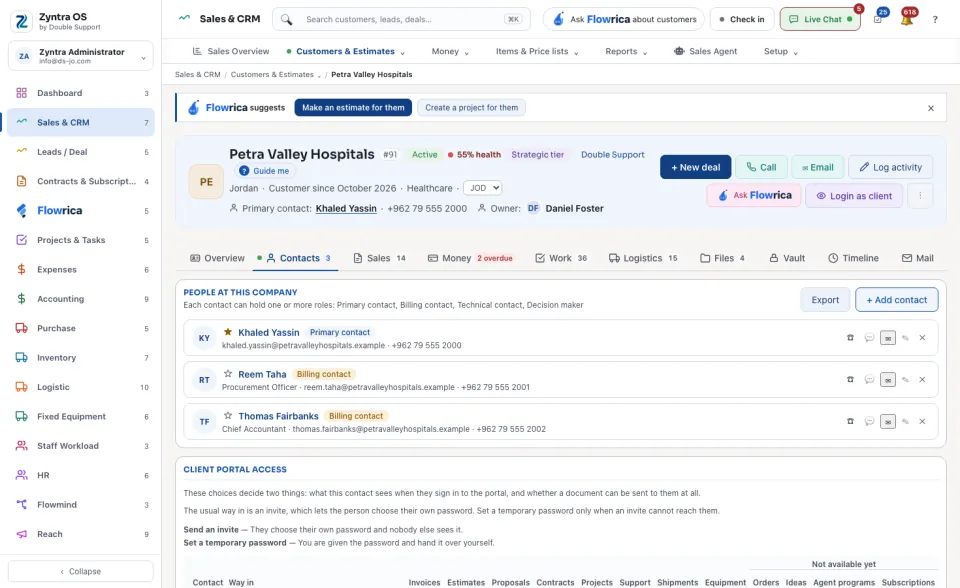
The list of contacts shows each person with their roles. The star makes a person the Primary contact; only one person can hold it. The small buttons on a contact's row call, message or mail them, edit them or remove them.
Equipment on the portal
A contact given Equipment sees the company’s shop window: the equipment it offers, by kind (Everything, Assets, Licenses, Accessories, Components, Consumables) and Category, with a search and a choice of For sale or rent, For sale or For rent. Each item shows its price (or Price on request), whether it is In stock or Out now, and its Manufacturer, Model and Warranty.
Only equipment ticked Offered for sale or Offered for rent on its own page (with its Selling price or Rental price) is shown, and only while it can still go: not archived, not sold, not waiting for its delivery. A thing offered only for sale leaves the shop while it is checked out; one offered for rent stays, saying when it is back. The whole area can be switched off for the company in the client portal settings. See Your equipment.
Asking for something. On an item, choose How many and press Add to my request; for a rental choose the First day and how long, and press Add the rental to my request. Your request lists what is chosen: Take out a line, add A note for the company, then Send the request — or Keep looking. A request bills nothing and ships nothing: the company confirms it first (see Portal requests).
My requests shows each request with its lines and its state: Waiting for the company, Confirmed, Refused (with the company’s reason) or Cancelled. Before the company answers, Cancel the request and choose why. Once confirmed, each line reads Ordered, Booked, With you, Sold to you or Returned, and a delivery opens its Delivery voucher (PDF). Ask for a return chooses Which items and What kind of return — The rental period is over, For maintenance or repair or Return and get money back — with the reason; the company’s answer appears on the request.
My equipment lists the company’s equipment with the customer now, and How you have it (rented until a day, or bought). Report an issue sends a Subject and What happens to Support with Send to Support; it needs the contact to have Support in the portal too.