 Zyntra Legal
 Zyntra Real Estate
 Zyntra Hotel
 Zyntra E-commerce
 Zyntra Appointments
 Zyntra Repair
 Zyntra Garage
 Zyntra Concierge
 Zyntra Contracting
 Zyntra Clinic
 Zyntra Dental
 Zyntra School
 Zyntra University
 Zyntra Call Center
 Zyntra OTA
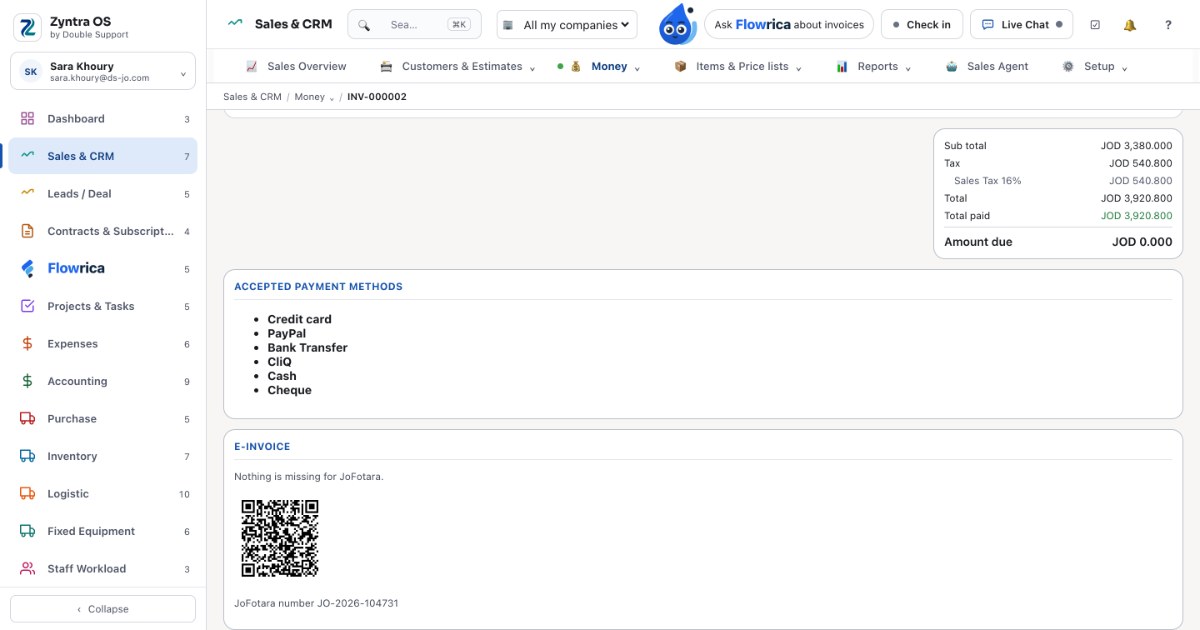
JoFotara is Jordan’s National Invoicing System, run by the Income and Sales Tax Department. A business registered with the department submits its invoices to it, and each accepted invoice comes back with its own QR code. There are two ways to do it: type each invoice into JoFotara’s portal yourself, or issue the invoice in your accounting software and let the software send it. This article walks through the second way as it works in  Zyntra OS, the system Double Support makes in Amman — and Double Support is an approved e-invoicing provider in JoFotara.
Two ways to send an invoice to JoFotara
By hand, on the portal. You sign in to JoFotara with the account the department gave you and type the invoice: the buyer, each line, the tax. It suits a business that issues few invoices. Every invoice is written twice — once in your own books and once on the portal — and the two must match.
From your accounting software, through the integration. The invoice is written once, in your software. When you save it (or press a button, as your company chooses), the software sends it to JoFotara, keeps the answer, and prints JoFotara’s QR code on the invoice. Nothing is typed twice, and your books and JoFotara hold the same invoice.
What you need before you start
From your JoFotara account and your registration with the department you need five things: your registered name, your tax number, your income source sequence, and the two keys JoFotara gives for an integration — the client ID and the secret key. In Zyntra OS they are entered once, in Setup › E-invoicing & tax. The two keys are sealed when they are saved: no screen shows them again, it only says whether they are set.
Choose the invoice types your company issues
JoFotara reads every invoice by its type, and the type answers three questions:
- Where is it sold? In Jordan, for export, or in a development zone.
- How is it paid? In cash, or on account (a receivable).
- Which tax does it carry? Income, general sales tax, or special sales tax.
Zyntra OS holds every combination JoFotara reads. Your company chooses the ones it really issues, and each customer carries its own type on its page, so a new invoice for that customer takes the right type by itself. When a customer has no type yet, the invoice asks for one before it is issued — it is never sent under a guess.
Income invoice or sales tax invoice?
This is the question businesses ask most. An income invoice (فاتورة دخل) is the type a business uses when it is not registered for general sales tax: it carries no sales tax. A general sales tax invoice is the type a business registered for sales tax uses: the tax is stated on its lines. A special sales tax invoice is for goods and services that carry special sales tax. Your registration with the department decides which of them apply to you; if you are unsure, your accountant or the department will tell you. In Zyntra OS you choose them once, in the same place as the keys.
Corrections: the credit note — and what about a debit note?
Once JoFotara accepts an invoice, Zyntra OS locks it: no one changes an accepted invoice. A correction goes through a credit note (إشعار دائن), which names the invoice it corrects as JoFotara knows it, and is sent to JoFotara like the invoice was.
Zyntra OS sends two kinds of document to JoFotara: the invoice and the credit note. When a customer owes you more than an invoice said, it is a new invoice, sent like any other. A debit note (إشعار مدين) in Zyntra OS belongs to purchasing: it records money a supplier owes you, and it stays in your own books.
When the invoice is sent
Your company chooses: on save, or by a button on each invoice. Sending is switched on by a super administrator, and an invoice issued before that moment is never sent by itself — if one of them must go, it is sent from its own page, after you confirm it.
Before an invoice goes, its E-invoice card lists anything JoFotara would still need to read it, such as a buyer’s details. The invoice is sent when the card has nothing left.
What comes back
JoFotara answers every invoice. When it accepts one, its QR code is printed on the invoice — on the screen and in the PDF — with the invoice’s JoFotara number. Every attempt is kept, and when the network fails the invoice is tried again by itself, up to five tries in all. You can see on each invoice what was sent, when, and what JoFotara said.
Moving from Excel invoices to JoFotara
Many businesses come to JoFotara from invoices made in a spreadsheet. The step is smaller than it looks: your customers and items come into Zyntra OS once, and from then on each invoice is written in the system and sent from it. Your invoices, payments and reports still export to Excel or CSV whenever you need them, so the spreadsheet stays a report, not the book.
What the JoFotara connection costs
In Zyntra OS the JoFotara connection is one of the 117 ready connections, all included free. There is no setup fee and no hidden price: the price the pricing page builds is the price on our invoice. More coming soon — we keep working to make our system ready for everything you use.