

 Zyntra OS
 Zyntra Legal
 Zyntra Real Estate
 Zyntra Hotel
 Zyntra E-commerce
 Zyntra Appointments
 Zyntra Repair
 Zyntra Garage
 Zyntra Concierge
 Zyntra Contracting
 Zyntra Clinic
 Zyntra Call Center
 Zyntra OTA
Where
Cases & Tasks › Cases › a case › CaseWho
Anyone who may see the case reads it; changing it needs Projects — edit.Case details
1
Open the case and its Case tab. Press Add case details (later Edit case details).
2
Fill the Case number, the Court, the Case type (Civil, Criminal, Commercial, Labour …), the Stage (First instance, Appeal, Cassation / supreme, Enforcement, Closed), the Judge / panel, the Filing date and Our side. Press Save.
The same details can be filled when the case is made, in the optional Case part of the new case form.
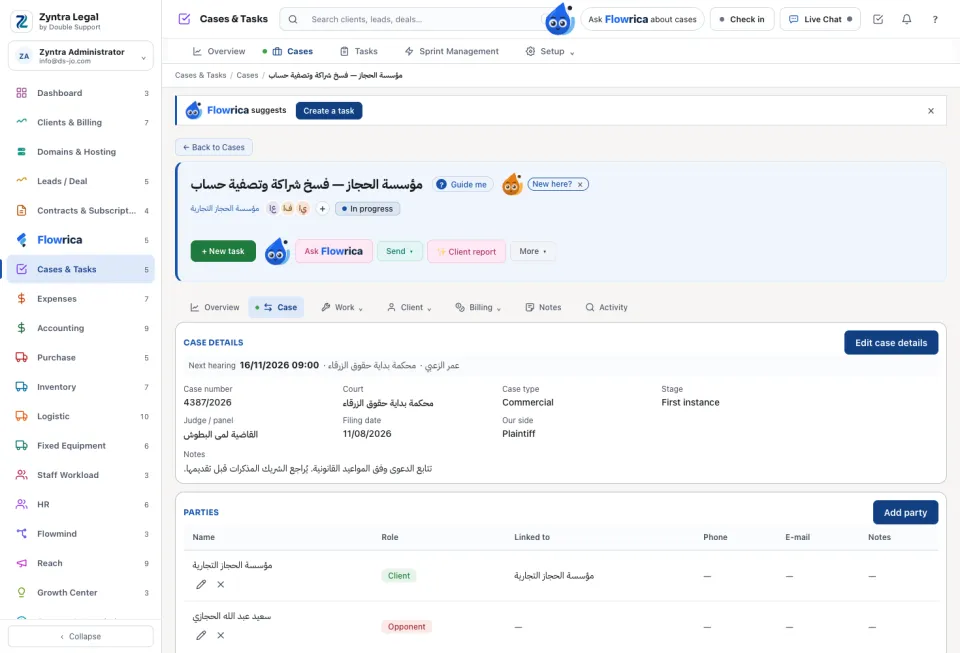
Parties and the name check
1
Press Add party. Choose the Role (Client, Opponent, Opponent's lawyer, Witness, Expert, Other) and the Name, and link it to a client or a contact if there is one.
2
While you type, the office's clients, their contacts and the parties of other cases are searched. A possible conflict is shown: for example a new opponent who is already a client. It is a warning only: you decide, and saving is still allowed.
The Check a name card does the same search on its own, before taking on a new client. Nothing is added.
Hearings
1
Press Add hearing. Give the Date and time, the Court / hall, the Purpose and the Lawyer attending. Press Save: the hearing appears in that lawyer's calendar. Nothing is sent to anyone.
2
After the hearing, Edit hearing to write the Outcome and the Next hearing date, or press Add the next hearing.
Changing or removing a hearing here changes the calendar too. In the calendar a hearing is marked Hearing with Open the case.
Questions
Where is “The Case tab: details, parties and hearings” in Zyntra OS?
Cases & Tasks › Cases › a case › Case
Who can use “The Case tab: details, parties and hearings”?
Anyone who may see the case reads it; changing it needs Projects — edit.