

 Zyntra OS
 Zyntra Legal
 Zyntra Real Estate
 Zyntra Hotel
 Zyntra E-commerce
 Zyntra Appointments
 Zyntra Repair
 Zyntra Garage
 Zyntra Concierge
 Zyntra Contracting
 Zyntra Clinic
 Zyntra Call Center
 Zyntra OTA
Where
System › Setup › Companies, then the company's nameWho
Anyone allowed to see the accounting settings.The head gives the company's name and whether it keeps its own books, with Edit and Archive. Under it, Flowrica noticed lists what is still missing for this company, for example that no tax is chosen for a new invoice line. Press Open on a line to go to that setting, or Set up this company to set them with her.
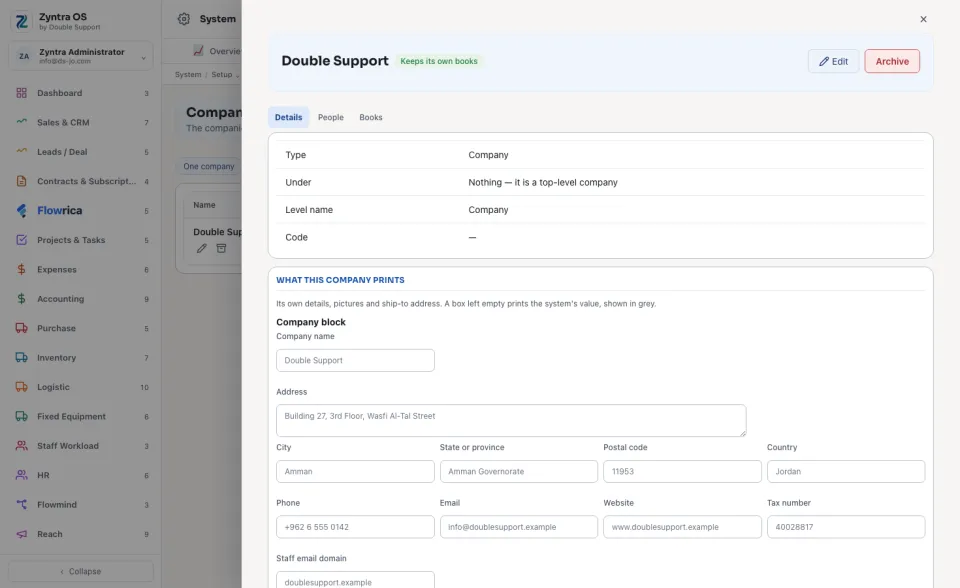
The company block
A company that keeps its own books prints its own name and tax number. On an invoice or a credit note the tax number always prints when the company has one.
Pictures and the ship-to address
Under Pictures, give the company its Logo, Letterhead, Logo for dark backgrounds and Signature (printed on documents): press Choose a file, or Upload from your phone. Until you do, each one uses the system's picture.
Ship-to address for purchases is where your suppliers deliver. It prints on purchase orders.
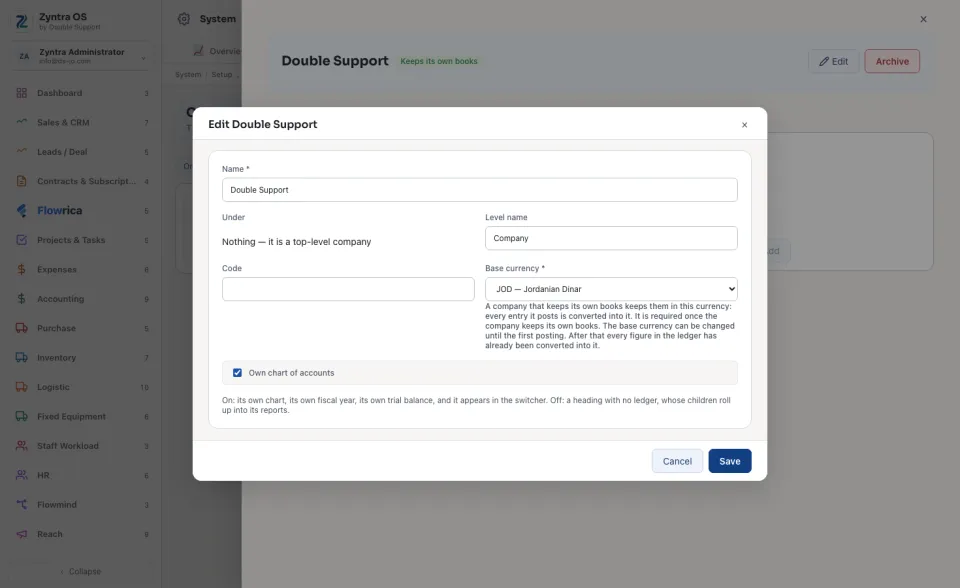
Change the name, code or currency
Press Edit at the top of the company. You can change its Name, Level name, Code, Base currency (until its first posting) and Own chart of accounts.
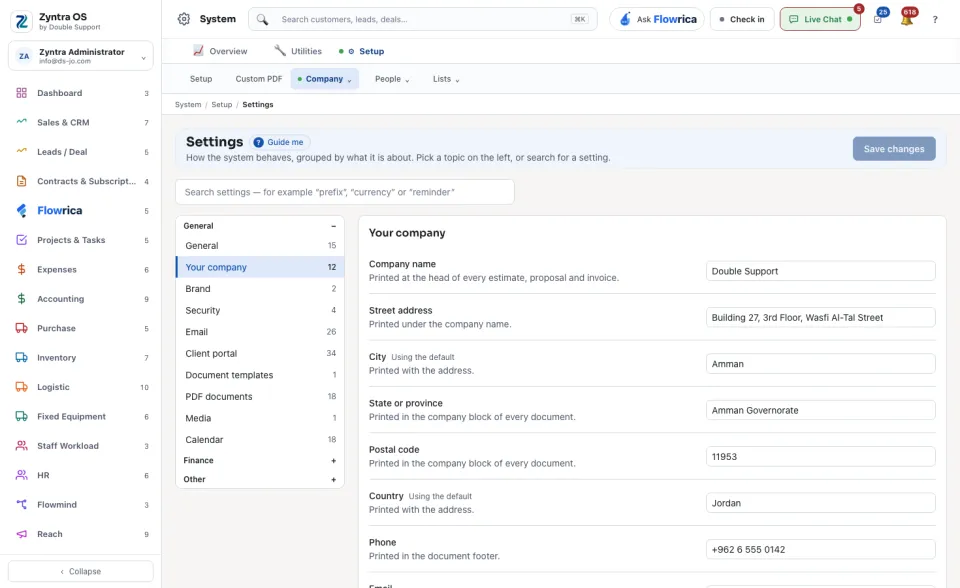
The system's own details
System › Setup › Settings › Your company holds the system's company block. A company that leaves a box empty prints this value instead. Change what you need and press Save changes.
Who works in a company
The People tab lists who is Placed in this company. Under Place someone in this company, choose a person and press Add. A person placed in no company works in all of them.
To stop using a company, press Archive at the top of it. Its records are kept.