

 Zyntra OS
 Zyntra Legal
 Zyntra Real Estate
 Zyntra Hotel
 Zyntra E-commerce
 Zyntra Appointments
 Zyntra Repair
 Zyntra Garage
 Zyntra Concierge
 Zyntra Contracting
 Zyntra Clinic
 Zyntra Call Center
 Zyntra OTA
Where
Support & Knowledge › Live ChatWho
Anyone allowed to answer live chats.Be ready to be asked
1
Press Live Chat on the top bar and choose Available. While you are Away, nobody is sent to you.
2
The number on Live Chat counts the visitors waiting and the new messages in your own chats, so you see them from any screen. A short sound plays when one arrives.
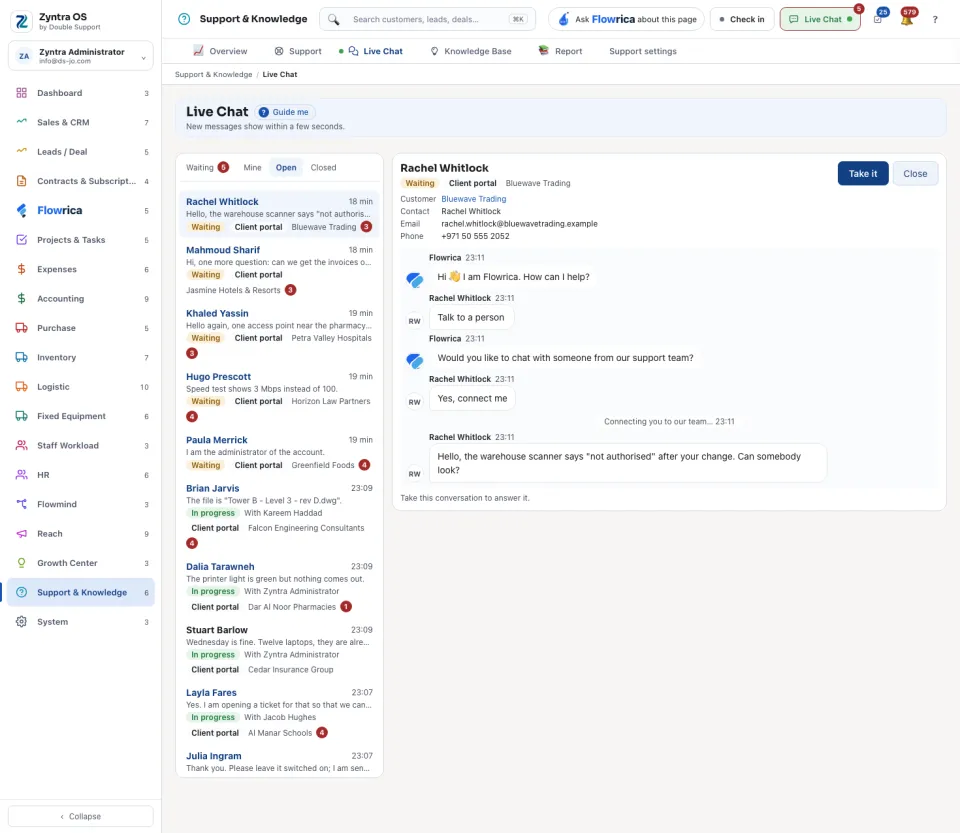
Take a conversation and answer it
1
Open Waiting and press a conversation in the list.
2
Press Take it. The conversation moves to Mine, and the visitor reads that you joined.
3
Write in the box and press Enter to send. For a new line, hold Shift while you press Enter.
4
Mine shows how many new messages are waiting in your conversations.
What you can do with it
| Button | What it does |
|---|---|
| Transfer | Passes the conversation to a colleague who is Available. |
| Make a lead | Keeps the visitor as a lead, with the conversation on it. |
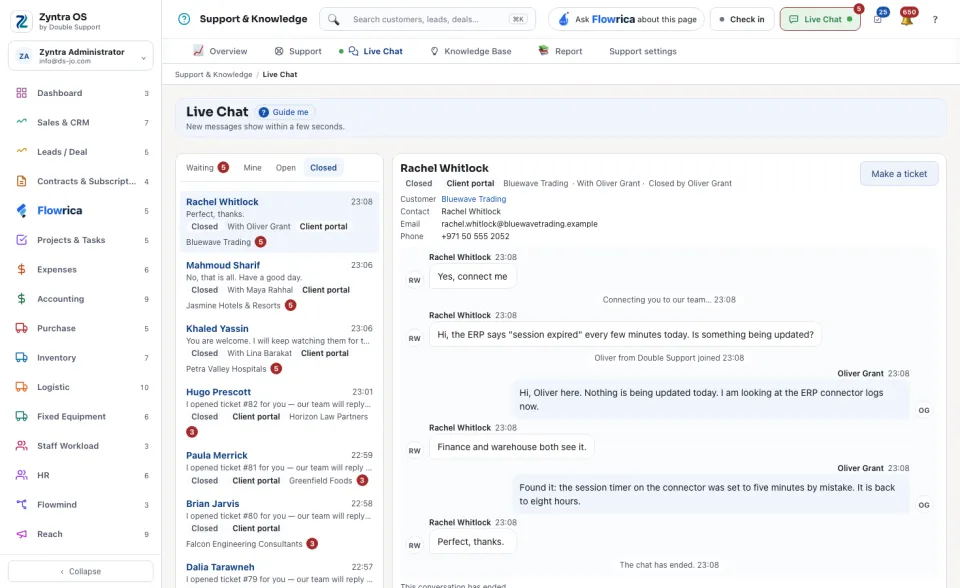
| Make a ticket | Opens a ticket from the conversation, so the answer can follow later. |
| Close | Ends the conversation. The visitor reads that it ended. |
| Take over | For who looks after Support: answers a conversation a colleague holds. |
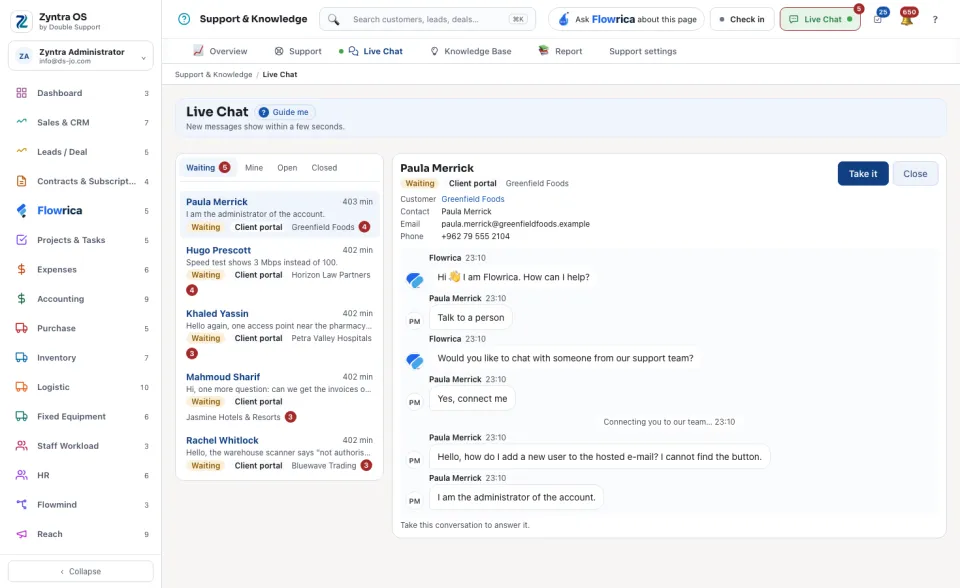
When nobody takes a conversation in time, Flowrica asks the visitor for their name and a way back, and makes a lead.
Next: Open and answer a ticket