

 Zyntra OS
 Zyntra Legal
 Zyntra Real Estate
 Zyntra Hotel
 Zyntra E-commerce
 Zyntra Appointments
 Zyntra Repair
 Zyntra Garage
 Zyntra Concierge
 Zyntra Contracting
 Zyntra Clinic
 Zyntra Call Center
 Zyntra OTA
Where
Support & Knowledge › Knowledge BaseWho
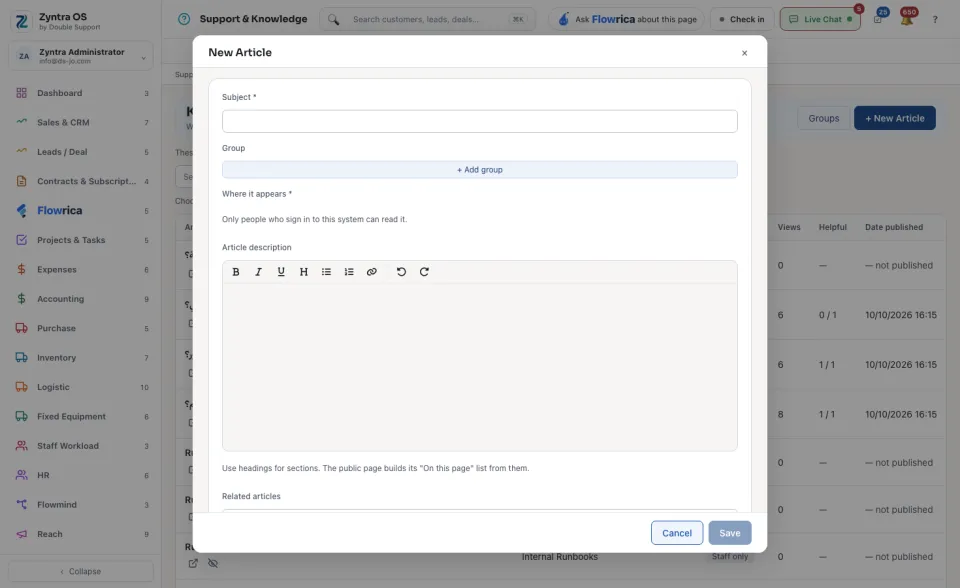
Anyone allowed to write articles.Write an article
Groups
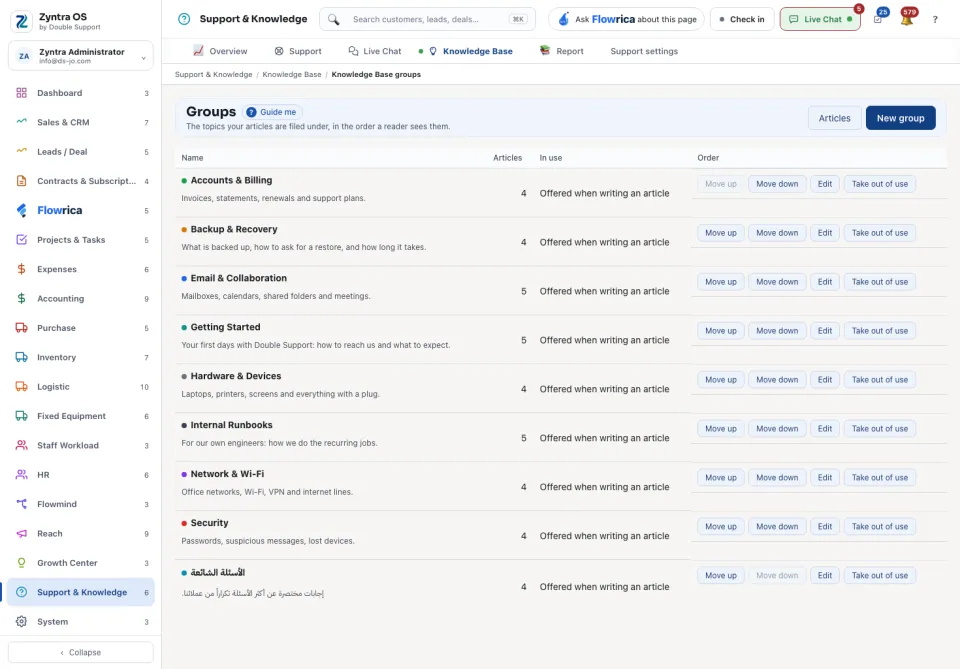
Press Groups to open the topics your articles are filed under, in the order a reader sees them. New group adds one. Articles takes you back to the list.
The list
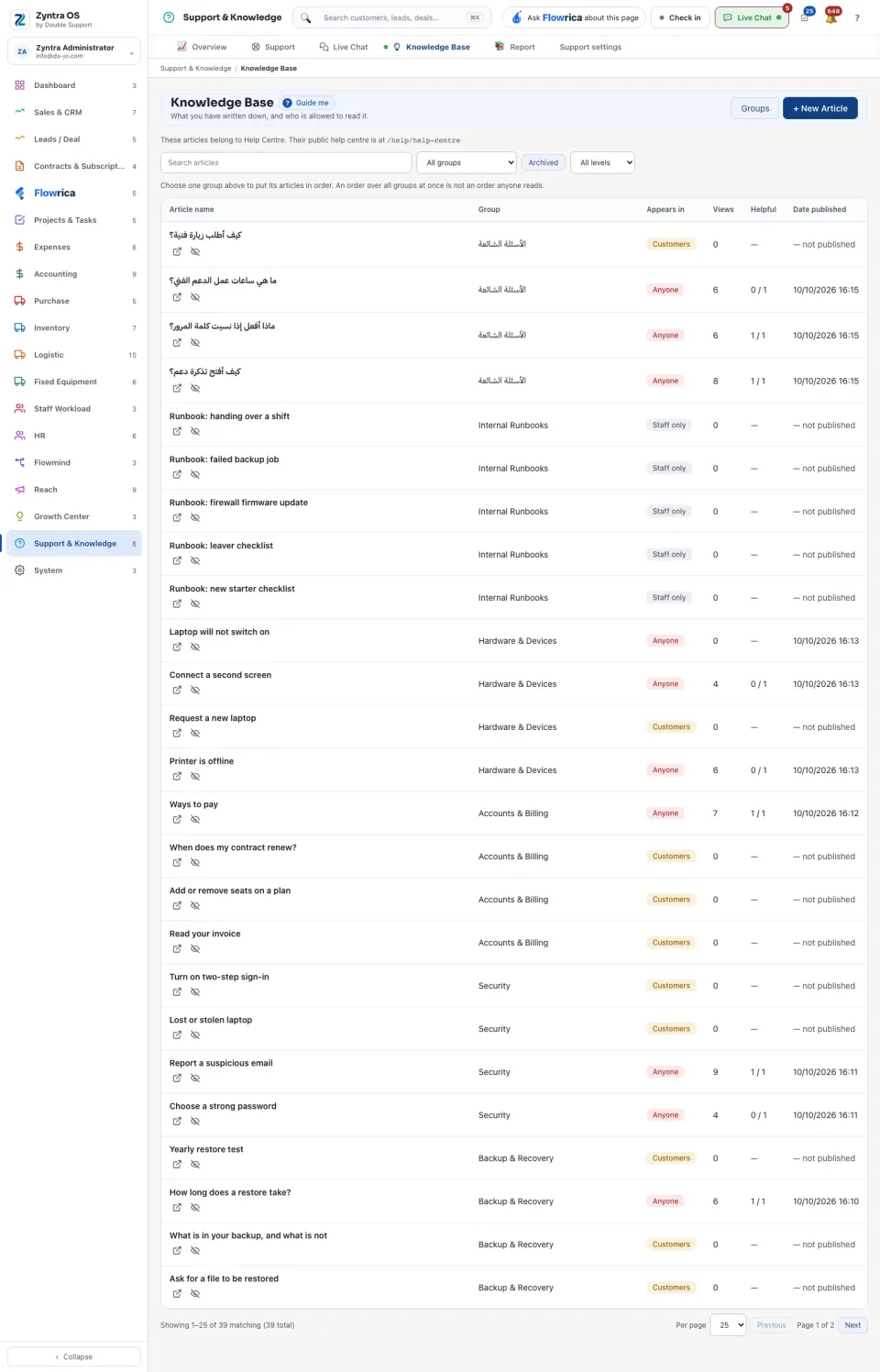
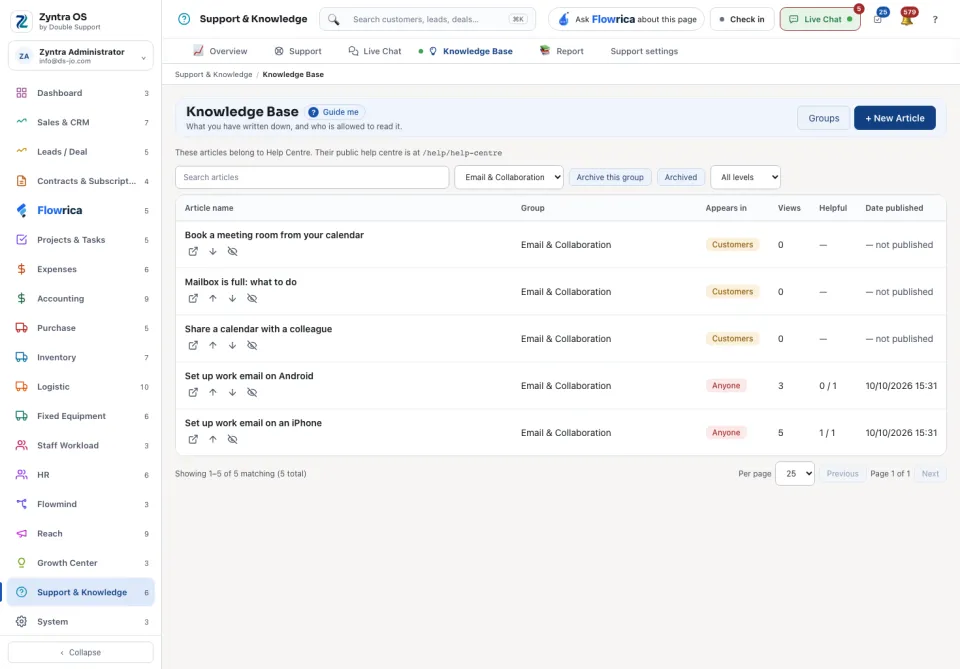
Search articles finds an article. Archived shows the archived ones. To put a group's articles in order, choose that one group first. When your articles belong to a help centre, the screen shows the address of its public page. The table shows where each article Appears in, its Views and how many readers found it Helpful.
The article's page
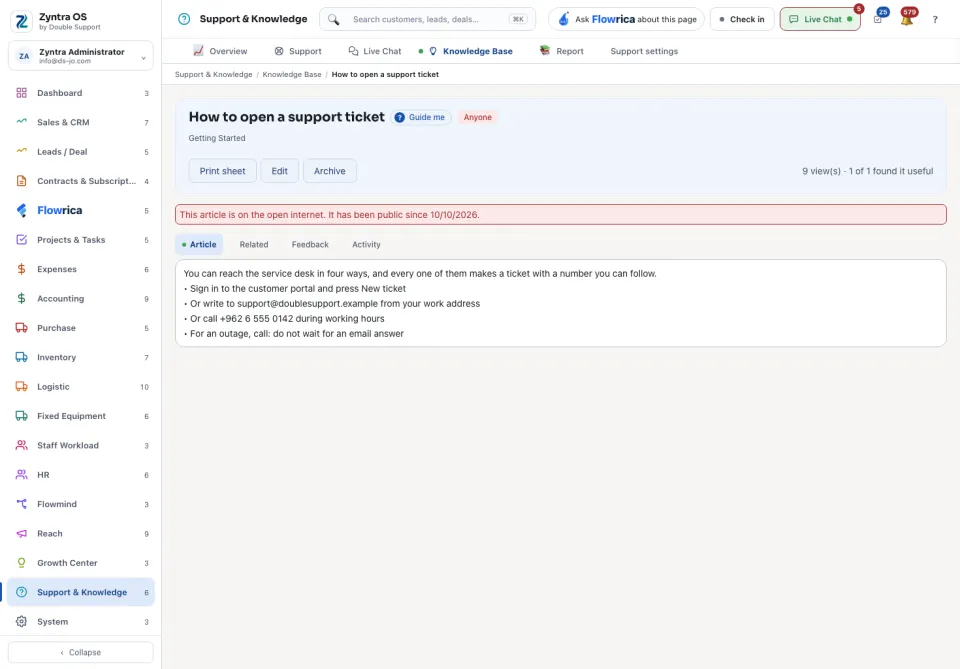
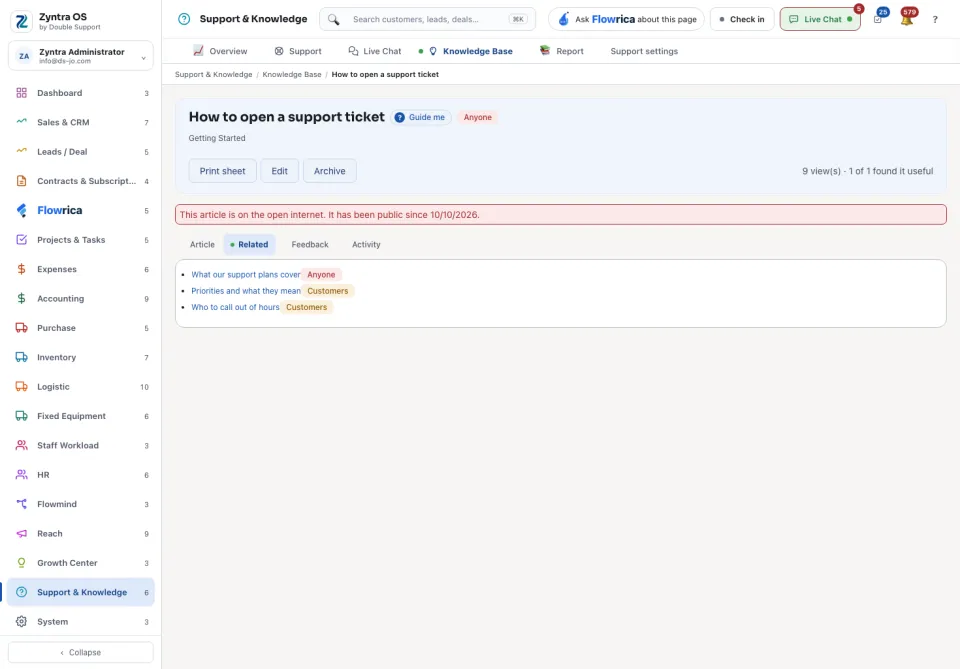
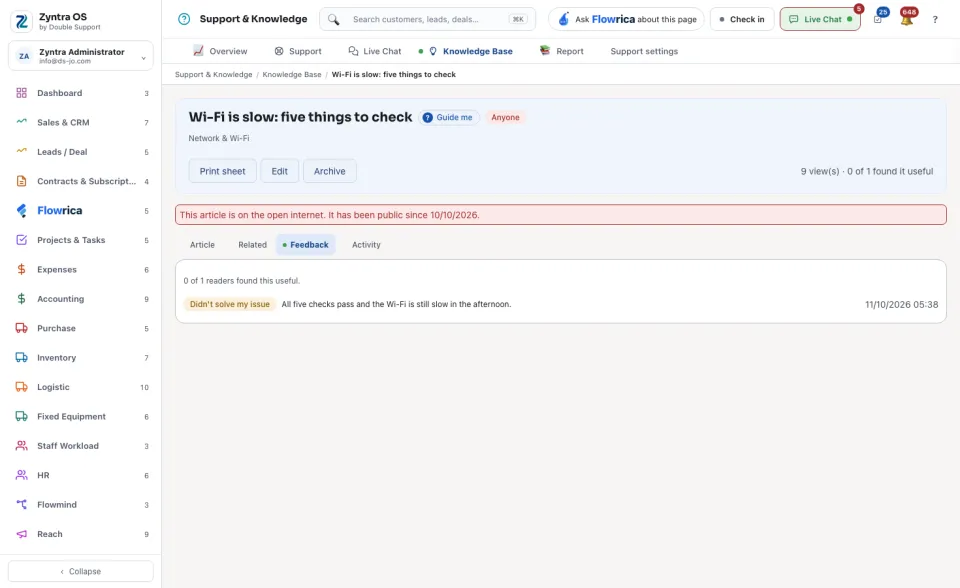
Press an article's name to open it. The head says its group, who can read it, how many times it was viewed and how many readers found it useful. Its buttons are Print sheet, Edit and Archive. The tabs are Article (the text), Related (the articles shown at the bottom), Feedback (how readers voted and what they said was missing) and Activity (who wrote and changed it).
Flowrica on this screen
Press Guide me and Flowrica points at each part of the screen. She can write an article with you, one question at a time. Nothing is saved until you press the form's own button.