

 Zyntra OS
 Zyntra Legal
 Zyntra Real Estate
 Zyntra Hotel
 Zyntra E-commerce
 Zyntra Appointments
 Zyntra Repair
 Zyntra Garage
 Zyntra Concierge
 Zyntra Contracting
 Zyntra Clinic
 Zyntra Call Center
 Zyntra OTA
Where
Support & Knowledge › SupportWho
Anyone allowed to work on tickets.Open a ticket
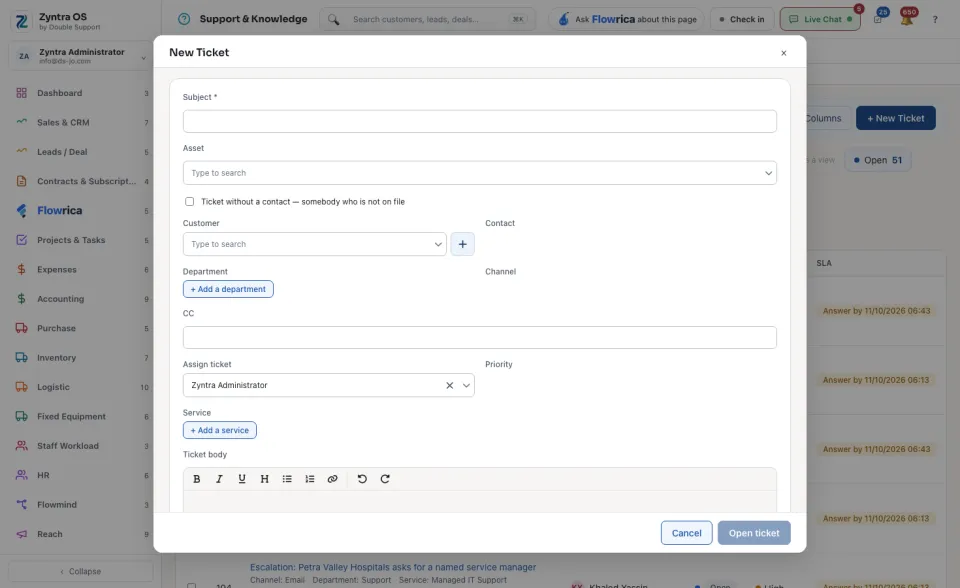
Answer it
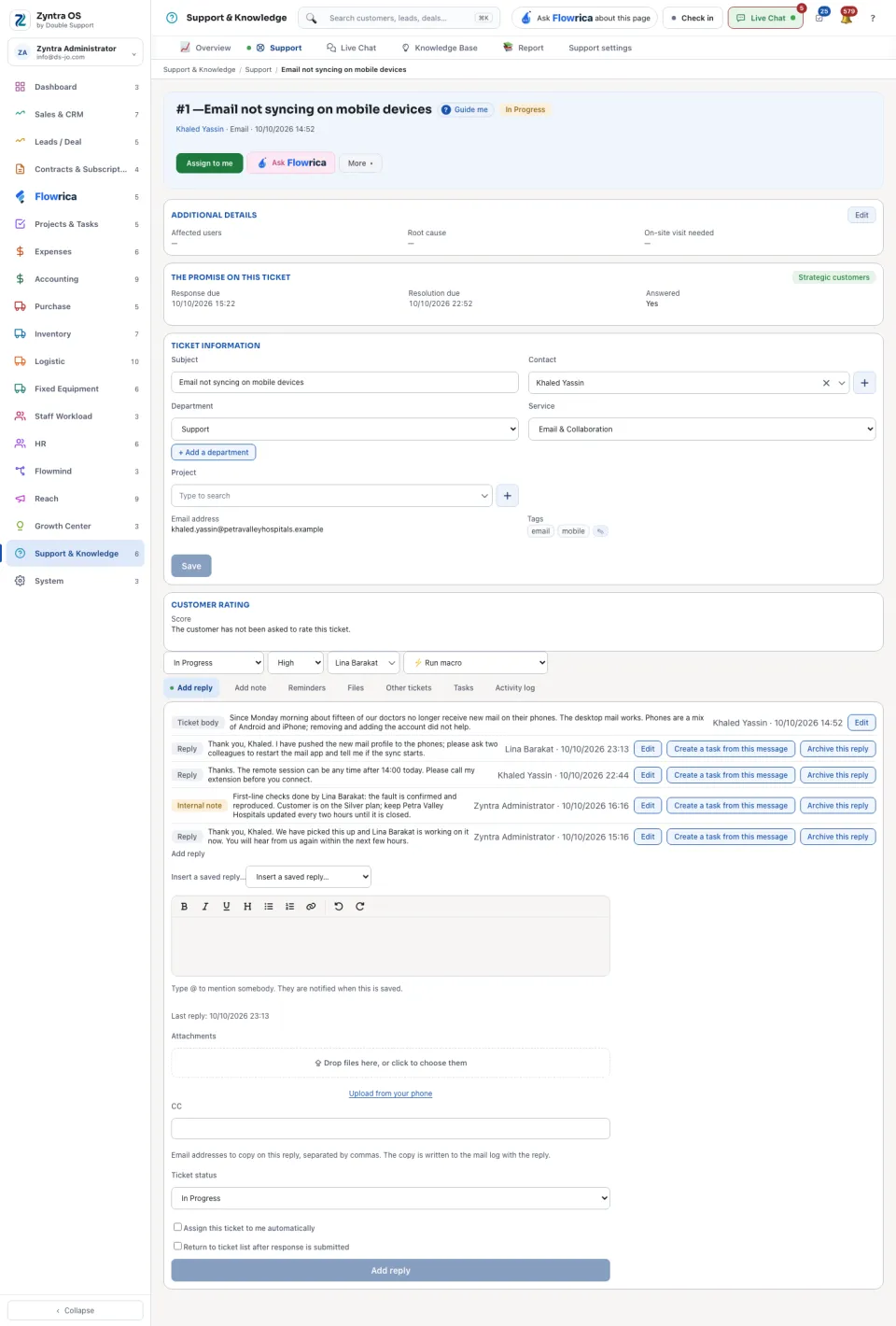
The ticket's page
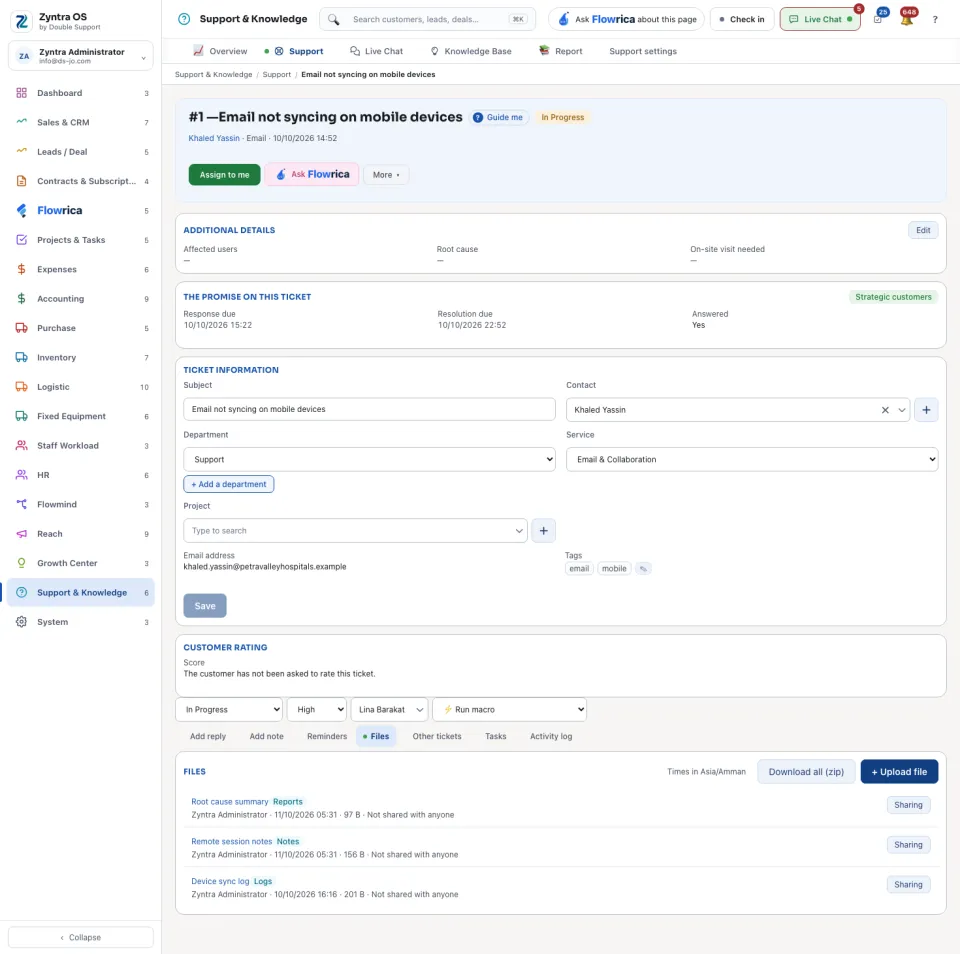
On the side are the Ticket information (subject, contact, department, service, project and Tags), with Save, and the Customer rating. In the head, Ask Flowrica answers questions about this ticket, and More holds Print sheet, Merge ticket and Archive.
| Tab | What it is for |
|---|---|
| Add reply | The ticket's body, the replies, and the box to write a new reply. |
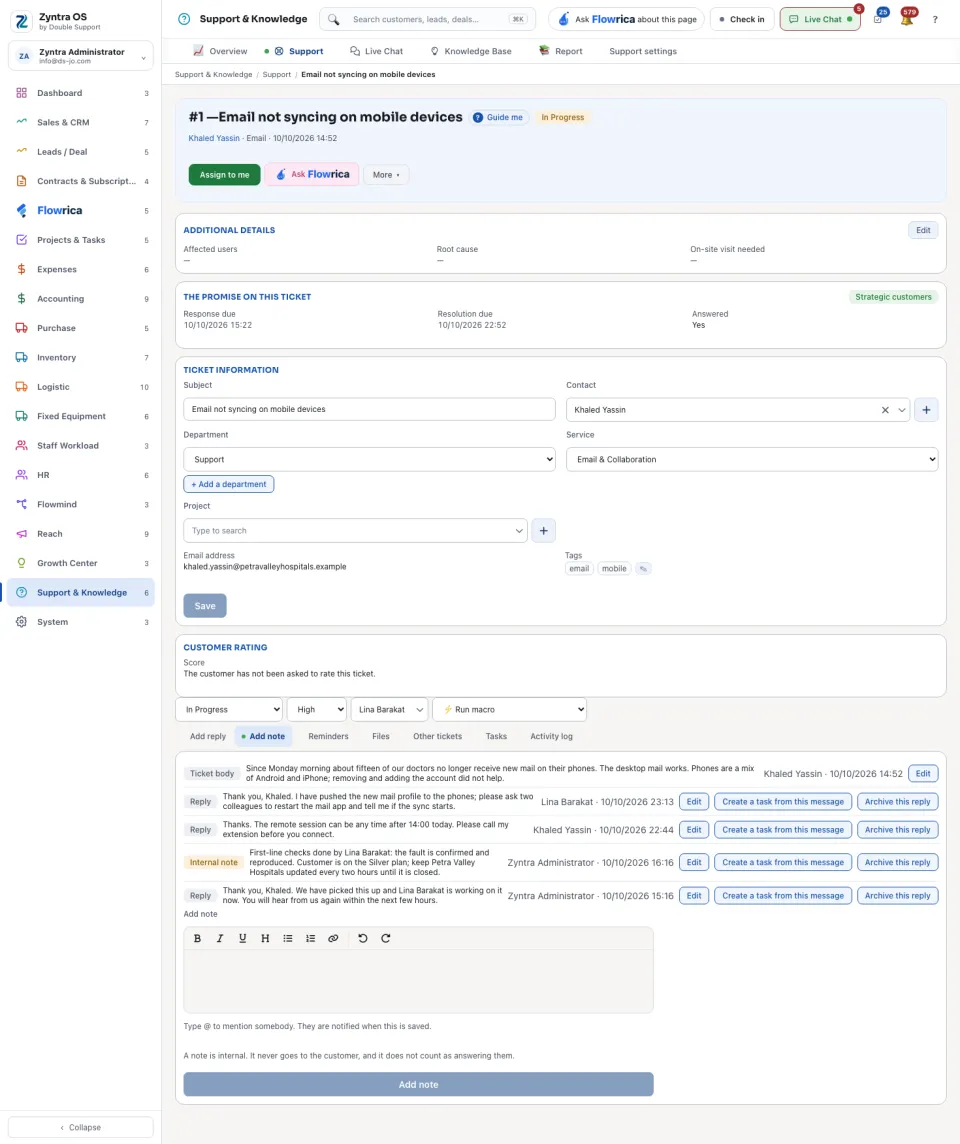
| Add note | A note for the team. The customer does not see it. |
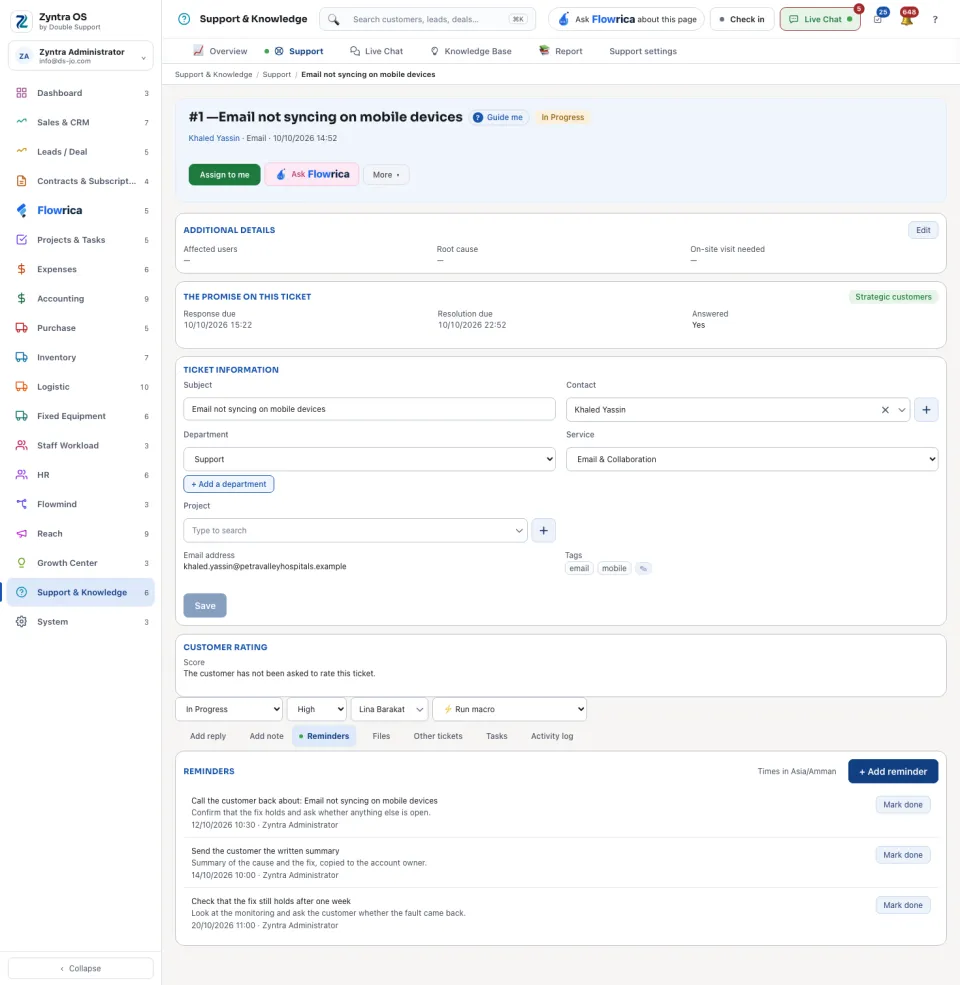
| Reminders | Reminders about this ticket. |
| Files | The ticket's files. |
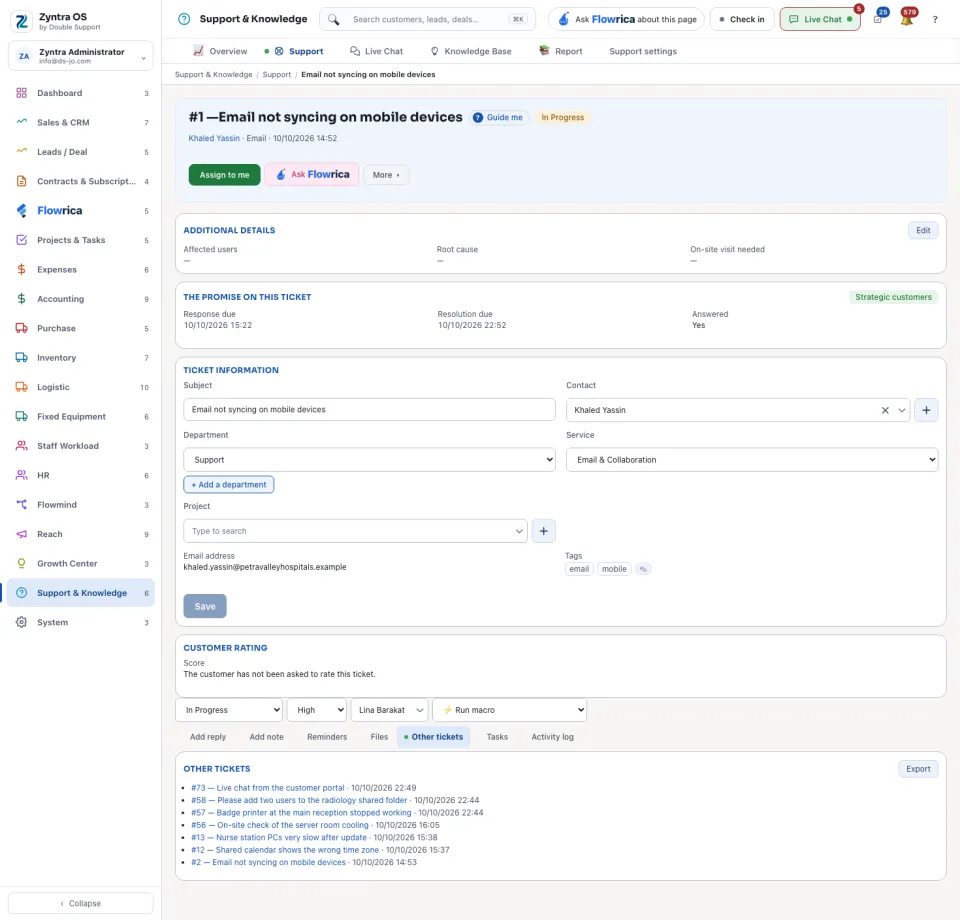
| Other tickets | The same customer's other tickets. |
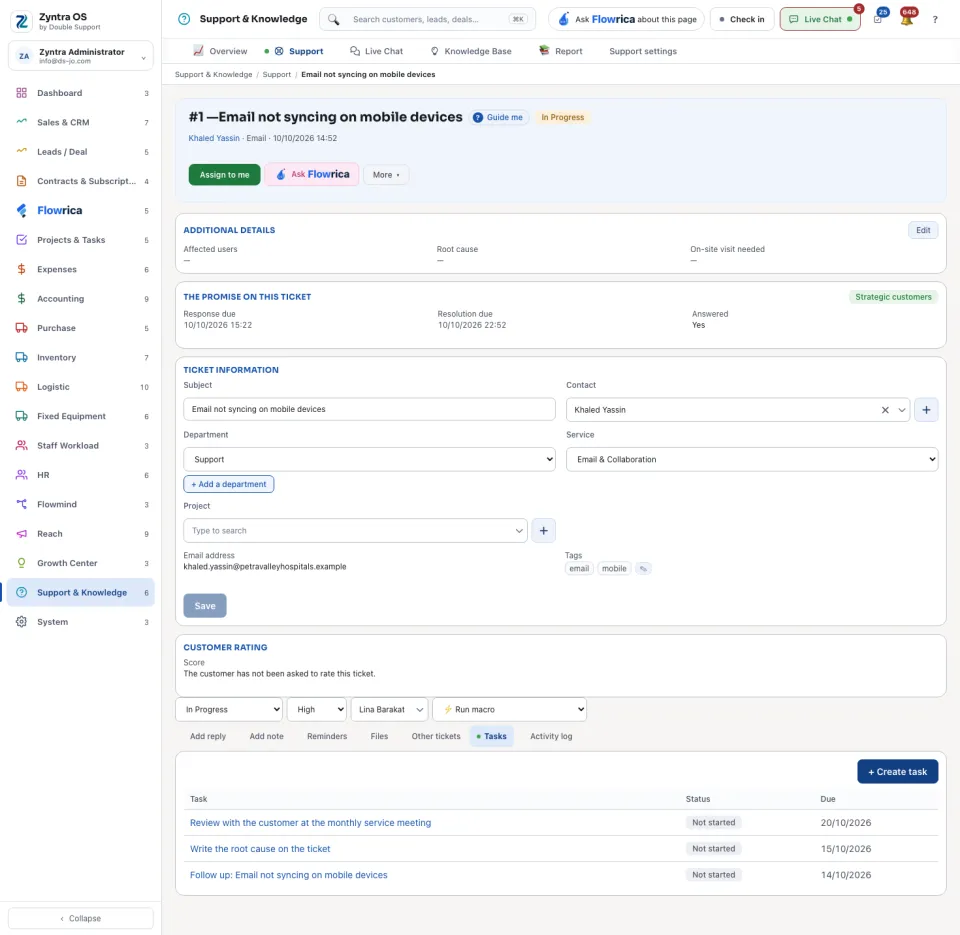
| Tasks | Tasks made from this ticket. |
| Activity log | Everything that happened on the ticket. |
The list
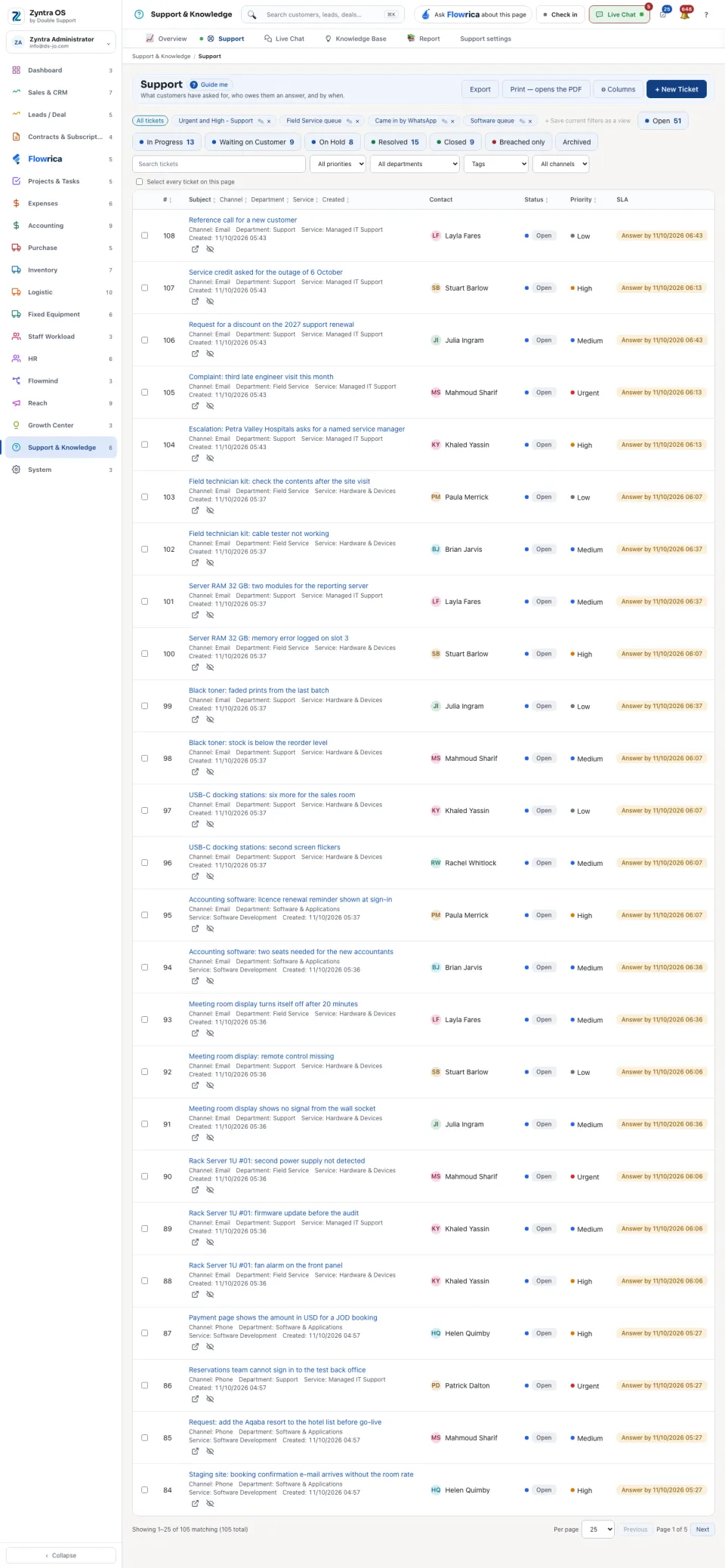
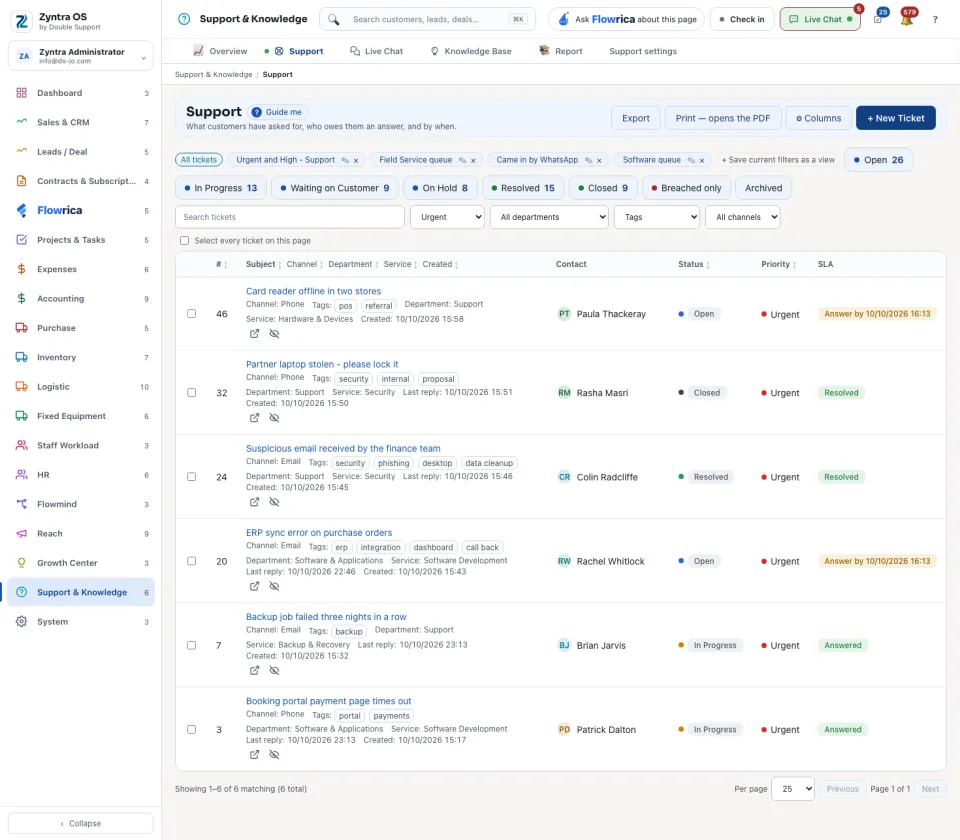
The views are All tickets, Open, Closed, Breached only (the promise was missed) and Archived. + Save current filters as a view keeps your own view. Each row shows the Subject, the Channel, the Department, the Service, when it was Created, the Contact, the Status and the Priority. Search tickets finds one. Export, Print — opens the PDF and ⚙ Columns work on the table.
Live Chat
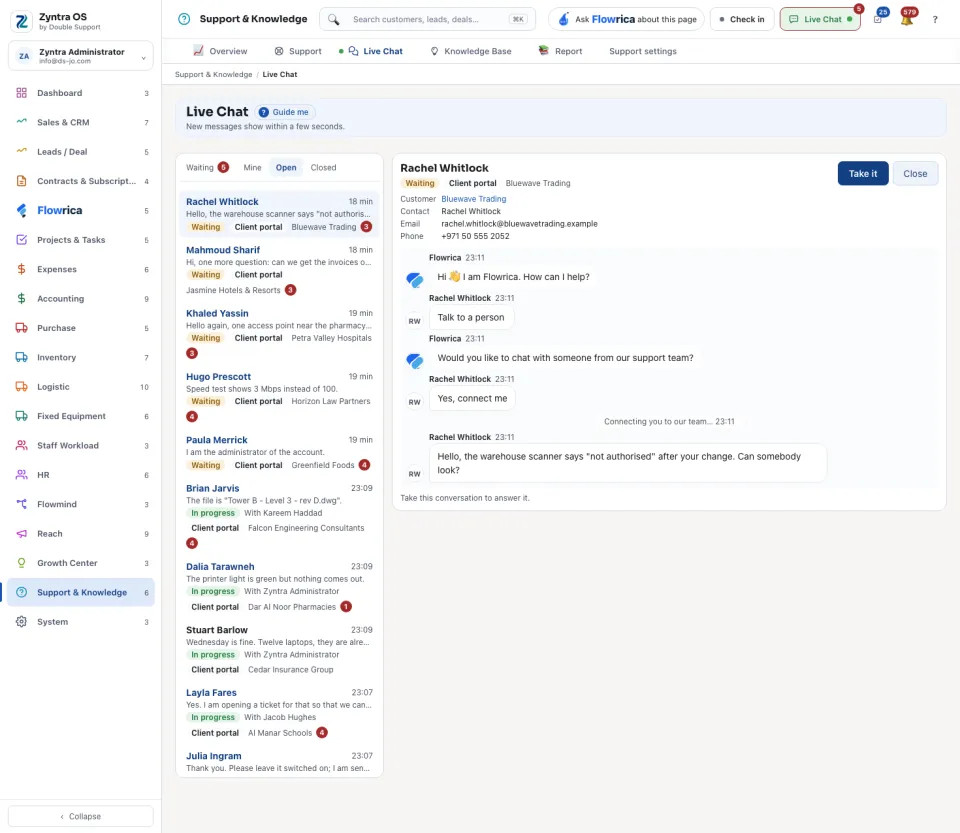
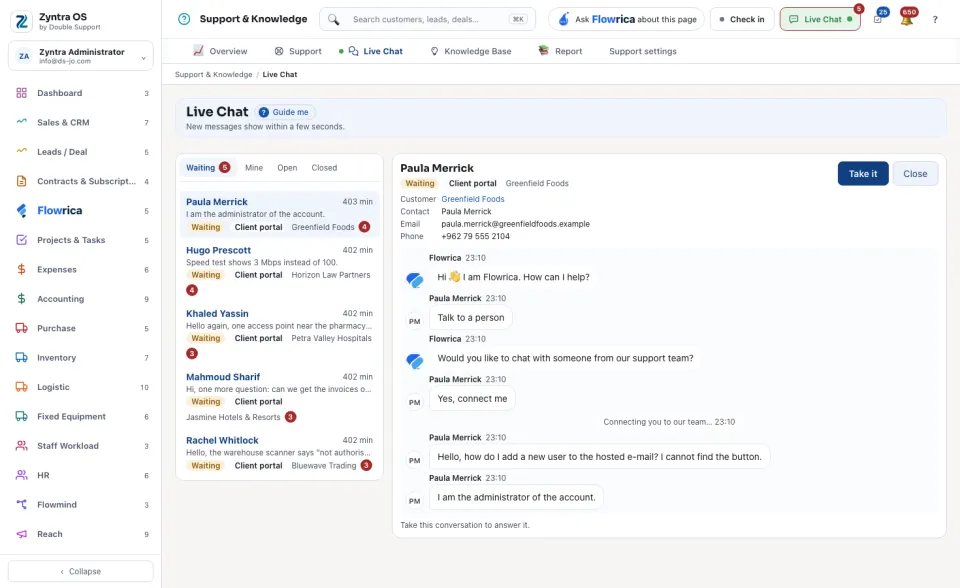
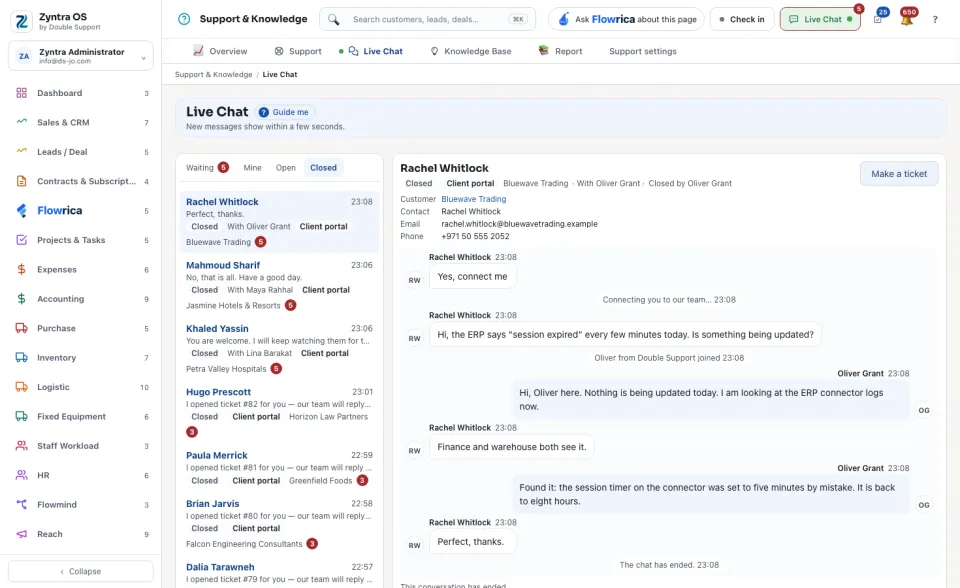
Live Chat is the next screen on the bar. It lists the conversations from your website's chat: Waiting, Mine, Open and Closed. Choose a conversation from the list to answer it. New messages show within a few seconds.
Flowrica on this screen
Press Guide me and Flowrica points at each part of the screen. She can open a ticket or write an article with you, one question at a time. You can ask her, for example, “How many tickets are open?”.