

 Zyntra OS
 Zyntra Legal
 Zyntra Real Estate
 Zyntra Hotel
 Zyntra E-commerce
 Zyntra Appointments
 Zyntra Repair
 Zyntra Garage
 Zyntra Concierge
 Zyntra Contracting
 Zyntra Clinic
 Zyntra Dental
 Zyntra School
 Zyntra University
 Zyntra Social
 Zyntra Call Center
 Zyntra OTA
Zyntra OS features
Several companies in one Zyntra OS
Run several companies behind one sign-in, switched from the top bar: each keeps its own records and books, and a parent sees the companies under it together.
What it does
- A tree of companies. Companies, groups above them and branches under them; a second company is simply one more.
- Each company's own books. Its own chart of accounts, main currency and document numbering.
- A chart copied, not retyped. A new company takes the ready chart, the accountants' Arabic chart, or another company's — names and numbers only, never balances.
- Every document knows its company. An invoice keeps its company, so moving a customer later does not move its history.
- The group together. A report for a group brings the books of every company under it together, translated into one currency.
- Each person in their companies. A person works in the companies they are given, and sees only those.
- Switched from the top bar. The switcher appears when there is a choice, and the server checks the choice on every request.
- Closed, not deleted. A company is archived, closed, reopened or restored — after checks — never deleted.
How it works
- Add the companyIn Setup › Companies, add it with its main currency, and place it under its parent if it has one.
- Give it its chartCopy the ready chart, the accountants' chart or another company's, once.
- Give people their companiesChoose who works in which company; they switch between them from the top bar.
An example: a second company with its own books
A company in Amman opens a branch in Aqaba. In System › Setup › Companies, press + New company, type the Name, choose the company it sits Under, call its level Branch, and choose its Base currency — the currency its books are kept in. Leave Own chart of accounts on, so it has its own chart, its own financial year and its own trial balance, then press Add company.
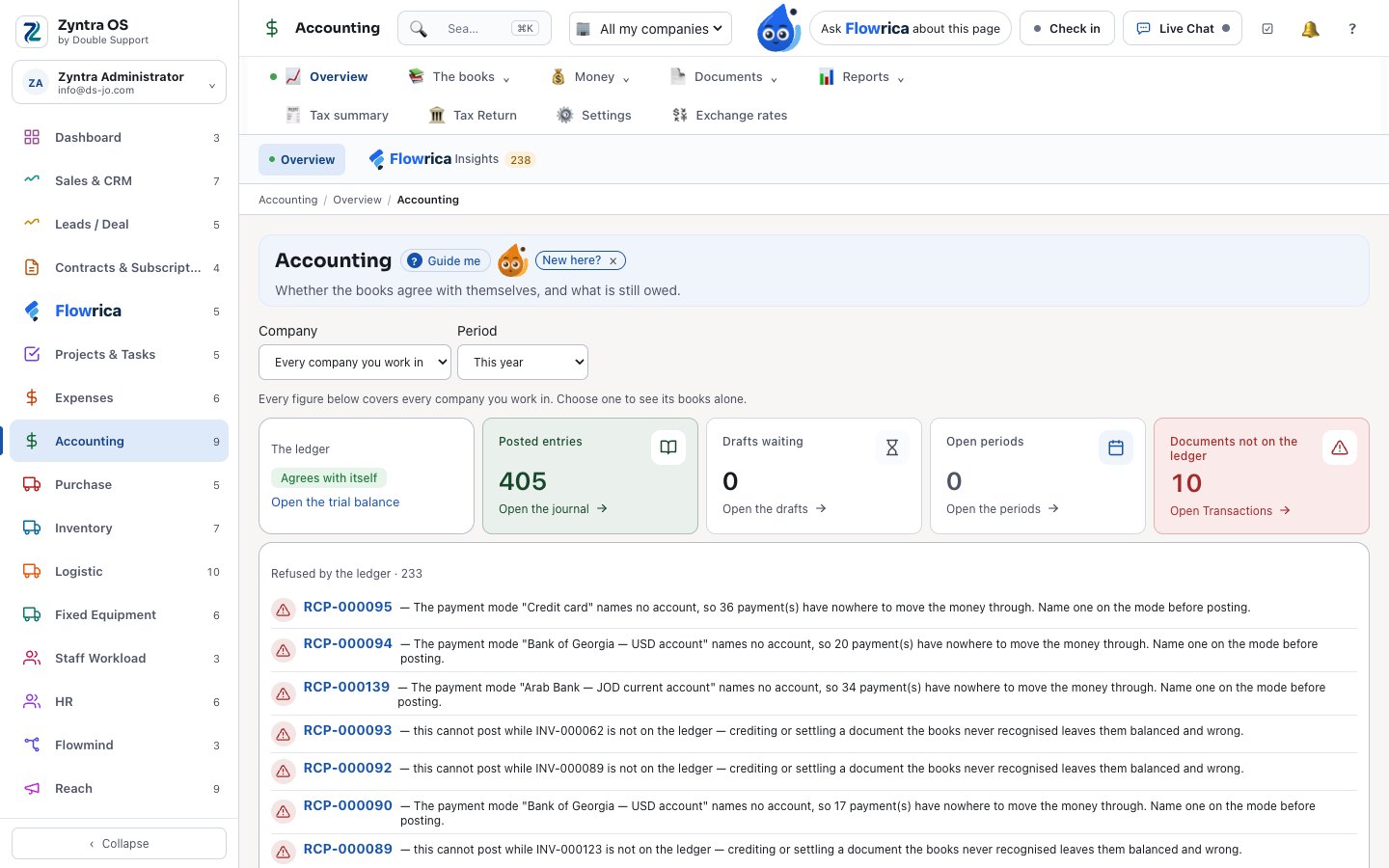
In Accounting › The books › Companies, press Set up its books on the branch's row and start from the chart that ships or another company's chart: account numbers, names and types are copied, never balances. Then answer the questions of Set up your books — where the books start, how stock is costed, which exchange rate the books use, when a cheque reaches the books — and press Finish. Accounting is now switched on for the branch.
The people placed in the branch work in it and see only it. Whoever works in both chooses the company from All my companies in the top bar, and every list then shows that company's records only; the company above sees the companies under it together.
Step by step, with pictures of the real screens: Your companies, and adding one and Set up a company's books.
Questions
How many companies can one Zyntra OS hold?
The software sets no limit of its own; your plan states how many companies it includes.
Can I see my companies' figures together?
Yes. A report for a group brings together the books of the companies under it; companies in other currencies are translated into one.
Does each company keep its own numbering?
Yes. Each company has its own series and next number for its documents.
Can each company keep its books in its own currency?
Yes. Each company has a base currency, and every entry it posts is converted into it. It can be changed until the company's first posting; after that it is fixed.
Does a new company copy another company's balances?
No. Starting from another company's chart copies account numbers, names, types and which accounts can be posted into — never balances. You can rename, add or remove any account afterwards.
Can a company be closed without losing its records?
Yes. Archive asks for a reason, takes the company out of the switcher and refuses new postings; what is already posted still reads. A company is never deleted.
See it with your own work
Ask for a demo and our team will show it to you, in your language — Arabic too.