

 Zyntra OS
 Zyntra Legal
 Zyntra Real Estate
 Zyntra Hotel
 Zyntra E-commerce
 Zyntra Appointments
 Zyntra Repair
 Zyntra Garage
 Zyntra Concierge
 Zyntra Contracting
 Zyntra Clinic
 Zyntra Call Center
 Zyntra OTA
Where
Accounting › The books › Companies, then Accounting › Settings › Set up your booksWho
People whose role may see the Accounting settings.1 · Give the company its chart
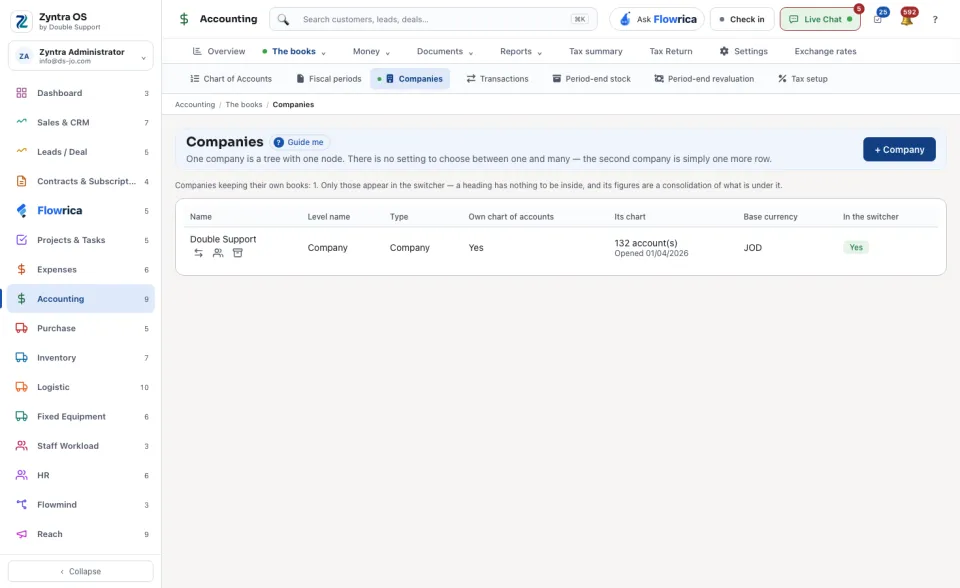
Companies lists every company with its Level name, Type, Own chart of accounts, Its chart, Base currency and whether it is In the switcher. A company with no chart reads No accounts yet.
1
On the company's row, press Set up its books.
2
In Start from, choose The chart that ships or Another company's chart. It copies account numbers, names, types and which accounts can be posted into. It never copies balances.
3
Press Set up its books. The row now shows the number of accounts under Its chart, with the day its books were opened, and Open its books takes you to them. You can rename, add or remove any account afterwards.
2 · Answer the questions
1
Open Set up your books. In Setting up, choose the company.
2
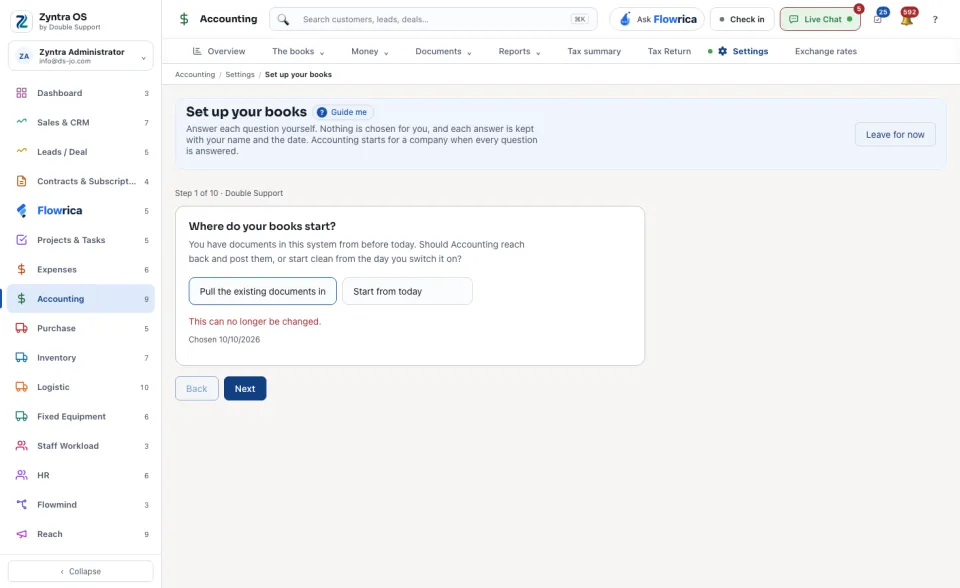
Answer each question yourself and press Next. The first one is Where do your books start?: Pull the existing documents in or Start from today. The others ask how stock is costed, which exchange rate the books use, where rounding is done, when a cheque reaches the books and how a discount shows.
3
The line Not answered yet names the steps still open; press a step to go to it. Back returns one question. Leave for now keeps your answers and lets you continue later.
4
On the last question press Finish. Accounting is now switched on for that company.
Nothing is chosen for you. Each answer is kept with your name and the date: under an answered question the screen says the day it was chosen, and says so when it can no longer be changed. Documents made before the last answer wait; the screen says how many, and they are posted from Accounting › Settings.
Add or change a company
Press + Company, type the Name, choose what it sits Under, its Level name, Code and Base currency, and leave Own chart of accounts on if it keeps its own books. Press Save. The base currency can be changed only until the first posting.
| On a company's row | What it does |
|---|---|
| Who works here | Lists the people placed in this company and those who work in every company. |
| Make it a heading | Turns a company into a heading with no ledger of its own. Refused once the company has posted entries. |
| Archive | Asks for a Reason, takes the company out of the switcher and refuses new postings. What is already posted still reads. |
Press Guide me on Companies and Flowrica points at + Company and at the bar that holds the other screens of the books.
Next: Chart of accounts