

 Zyntra OS
 Zyntra Legal
 Zyntra Real Estate
 Zyntra Hotel
 Zyntra E-commerce
 Zyntra Appointments
 Zyntra Repair
 Zyntra Garage
 Zyntra Concierge
 Zyntra Clinic
 Zyntra Call Center
 Zyntra OTA
Where
Contracting › Overview › a contractWho
Contracting Contracts — View; each button below names the right it needs.The figures and the buttons
Under the number and title: the owner, the project and the consultant. The figures card shows the Value (and the Original value when a variation changed it), the Period, the Retention, the Advance payment and how it is recovered, and the Advance invoice and Retention invoice once raised.
| Button | What it does |
|---|---|
| New progress bill | Starts the next bill. While a bill is still open the button reads Open bill with its number instead. |
| Invoice the advance | Raises the advance payment's invoice, once. |
| Hand over and release the retention | At handover: invoices the retention held so far. Needs at least one bill and no open bill. |
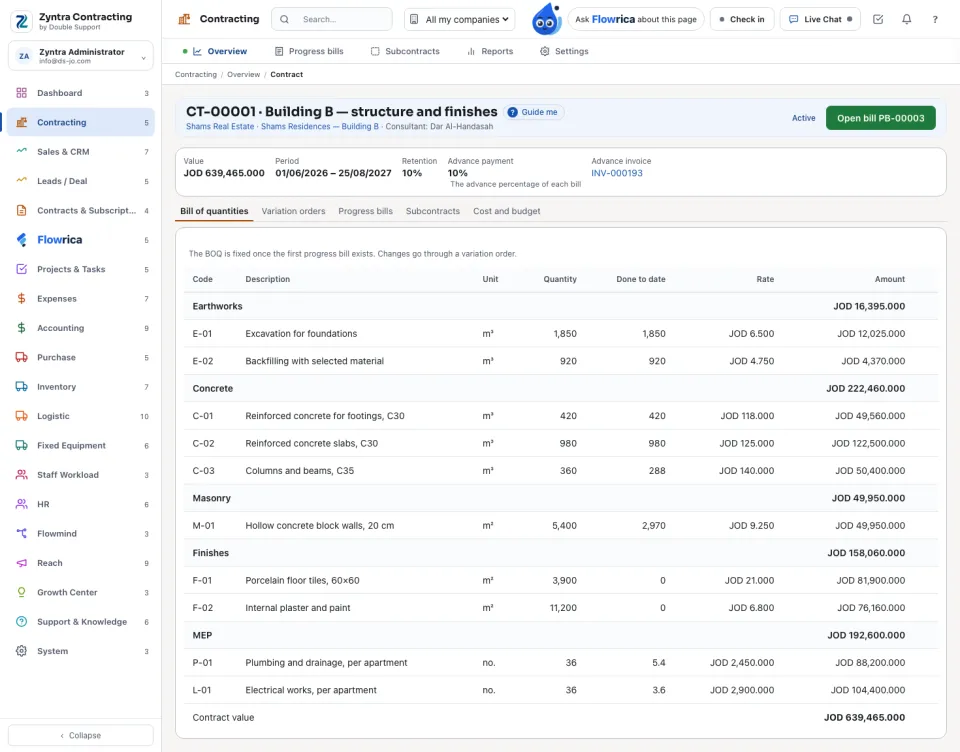
Bill of quantities
The lines by section: Code, Description, Unit, Quantity, Done to date, Rate and Amount, with each section's subtotal and the Contract value at the bottom.
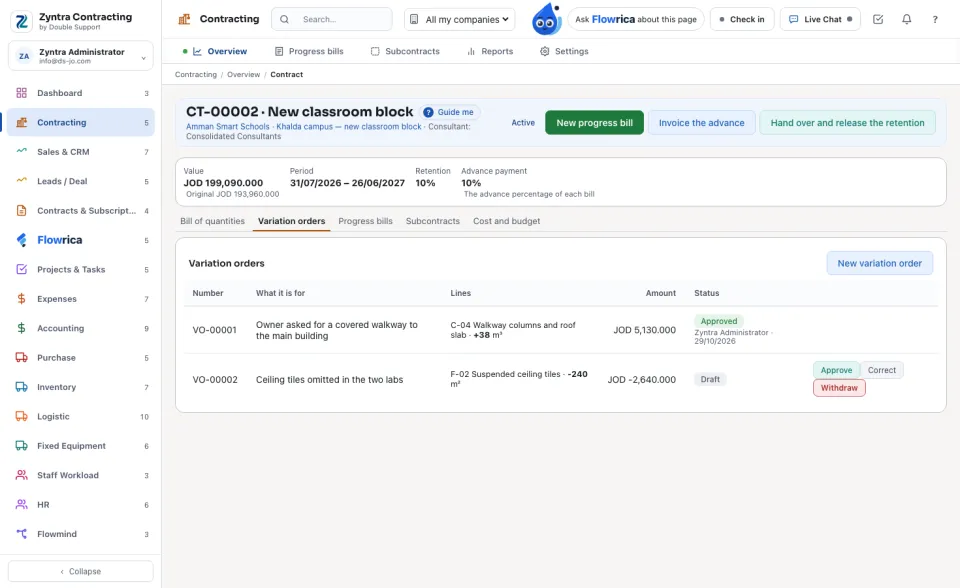
Variation orders
Progress bills and subcontracts
The Progress bills tab lists the contract's bills with the period, what this period adds, the certified amount, the retention and the net before VAT (see Progress bills and subcontracts). The Subcontracts tab shows each subcontractor with its work, retention, value, what it billed and the retention held. New subcontract asks the Subcontractor (a vendor), the Retention, the Work and the BOQ lines with their quantity and rate; press Create the subcontract.
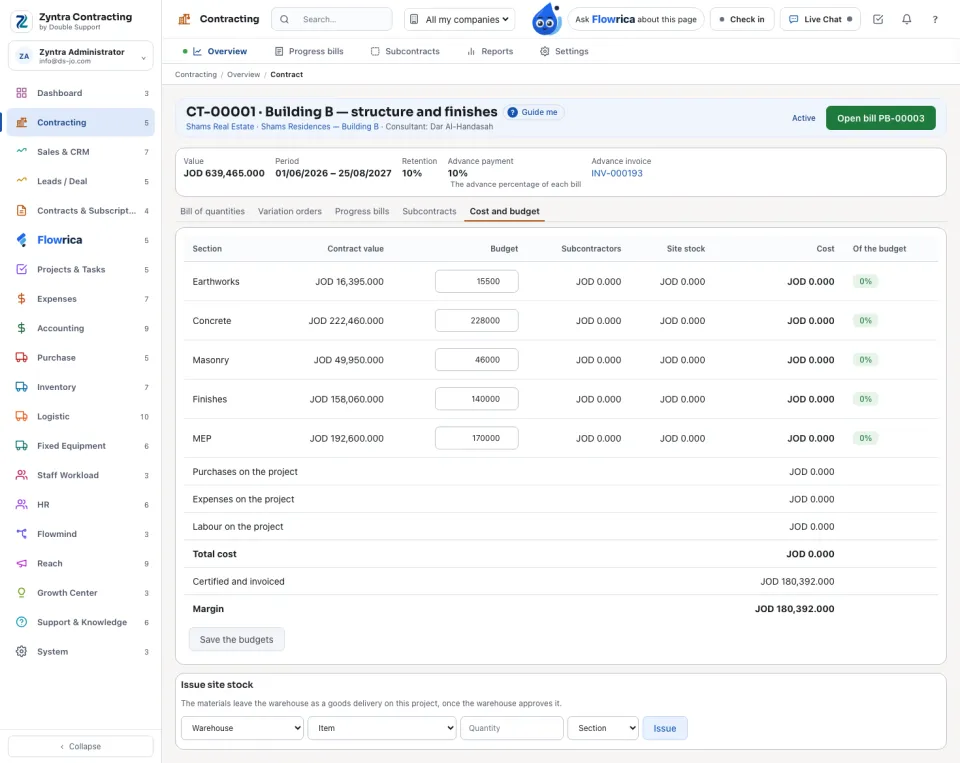
Cost and budget
For people who hold the money right. Each section with its Contract value, Budget, what the Subcontractors and the Site stock cost, the Cost and how much Of the budget it used. Below: the purchases, expenses and labour on the project, the Total cost, what is certified and invoiced, and the Margin. Type the budgets and press Save the budgets.
Issue site stock sends materials to the site: choose the Warehouse, Item, Quantity and Section and press Issue. They leave the warehouse as a goods delivery on this project once the warehouse approves it.
A contractor's contract is read only by someone who may open its project, and its lines are removed only with the billing right.
 Zyntra Contracting · Next: Progress bills and subcontracts
Questions
Where is “A contract's page” in Zyntra OS?
Contracting › Overview › a contract
Who can use “A contract's page”?
Contracting Contracts — View; each button below names the right it needs.