

 Zyntra OS
 Zyntra Legal
 Zyntra Real Estate
 Zyntra Hotel
 Zyntra E-commerce
 Zyntra Appointments
 Zyntra Repair
 Zyntra Garage
 Zyntra Concierge
 Zyntra Contracting
 Zyntra Clinic
 Zyntra Call Center
 Zyntra OTA
Where
Projects & Tasks › Projects › a project · More › Members · Work › MilestonesWho
The project's manager, or anyone allowed to edit projects.The page's buttons and tabs are described in Start a project.
Members
1
Press More and then Members, or press + beside the faces in the head of the page.
2
Choose the people and press Save.
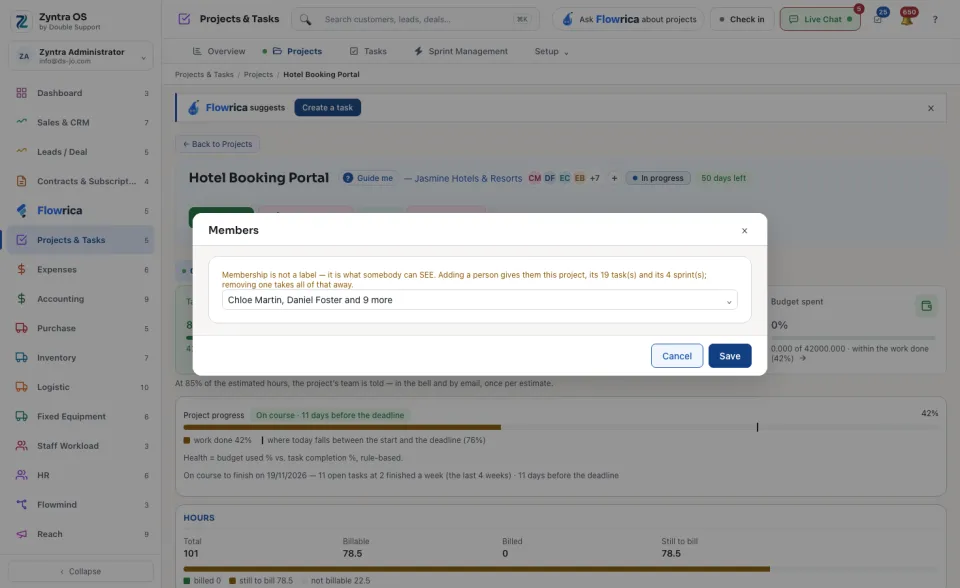
Membership decides what a person can see. Adding a person gives them this project, its tasks and its sprints. Removing a person takes all of that away.
Milestones
1
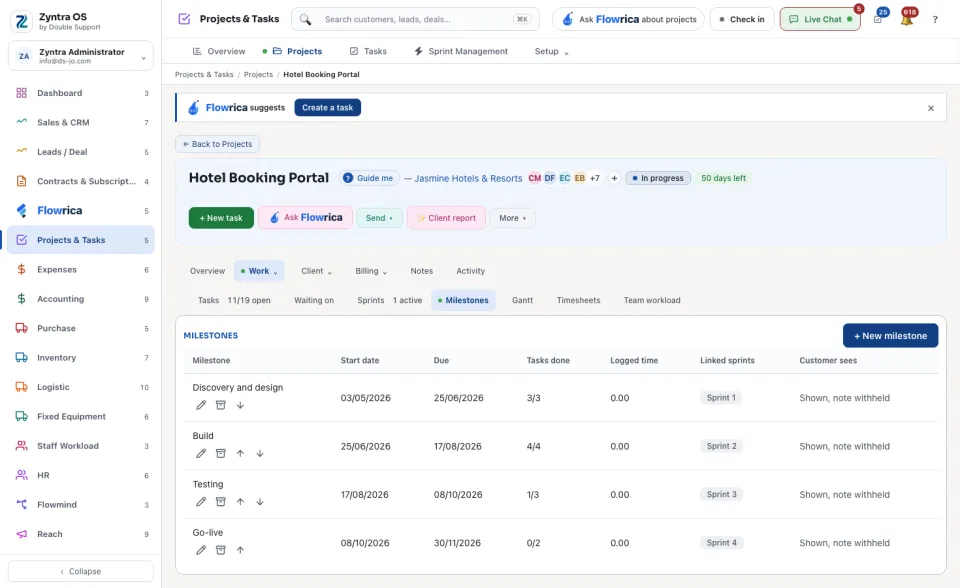
Press Work, then Milestones, then + New milestone.
2
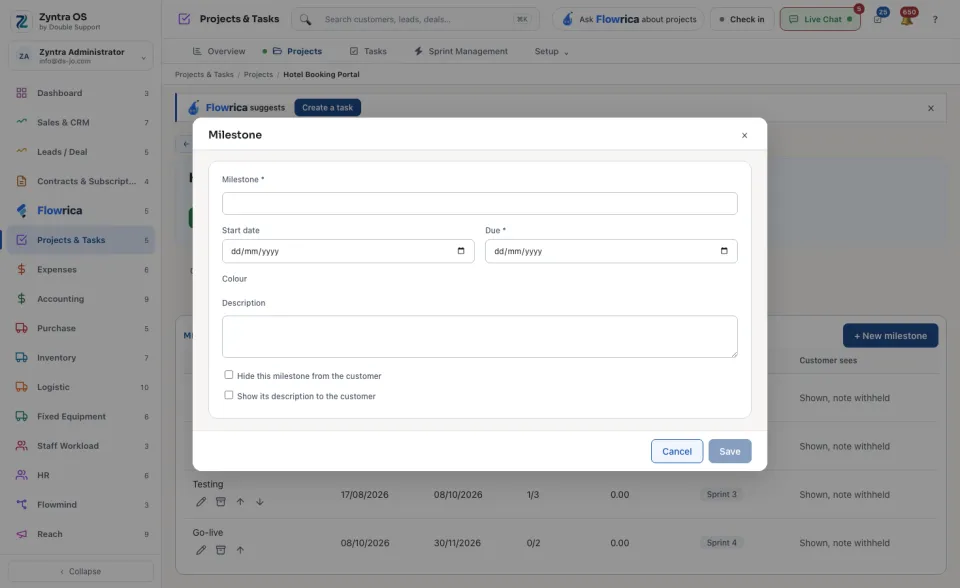
Type the Milestone name and choose its Due date. Both are needed. You can add a Start date, a Colour and a Description.
3
Tick Hide this milestone from the customer if the client portal should not show it, or Show its description to the customer if the customer should read the description too.
4
Press Save.
A task is put under a milestone from the task's own form: the Milestone field appears once the task has a project.
Change the project's status
Press More and then Mark as…. Choose the Status and press Save. You can tick the box that also completes the project's open tasks.
Flowrica on this page
Press Ask Flowrica in the head to ask about this project, for example “What is this project's story?”. ✨ Client report drafts a report for the customer. Press Guide me and she points at each part of the page.
Before: Start a project · Next: Add a task