

 Zyntra OS
 Zyntra Legal
 Zyntra Real Estate
 Zyntra Hotel
 Zyntra E-commerce
 Zyntra Appointments
 Zyntra Repair
 Zyntra Garage
 Zyntra Concierge
 Zyntra Contracting
 Zyntra Clinic
 Zyntra Call Center
 Zyntra OTA
Where
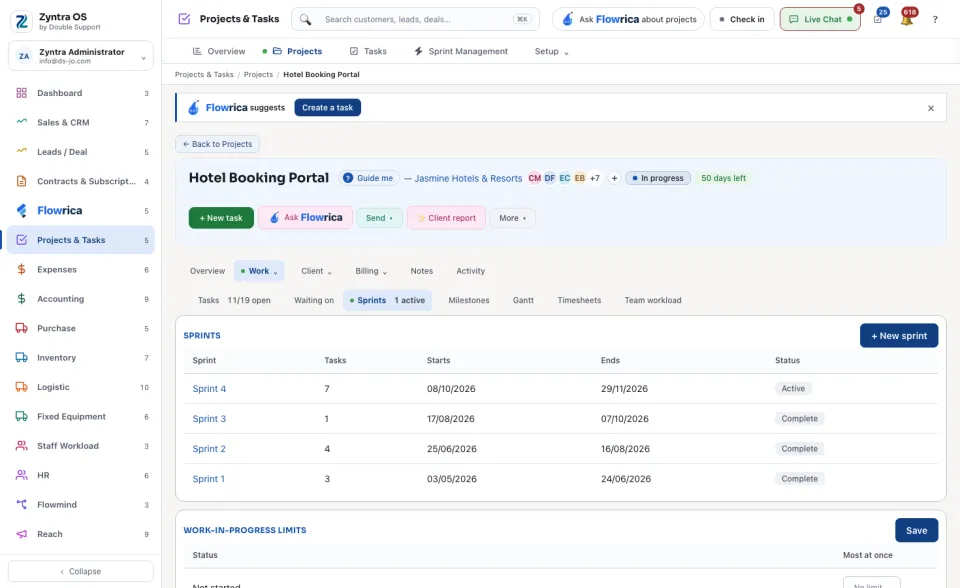
Projects & Tasks › Sprint Management · a project's Work › SprintsWho
Anyone allowed to manage sprints.Plan a sprint
1
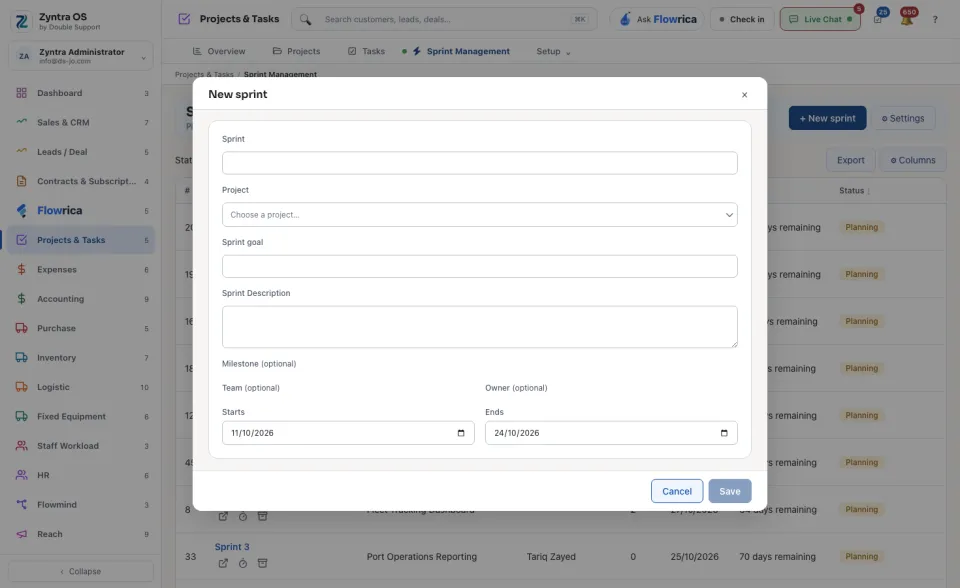
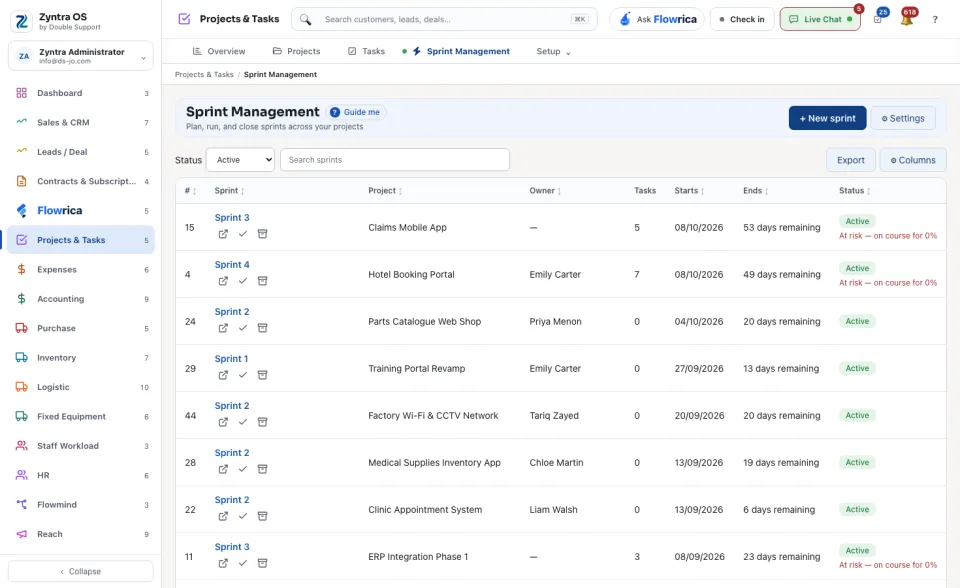
Press + New sprint.
2
Type the Sprint name and choose the Project. Write the Sprint goal and, if you want, the Sprint Description.
3
Choose the Team, the Owner, and the Starts and Ends dates. A Milestone is optional.
4
Press Save. The sprint is in Planning.
Fill it and start it
1
Press the sprint's name to open it.
2
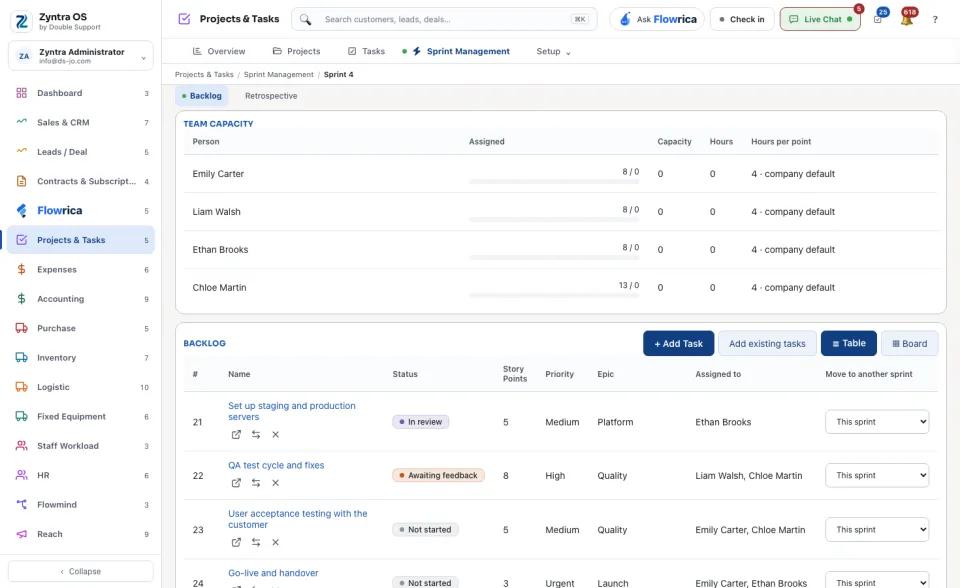
Under Backlog, press + Add Task to write a new task, or Add existing tasks to bring in tasks the project already has. See them as a ☰ Table or a ▦ Board.
3
Press Start sprint. The sprint is now Active.
While it runs
The page shows the Sprint goal (Edit the sprint goal), the Progress in story points and tasks done, the Burndown with its Ideal and Actual lines, the Velocity, and the Team capacity of each person. In the table, Move to another sprint sends a task to a different sprint.
Complete it
1
Press Complete sprint.
2
If tasks are not finished, choose where they go: Move them to the next sprint, Return them to the project backlog or Leave them on this sprint.
3
Press Complete it. The sprint is Complete.
4
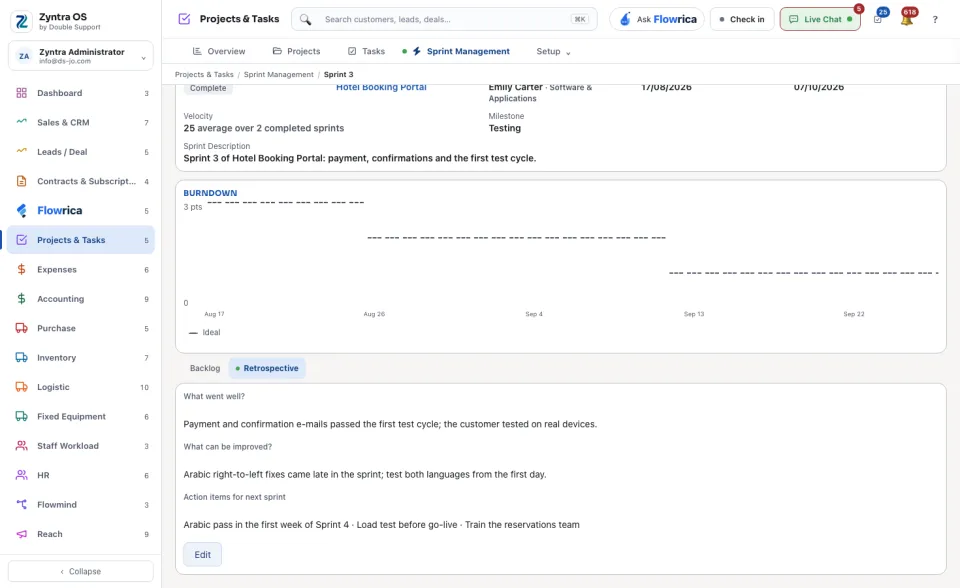
On the Retrospective tab press Edit and write What went well?, What can be improved? and the Action items for next sprint.
A complete sprint also offers Generate invoice, and Release notes (draft): a draft you can edit and Copy. Nothing is sent or saved from it. Edit Sprint and Archive sprint are always in the head.
The list
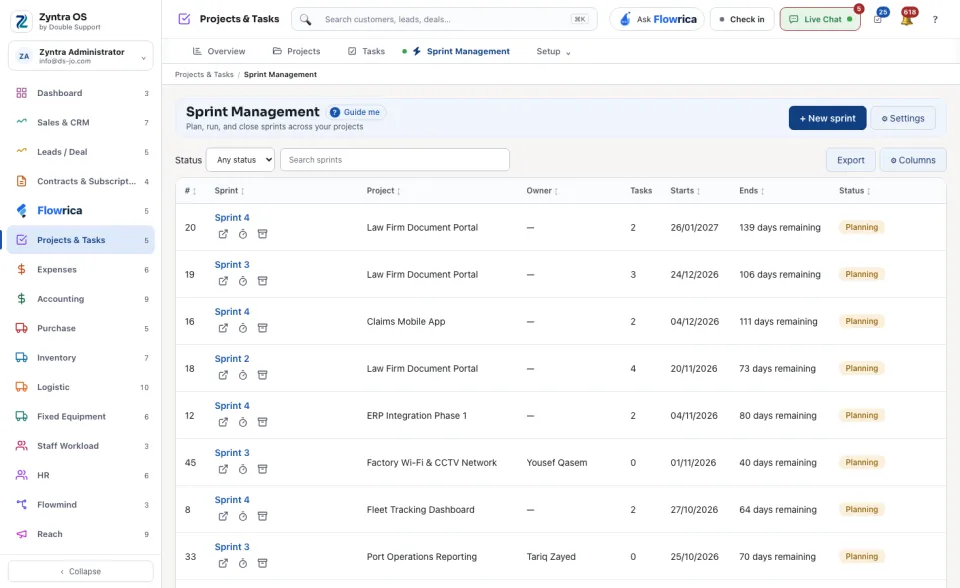
Sprint Management lists every sprint with its project, owner, tasks, dates and status. Narrow it by Status or Search sprints. Export saves the list, ⚙ Columns chooses its columns, and ⚙ Settings opens the sprint settings.
Before: Add a task · Next: Who is overloaded