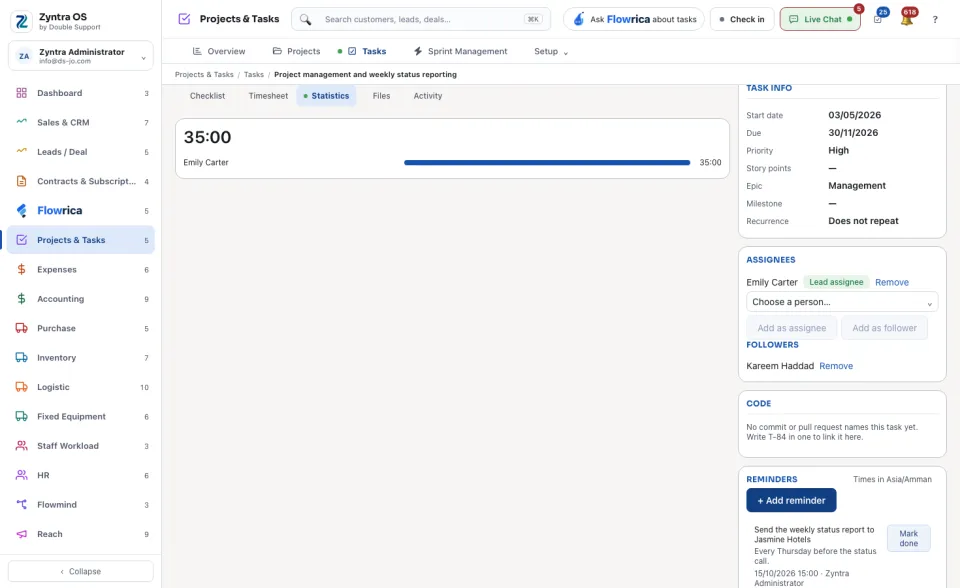
A task is one piece of work with a person on it. It can belong to a project, a customer, a lead, a deal or a ticket.
Where
Projects & Tasks › Tasks · a project's + New task
Who
Anyone allowed to create tasks.
1
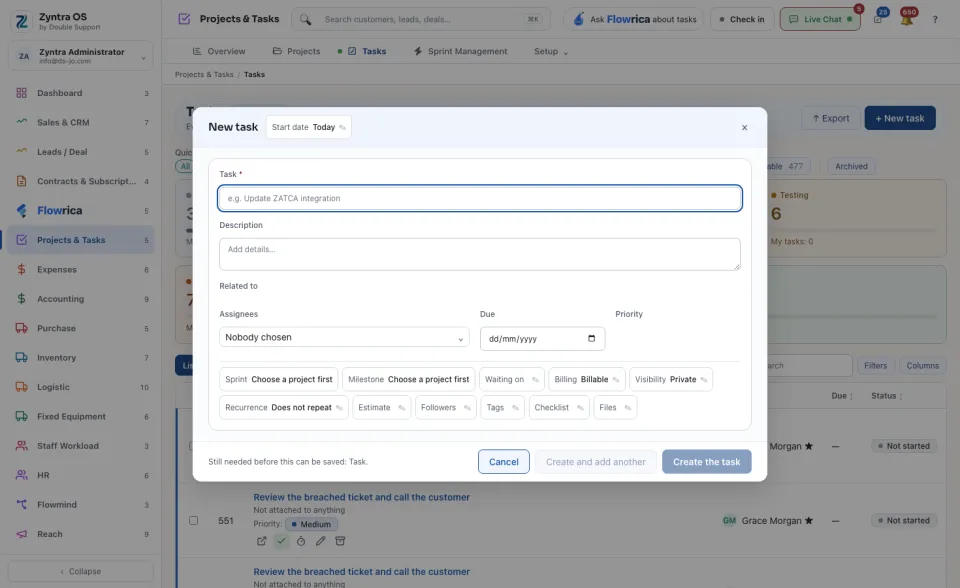
Press + New task.
2
Type the Task. It is the only field that is needed. Add a Description if it helps.
3
Under Related to, choose what the task is about: Project, Customer, Lead, Deal or Ticket.
4
Choose the Assignees, the Due date and the Priority. The start date is at the top of the form. For a project task you can also choose a Sprint and a Milestone.
5
Open the other parts only if you need them: Waiting on, Billing, Visibility, Recurrence, Estimate, Followers, Tags, Checklist and Files.
6
Press Create the task, or Create and add another to keep the form open for the next one.
The list
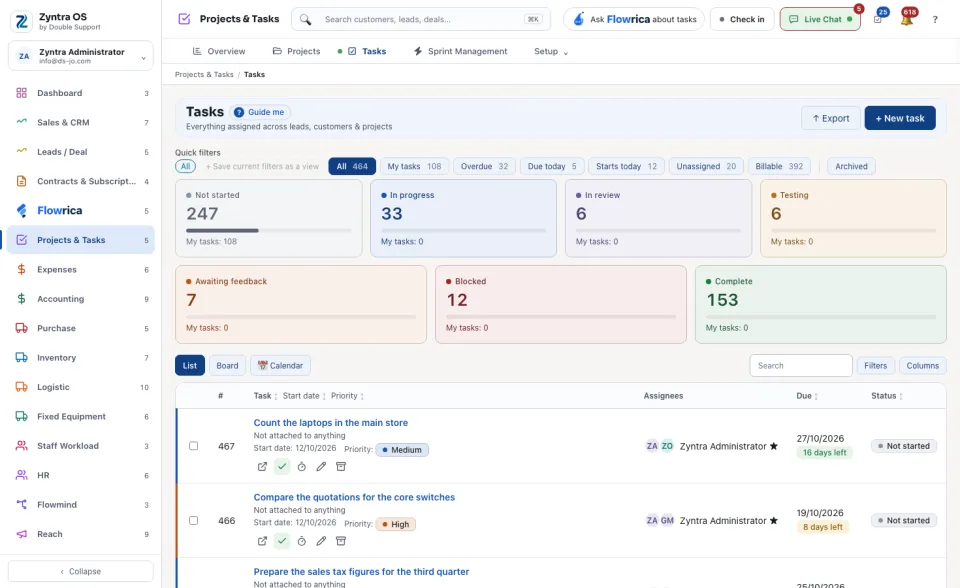
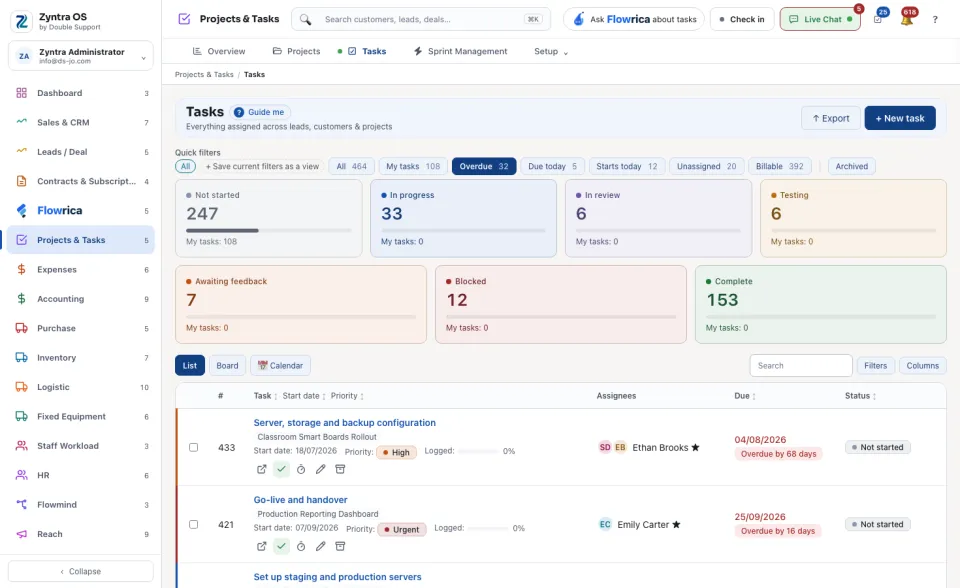
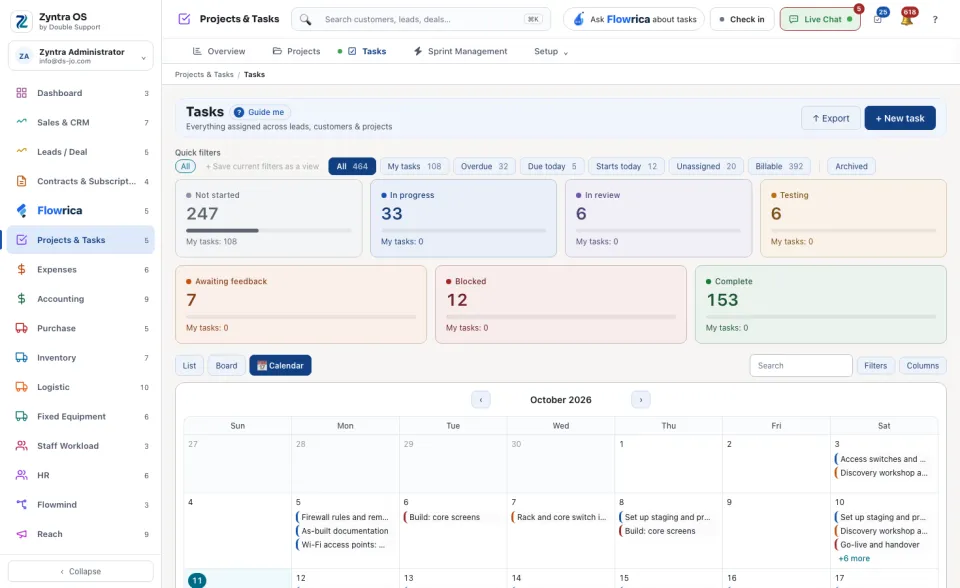
The quick filters narrow the list: All, My tasks, Overdue, Due today, Starts today, Unassigned, Billable and Archived. + Save current filters as a view keeps your own filter for next time. The cards count the tasks in each status, and how many of them are yours.
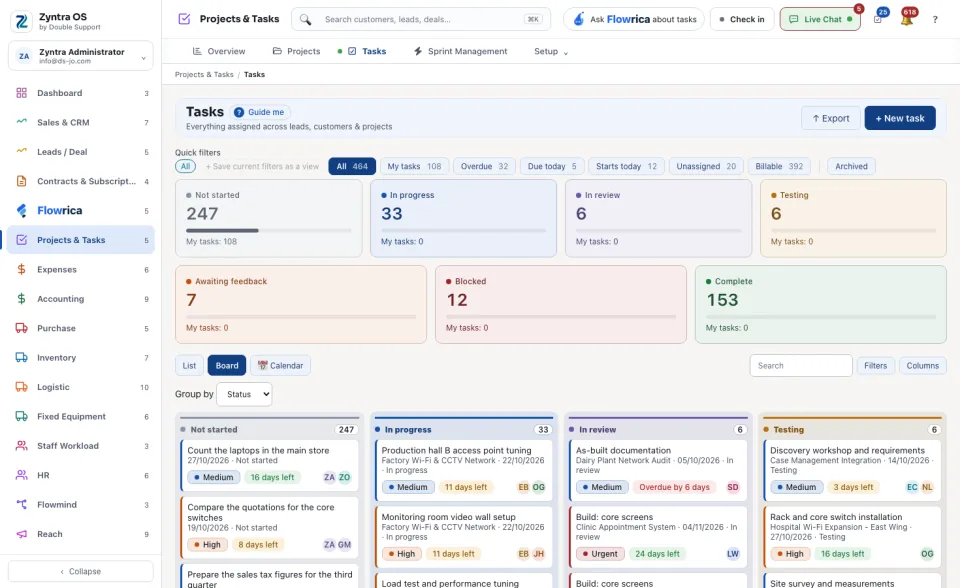
See the tasks as a List, a Board or a 📅 Calendar. Filters and Columns change the table, and ↑ Export saves it as a file.
On the task
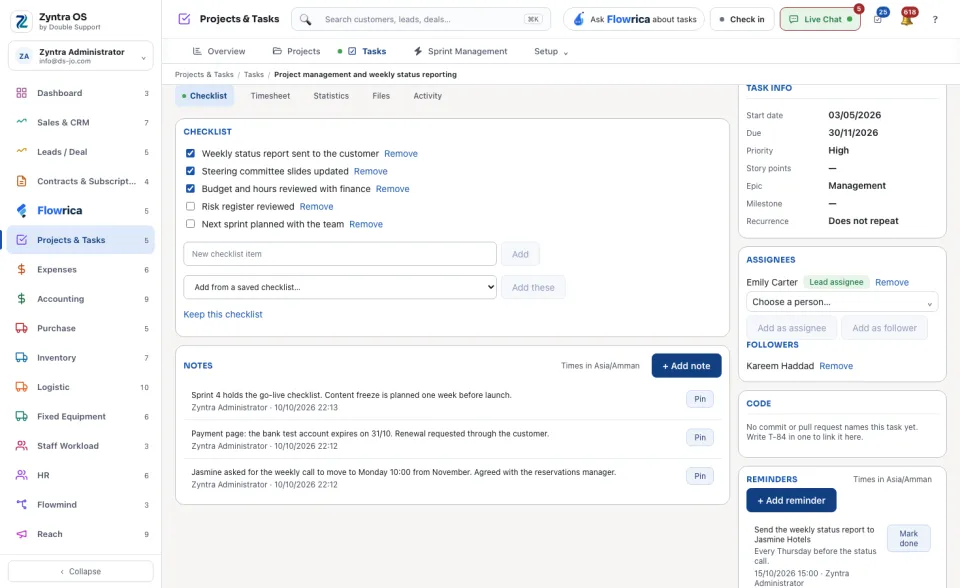
Press a task's name to open it. The head shows its number, status, priority and how late it is, with AskFlowrica, Print sheet, Edit, Copy, Archive and Close.
1
Status: press the status the task is in now, for example In progress, In review or Complete.
2
Timer: press Start timer when you start working. The time goes to the timesheet.
3
Checklist: type a New checklist item and press Add. Keep this checklist saves it to use on other tasks.
4
Waiting on: press + Add blocker to say what this task waits for.
5
Assignees: Choose a person…, then Add as assignee or Add as follower. Make lead makes a person the lead assignee.
The four cards under the head show Due, Estimated vs logged, Checklist and Priority · Story points.
Tab
What it is for
What you can do there
Checklist
The task's checklist.
Add an item; Keep this checklist.
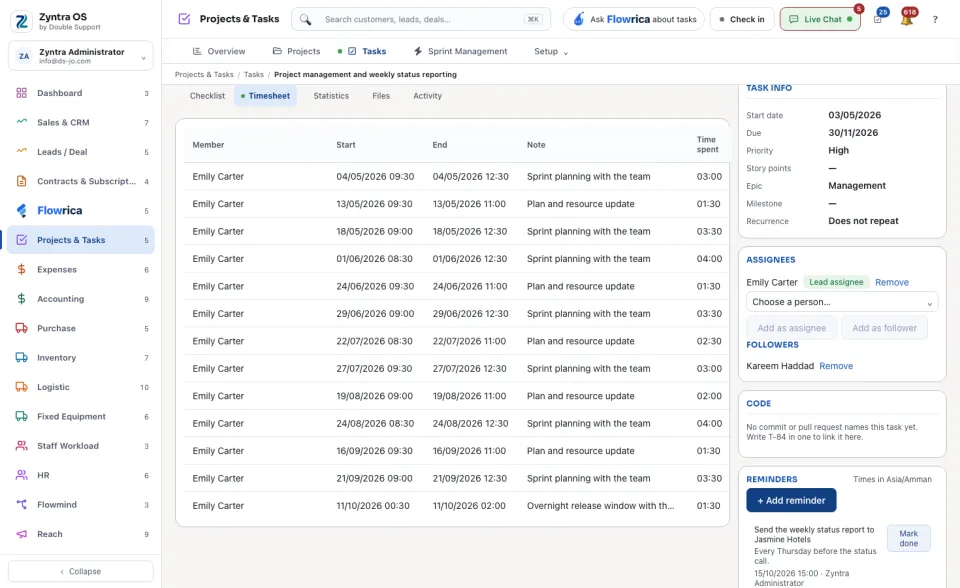
Timesheet
Every time entry on the task.
Use the Timer on the side to log time.
Statistics
The time spent on the task, by person.
—
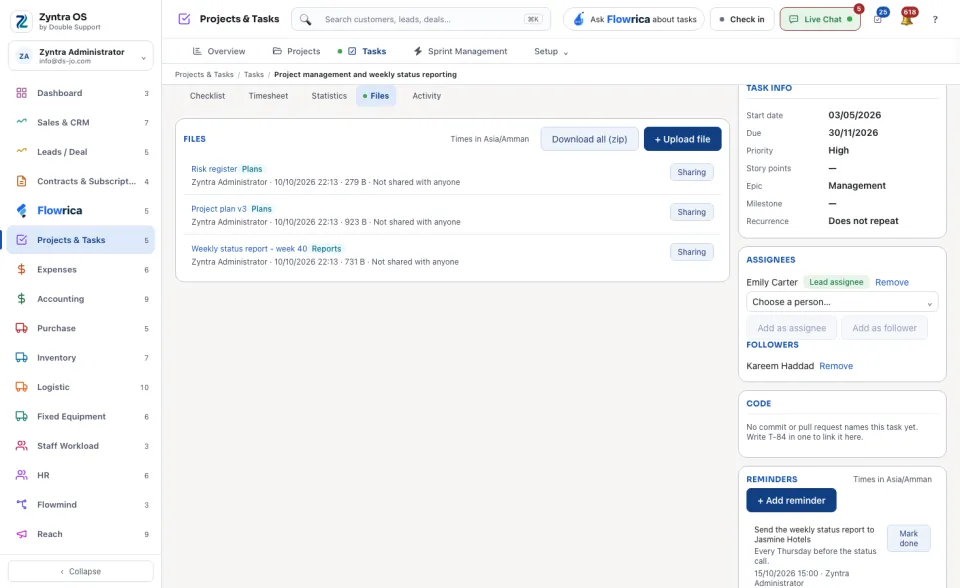
Files
The task's files.
Upload a file.
Activity
Everything that happened on the task.
Log an activity.
Flowrica on this screen
Press Guide me and Flowrica points at each part of the screen. She can make a task with you, one question at a time. Nothing is saved until you press the form's own button.


 Zyntra OS
 Zyntra Legal
 Zyntra Real Estate
 Zyntra Hotel
 Zyntra E-commerce
 Zyntra Appointments
 Zyntra Repair
 Zyntra Garage
 Zyntra Concierge
 Zyntra Contracting
 Zyntra Clinic
 Zyntra Call Center
 Zyntra OTA