

 Zyntra OS
 Zyntra Legal
 Zyntra Real Estate
 Zyntra Hotel
 Zyntra E-commerce
 Zyntra Appointments
 Zyntra Repair
 Zyntra Garage
 Zyntra Concierge
 Zyntra Contracting
 Zyntra Clinic
 Zyntra Call Center
 Zyntra OTA
Where
Projects & Tasks › Setup › Project templatesWho
Anyone allowed to manage project templates.1
Choose the company in the top bar first. A template belongs to one company.
2
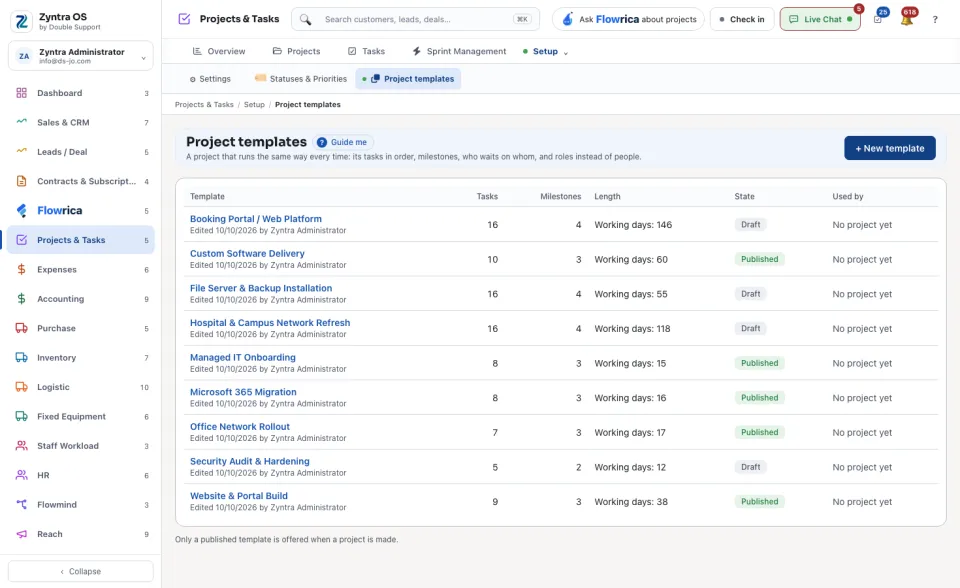
Press + New template.
3
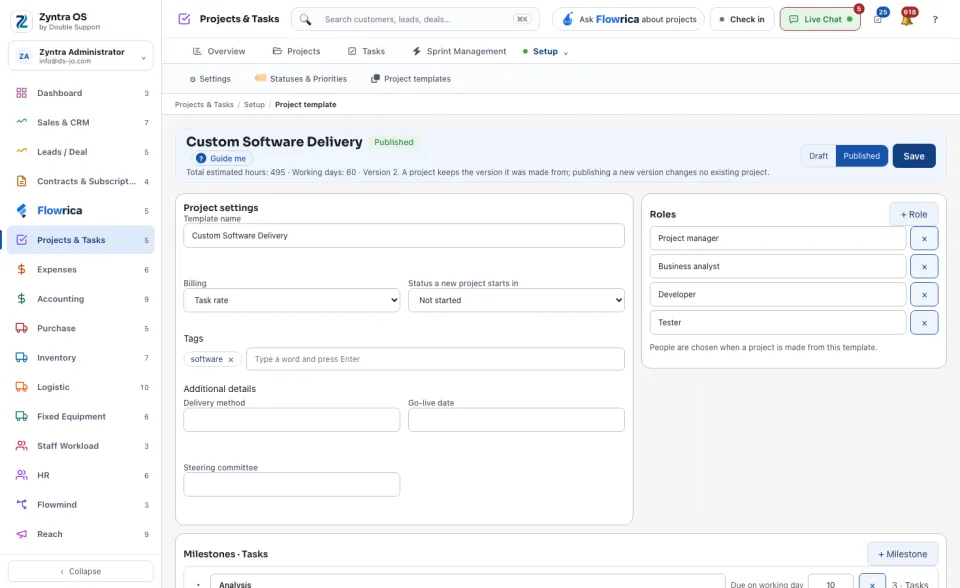
Under Project settings, type the Template name and choose the Billing and the Status a new project starts in. Under Roles, press + Role for each role. The people are chosen when a project is made from the template.
4
Under Milestones · Tasks, press + Milestone, then + Task inside it. Each task has its Starts on day, Takes, Estimated hours, Role and Waits on. Days are working days: the weekend and the holidays are skipped.
5
Choose Published and press Save. Only a published template is offered when a project is made; a Draft is not.
The list shows each template's Tasks, Milestones, Length, State and Used by. Press a template's name to open it.
Use a template
In + New project, choose Start from a template. See Start a project. A project you already have can become a template too: on its page press More and then Save as template.
Before: Start a project · Next: Members and milestones