

 Zyntra OS
 Zyntra Legal
 Zyntra Real Estate
 Zyntra Hotel
 Zyntra E-commerce
 Zyntra Appointments
 Zyntra Repair
 Zyntra Garage
 Zyntra Concierge
 Zyntra Contracting
 Zyntra Clinic
 Zyntra Call Center
 Zyntra OTA
Where
Staff Workload › OverviewWho
Anyone allowed to see staff workload. You see the people your account may compare.The overview
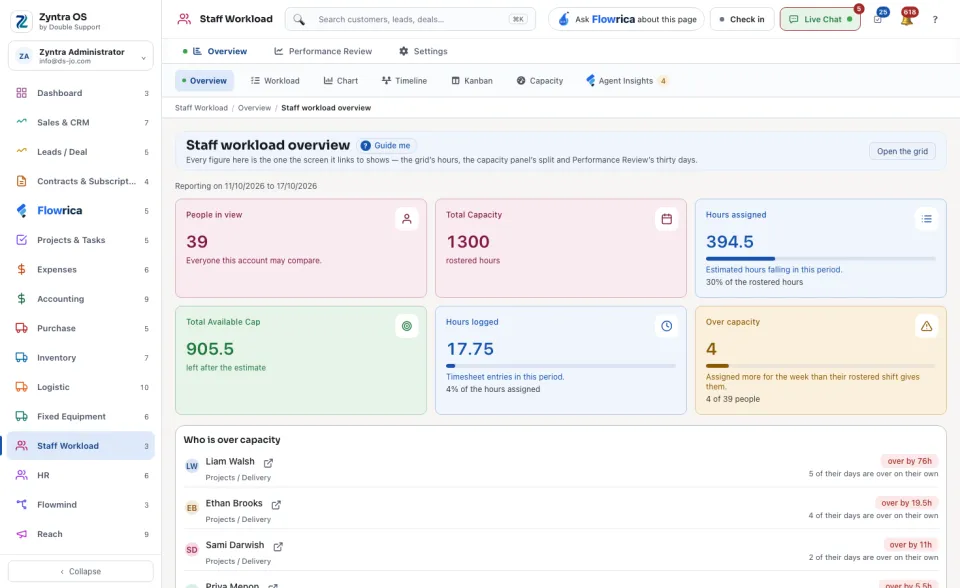
The first screen is Staff workload overview. For the week it shows the People in view, the Total Capacity, the Hours assigned, the Total Available Cap, the Hours logged and how many people are Over capacity.
Under the figures: Who is over capacity names each person and by how many hours. Billable against unbillable splits the logged hours. The last 30 days counts the tasks completed, completed late and still overdue. Holidays in this period lists the public holidays. Each part has a link to the screen behind it: Open the grid, Open the capacity panel, Open Performance Review.
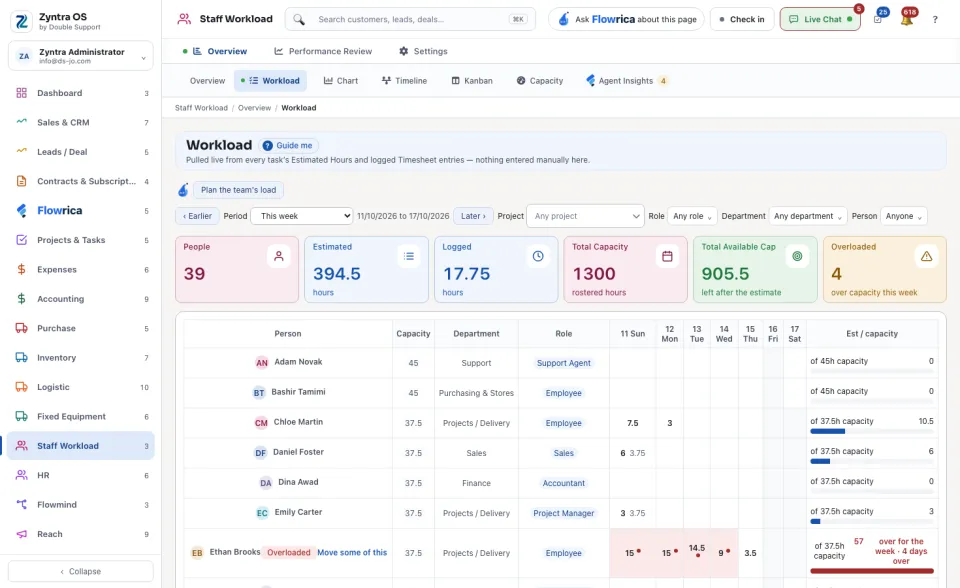
The grid
The other views
| View | What it shows |
|---|---|
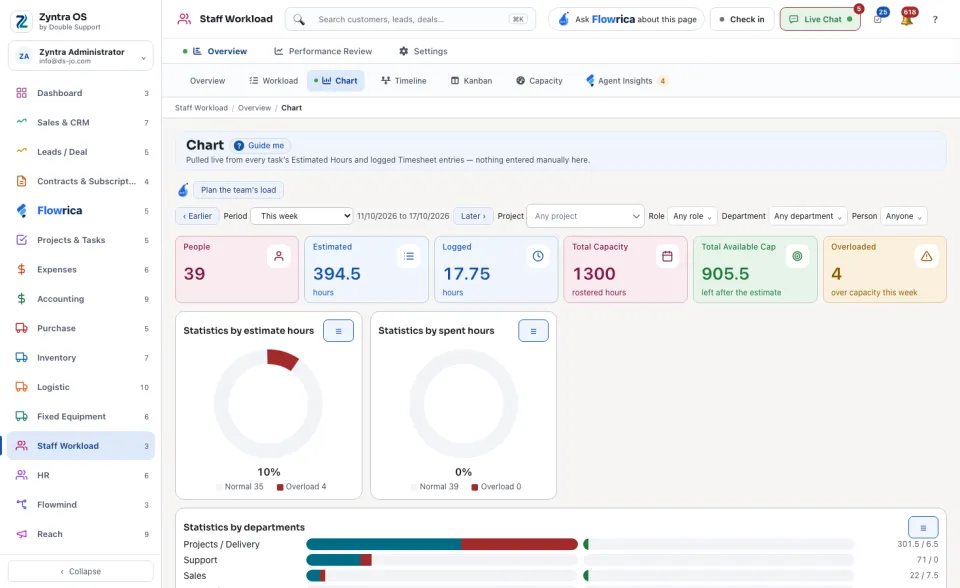
| Chart | The same hours as a chart: Statistics by estimate hours. |
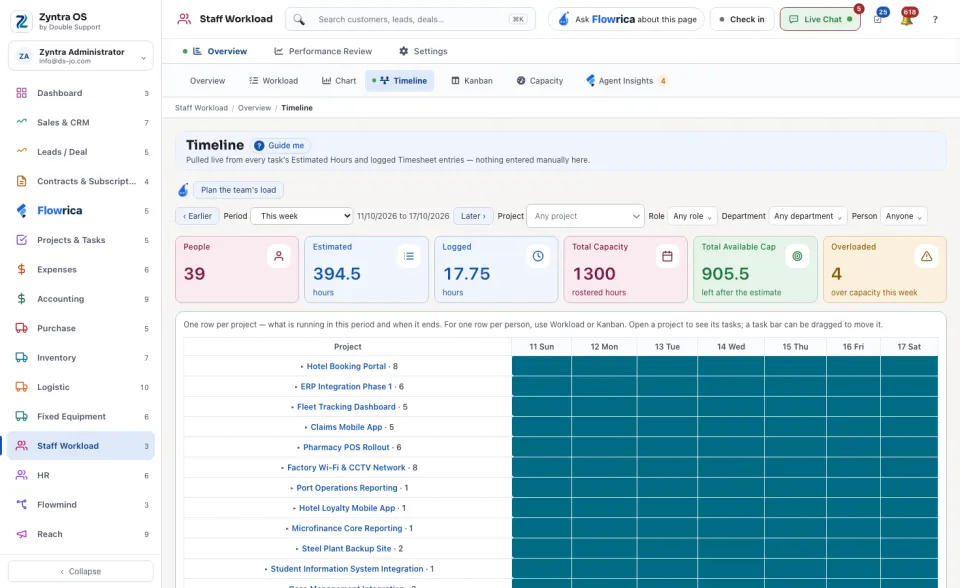
| Timeline | One row per project: what is running in this period and when it ends. Open a project to see its tasks. A task's bar can be dragged to move it. |
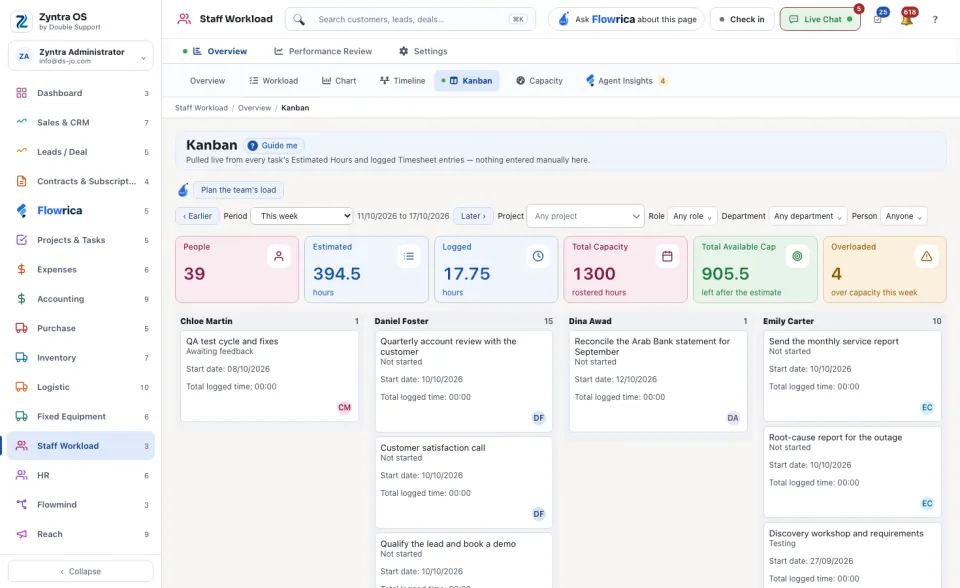
| Kanban | One column per person, with the tasks they hold. |
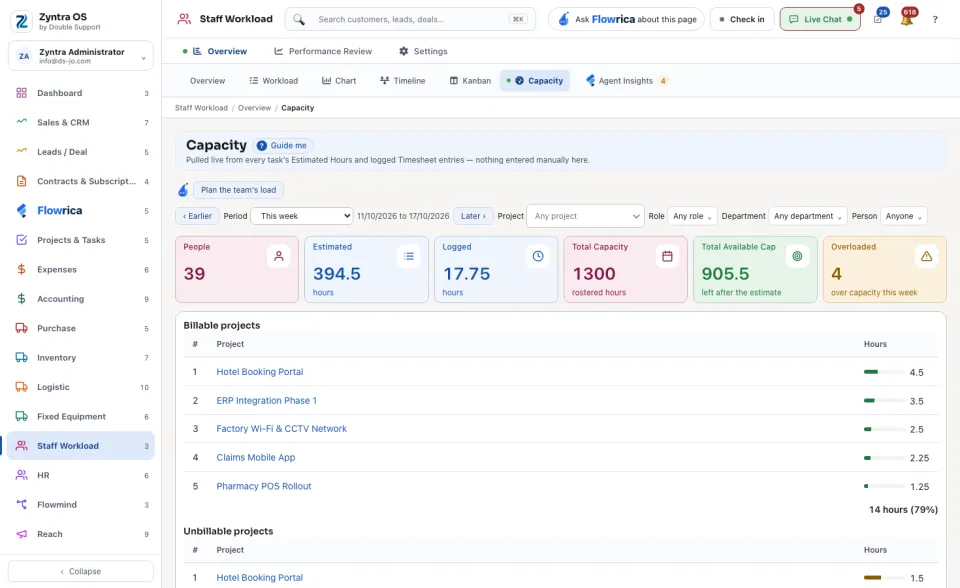
| Capacity | The logged hours by project: Billable projects and Unbillable projects. |
Flowrica on this screen
Plan the team's load asks Flowrica to suggest how to spread the work. You can also ask her, for example, “Who can cover this person next week?”. Press Guide me and she points at each part of the screen.