

 Zyntra OS
 Zyntra Legal
 Zyntra Real Estate
 Zyntra Hotel
 Zyntra E-commerce
 Zyntra Appointments
 Zyntra Repair
 Zyntra Garage
 Zyntra Concierge
 Zyntra Contracting
 Zyntra Clinic
 Zyntra Call Center
 Zyntra OTA
Where
Accounting › The books › Chart of AccountsWho
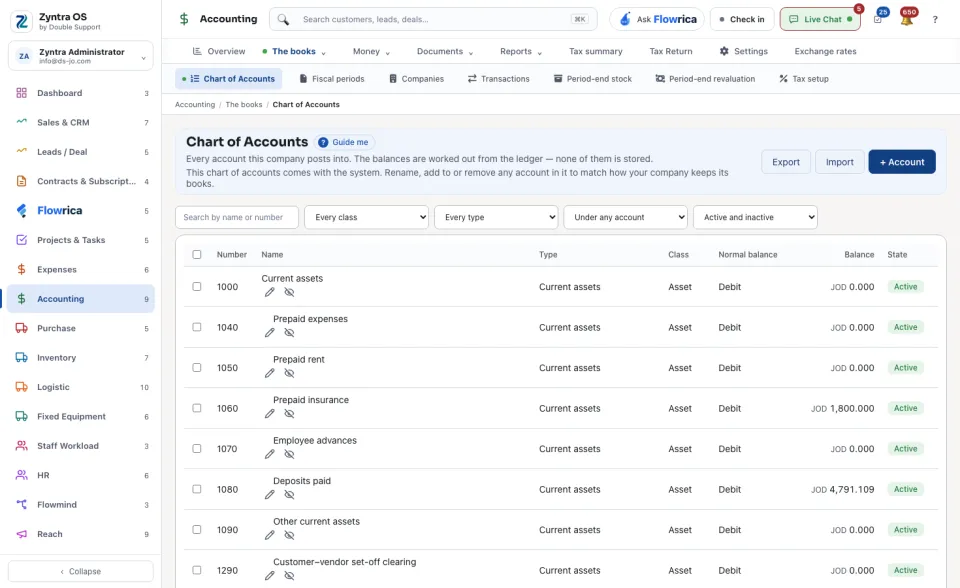
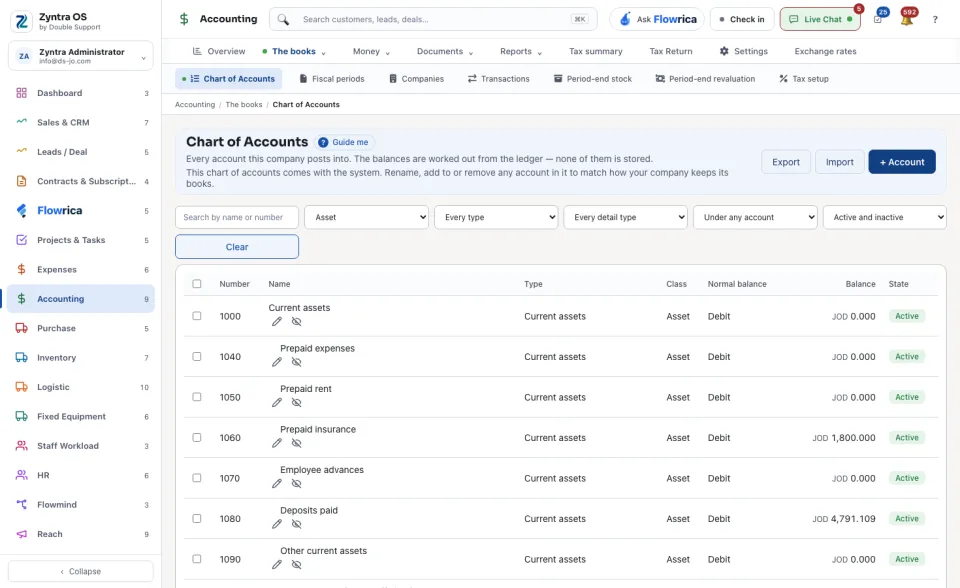
People whose role may see the chart of accounts.Each row shows the account's Number, Name, Type, Class, Normal balance, Balance and State. Above the table you can search by name or number and narrow by class, type, detail type, parent and state.
Add an account
1
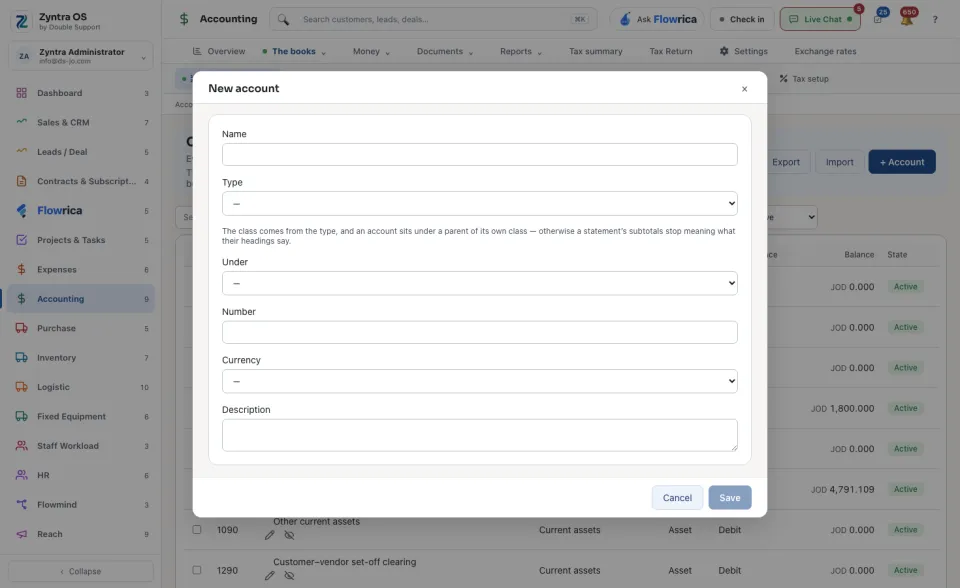
Press + Account. The form is New account.
2
Type the Name and Number, choose the Type, the account it sits Under and its Currency, and add a Description if it helps. The class comes from the type, and an account sits under a parent of its own class.
3
Save. The system says
Account added.
Change, switch off, bring in many
| Button | What it does |
|---|---|
| Edit | Opens Edit account. Once an account has ledger lines, its type and company stay as they are; the name, number, description and parent can still change. |
| Deactivate / Reactivate | Takes an account out of use, or brings it back. Tick several rows to do it for all of them at once. |
| Import | Opens Import accounts: one account per line in a file. Press Download a sample file for the layout, then Check the file to see each line's answer. If any line is refused, nothing is imported. |
| Export | Saves the chart as it is shown, with its current filters. |
Each company keeps its own chart: see Set up a company’s books. Guide me on this screen points at + Account.
Next: Journal entries