

 Zyntra OS
 Zyntra Legal
 Zyntra Real Estate
 Zyntra Hotel
 Zyntra E-commerce
 Zyntra Appointments
 Zyntra Repair
 Zyntra Garage
 Zyntra Concierge
 Zyntra Contracting
 Zyntra Clinic
 Zyntra Call Center
 Zyntra OTA
Where
System › Setup › Import from your old systemWho
People who may edit the accounting settings bring the books; people who may import customers bring the clients and deals.1
Under Company, choose the company whose books come in. Each old system has its own card: the books at the top, the clients and deals below.
Connect Odoo with a key
2
In Odoo, open Preferences › Account Security and press New API Key. Copy the key it shows.
3
On the Odoo card, open Connect with an API key and fill in Database, User (login e-mail) and API key, and the Odoo address, which starts with https://. Press Connect. The key is checked at once and is never shown again.
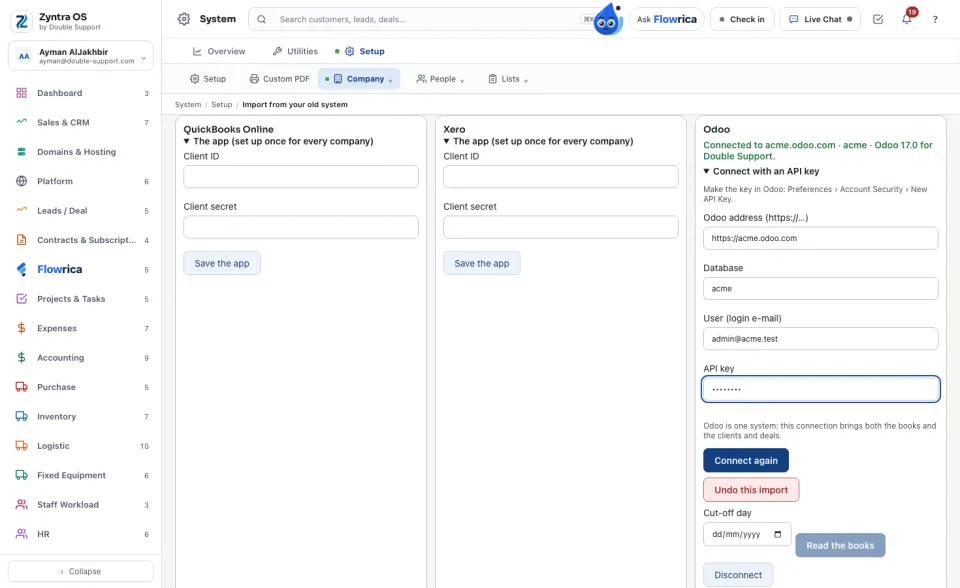
Odoo is one system: the same connection brings both the books and the clients and deals.
Connect Zoho Books or Zoho CRM
4
Under The app (set up once for every company), enter the Client ID and Client secret of your Zoho app and press Save the app. This is done once.
5
Under Data centre your Zoho account is on, choose the one your Zoho address ends in, for example zoho.com (US) or zoho.sa (Saudi Arabia). Press Connect and sign in to Zoho. You come back to this screen.
Bring an Odoo or Zoho export file
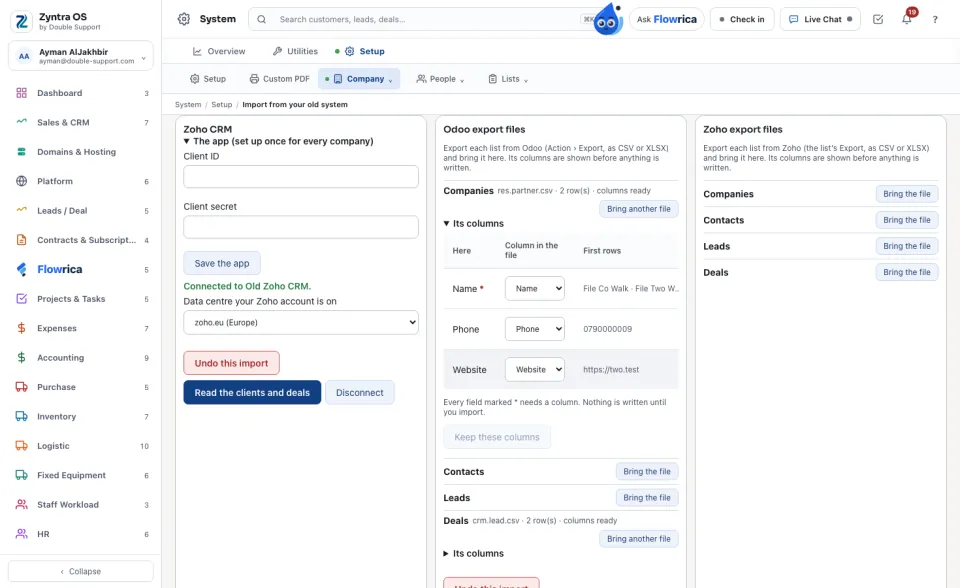
When the company cannot connect, export each list from the old system as CSV or XLSX: in Odoo, Action › Export; in Zoho, the list's own Export.
6
On the card of the Odoo or Zoho export files, press Bring the file beside the list it is, for example Trial balance, Customers or Open invoices.
7
Open Its columns. Each of our fields is shown with the column of the file it reads and its First rows. Change a column where it is wrong, or choose None. A field marked * must have a column. Press Keep these columns.
Look, then import
8
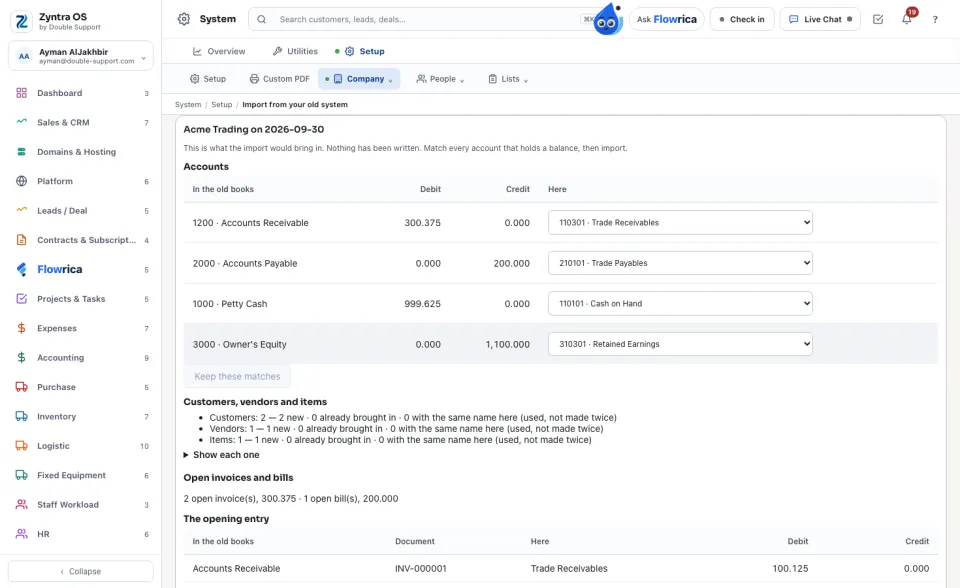
For the books, choose the Cut-off day and press Read the books; for clients and deals, press Read the clients and deals. Nothing is written yet: you see each account with its balance, how many are new and how many are already here, the open invoices and bills, and the opening entry.
9
Match every account (or every stage that holds deals) to one of yours and press Keep these matches. Then press Bring them in and Yes, bring them in.
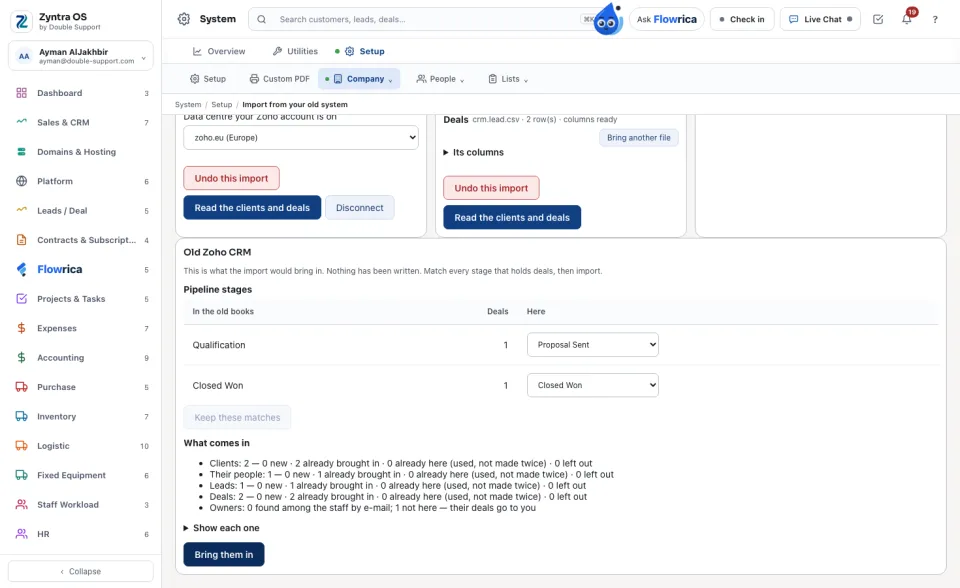
A second run brings nothing twice: what was already brought in, or already here under the same name, is used, not made again.
Undo an import
10
On the card of the old system, press Undo this import, then Yes, undo it. The opening entry is reversed, and what the import made is taken out. Anything that is in use since stays, and what was already here is not touched. The screen then says, for each list, how many were taken out, kept and untouched.
Connect Microsoft Dynamics 365 or Sage
11
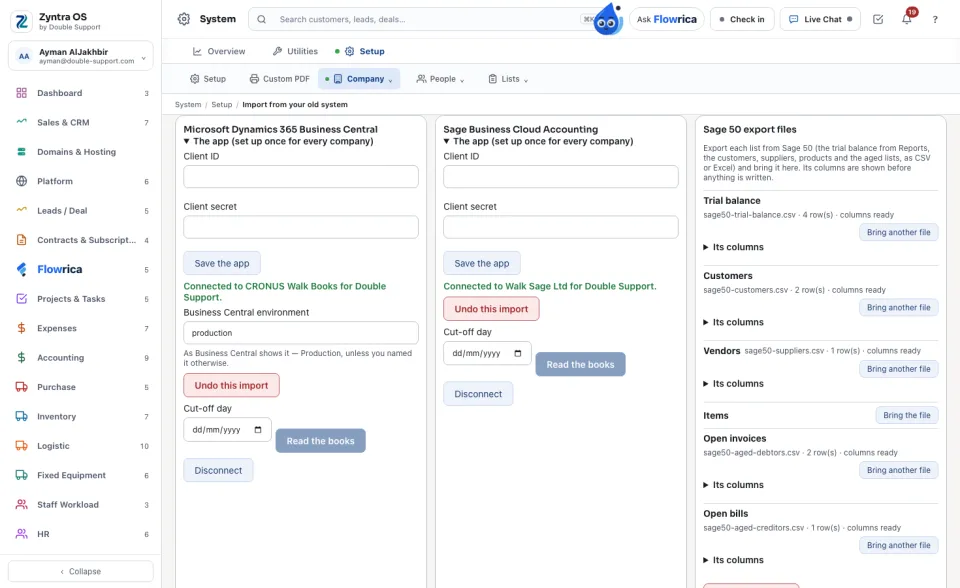
For Microsoft Dynamics 365 Business Central, enter the app's Client ID and Client secret under The app (set up once for every company) and press Save the app. Under Business Central environment, write the environment's name as Business Central shows it (Production, unless you named it otherwise). Press Connect and sign in with Microsoft. The first company of that environment is read.
12
For Microsoft Dynamics 365 Sales, on the clients and deals card, write Your Dynamics 365 address as the browser shows it, like yourcompany.crm.dynamics.com, and press Connect. Only an address of Microsoft's own is taken.
13
For Sage Business Cloud Accounting, save the app once as above, press Connect and sign in to Sage.
14
For Sage 50 or Sage 300, export each list from Sage and press Bring the file beside it on the card of its export files. When the open invoices or bills name the customer or supplier by its account code (A/C), bring the customers' and suppliers' files with that code too, so each document finds its party.
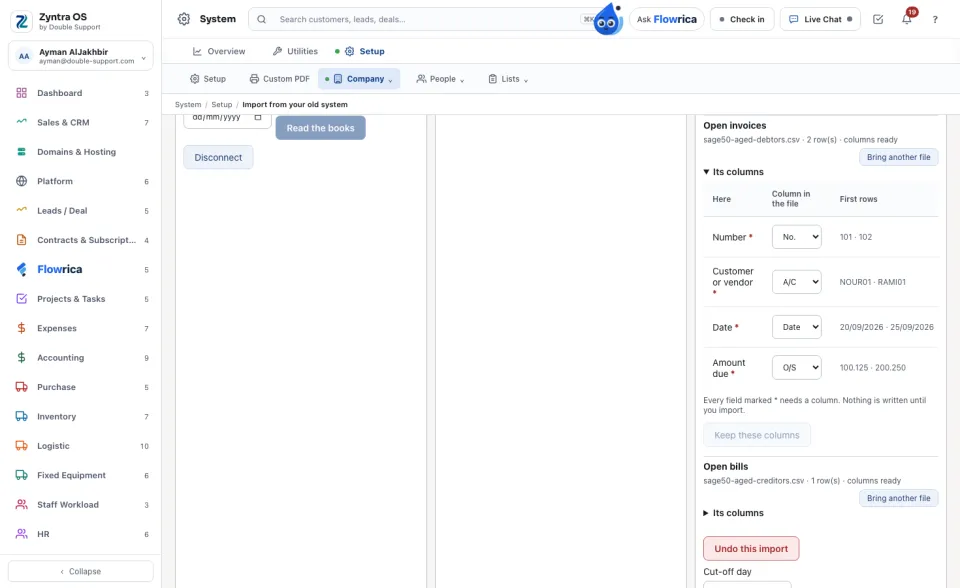
Nothing is ever written back to Dynamics 365 or Sage: they are only read.
A company must keep its own books before they can come in. See Set up a company's books.
Questions
Where is “Import from your old system” in Zyntra OS?
System › Setup › Import from your old system
Who can use “Import from your old system”?
People who may edit the accounting settings bring the books; people who may import customers bring the clients and deals.