

 Zyntra OS
 Zyntra Legal
 Zyntra Real Estate
 Zyntra Hotel
 Zyntra E-commerce
 Zyntra Appointments
 Zyntra Repair
 Zyntra Garage
 Zyntra Concierge
 Zyntra Contracting
 Zyntra Clinic
 Zyntra Call Center
 Zyntra OTA
Where
System › Setup › People › RolesWho
Anyone allowed to manage roles.Make a role
1
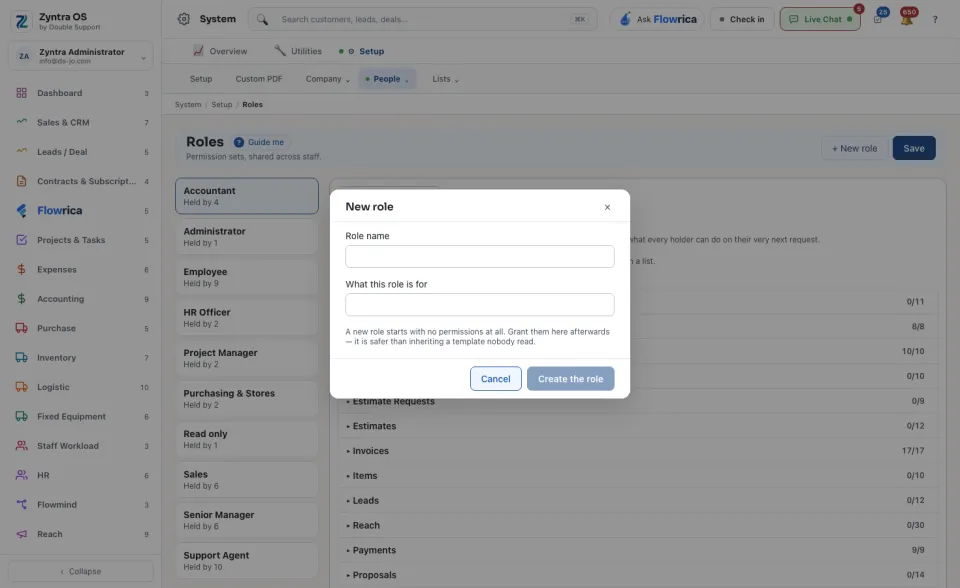
Press + New role. Type the Role name and What this role is for, and press Create the role. A new role starts with no permissions at all.
2
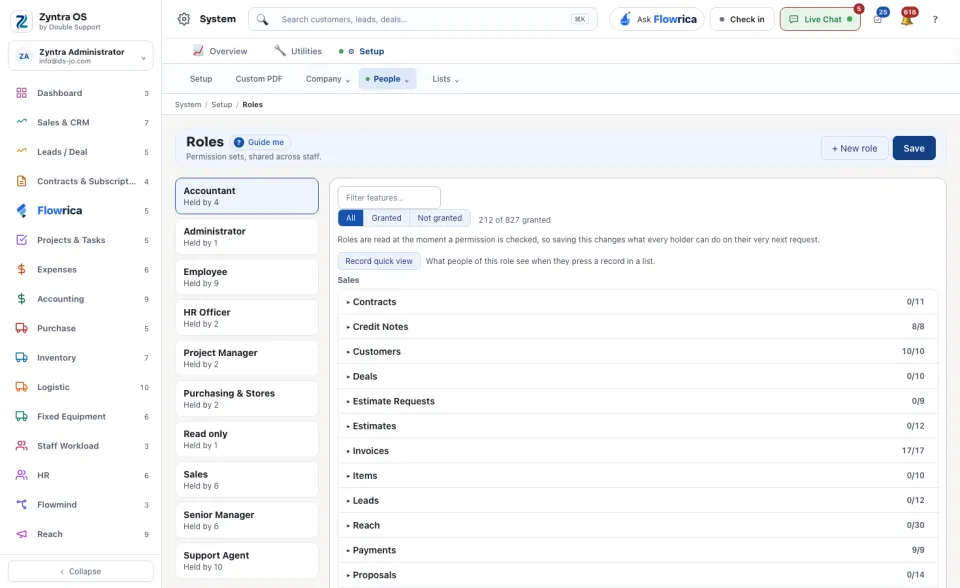
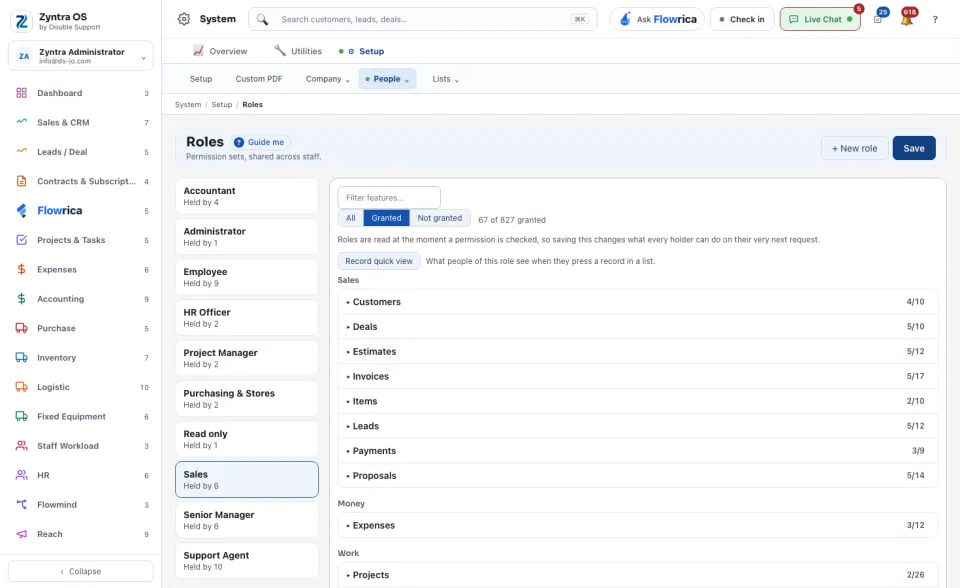
Pick the role's card in the list of roles. Each card says how many people hold it (Held by). The line above the features says how many permissions the role has, for example 58 of 840 granted.
3
The features are grouped by area: Sales, Money, Work, People, Stock and assets and more. Press a feature to open it.
4
Tick what the role may do with it: View own, View team, View all, View, Create, Edit, Delete or More. All ticks the whole row.
5
Press Save. If people hold the role, Zyntra warns
This affects people immediately; press Save and apply.
To find a feature, type in Filter features…. All, Granted and Not granted show everything, only what the role has, or only what it lacks.
What the role sees in a quick view
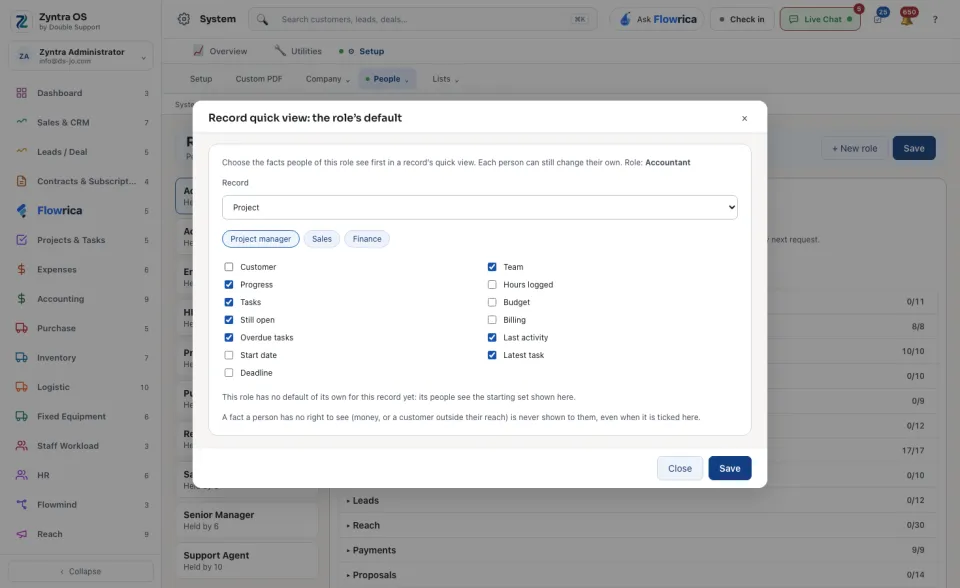
Press Record quick view to choose the facts people of this role see first when they press a record in a list. Choose the Record (project, customer, invoice and so on), tick the facts, and press Save. Each person can still change their own. A fact a person has no right to see is never shown to them, even when it is ticked here.
Before: Add your staff · Next: Ask for access