

 Zyntra OS
 Zyntra Legal
 Zyntra Real Estate
 Zyntra Hotel
 Zyntra E-commerce
 Zyntra Appointments
 Zyntra Repair
 Zyntra Garage
 Zyntra Concierge
 Zyntra Contracting
 Zyntra Clinic
 Zyntra Call Center
 Zyntra OTA
Where
System › Setup › People › Staff for the account · HR › HR Records for the HR recordWho
Anyone allowed to add staff sees + New staff member.Add a person
A staff member needs a job position. If there are none yet, add one first under HR › HR Records › The organisation › Job descriptions.
1
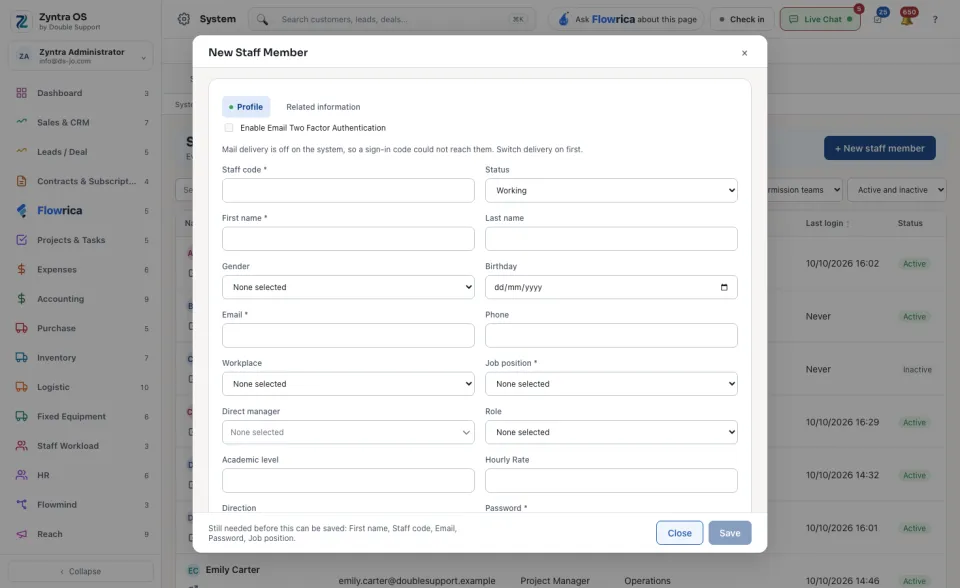
On the Staff list press + New staff member. The form New Staff Member opens.
2
On the Profile tab fill in the fields marked with a star: Staff code, First name, Email, Company, Job position and Password. The line at the bottom names what is still needed before the form can be saved.
3
Choose their Status (Working, Probation or Left), Workplace, Direct manager and Role. Under Other information tick their Member departments. Tick Send welcome email if they should get one.
4
The Related information tab holds personal details, documents, bank and tax details, who to call, and online profiles. Fill in what you have.
5
Press Save. To leave without saving, press Close.
Find a person
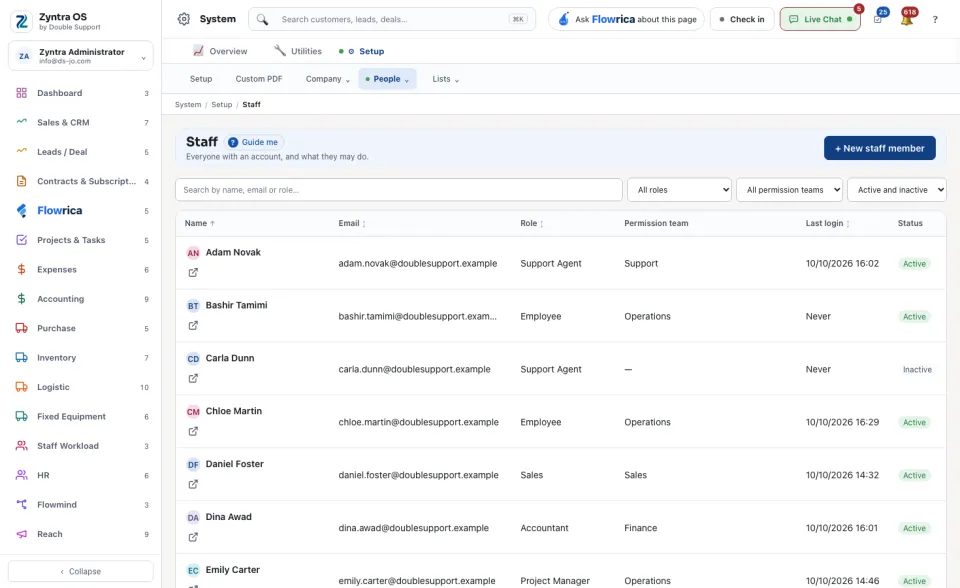
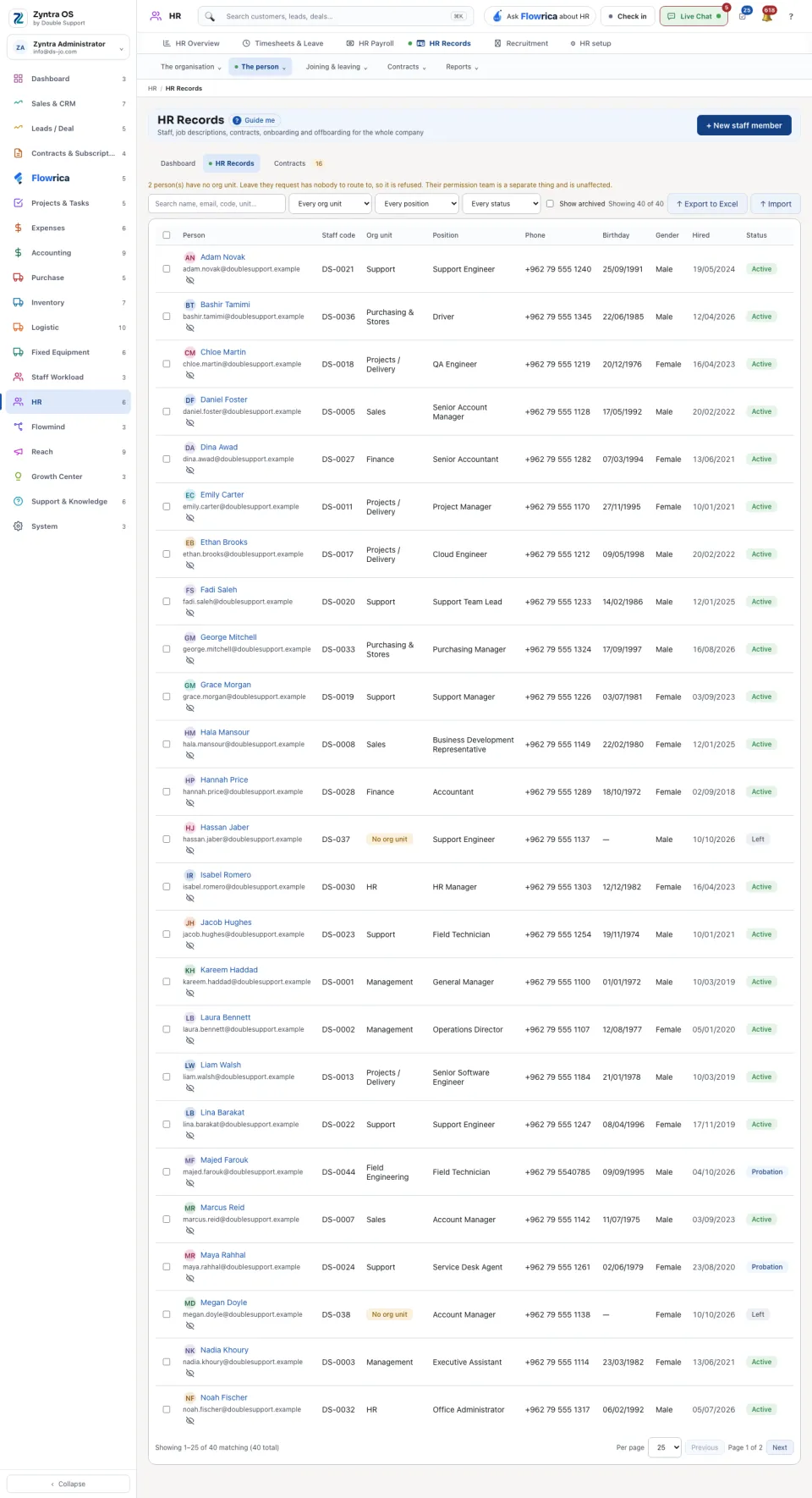
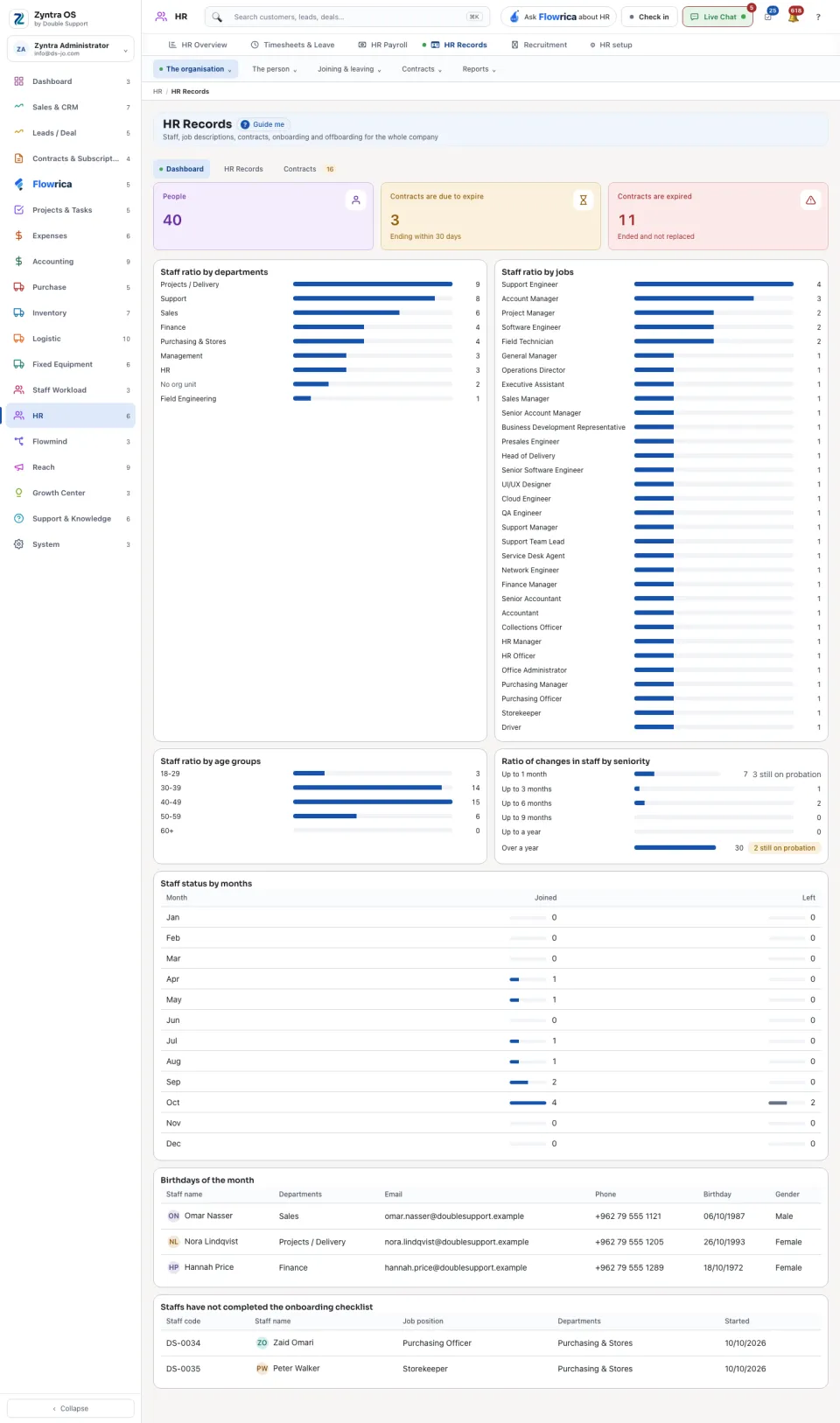
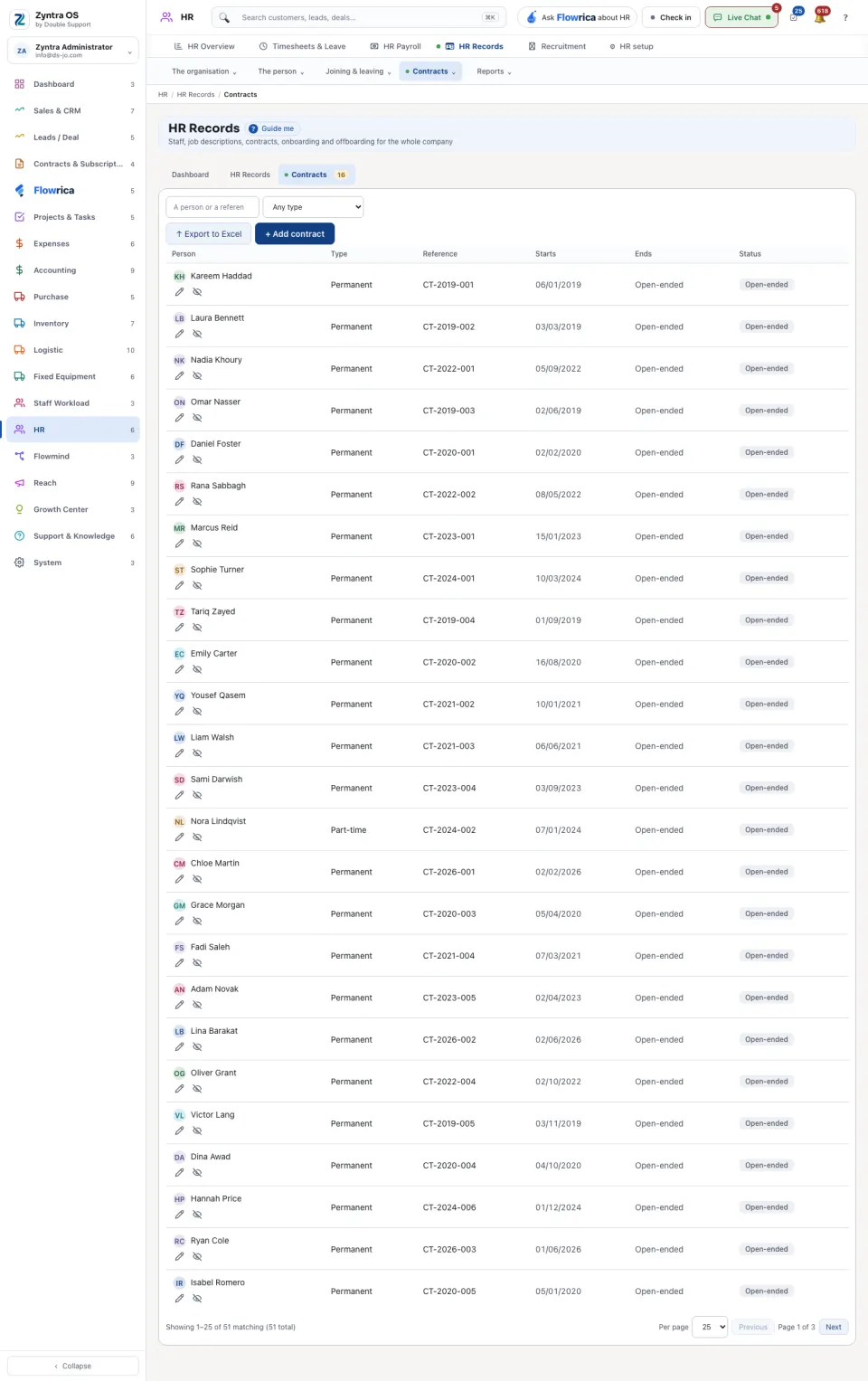
On the Staff list, narrow by role, by permission team, or by active and inactive. Press Open on a row to open the person. On HR › HR Records, narrow by org unit, position and status; Show archived brings back archived records, and Export to Excel and Import work on the whole list. HR Records has three views: Dashboard, HR Records and Contracts.
The staff record's tabs
System › Setup › People › Staff, then a person.
| Tab | What it holds | What you can do there |
|---|---|---|
| Profile | Name, email, phone, role, reading direction, working hours, permission team and email signature. The switches Active, Is a staff member and Administrator. | Change and press Save. |
| Permissions | What they may do: what comes from their role, and what is granted or denied for them alone. | Click a capability to change it: from the role, denied for this person, back to the role. A denial always wins. Nobody changes their own permissions. |
| Companies | Which companies they work in. It decides what they see: every list, every report, every card. | Choose a company and press Add. Someone placed in no company Works in every company. |
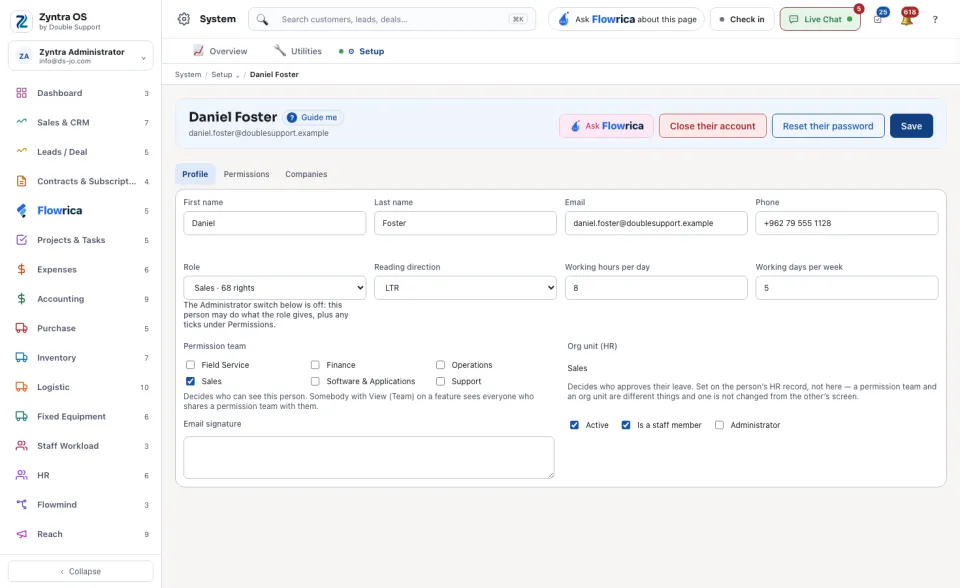
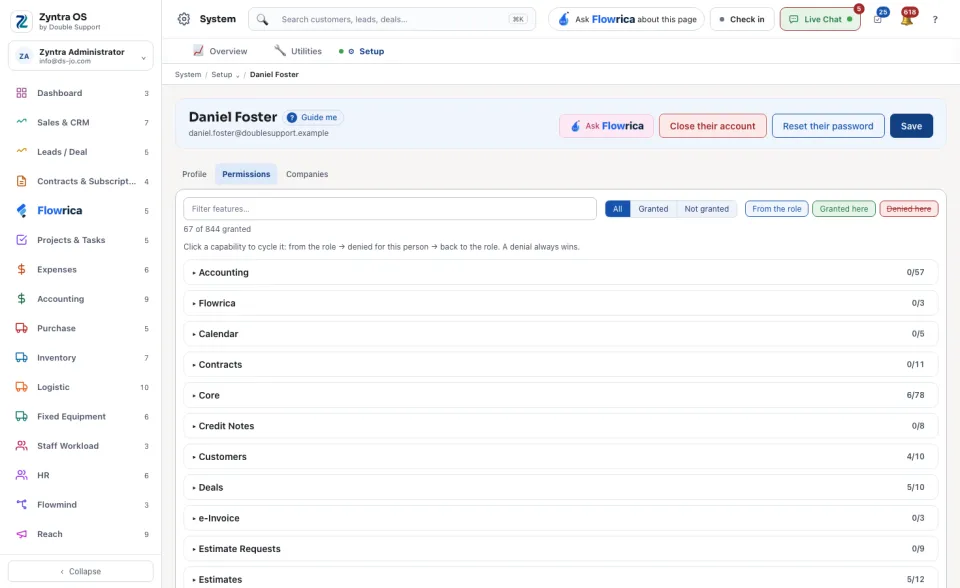
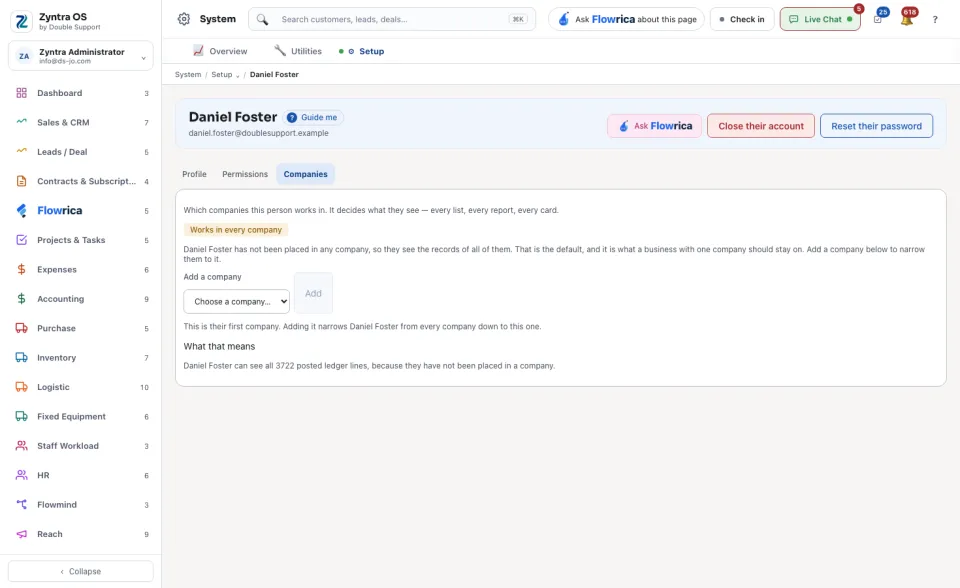
At the top of another person's record:
- Reset their password: gives them a new password when they have lost theirs.
- Close their account: when someone leaves. They can no longer sign in, and everything they worked on stays where it is.
- Ask Flowrica: ask about this person, for example why they cannot see something.
The HR record's tabs
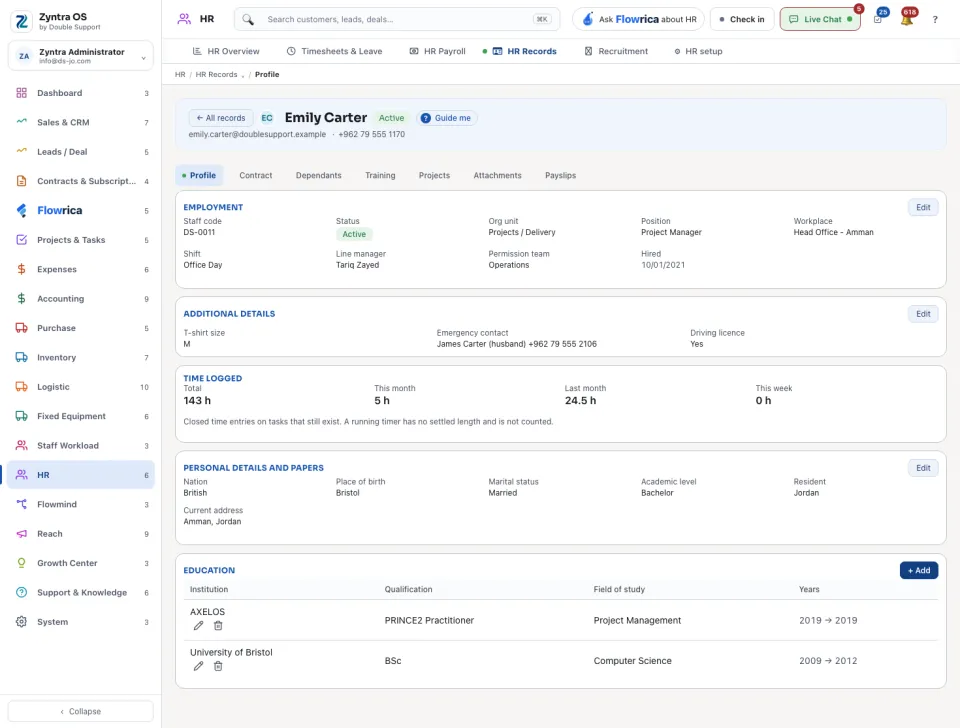
HR › HR Records, then a person. ← All records goes back to the list.
| Tab | What it holds | What you can do there |
|---|---|---|
| Profile | Employment (staff code, status, org unit, position, workplace, shift, permission team, hire date), time logged, personal details and papers, education. | Edit the employment or the personal details; + Add education. |
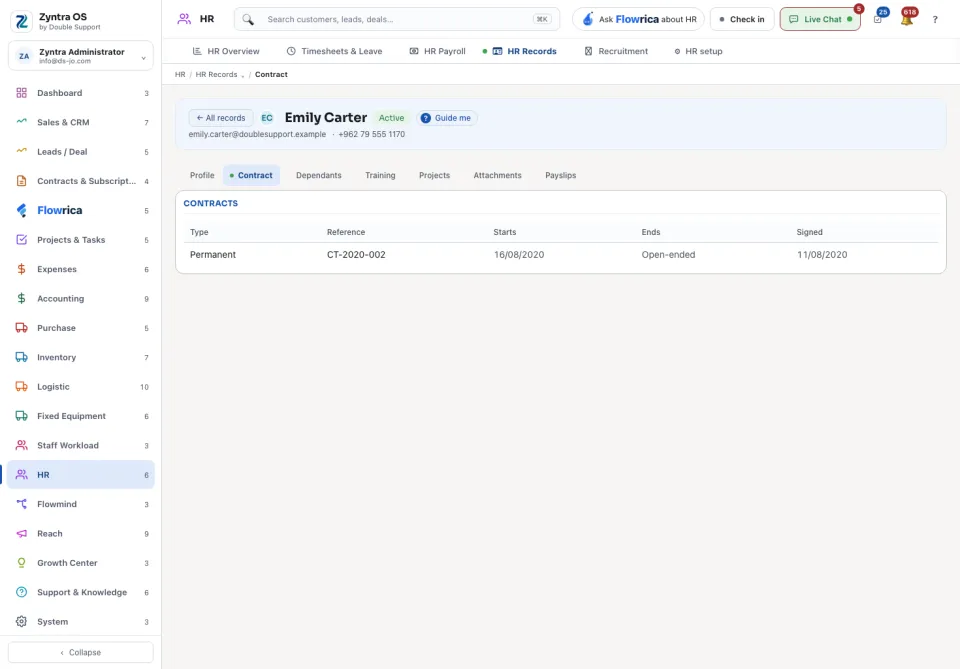
| Contract | Their contracts: type, reference, start, end and signing date. | Read. A contract is added on the Contracts view of HR Records with + Add contract. |
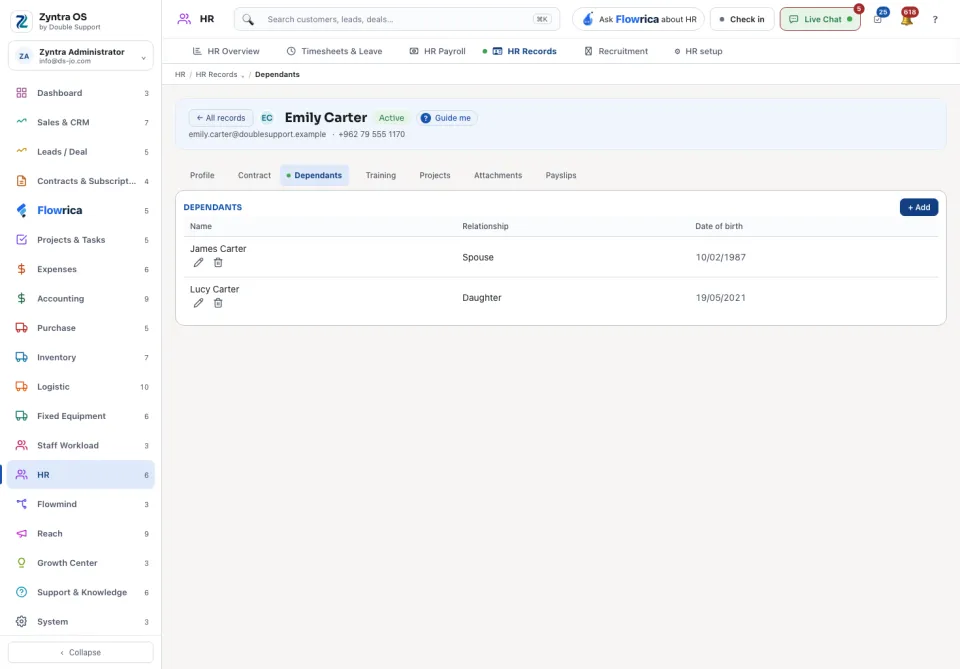
| Dependants | Their dependants, with relationship and date of birth. | + Add, Edit, Delete. |
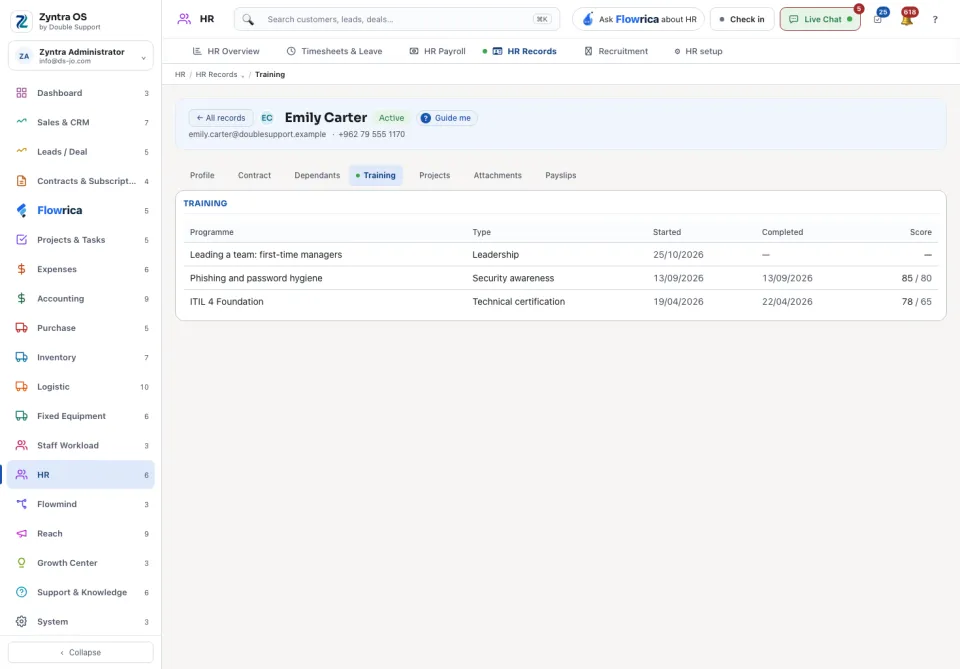
| Training | The training recorded for them. | Read. |
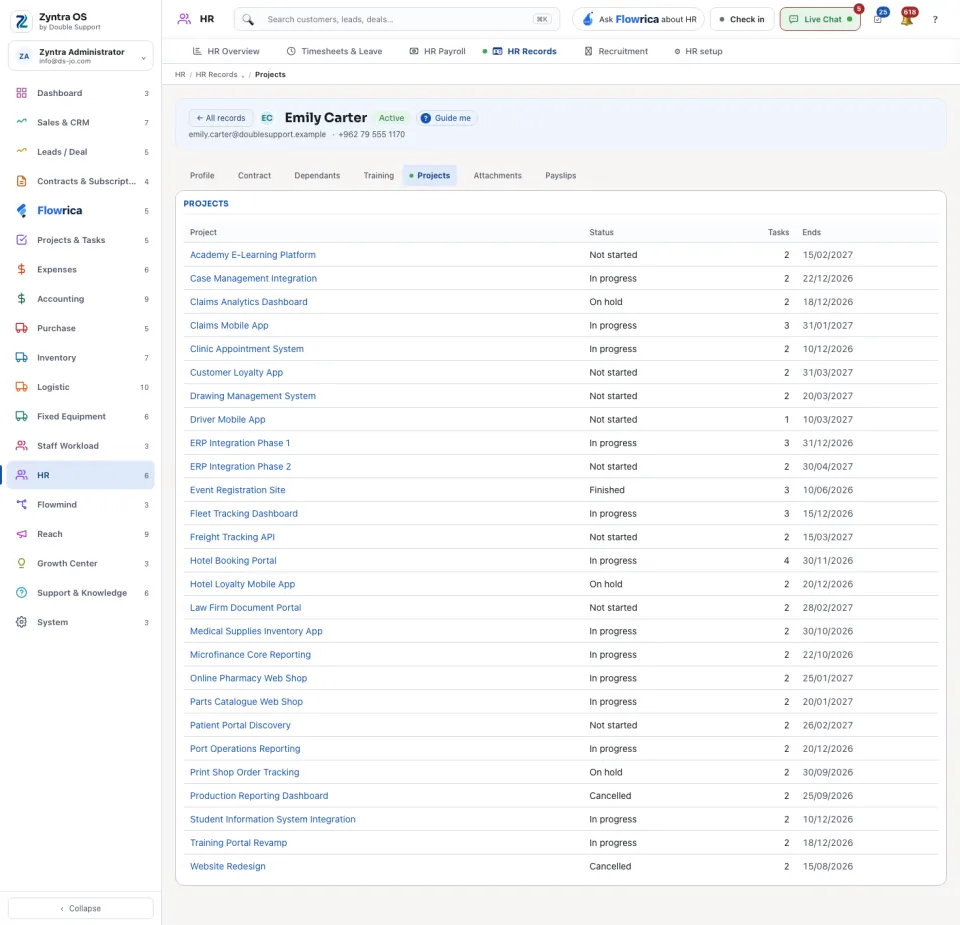
| Projects | The projects they are on, with status, tasks and end date. | Read. |
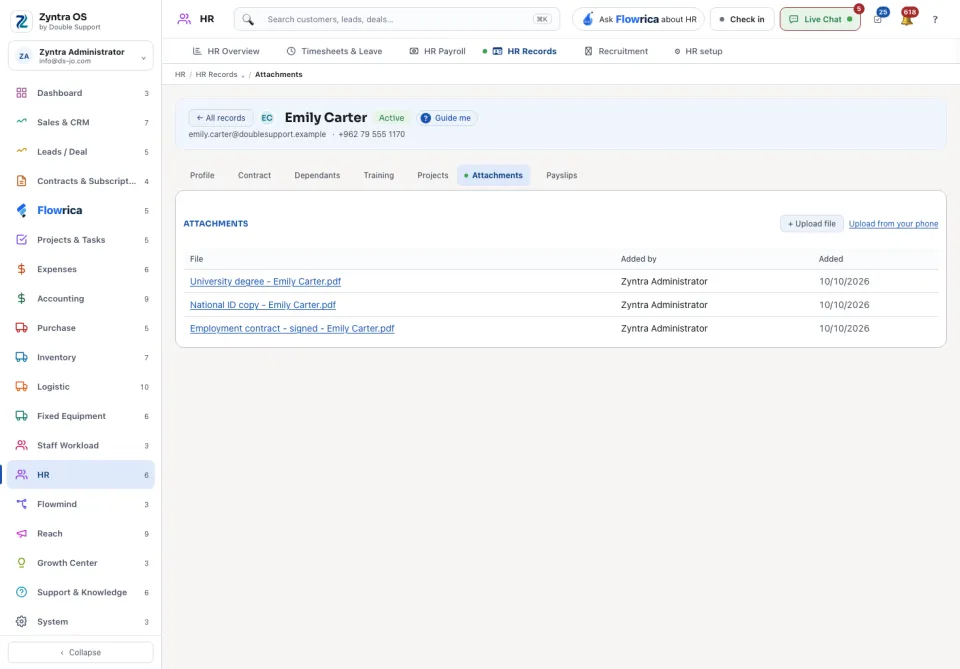
| Attachments | Files on their HR record. | + Upload file, or Upload from your phone. |
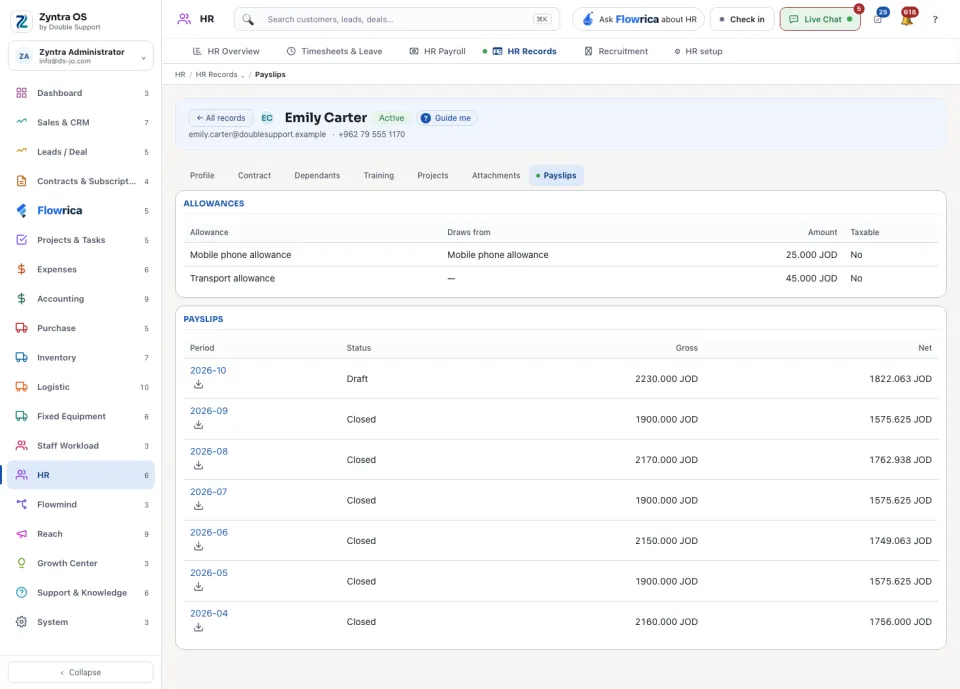
| Payslips | Their standing allowances and every payslip. | Download a payslip. |
A person with no org unit has nobody to approve their leave, so a leave request from them is refused. The HR Records list says how many people are in that state. The permission team is a separate thing and is set on the staff record.
Flowrica on these screens: she can start Add a staff member with you, one question at a time; nothing is saved until you press the form's own button. Next: give them a role. A person can also ask for access to a screen they need.