Zyntra OS
 Zyntra Legal
 Zyntra Real Estate
 Zyntra Hotel
 Zyntra E-commerce
 Zyntra Appointments
 Zyntra Repair
 Zyntra Garage
 Zyntra Concierge
 Zyntra Contracting
 Zyntra Clinic
 Zyntra Call Center
 Zyntra OTA
Where
System › Setup › Email templatesWho
Anyone allowed to see settings; changing a template needs permission to edit them.1
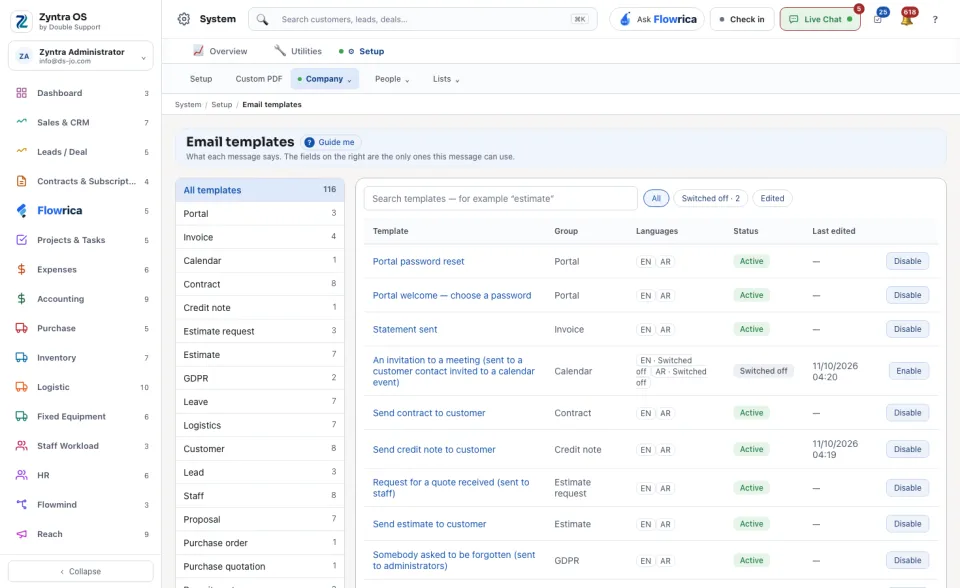
Find the template. The chips at the top narrow the list by what the message is about, for example Invoice, Contract, Leave or Support, each with its count. Under them, All, Switched off and Edited narrow it by state.
2
Read a row: the Template, its Group, the Languages it is written in, its Status and when it was Last edited. The button at the end of the row switches the one message off or on again.
3
Press a template to open it. Change its subject and its message, for each language.
4
To put a name, a number or a date of the record into the text, press it in the list of fields beside the message. Only the fields listed there can be used in this message.
A message that is switched off is not sent at all. The others go out as written here, in the language of the person who receives them.