

 Zyntra OS
 Zyntra Legal
 Zyntra Real Estate
 Zyntra Hotel
 Zyntra E-commerce
 Zyntra Appointments
 Zyntra Repair
 Zyntra Garage
 Zyntra Concierge
 Zyntra Contracting
 Zyntra Clinic
 Zyntra Call Center
 Zyntra OTA
Where
Ask Flowrica in the top bar of every screen · her own screens under Flowrica in the menuWho
Everyone allowed to use Flowrica. She offers only what you are allowed to do, and reads only the records you may open.Open her panel
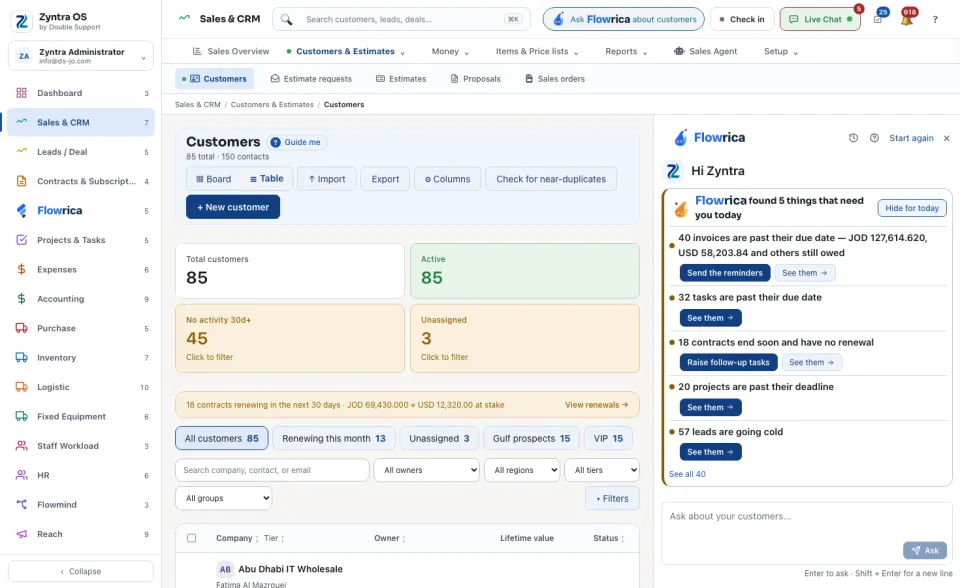
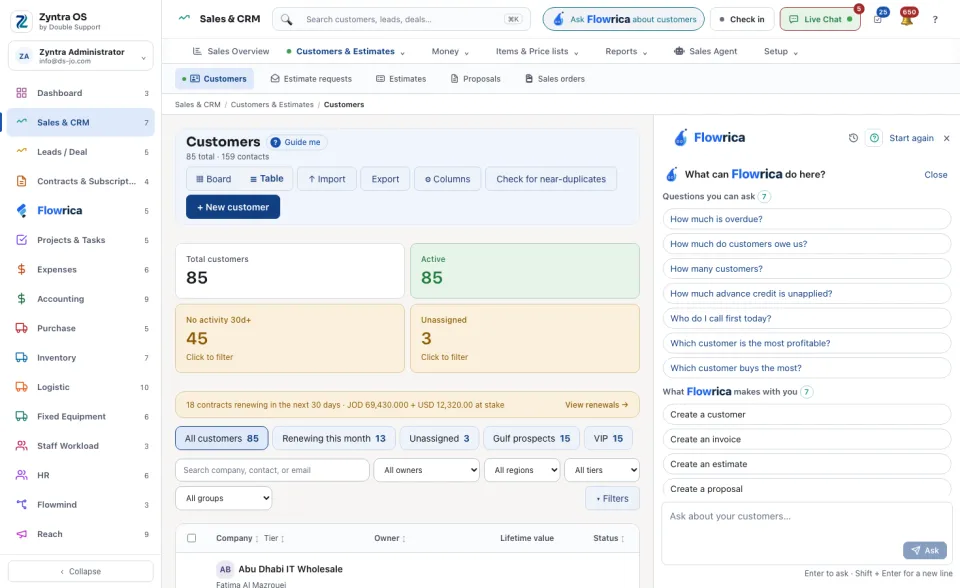
Press Ask Flowrica in the top bar. The button names the screen you are on, for example Ask Flowrica about tasks. Her panel opens beside your work and says what you are looking at. In it you find:
| In the panel | What it is for |
|---|---|
| What can Flowrica do here? | Three lists for this screen: Questions you can ask, What Flowrica makes with you and What Flowrica watches for. Press Close to go back. |
| Try one of these | Ready questions about this screen. Press one to get its answer. |
| Or make something | The records she can make with you from here, for example Create a task or Create a customer. |
| The box at the bottom | Type a question in your own words and press Ask, or Enter. |
| Start again | Clears the panel and returns to its opening. |
Ask a question
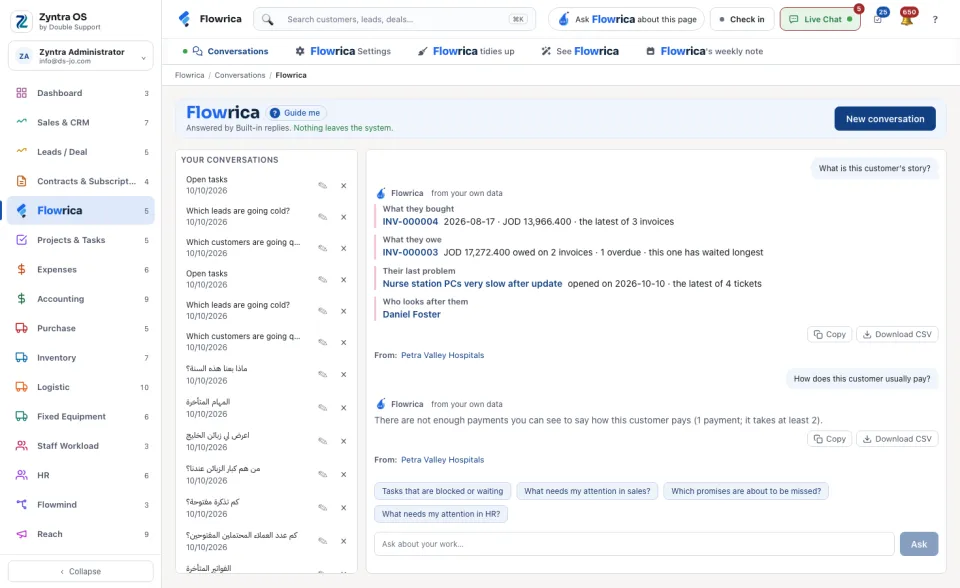
On a customer's page her panel also offers What is this customer's story?: up to five short lines about what they bought, what they owe, their last problem, who looks after them and the last thing that happened, each opening the record it names.
If she did not understand a sentence, she says so and offers the nearest questions she can answer.
Make a record with her
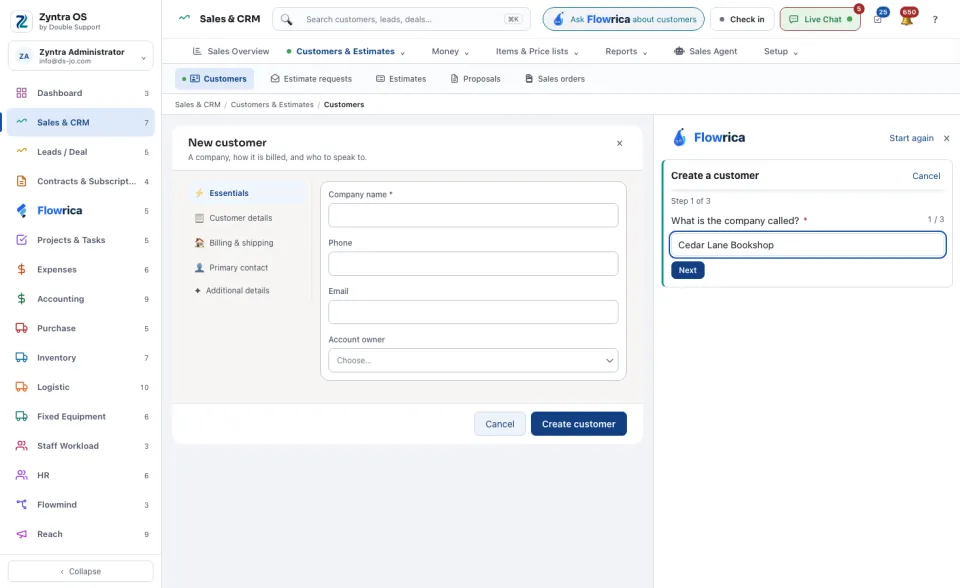
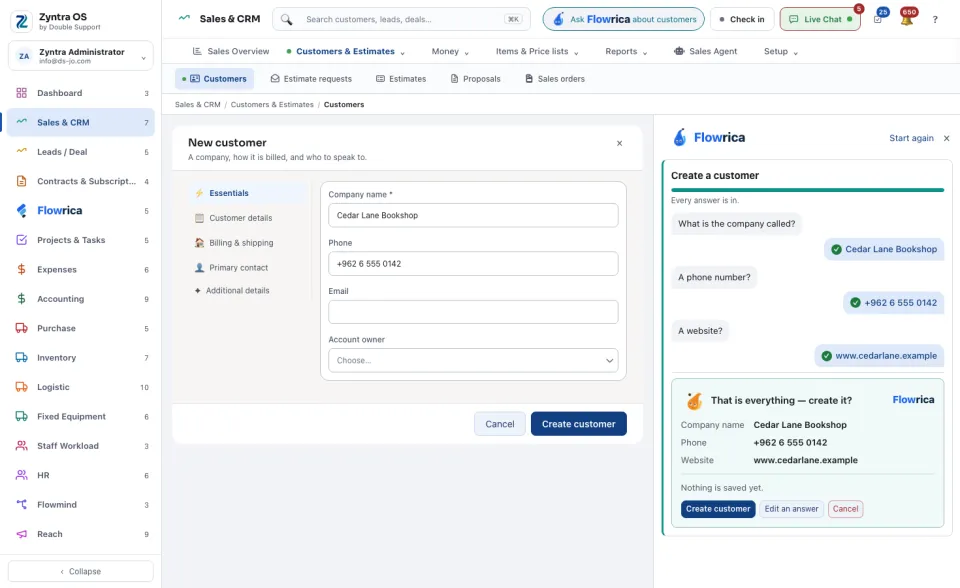
If you work in more than one company and none is chosen, she asks you to choose the company in the top bar or on the form before she saves.
A whole order in one sentence
You do not have to press a button first. Type the whole order in the box, for example Create an invoice for Petra Valley Hospitals for 3 hours of consulting at 50 JOD. She starts the same steps with what she understood already filled in, and asks only for what is missing. The sentence can ask for an invoice, an estimate, an expense, a payment or a task.
Watch for me
Type what you want to be told about, for example tell me when an invoice is 7 days late. She opens a Watch for me card with nothing saved yet; press Create to keep it. She can watch for an invoice a number of days late, a deal won or lost, a new lead, customer or ticket, a ticket assigned to you, and stock below its minimum. What she keeps is a rule you can see and switch on or off under Flowmind.
What she tells you without being asked
| Where | What you see |
|---|---|
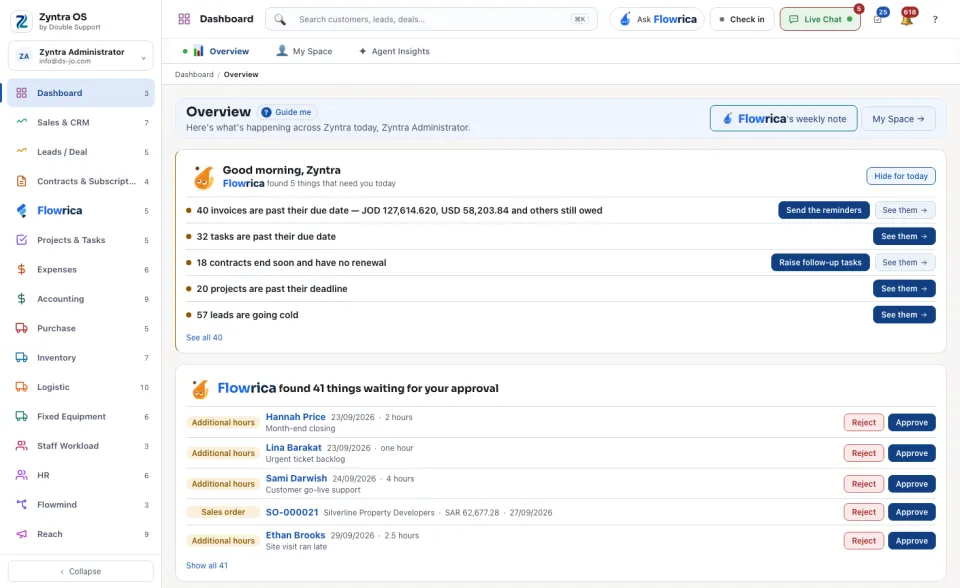
| The dashboard, every morning | The morning card: what needs you today, each line with one button such as See them, Open it, Send the reminders or Raise follow-up tasks. Hide for today puts it away. See Your dashboard. |
| The dashboard, the approvals card | What waits for your decision. Press Approve or Reject on the line; a rejection asks for its reason. |
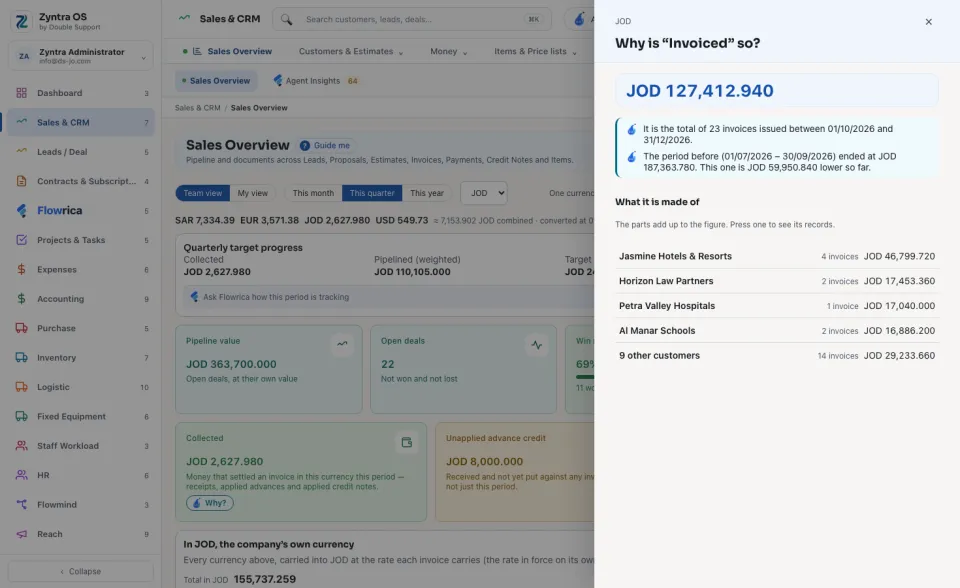
| Beside a figure | Why? opens the figure broken into its parts. The parts add up to the figure, and pressing a part shows its records. |
| On a form, while you type | A warning on the page itself, for example when the customer you are typing already exists. |
Her own screens
| Screen | What you do there |
|---|---|
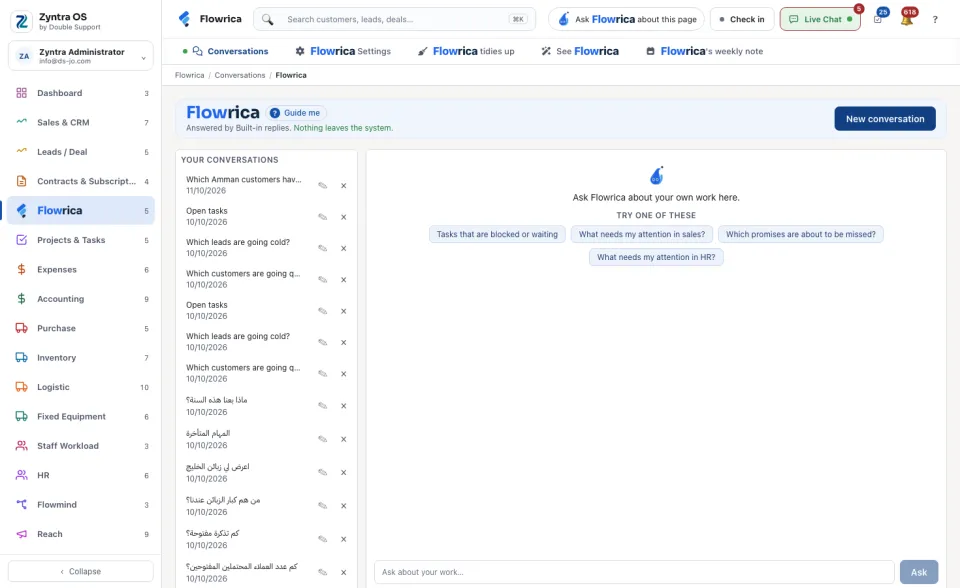
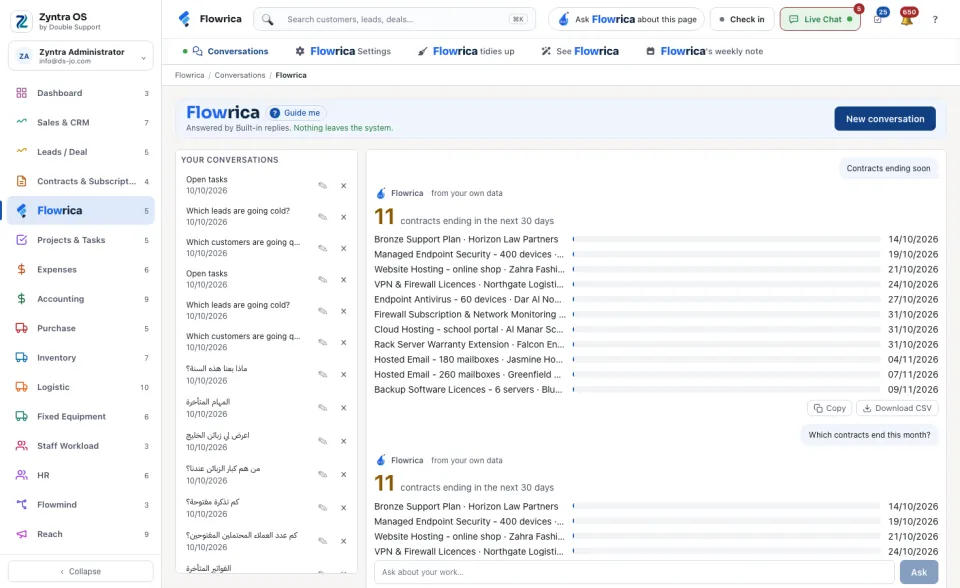
| Conversations | Everything you asked is kept under Your conversations. Press one to read it again, New conversation to start one, the pencil to rename it and the × to archive it. |
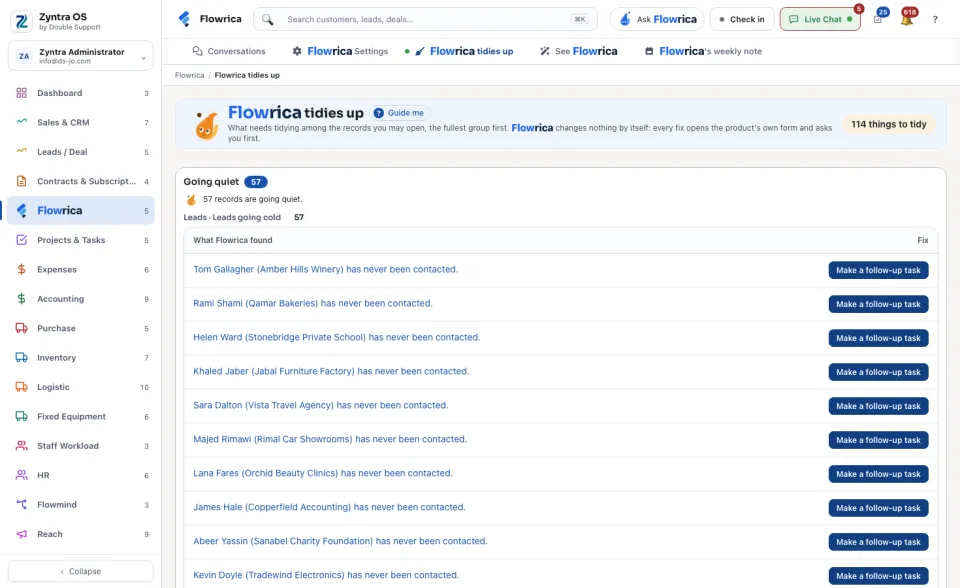
| Flowrica tidies up | What needs tidying among the records you may open, in groups: Missing something, Going quiet, Nobody on it, Written twice and Not moving. Each line has its fix, for example Complete it or Make a follow-up task. She changes nothing by herself: every fix opens the product's own form and asks you first. |
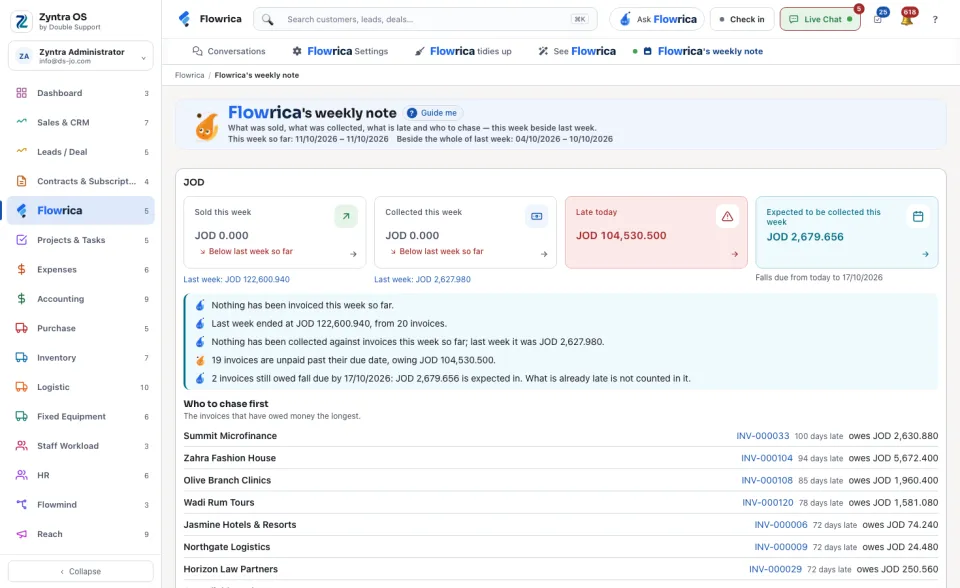
| Flowrica's weekly note | This week beside last week, for each currency: Sold this week, Collected this week, Late today and Expected to be collected this week, then Who to chase first, the invoices that have owed money the longest. Press an invoice to open it. |
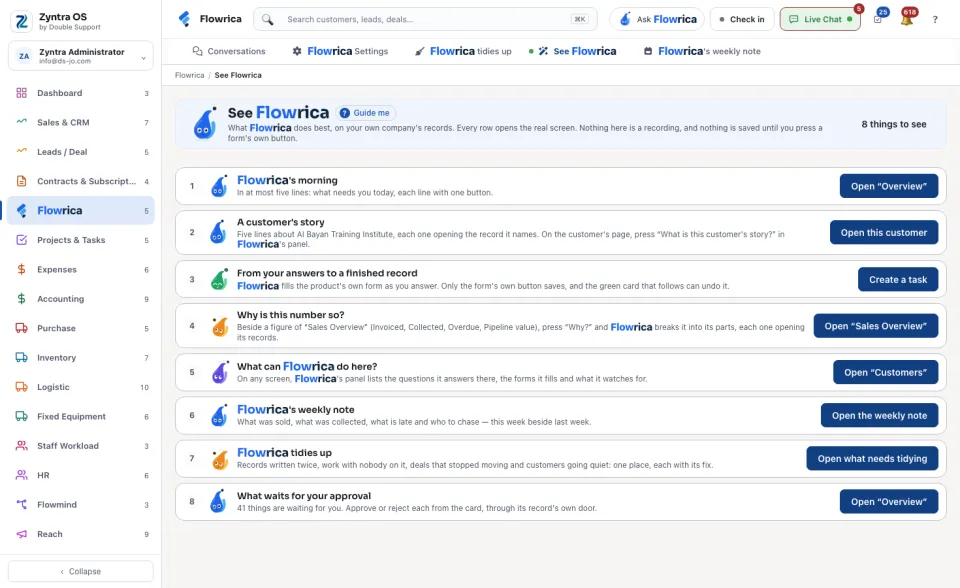
| See Flowrica | A short tour of what she does best, on your own company's records. Every row opens the real screen; nothing is saved until you press a form's own button. |
| Flowrica Settings | For administrators: see Flowrica settings. |
Her walk inside Guide me
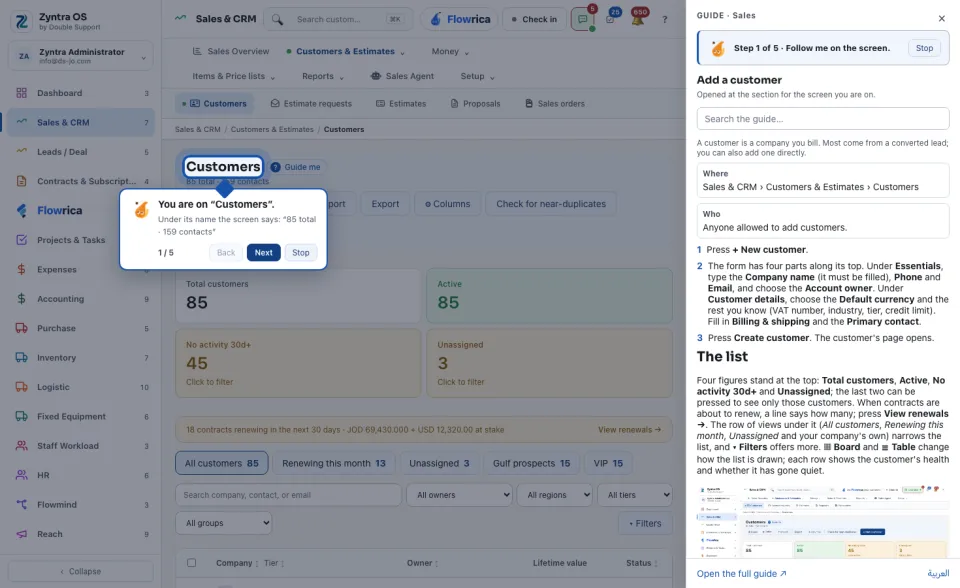
Press Guide me beside the title of any screen. Above the written section she asks Shall I walk you through this screen? Press Walk me through: she rings one part of the screen at a time, the title, the main button, what she can make with you here, a question you can ask, and the bar of the other screens. She only points; you press. Next and Back move between the steps, Stop ends the walk.
Examples
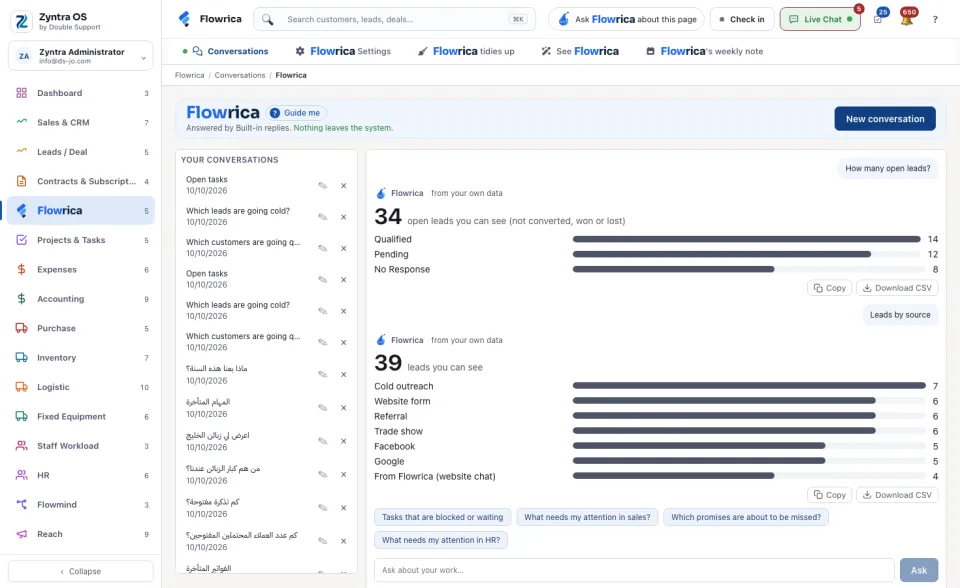
These are real questions and what she answers. Every answer is kept under Conversations, where you can open it again.
| Ask | She answers |
|---|---|
| How many open leads? | The number of open leads you can see, and how many are in each status. |
| Invoices by status | How much is unpaid, overdue and paid, each currency on its own. Currencies are never added together. |
| Contracts ending soon | Every contract that ends in the next 30 days, with its customer and its end date. |
| What needs my attention in sales? | The overdue invoices to chase, the longest late first. |
| How much do customers owe us? | What is owed on open invoices, split into past its due date and not due yet. |
Request leave (HR)
On HR › Timesheets & Leave, her panel offers questions such as Which leave requests are waiting?, and under Or make something, Request leave. She asks the kind of leave, the first and last day and a reason, and fills the form as you answer.