

 Zyntra OS
 Zyntra Legal
 Zyntra Real Estate
 Zyntra Hotel
 Zyntra E-commerce
 Zyntra Appointments
 Zyntra Repair
 Zyntra Garage
 Zyntra Concierge
 Zyntra Contracting
 Zyntra Clinic
 Zyntra Call Center
 Zyntra OTA
Where
Purchase › Procurement › Purchase OrderWho
Buyers raise them; approvers approve.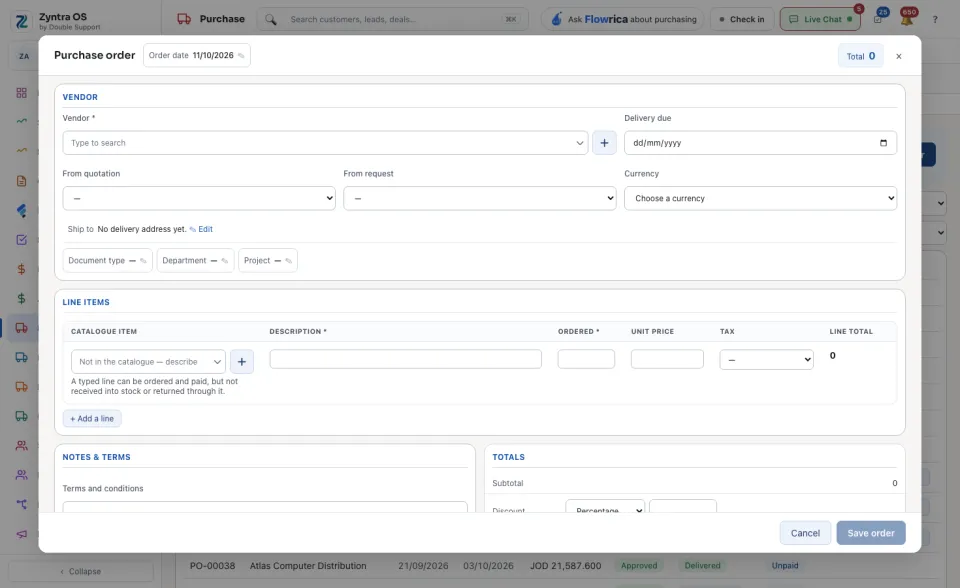
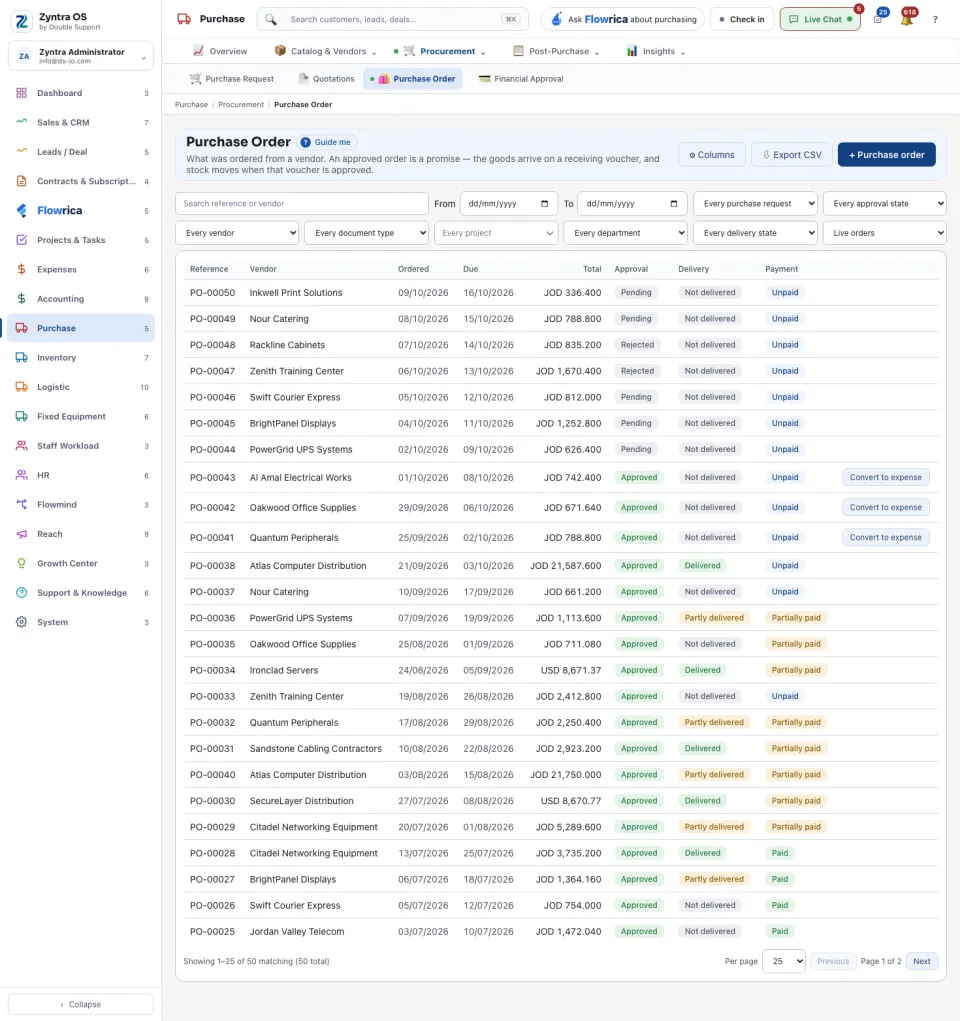
The list shows Reference, Vendor, Ordered, Due, Total, Approval, Delivery, Payment and Convert to expense. Search by reference or vendor, or narrow by approval state, vendor, document type, department, project, delivery state and dates. Columns chooses what the list shows; Export CSV gives it to you as a file.
The order’s page
Press an order: its page slides in over the list. Under its number it says whether it is Not delivered, Partly delivered or Delivered, and what the vendor says. It has no tabs; it reads top to bottom: Lines (Ordered, Received, Outstanding), the totals with Paid so far and Left on this order, Details, the receiving vouchers from Inventory, Files, Discuss, Notes, Reminders and Activity. While it waits for approval the page says which step it is on and who it is waiting on.
| Button | What it does |
|---|---|
| Approve this order, Refuse this order | The approver’s decision. A refused order shows Resubmit for approval instead. |
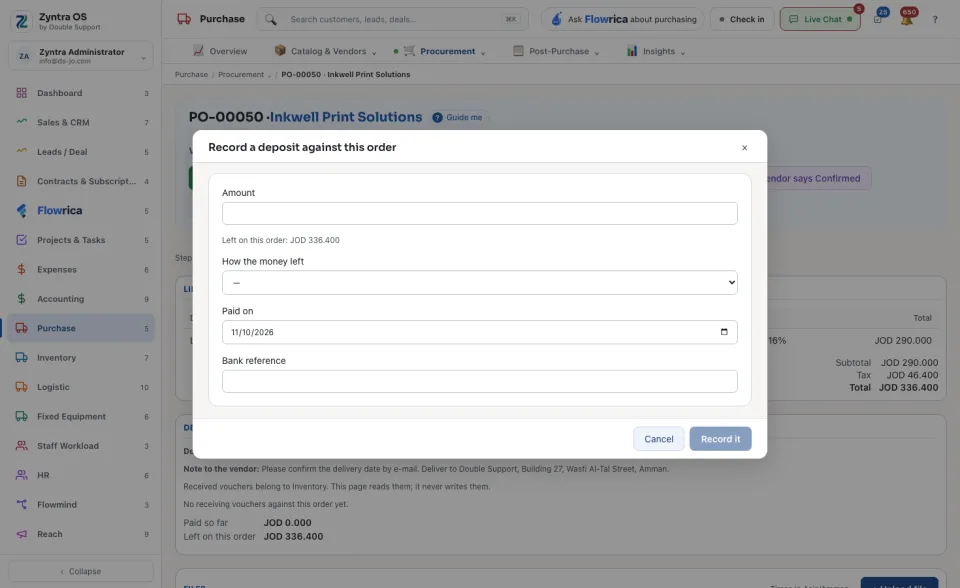
| Record a deposit | Money paid in advance: the Amount, How the money left, Paid on and the Bank reference, then Record it. |
| Send to the vendor | Sends the order to the vendor. |
| Vendor says New, Vendor says Confirmed, Vendor says Delivered, Vendor says Cancelled, Vendor says Returned | Records what the vendor told you about the order. |
| Edit, Copy to a new order, Archive, View PDF, Download | Change it, repeat it, put it away, or take it as a file. |
Flowrica on this screen
Flowrica can raise the order with you, one question at a time: open her from the top bar and choose Raise a purchase order. Nothing is saved until you press the form’s own button.