

 Zyntra OS
 Zyntra Legal
 Zyntra Real Estate
 Zyntra Hotel
 Zyntra E-commerce
 Zyntra Appointments
 Zyntra Repair
 Zyntra Garage
 Zyntra Concierge
 Zyntra Contracting
 Zyntra Clinic
 Zyntra Call Center
 Zyntra OTA
Where
Purchase › Catalog & Vendors › VendorsWho
Anyone allowed to manage vendors.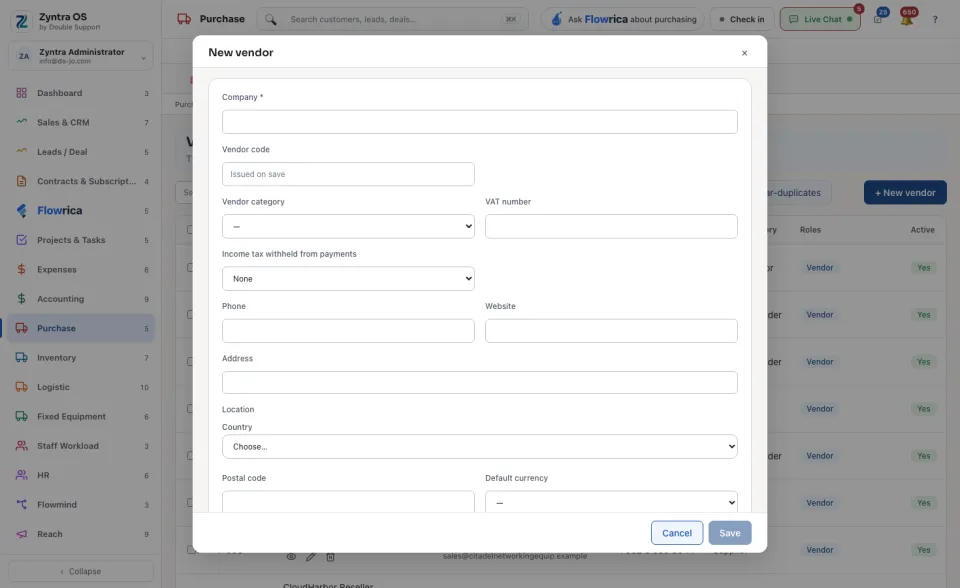
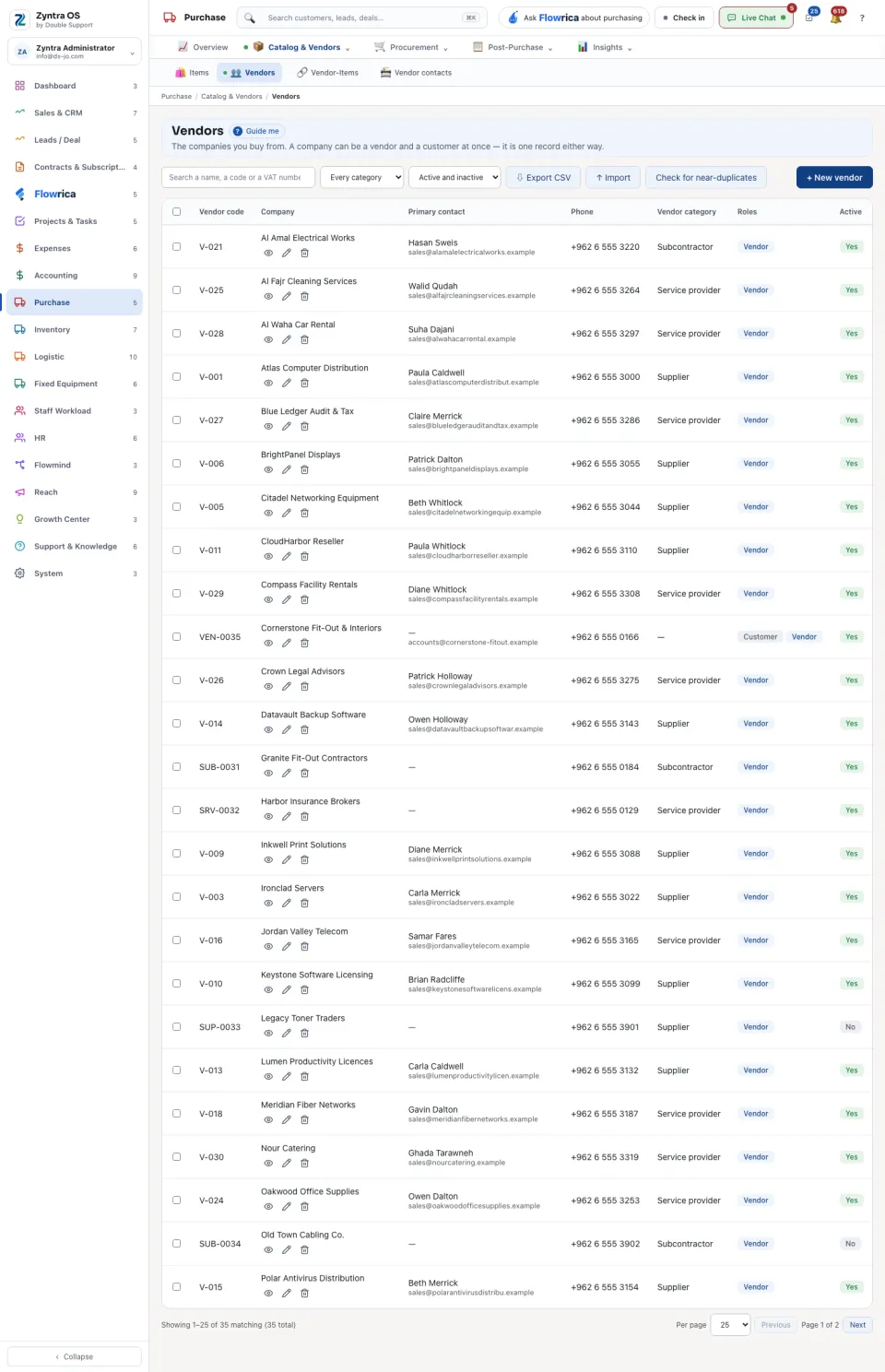
The list shows Vendor code, Company, Primary contact, Phone, Vendor category, Roles and Active. Search a name, a code or a VAT number, or narrow by category and by active or inactive. Above the list: Export CSV, Import and Check for near-duplicates. At the end of a row: View, Edit, Remove.
The vendor’s page
Press a vendor’s name: its page slides in over the list. It has no tabs of its own; it reads top to bottom:
| Part | What it holds |
|---|---|
| Details | Vendor category, VAT number, Phone, Website, Address, Payment terms. |
| The statement | Every purchase invoice, payment, deposit and debit note with this vendor in date order: Billed, Paid or credited and the Balance after each. PDF ▾ and Export give it to you as a file. |
| Account managers | Who in your company looks after this vendor: Set the account managers. |
| People at this company | The vendor’s own people: + Add contact. A person can be let into the vendor portal: Send an invite or Set a temporary password. |
| Documents with this vendor | A row of small tabs: Requests shared, Quotations, Purchase orders, Purchase invoices, Debit notes, Contracts, Expenses, each with its count. |
| Files, Notes, Activity | + Upload file, + Add note, + Log activity. |
At the top of the page: Print sheet and Log in as vendor, which shows you the vendor portal as this vendor sees it.
Flowrica on this screen
From her button in the top bar Flowrica offers to make a document with you, one question at a time: Raise a purchase order, Raise a purchase request or Record a quotation. Nothing is saved until you press the form’s own button. You can also ask her about the screen, for example “What is waiting for approval?”.