

 Zyntra OS
 Zyntra Legal
 Zyntra Real Estate
 Zyntra Hotel
 Zyntra E-commerce
 Zyntra Appointments
 Zyntra Repair
 Zyntra Garage
 Zyntra Concierge
 Zyntra Contracting
 Zyntra Clinic
 Zyntra Call Center
 Zyntra OTA
Where
HR › RecruitmentWho
Anyone allowed to manage recruitment.The screens of Recruitment
The bar under the module's name follows the work:
| In the bar | What it holds |
|---|---|
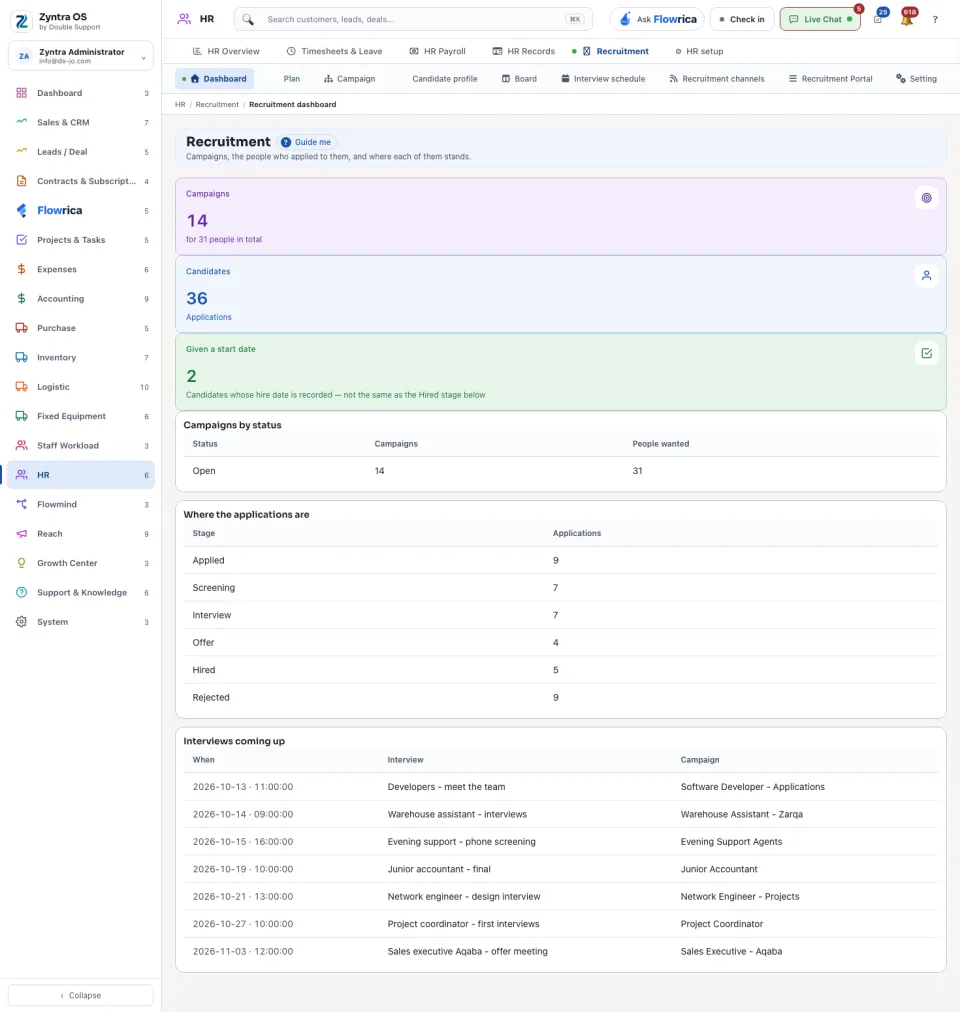
| Dashboard | How many campaigns, candidates and applications there are, the campaigns by status, where the applications stand, and the interviews coming up. |
| Plan | A plan is a campaign nobody can apply to yet. + New plan adds one; opening it puts the job in front of applicants. |
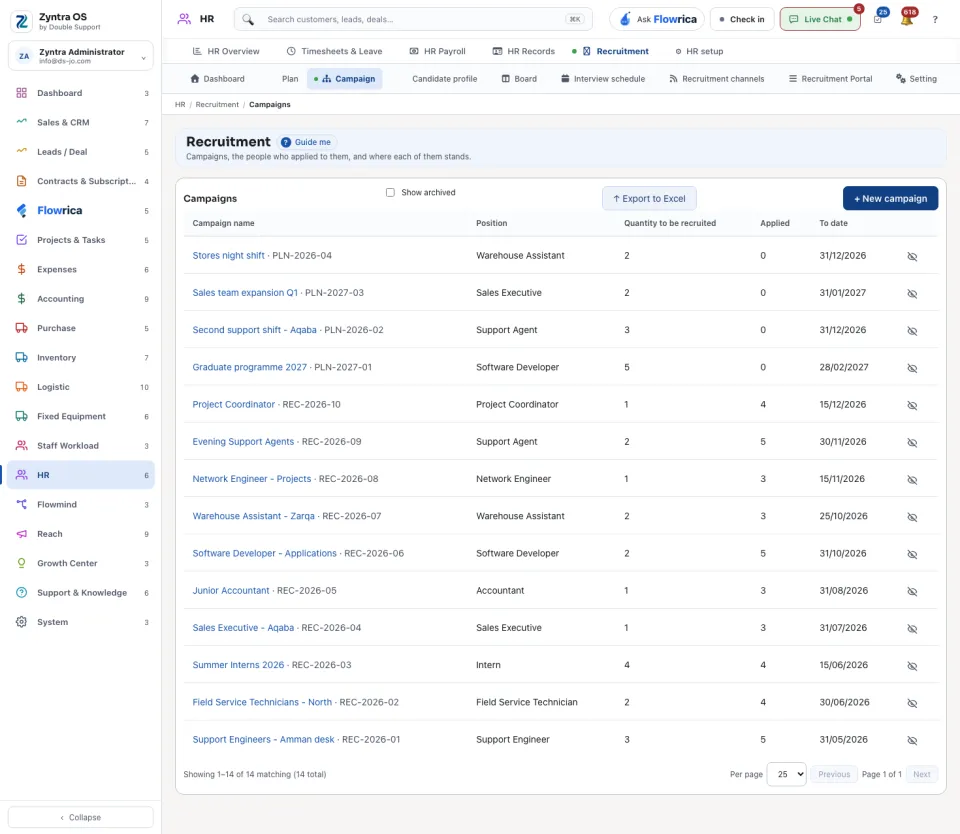
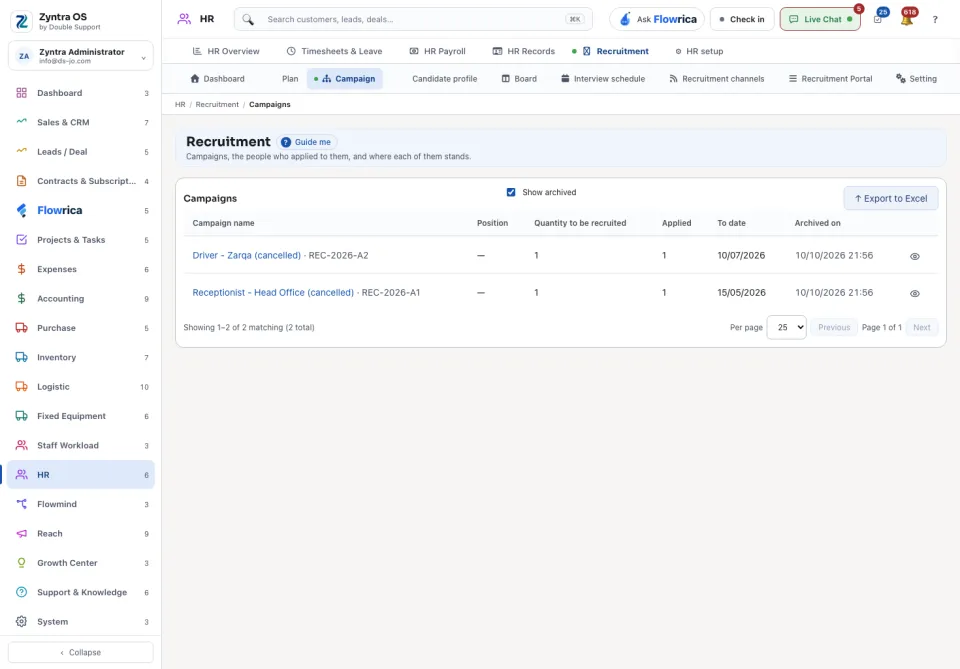
| Campaign | The list Campaigns: name, position, how many people are wanted, how many applied, and the closing date. + New campaign adds one. |
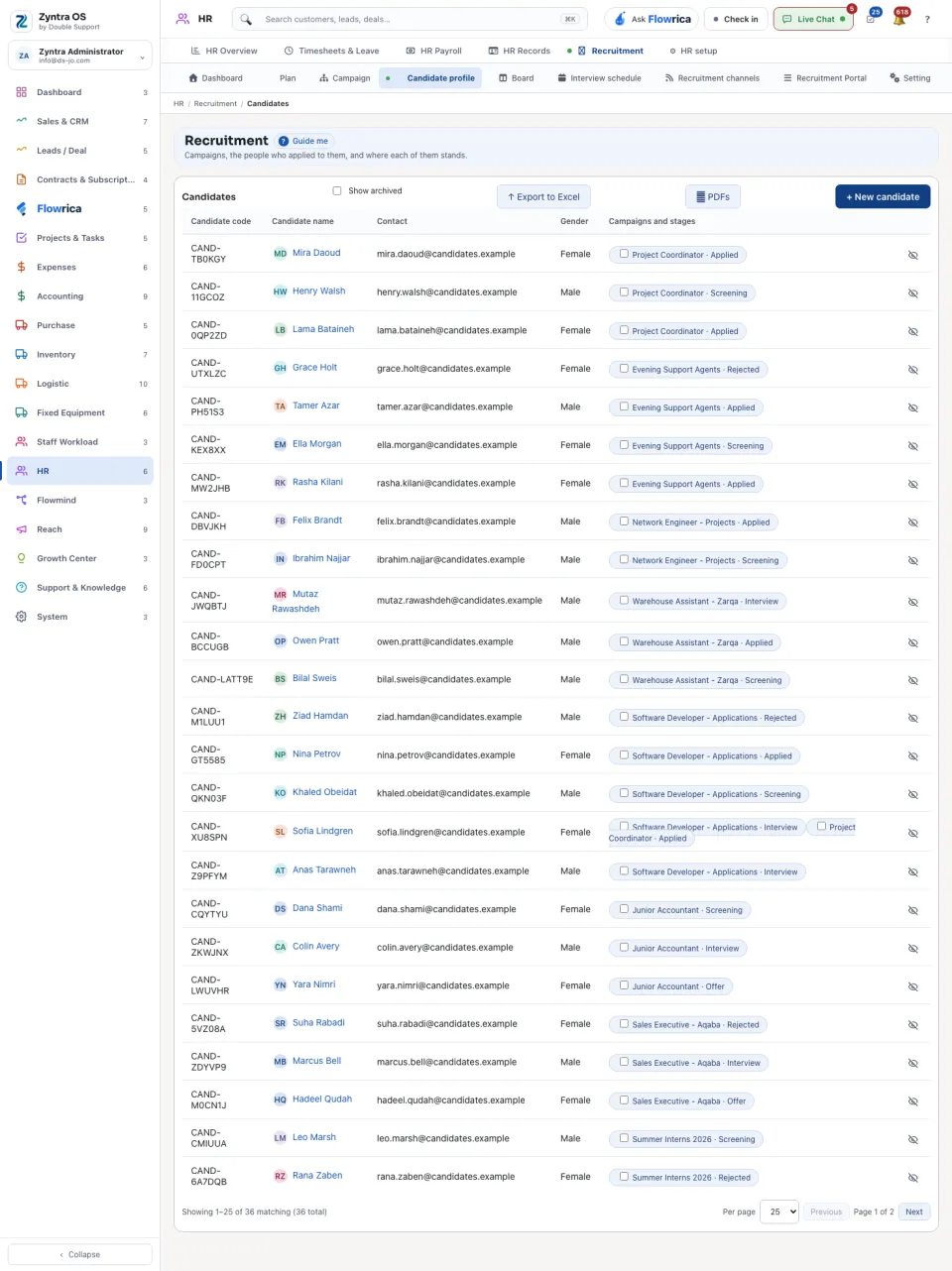
| Candidate profile | The list Candidates, each with their campaigns and stages. + New candidate adds one; ⭳ PDFs downloads their profiles. |
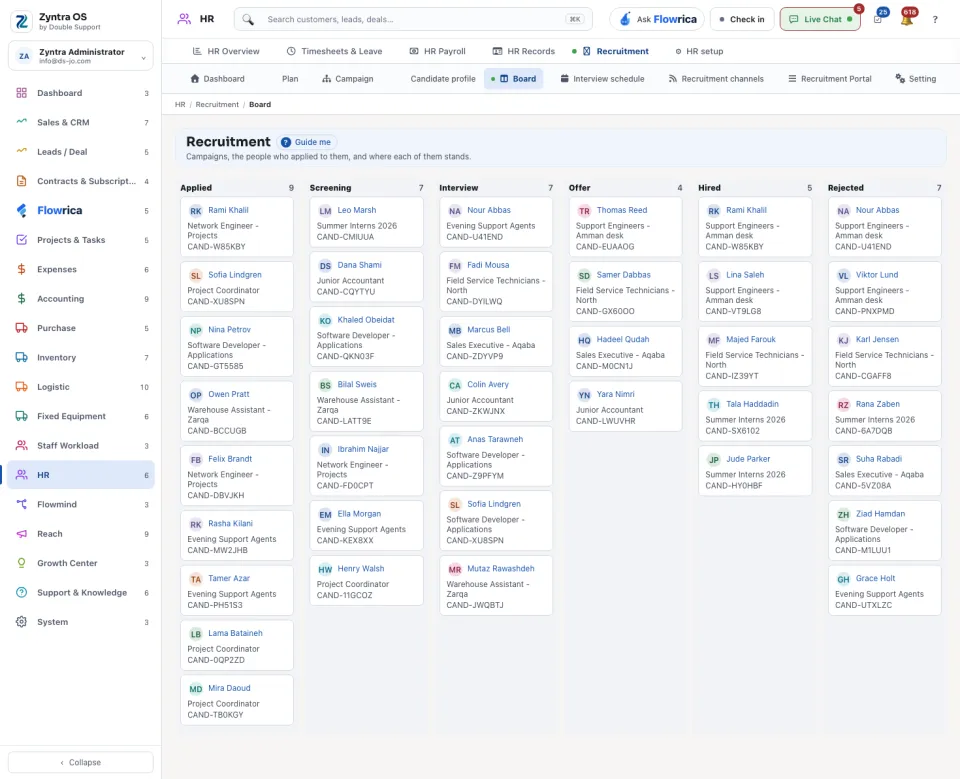
| Board | One column for each stage: Applied, Screening, Interview, Offer, Hired, Rejected. |
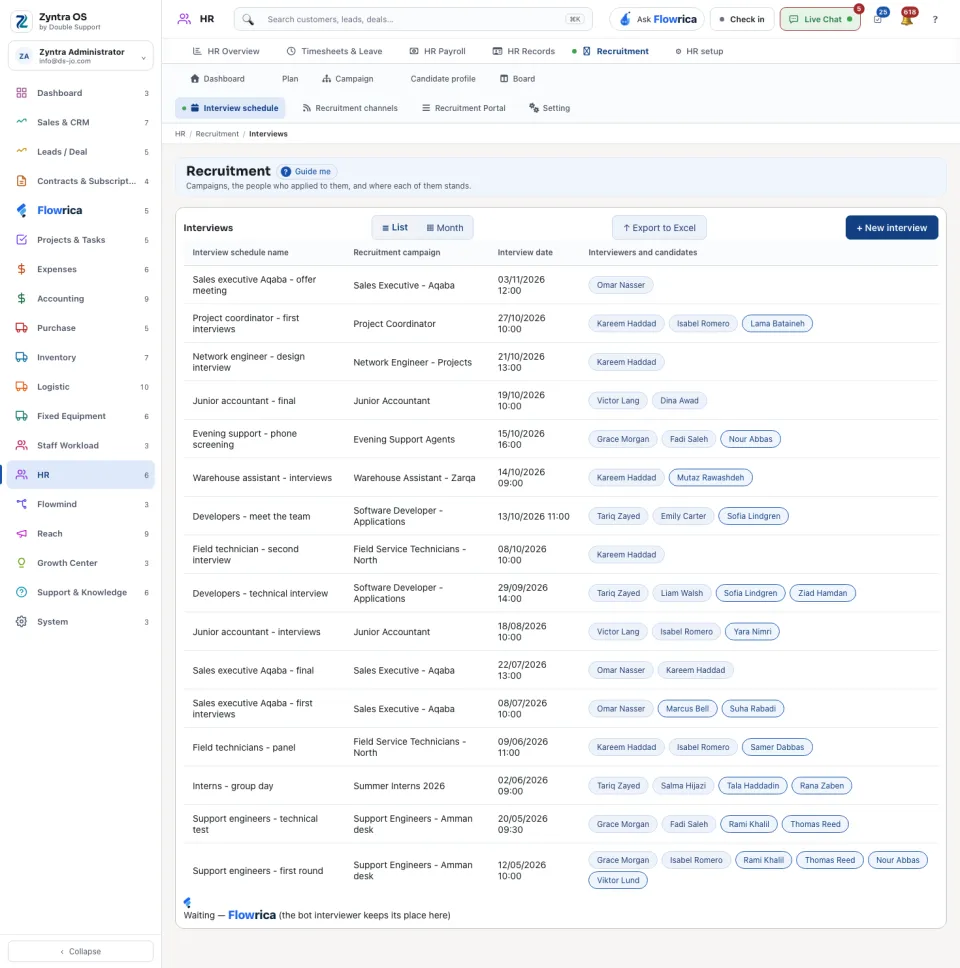
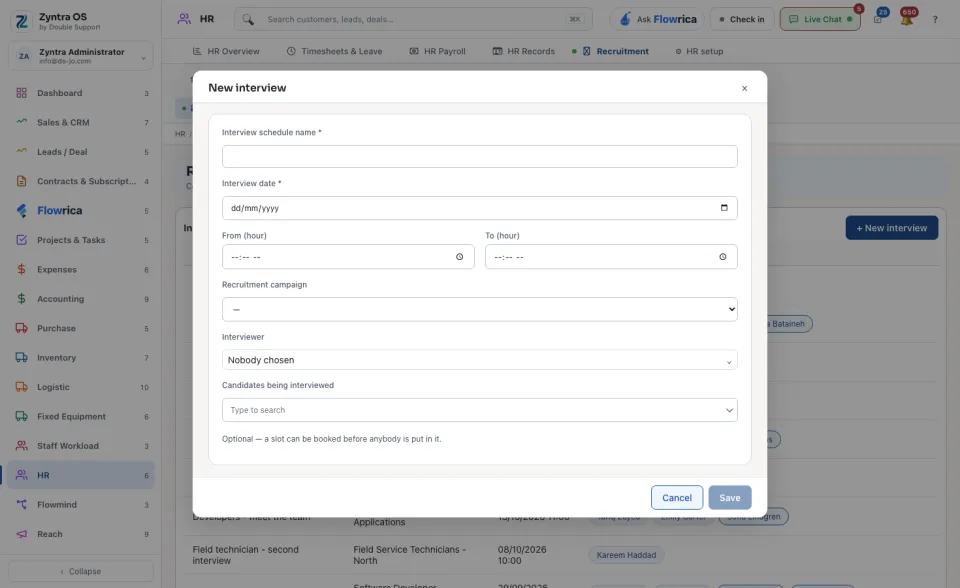
| Interview schedule | Interviews as a List or by Month. + New interview books one, with its campaign, date, interviewers and candidates. |
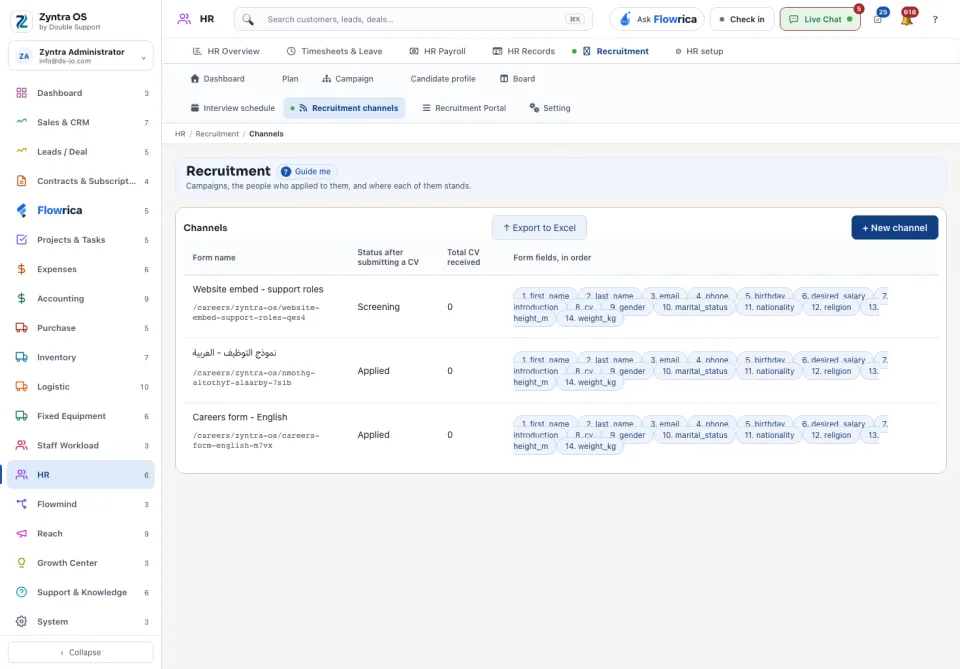
| Recruitment channels | Channels: the forms a CV can arrive through. + New channel adds one. |
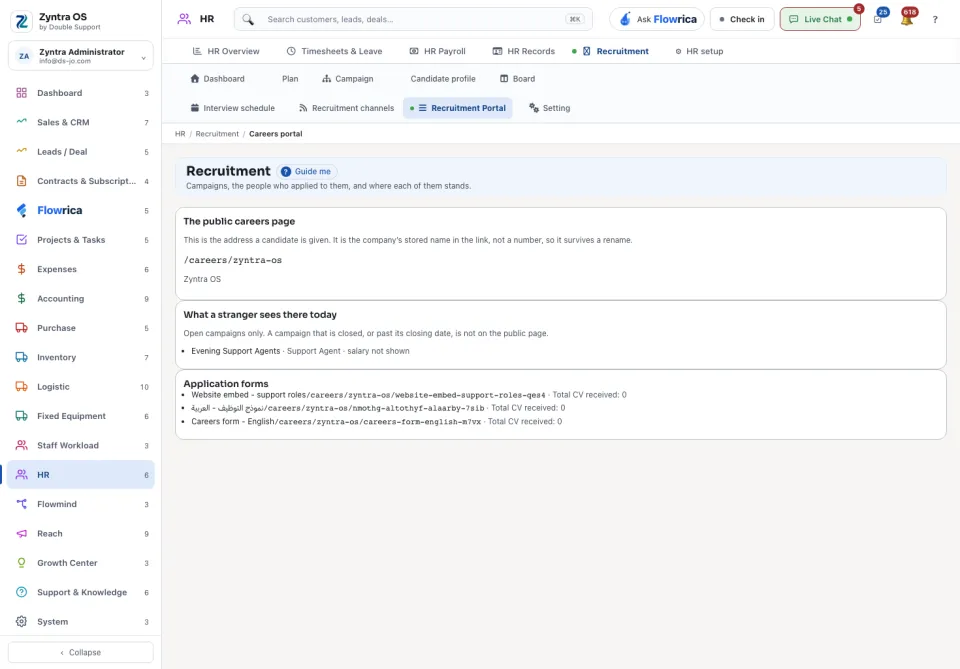
| Recruitment Portal | The public careers page: its address, and what a stranger sees there today. Only open campaigns are shown. |
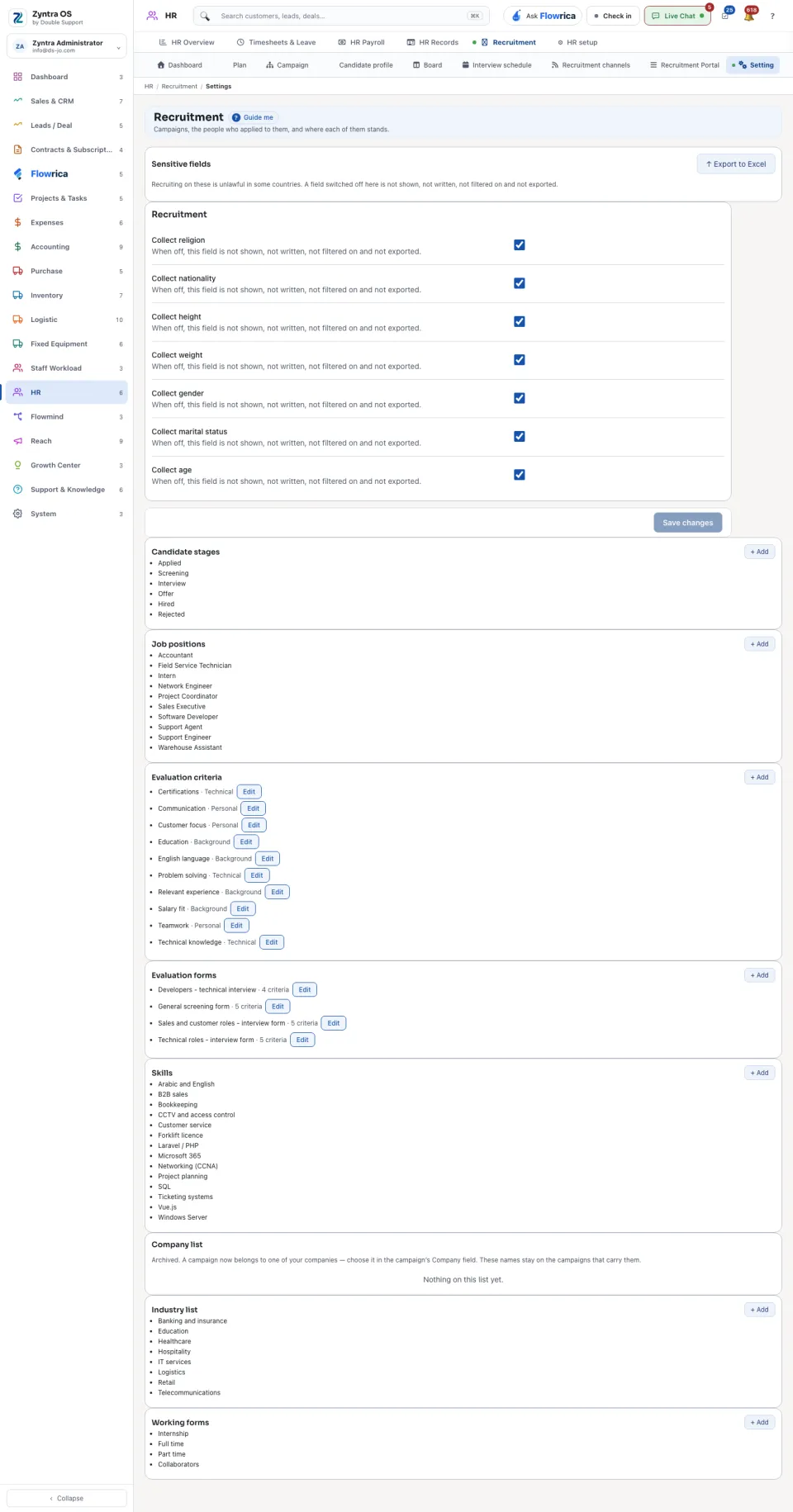
| Setting | Sensitive fields (a field switched off is not shown, written, filtered on or exported), Evaluation forms and the company's list of Skills. The lists the rest of Recruitment chooses from are kept here too: Candidate stages, Job positions, Evaluation criteria, Industry list and Working forms; press + Add on a list to add to it. |
From a campaign to a hire
1
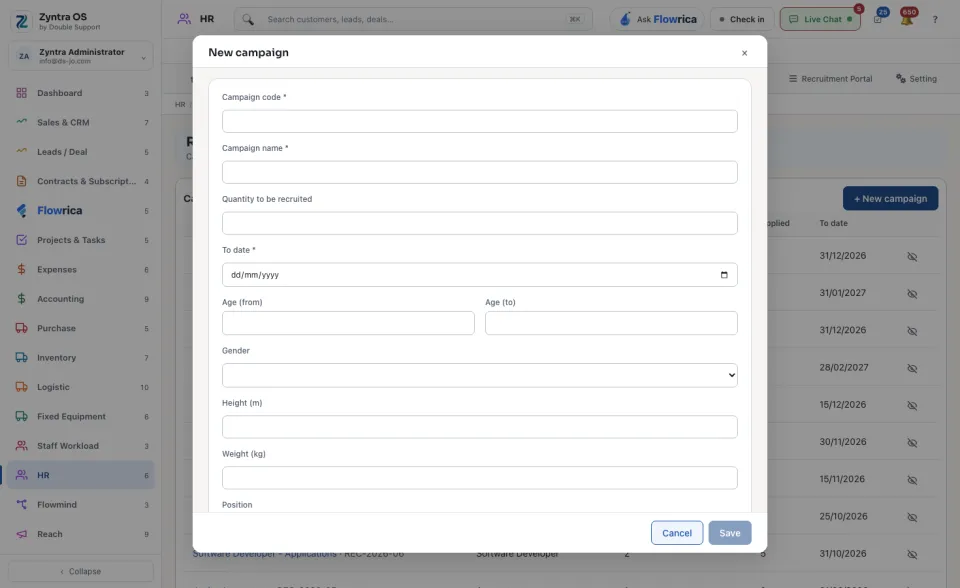
On Campaigns press + New campaign and make a campaign for the job. Flowrica can do it with you: Open a recruitment campaign.
2
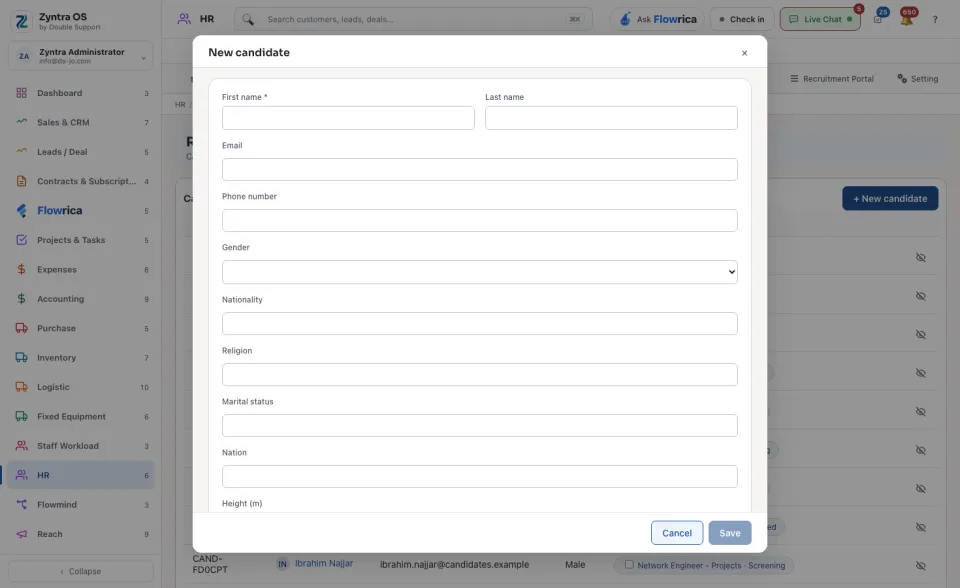
On Candidates press + New candidate, type at least the First name and their contact details, and save. Candidates who apply on your careers page arrive by themselves.
3
Move each candidate through the stages on the Board. On Candidates, tick several and use Move to stage… to move them together. Moving a candidate to Rejected asks for the Reason, which stays on the application.
4
On the hired candidate's profile press Make this person staff. Their details are carried into a new staff record.
Use Show archived on a list to bring back archived rows, and Export to Excel to take the list out.
A campaign's page
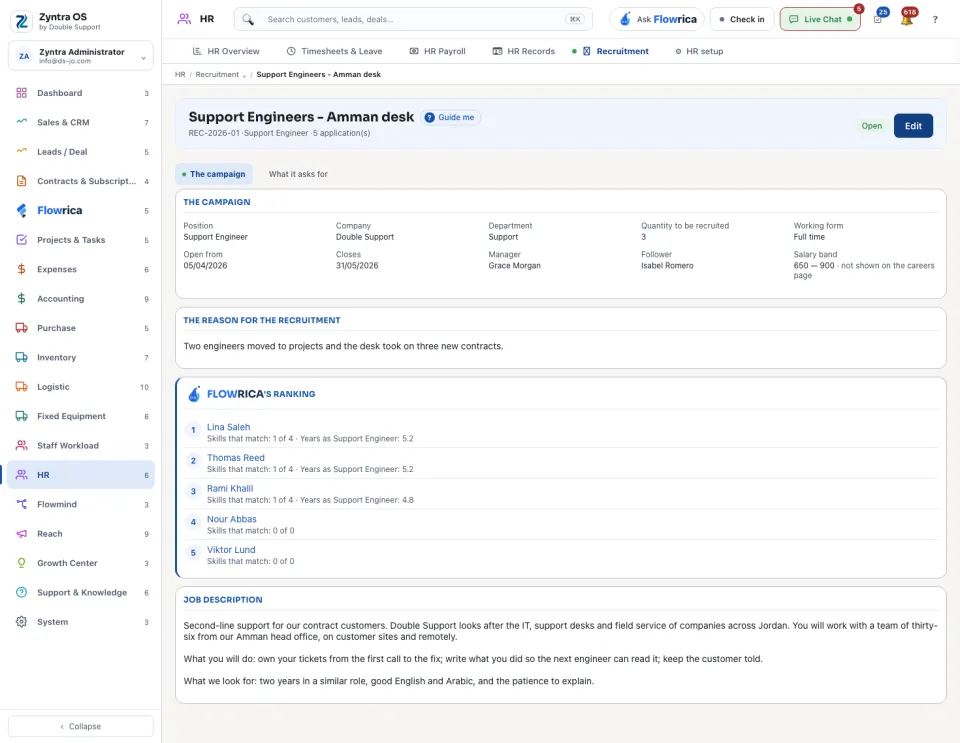
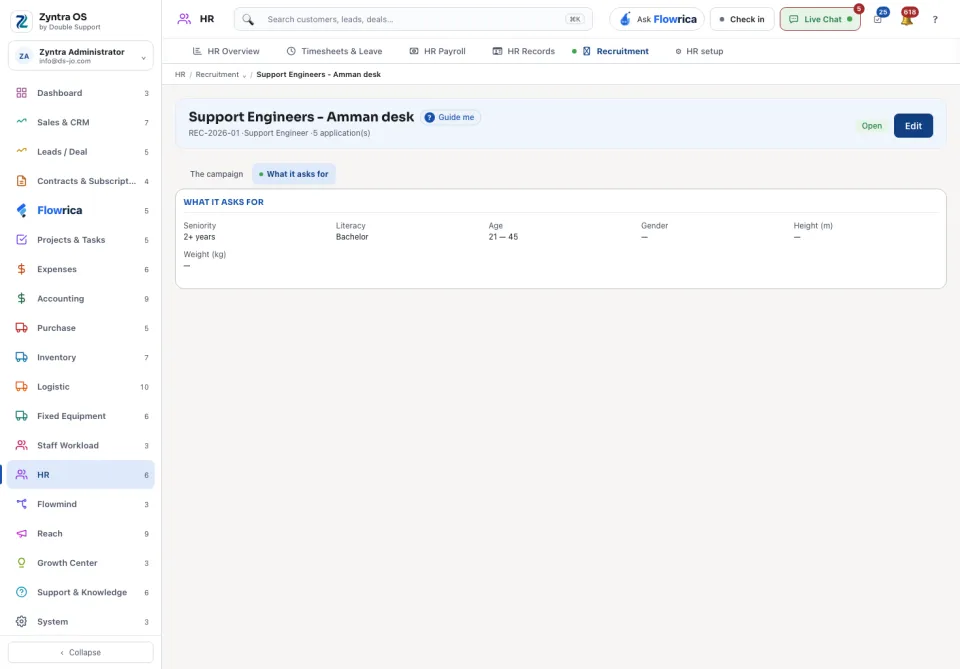
The head shows the code, the position, the number of applications and the status. The campaign tab holds the position, company, department, how many are wanted, the dates, the salary band, the reason and the job description. What it asks for holds the requirements. Edit changes them.
A candidate's tabs
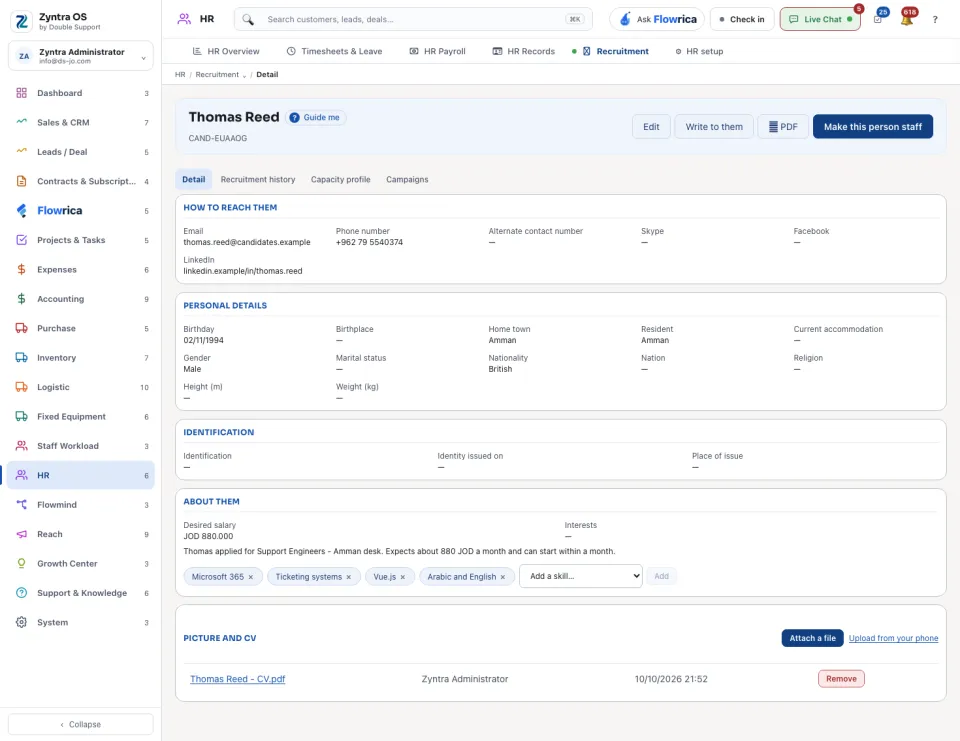
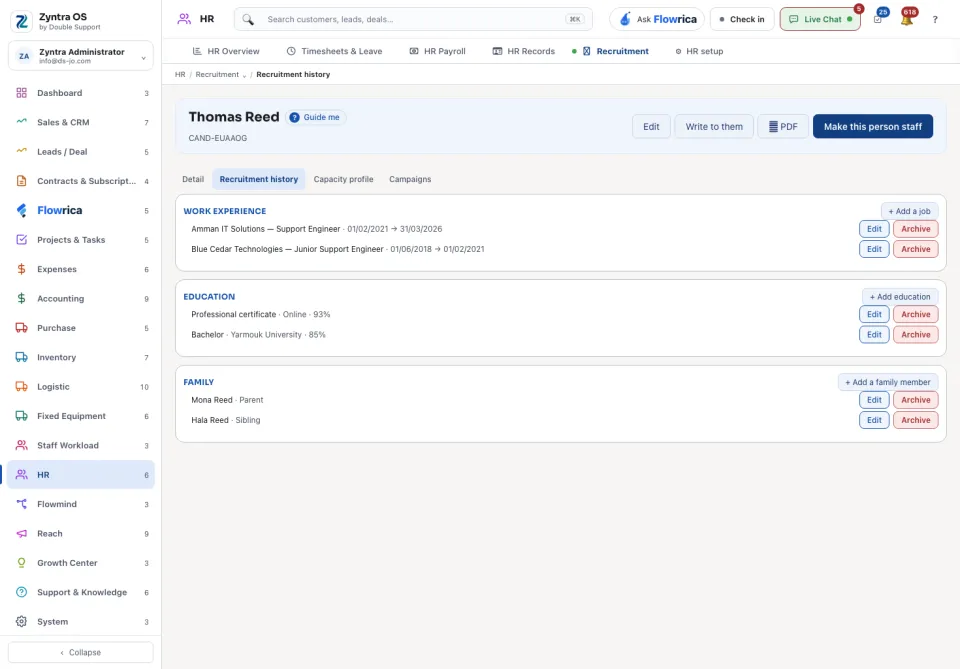
The head offers Edit, Write to them, ⭳ PDF and Make this person staff.
| Tab | What it holds | What you can do there |
|---|---|---|
| Detail | How to reach them, personal details, their skills, picture and files. | Attach a file, or Upload from your phone. Give a skill from the company's list with Add a skill… and Add. |
| Recruitment history | Work experience, education and family. | + Add a job, + Add education, + Add a family member; on a row, Edit or Archive. |
| Capacity profile | How they were scored on each criterion, out of 5, and by whom. | Score this candidate. Scoring again replaces only your own scores. |
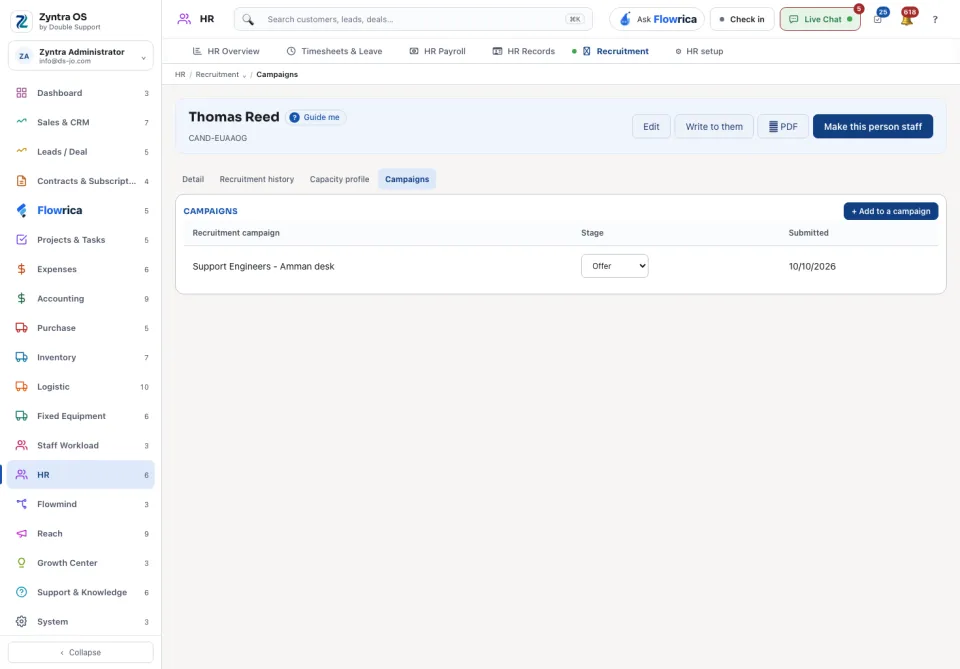
| Campaigns | The campaigns they applied to, and their stage in each. | Add them to another campaign; change the stage on a row. |
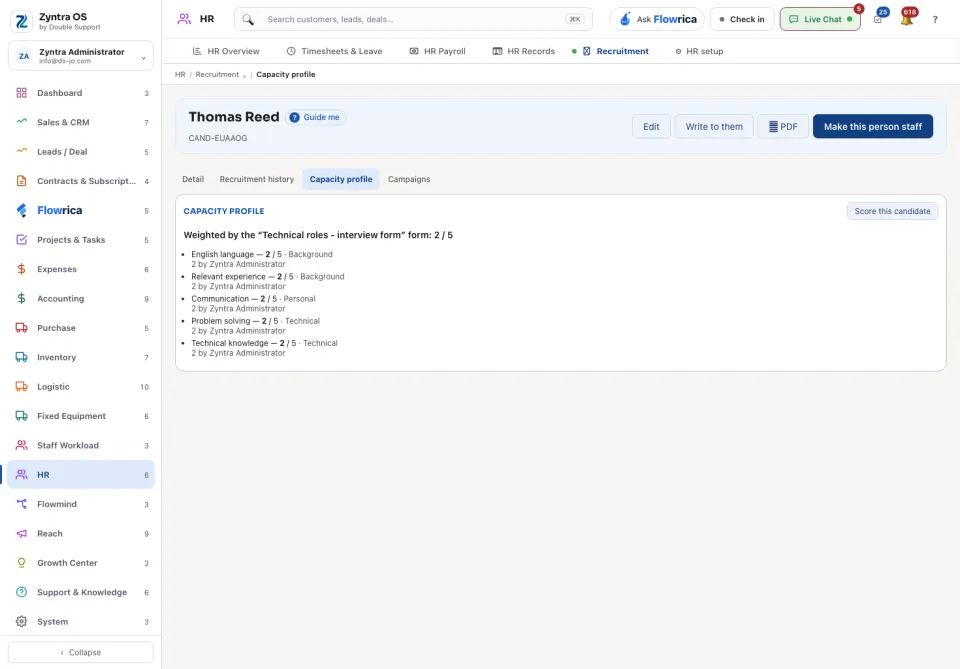
In Evaluation forms, press Add a criterion and give each criterion a Weight. A candidate scored on every weighted criterion then shows a weighted score on the Capacity profile tab.
Before: Run the payroll