

 Zyntra OS
 Zyntra Legal
 Zyntra Real Estate
 Zyntra Hotel
 Zyntra E-commerce
 Zyntra Appointments
 Zyntra Repair
 Zyntra Garage
 Zyntra Concierge
 Zyntra Contracting
 Zyntra Clinic
 Zyntra Call Center
 Zyntra OTA
Where
HR › HR Payroll › People › Employees · the numbers payroll uses: HR › HR Payroll › Reports & Settings › SettingsWho
Anyone allowed to manage payroll.Give a person their terms
1
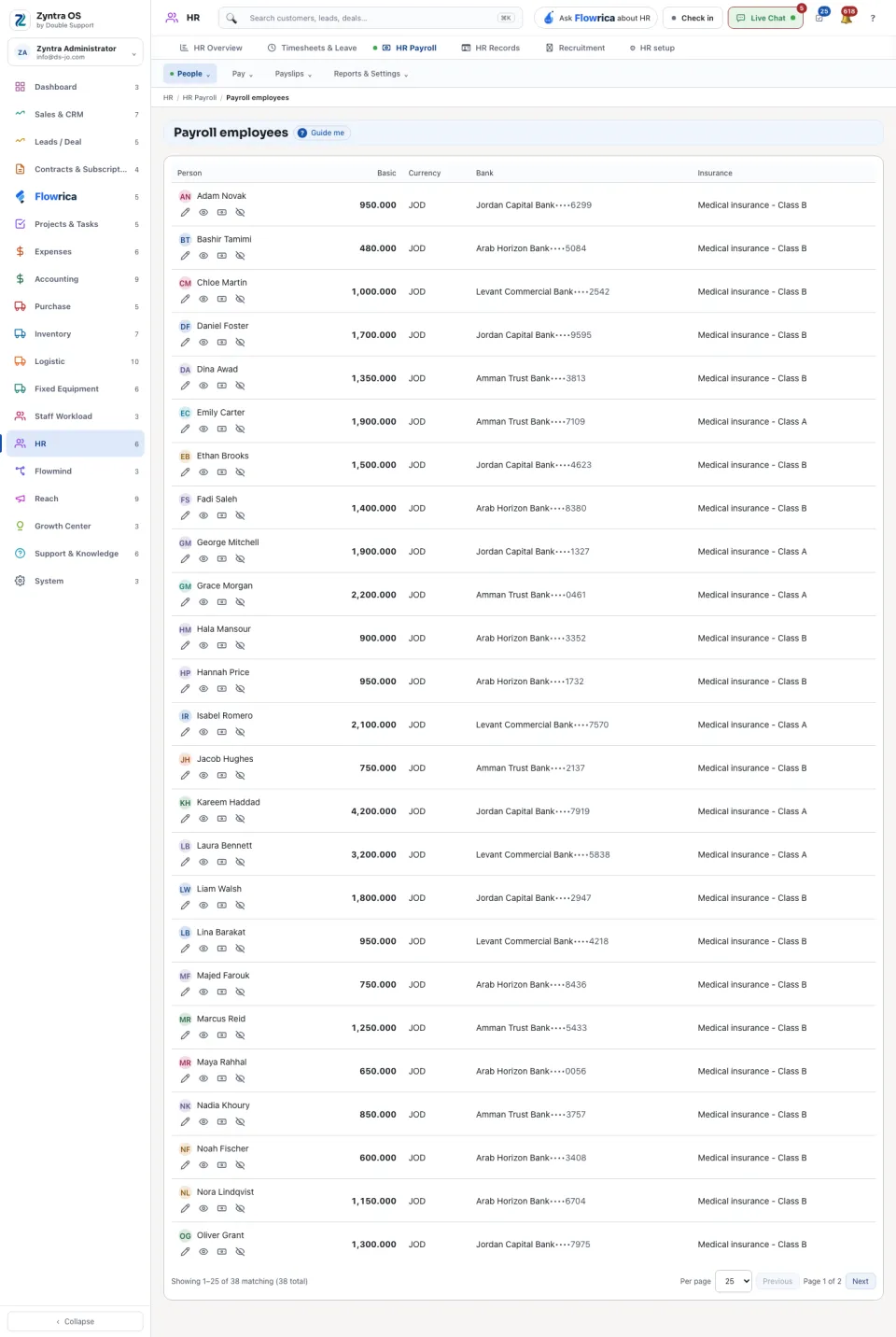
On Payroll employees, the people who are employed and have no payroll terms are listed at the top. Press Put them on payroll beside the person.
2
Paid by names the company whose payroll pays this person; Change company chooses another. Each company's run pays only its own people.
3
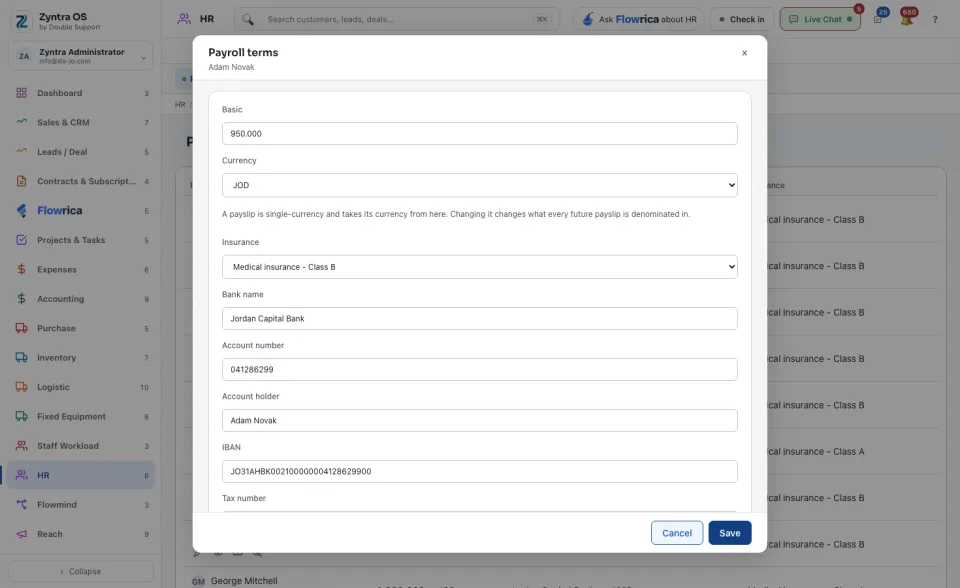
Fill in Basic and Currency. A payslip is in one currency and takes it from here.
4
Choose the Insurance, and give their bank: Bank name, Account number, Account holder, IBAN. Add the Tax number, Social security number and EPF number if they have them.
5
Press Save. The person is on every future run.
On a person's row
- Edit: change their terms.
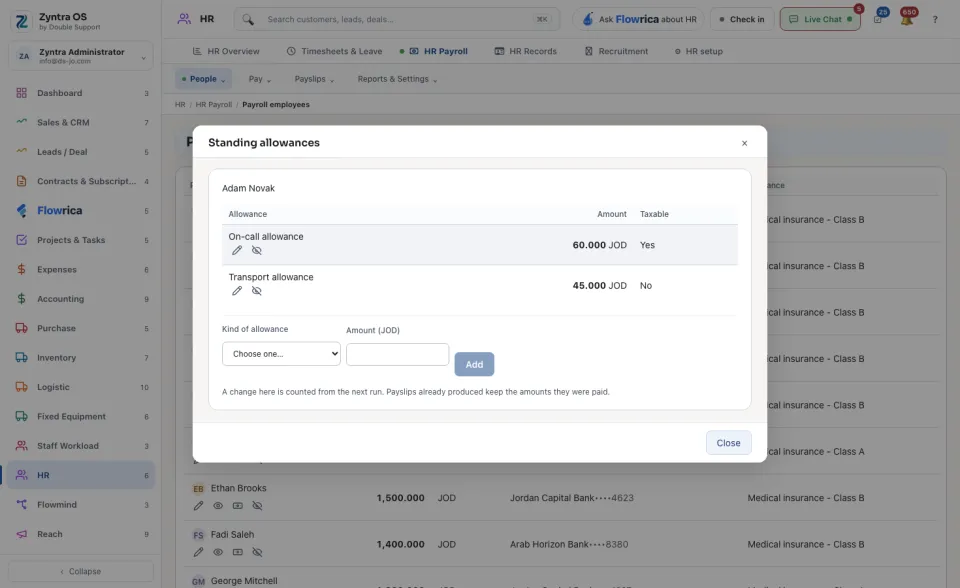
- Standing allowances: allowances paid every month, each with its amount and whether it is taxable. A change counts from the next run; payslips already produced keep what they paid.
- Payslips: every payslip of this person.
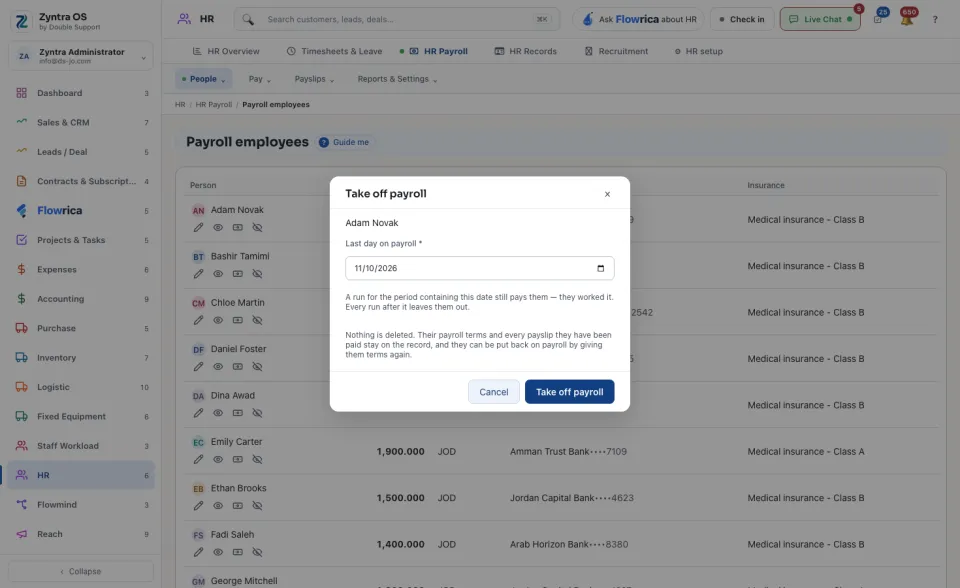
- Take off payroll: stops the person being paid. Give the Last day on payroll: the run for the period that holds this day still pays them, and every later run leaves them out. Nothing is deleted. The row then says since when they are off payroll.
The list shows only the end of each bank account number.
Payroll settings: tax bands, earnings and insurance
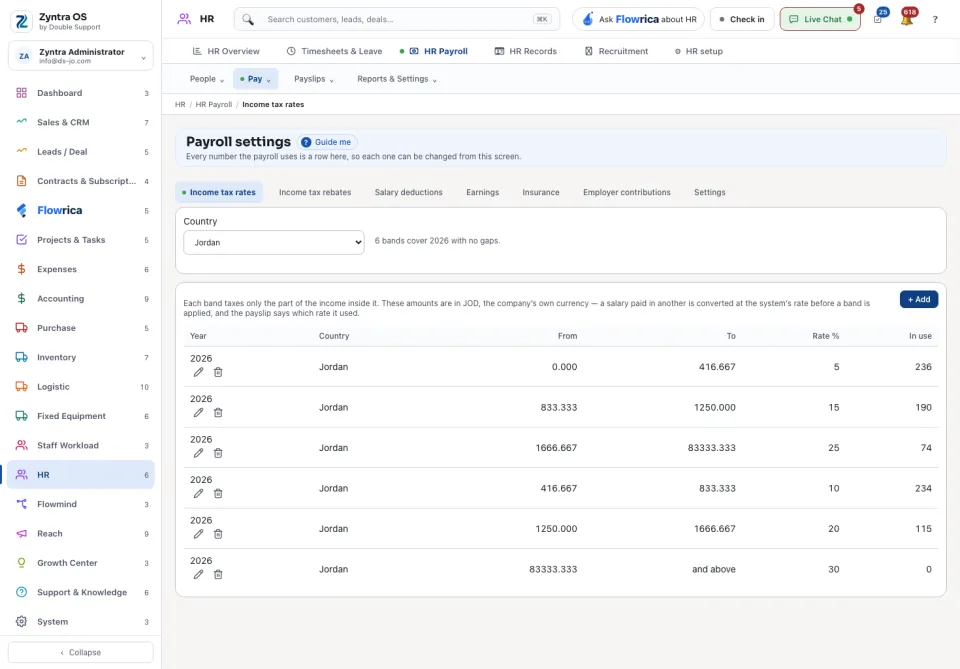
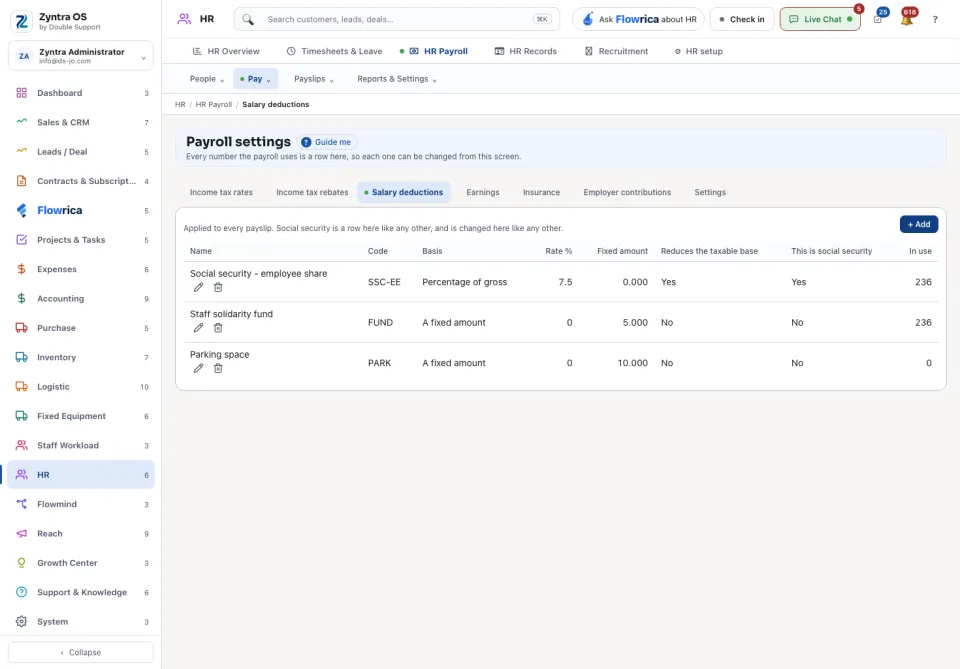
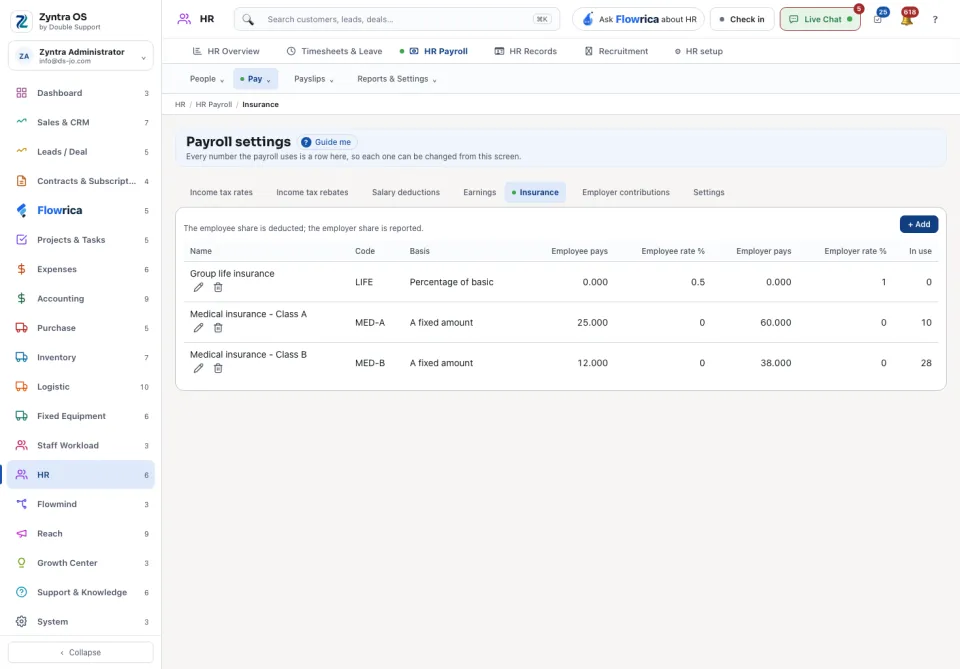
Every number payroll uses is a row in Payroll settings. On each tab press + Add, fill in the row and save.
- Income tax rates: one row per band, with the Year, From, To and Rate %. Each band taxes only the part of the income inside it.
- Income tax rebates: amounts taken off the taxable income.
- Salary deductions: what is taken off a payslip.
- Earnings: what a payslip can carry on top of the basic pay, such as a transport allowance, and whether it is Taxable.
- Insurance: the insurance plans a person can be put on.
- Employer contributions: what the company pays on top of the salary.
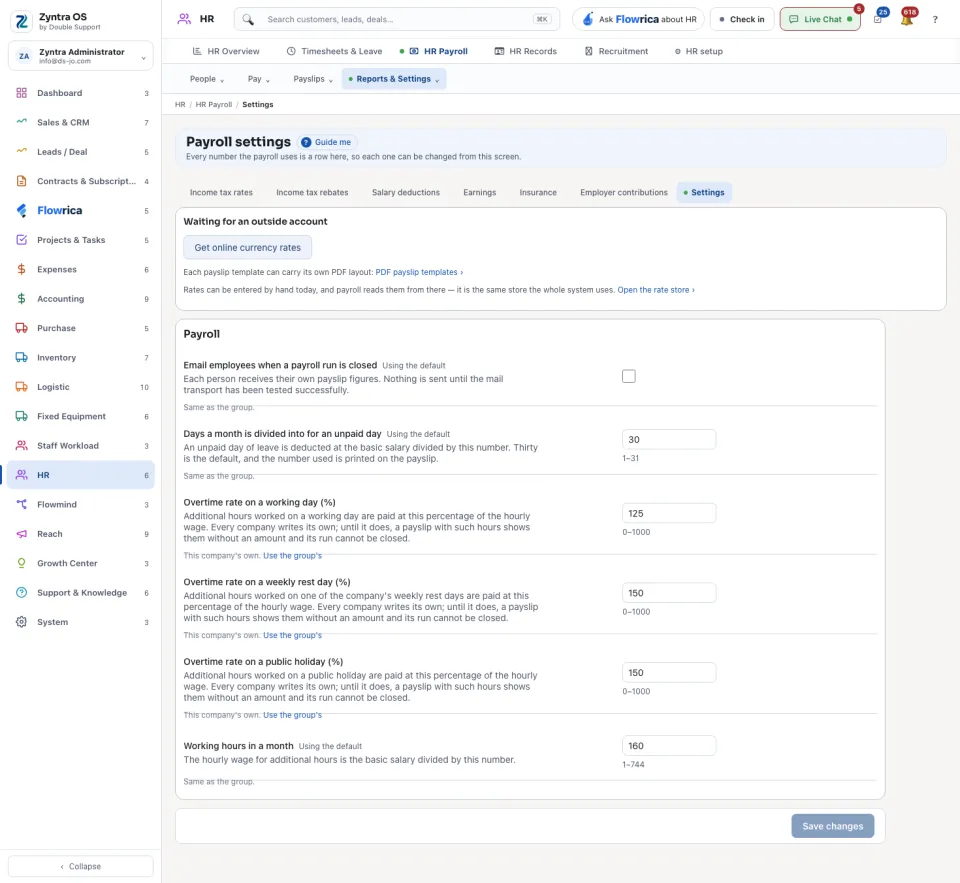
- Settings: the general choices of payroll.
Before: Rota · Next: Run the payroll