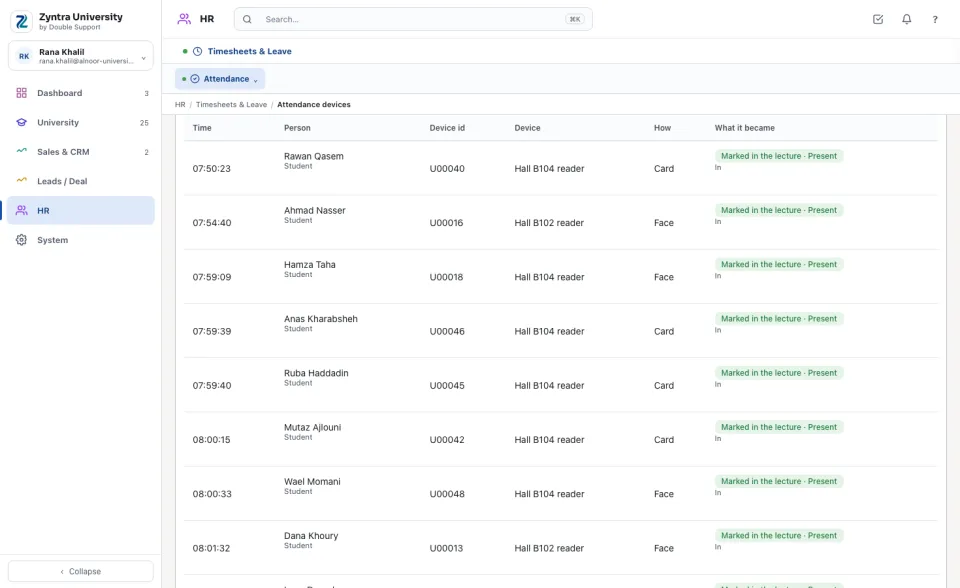
Fingerprint, card and face devices send each punch to Zyntra by themselves. A staff member's punch lands in their attendance. In a school, a student's first punch of the day marks them present on the day's attendance sheet; in a university, a punch in a lecture's room during its hour marks that lecture. Any company with HR can use it, with or without School.
Where
HR › Timesheets & Leave › Attendance › Attendance devices · also from System › Setup › Channels
Who
«Manage devices» registers the devices and makes their secrets. «Match people to their device ids» gives each person their id. «Read punches and reports» reads the punches and the reports.
The devices
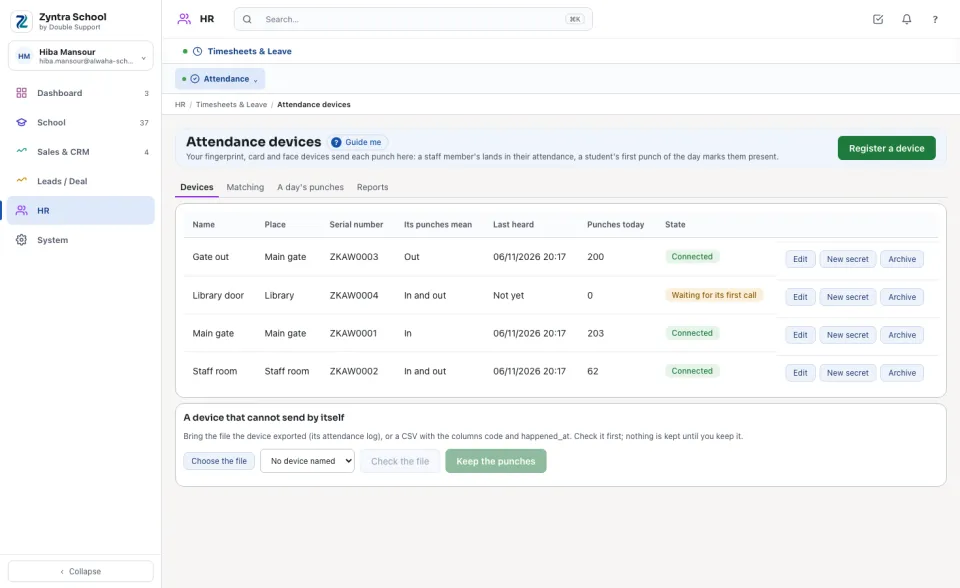
Each device shows its Place, its Serial number, what Its punches mean (In, Out or In and out), when it was Last heard and its Punches today. A device that has never called says Waiting for its first call.
Register a device
1
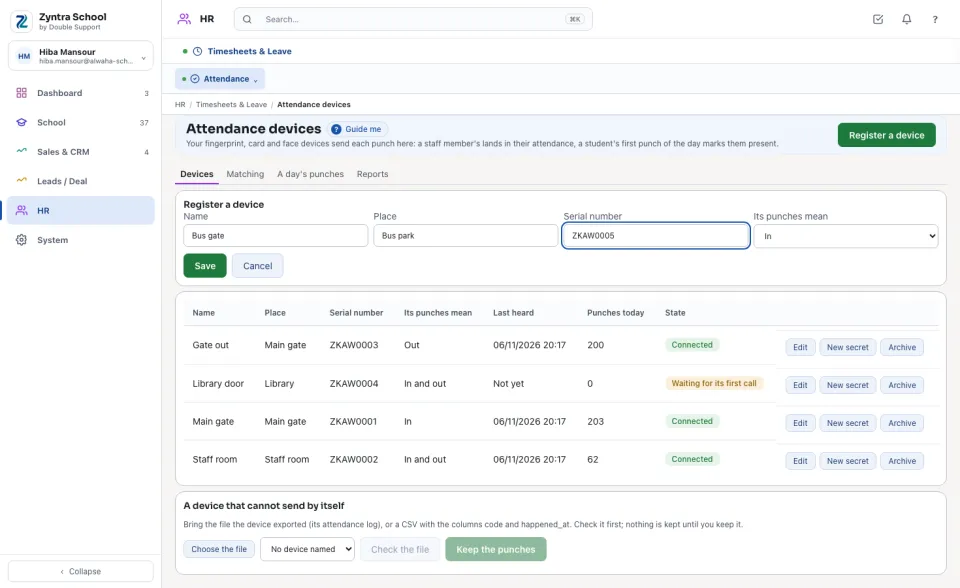
Press Register a device. Type its Name, its Place and its Serial number exactly as the device shows it, and choose what Its punches mean: a gate that only lets people in is In, a gate out is Out.
2
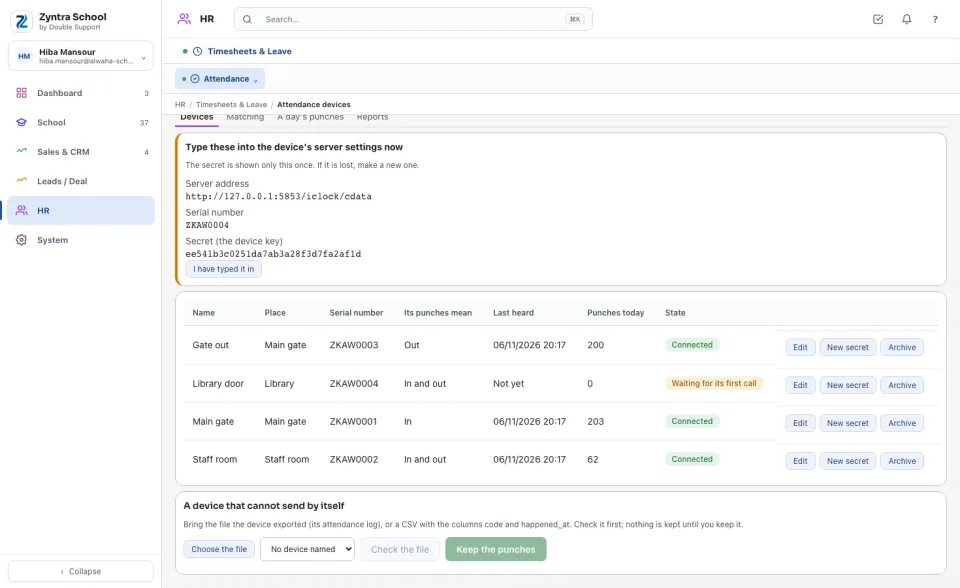
Press Save. The Server address, the Serial number and the device's Secret (the device key) are shown: type them into the device's server (cloud) settings now.
The secret is shown only this once and is never shown again. If it is lost, press New secret: the old one stops at once, and the device sends nothing until the new one is typed into it.
A device that does not know its serial number and secret, a wrong secret, or an archived device is refused and nothing it sends is kept. Archive stops a device; its punches stay.
A device that cannot send by itself
1
Under A device that cannot send by itself, press Choose the file and choose the attendance log the device exported, or a CSV with the columns code and happened_at.
2
Choose the device under From device (or No device named), press Check the file and read what would be kept, then press Keep the punches. A punch already here is never kept twice.
Matching: who carries which id
A person is known to a device by the id they carry: a staff member's staff code, a student's card or enrolment number.
1
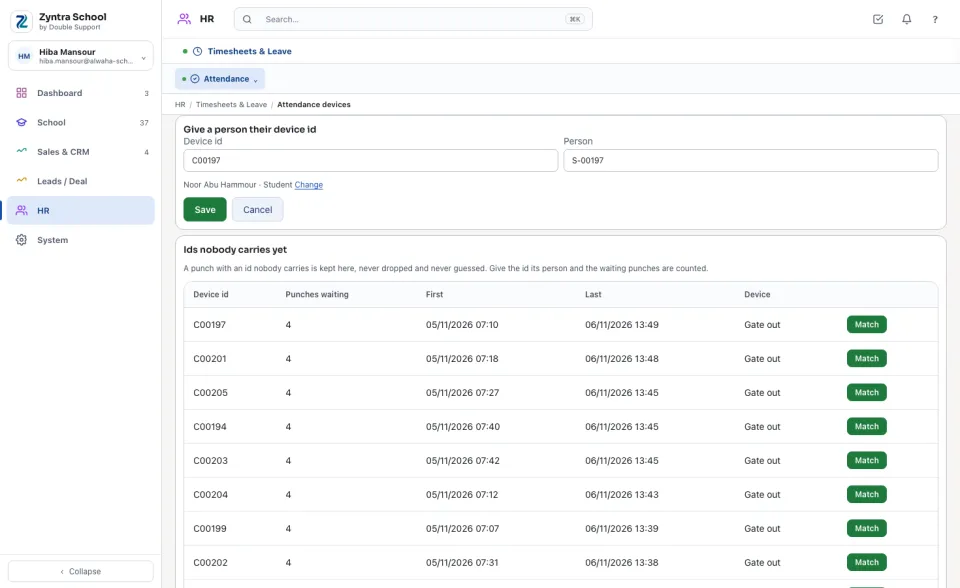
On Matching, press Give a person their device id, type the Device id, find the Person by name or number and press Save.
2
Many at once: Choose a file of ids — a CSV with the columns kind (staff or student), person (a staff code or email, or a student number) and code — then Check the file and Keep the ids.
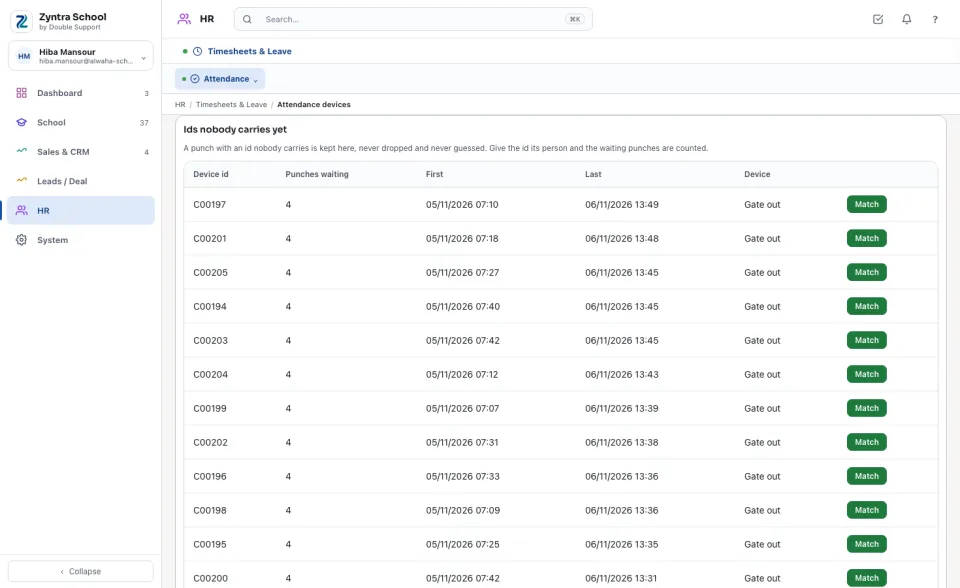
Ids nobody carries yet lists every id a device sent that is nobody's, with its Punches waiting. Nothing is dropped and nothing is guessed: press Match, choose the person, and the waiting punches are counted at once.
One id is one person in a company. An id already carried by someone else is refused with that person's name.
A day's punches
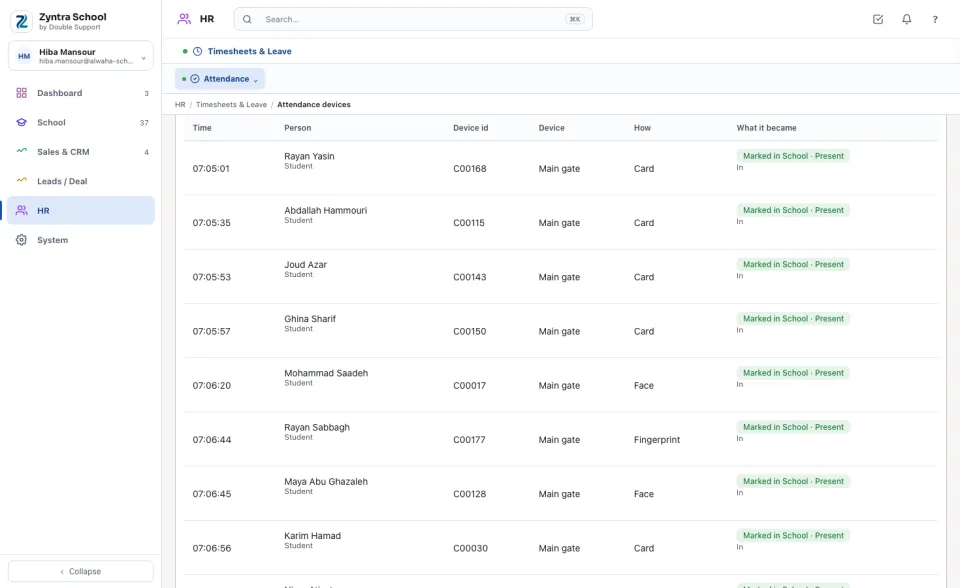
Choose the Day, and if you like a Device, Who and What it became. Each punch shows its time, the person, the device, How it was made (Fingerprint, Card, Face) and What it became:
1
In HR attendance — a staff member's punch, in their attendance like a check-in. Never two in the same minute, never in a month whose payroll is closed.
2
Marked in School — a student's first punch of the day: Present, or Late after the school's time («A device punch is late after», Setup › Settings › School). Marked in the lecture — the same in a university's lecture.
3
Teacher's mark kept — the teacher had already marked the student: the teacher's mark stands. Day closed — the day had closed: nothing was changed. Kept as a time — a gate-out, a later punch of the day, a day that is not a school day.
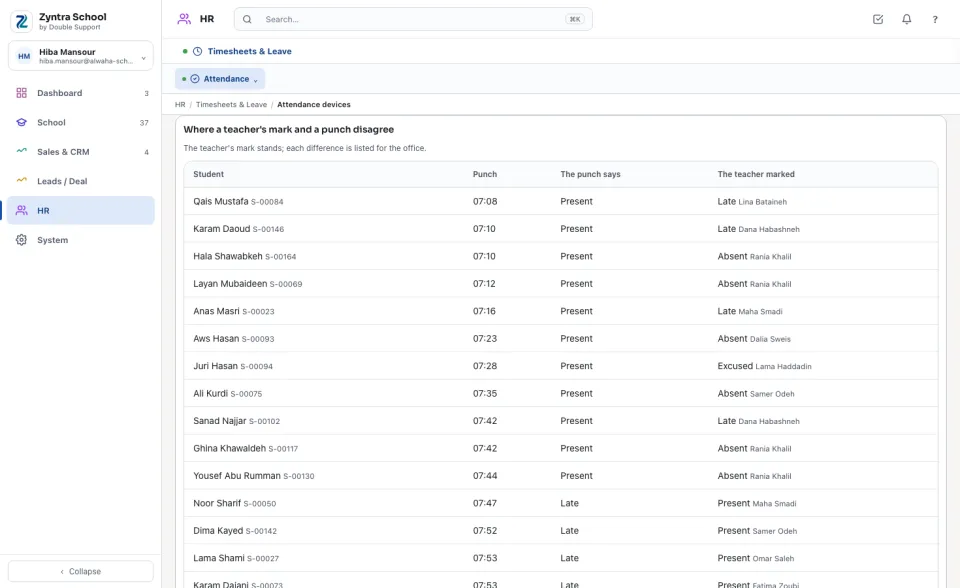
Where a teacher's mark and a punch disagree lists each student the teacher marked one way and the device saw another — for example marked absent while their card was punched at the gate.
A device never marks anybody absent. A student who did not punch stays for the teacher to mark, and the family's absence message stays with the teacher's marking, as on the attendance sheet.
Reports
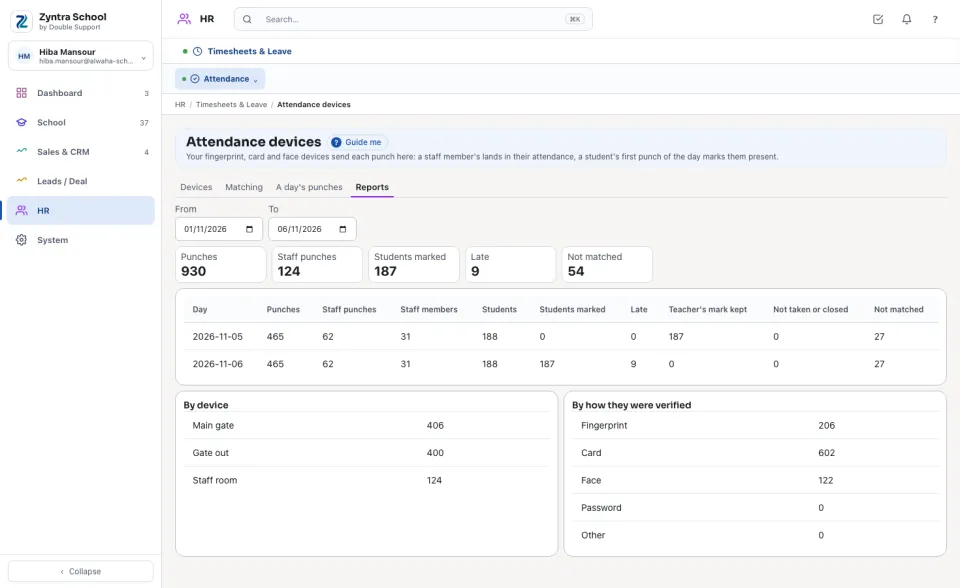
Choose From and To. Each day counts its Punches, Staff punches, Staff members, Students, Students marked, Late, Teacher's mark kept, Not taken or closed and Not matched; below, the punches By device and By how they were verified.
In a university
Give each lecture room's device the room as its Place, typed as the lectures name it. A student registered in a section who punches in that room from fifteen minutes before the lecture until it ends is marked Present in that lecture — Late after «A lecture punch is late after (minutes)». A punch at a gate is kept as a time.
HR › Timesheets & Leave › Attendance › Attendance devices · also from System › Setup › Channels
Who can use “Attendance devices”?
«Manage devices» registers the devices and makes their secrets. «Match people to their device ids» gives each person their id. «Read punches and reports» reads the punches and the reports.
FlowricaUsually replies instantly
We’d like to use Google Analytics to see how this site is used. Nothing is set unless you accept.


 Zyntra OS
 Zyntra Legal
 Zyntra Real Estate
 Zyntra Hotel
 Zyntra E-commerce
 Zyntra Appointments
 Zyntra Repair
 Zyntra Garage
 Zyntra Concierge
 Zyntra Contracting
 Zyntra Clinic
 Zyntra Dental
 Zyntra School
 Zyntra University
 Zyntra Call Center
 Zyntra OTA