Zyntra OS
 Zyntra Legal
 Zyntra Real Estate
 Zyntra Hotel
 Zyntra E-commerce
 Zyntra Appointments
 Zyntra Repair
 Zyntra Garage
 Zyntra Concierge
 Zyntra Contracting
 Zyntra Clinic
 Zyntra Call Center
 Zyntra OTA
Where
HR › HR setup · the chart is also at HR › HR Records › The organisation › Org chartWho
Anyone allowed to change HR settings.The org chart
1
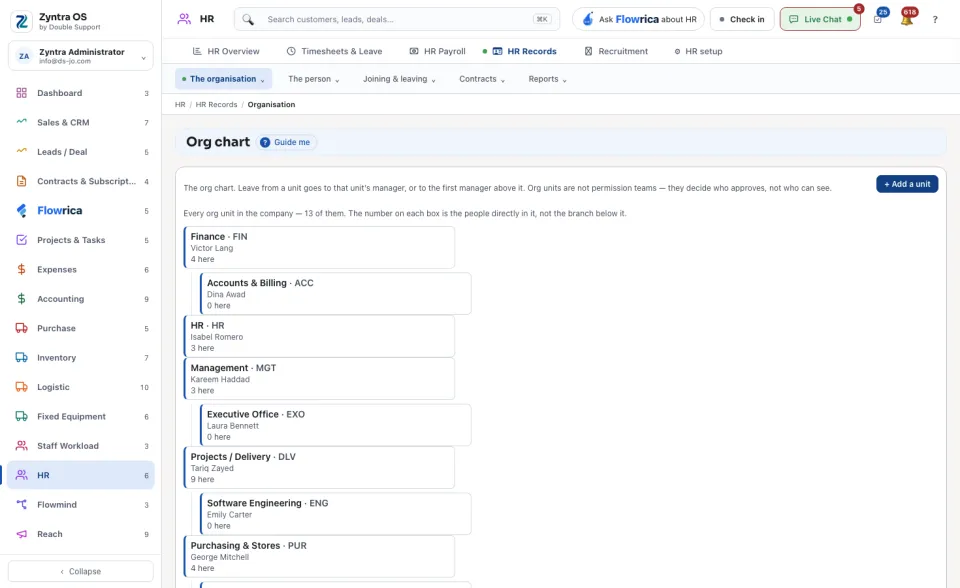
On HR setup press Organisation. The Org chart opens: one box for each org unit, with its manager and the number of people directly in it.
2
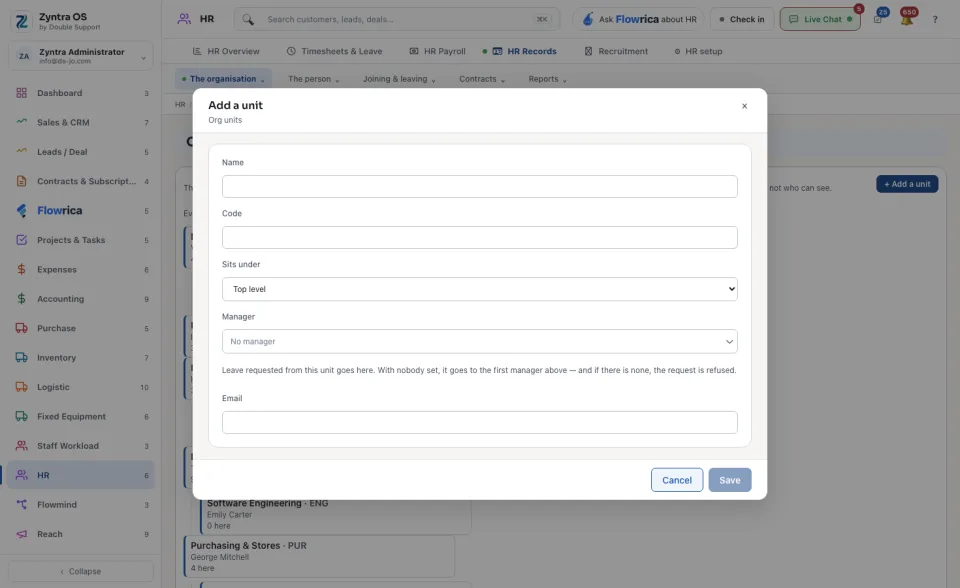
Press + Add a unit. Type its Name and Code, choose where it Sits under (or Top level), its Manager and an Email. Press Save.
3
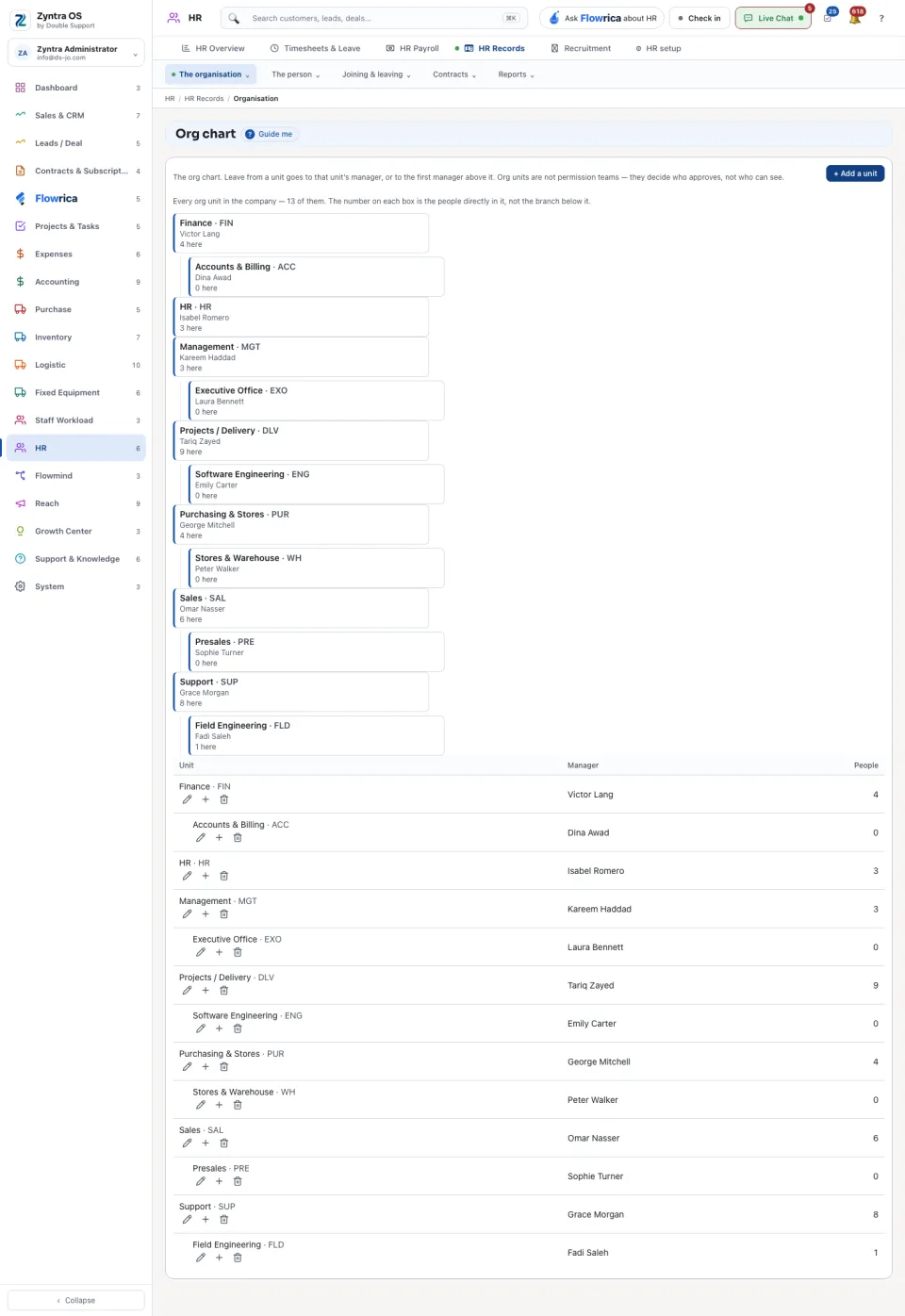
In the table under the chart, Add under adds a unit inside another, and Edit changes one.
Leave from a unit goes to that unit's manager, or to the first manager above it. With no manager anywhere above, the request is refused, so give every unit a manager. People in no org unit are listed under the chart: their leave is refused until they are given a unit. Org units are not permission teams: they decide who approves, not who can see.
The other tabs of HR setup
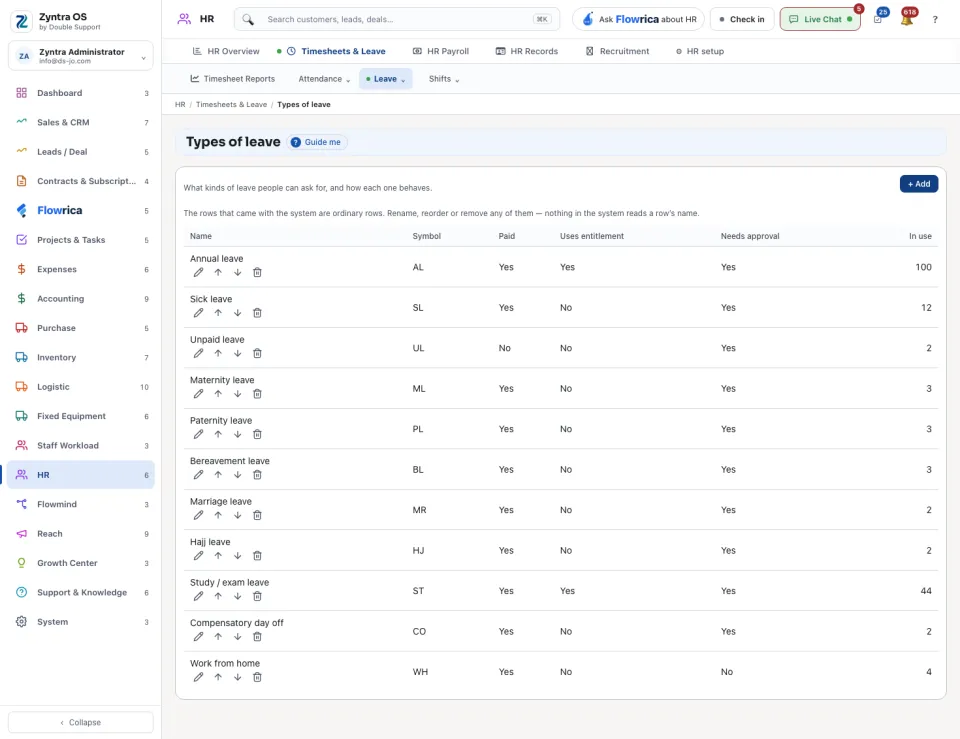
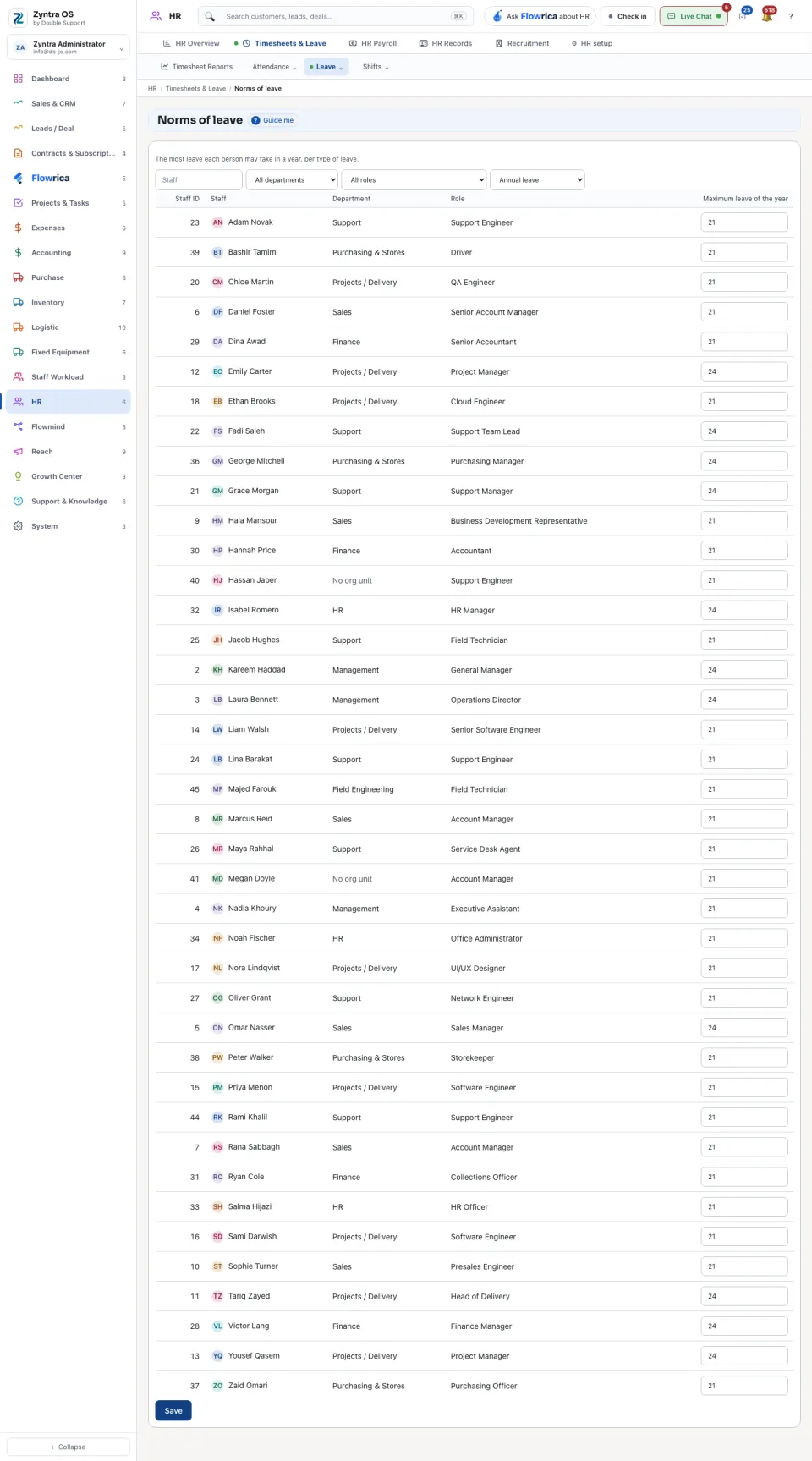
- Types of leave and Norms of leave: each kind of leave, and the most each person may take in a year. On Norms of leave narrow by department and role, type the days, and press Save.
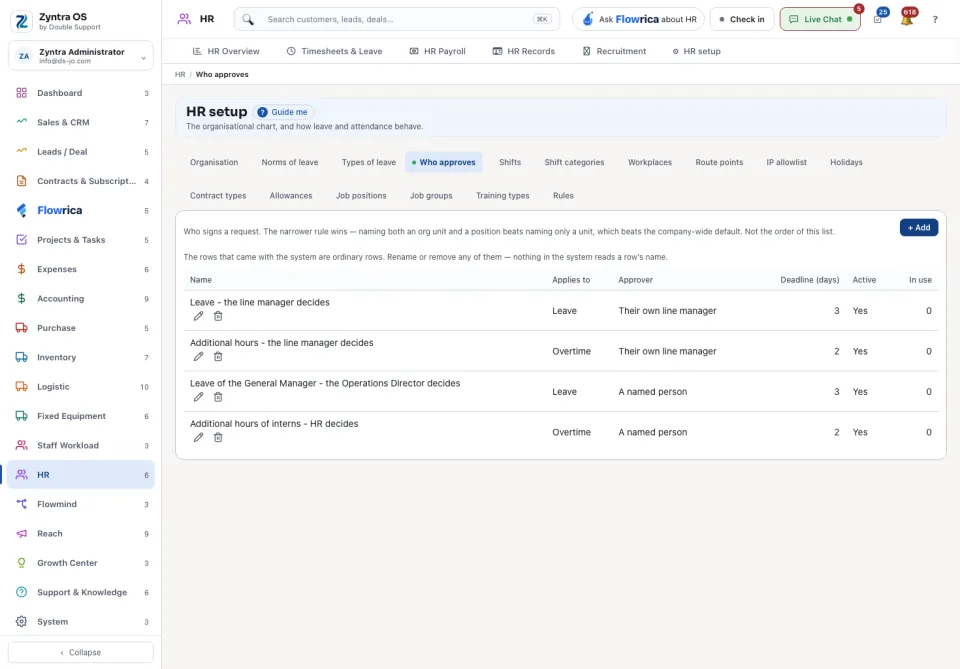
- Who approves: who signs a request. Press + Add for a rule. The narrower rule wins: a rule that names an org unit and a position beats one that names only a unit, which beats the company-wide default.
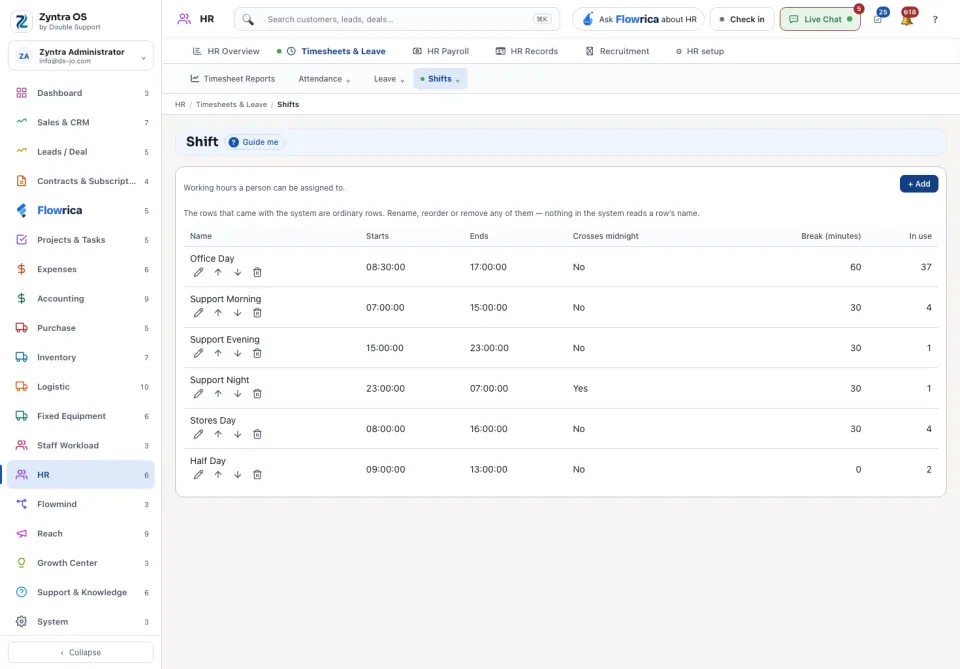
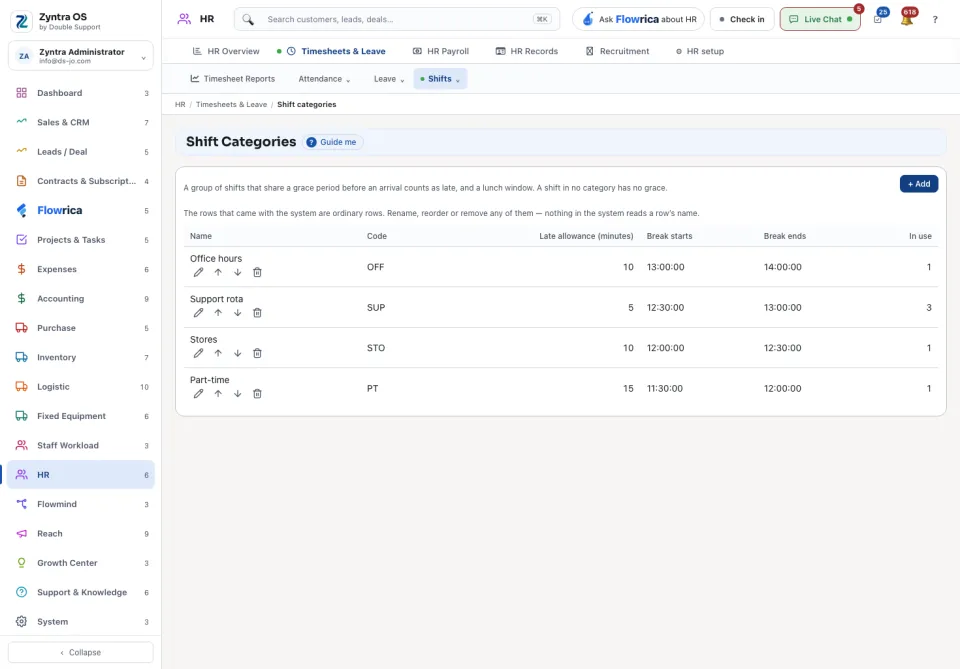
- Shifts and Shift categories: when each shift starts and ends.
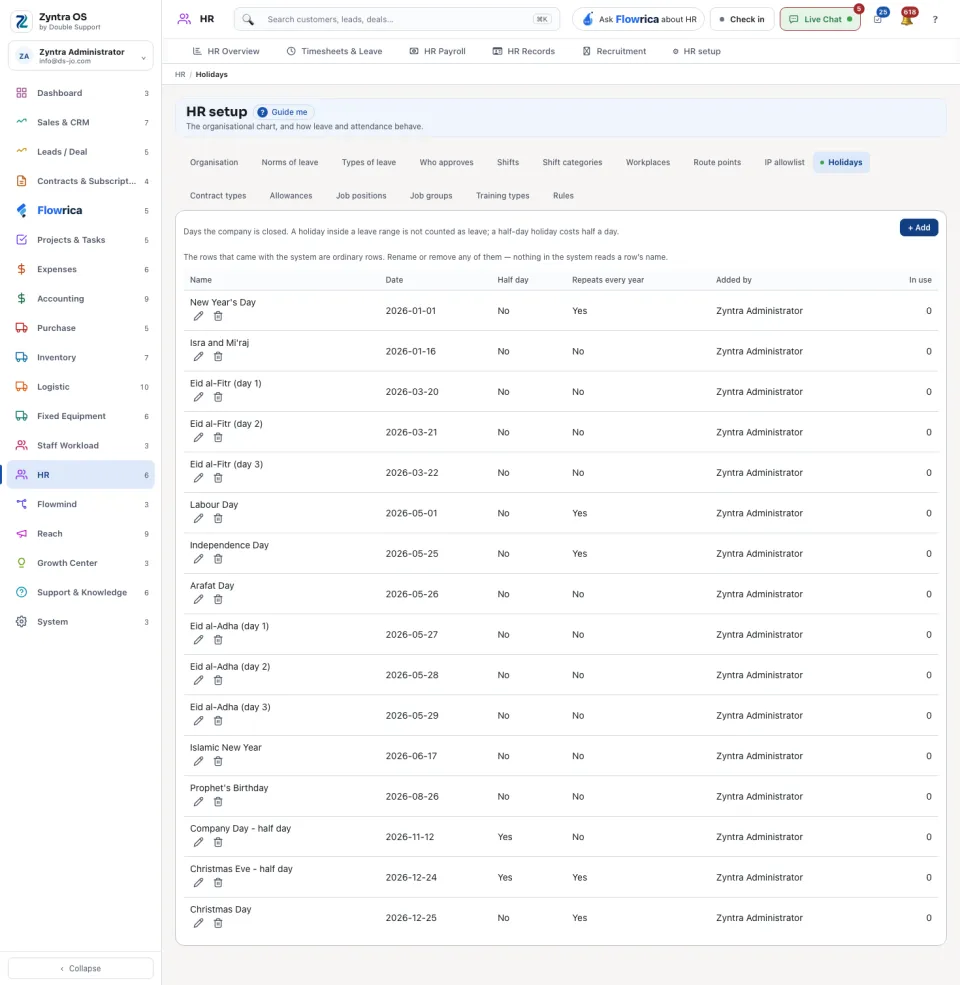
- Holidays: days the company is closed. A holiday inside a leave is not counted as leave; a half-day holiday costs half a day.
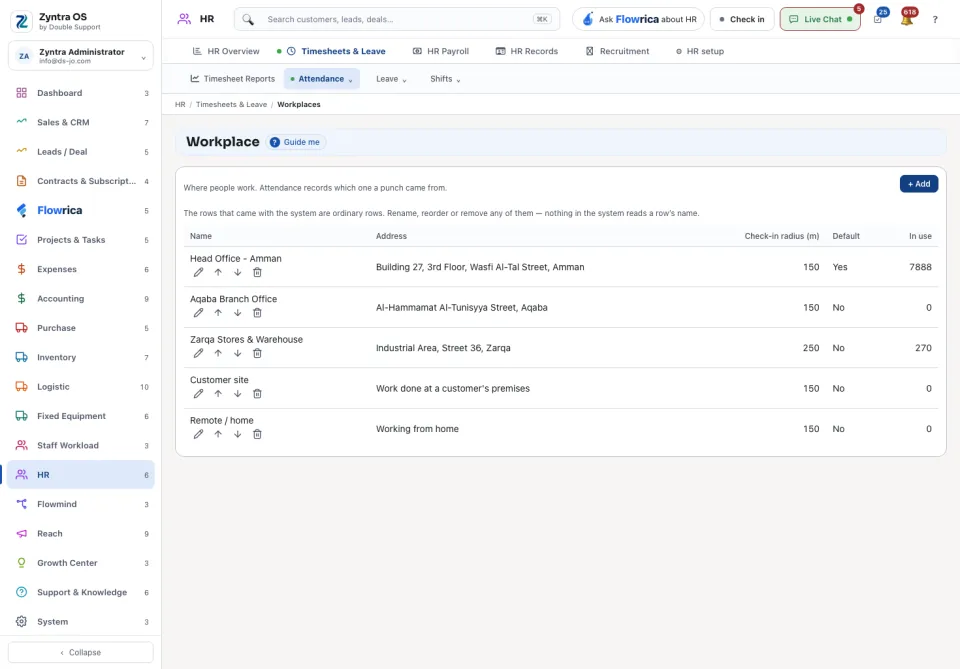
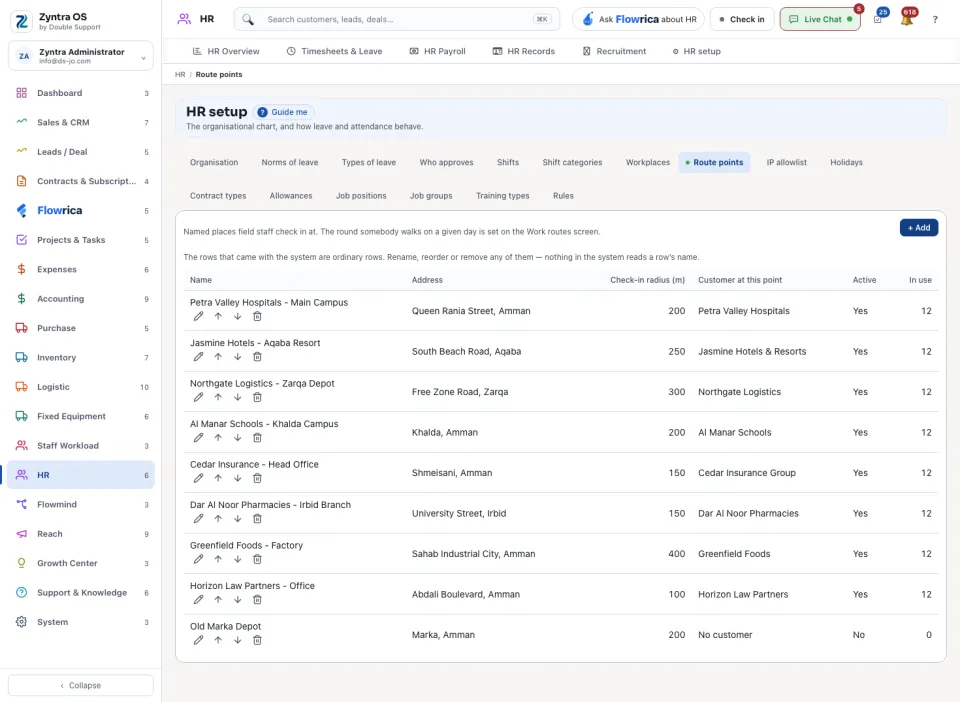
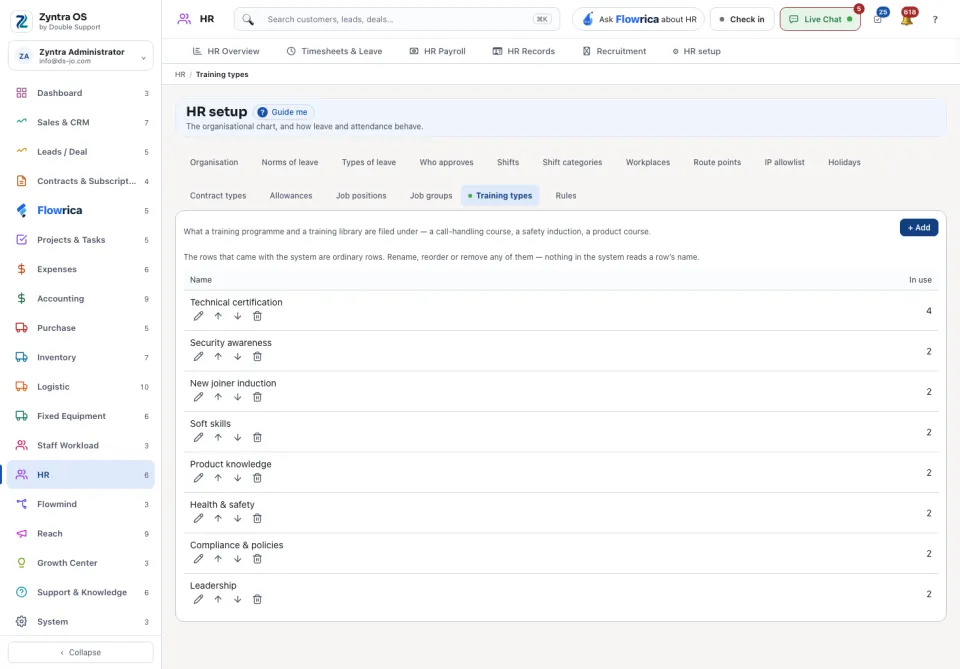
- Workplaces, Route points, IP allowlist, Contract types, Allowances, Job positions, Job groups and Training types: the lists the rest of HR chooses from. On each, press + Add, fill in the row and save.
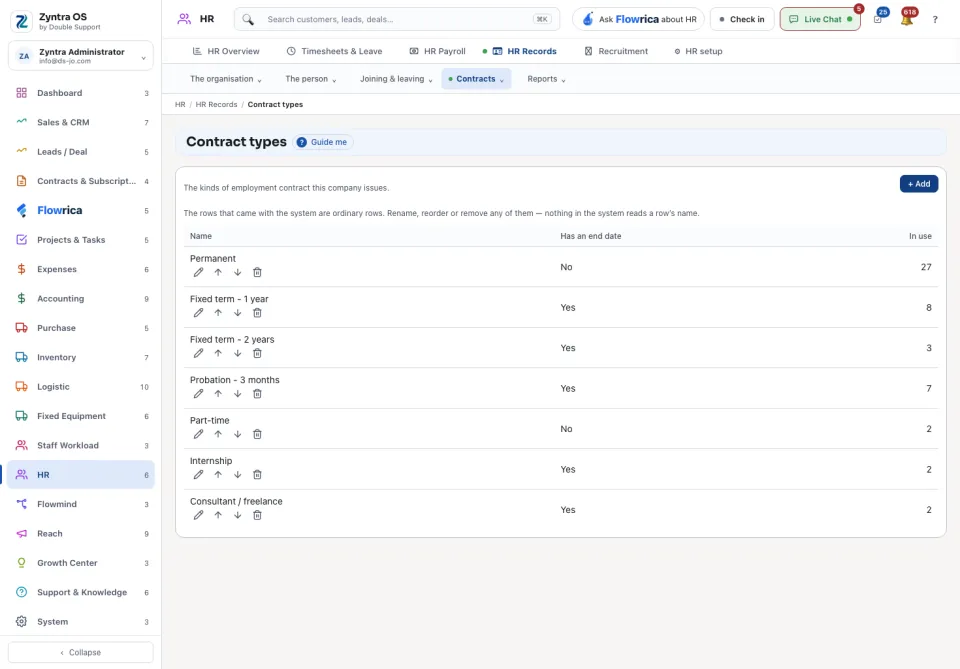
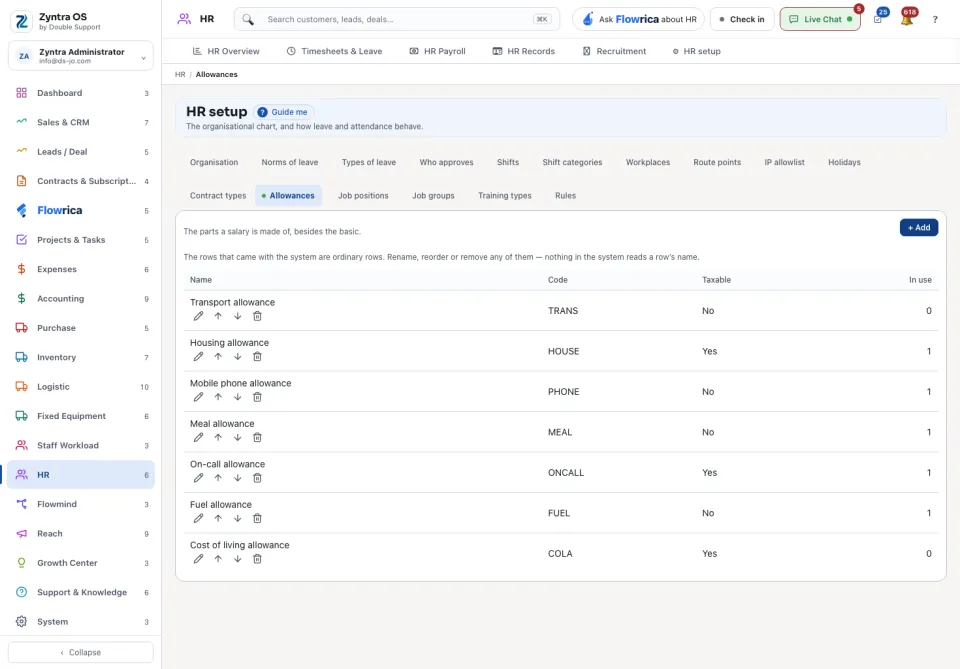
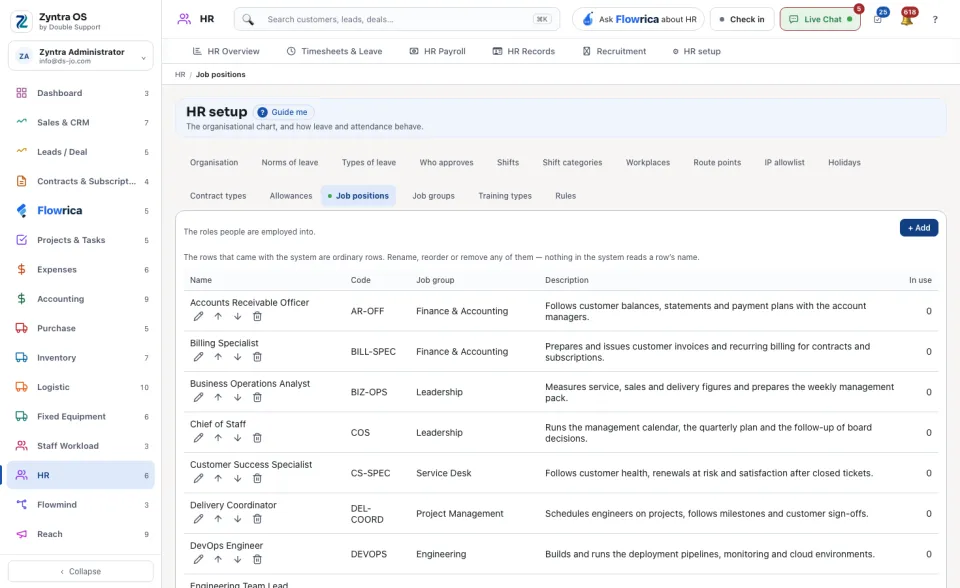
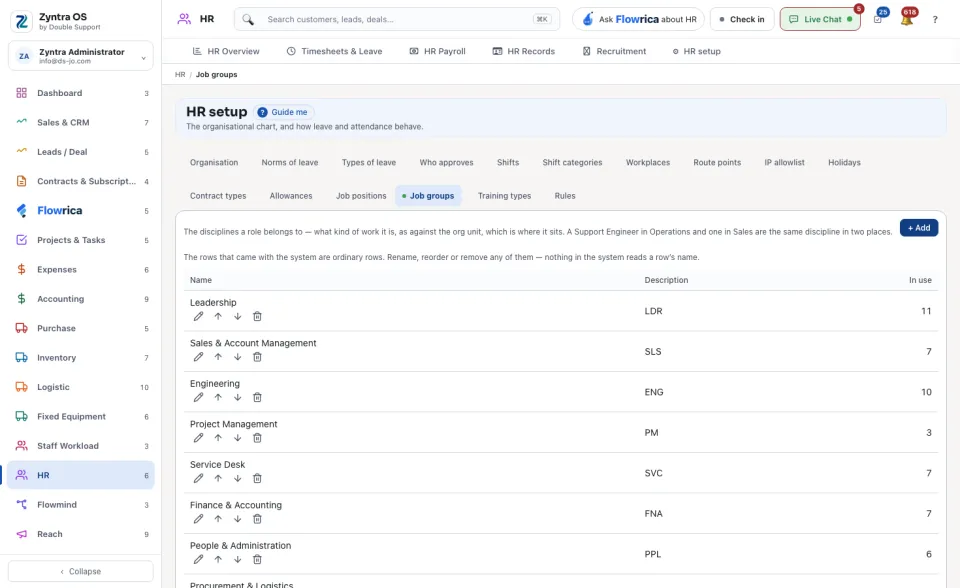
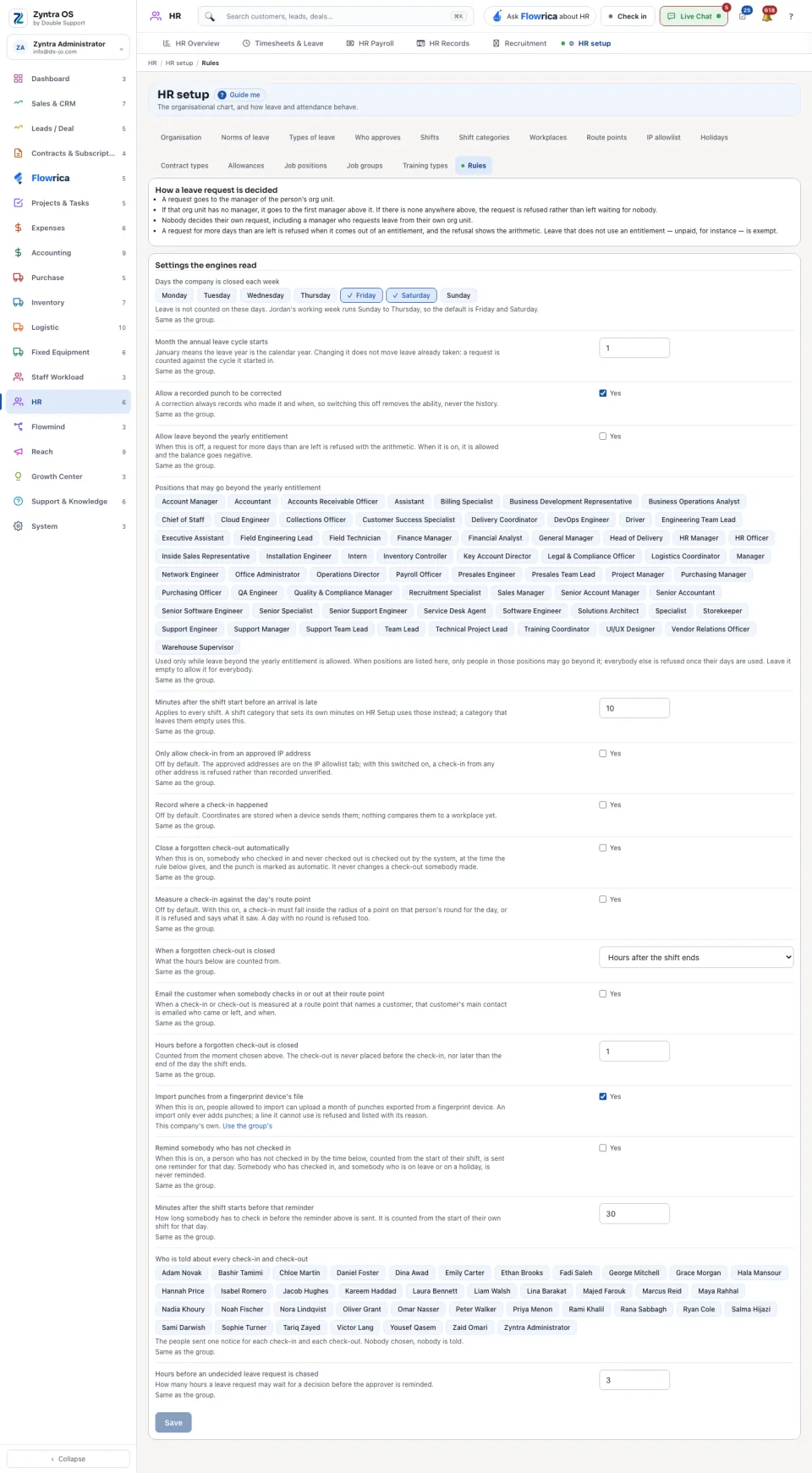
Rules, and each company's working week
The Rules tab is where HR setup opens. How a leave request is decided explains the path of a request in plain words. Settings the engines read holds the days the company is closed each week and the month the leave year starts. These are the group's values; press Change company to give one company its own, and every other company keeps the group's.