Zyntra OS
 Zyntra Legal
 Zyntra Real Estate
 Zyntra Hotel
 Zyntra E-commerce
 Zyntra Appointments
 Zyntra Repair
 Zyntra Garage
 Zyntra Concierge
 Zyntra Contracting
 Zyntra Clinic
 Zyntra Call Center
 Zyntra OTA
Where
Check in, at the top of every screen · HR › Timesheets & Leave › Attendance › AttendanceWho
Everyone checks in for themselves; HR sees and corrects the week.Check in and out
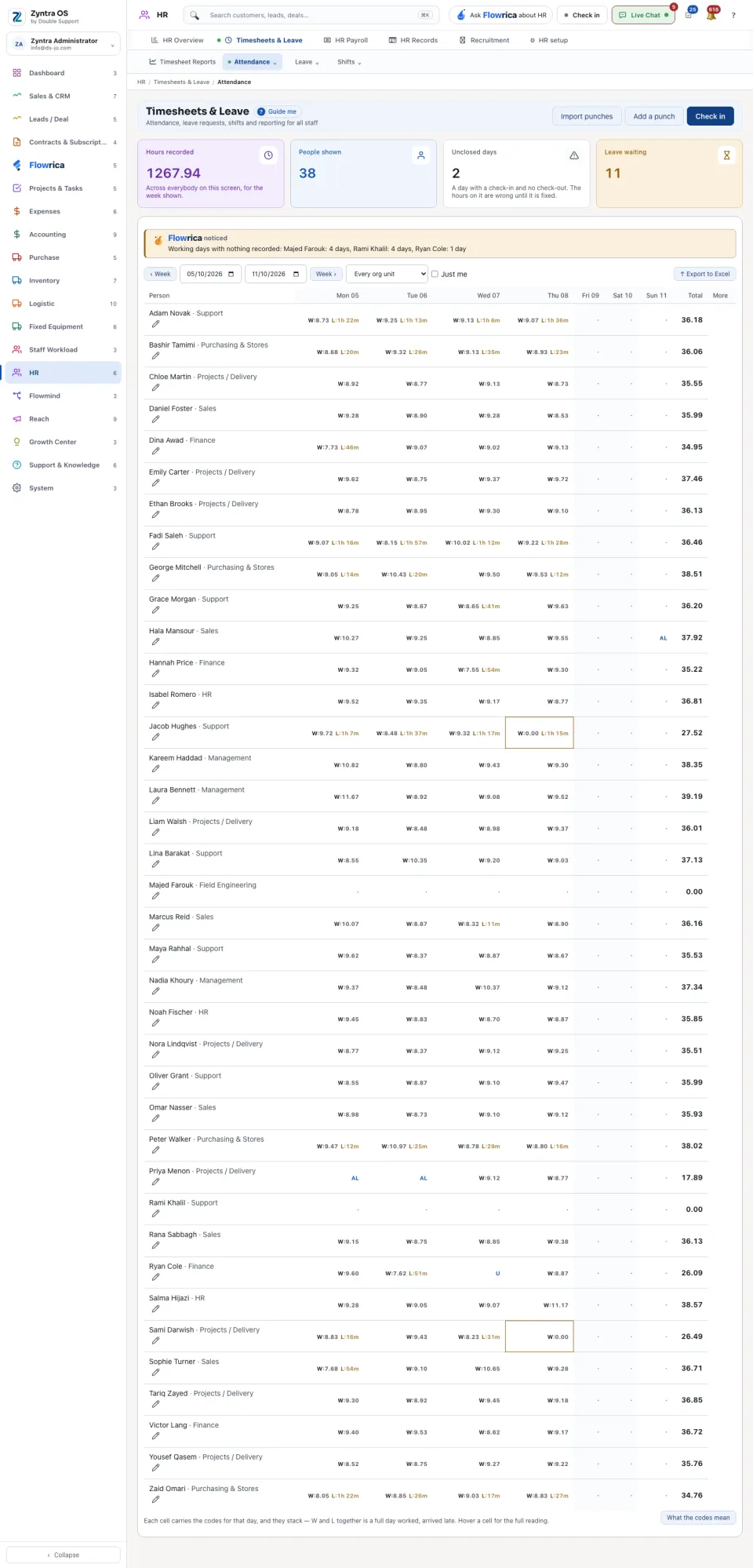
Read the week
Each row is a person and each column a day of the week shown; ‹ Week and Week › move to another week. A cell carries short codes for that day, and they stack: W (hours worked) and L (arrived late) together mean a full day worked, arrived late. U is an unexcused absence, AL authorised leave, HO a public holiday, NS no shift. Press What the codes mean for the whole list.
The four figures at the top: Hours recorded, People shown, Unclosed days (a day with a check-in and no check-out: its hours are wrong until it is fixed) and Leave waiting. Narrow by org unit, or tick Just me. Export to Excel takes the week out.
Correct a day
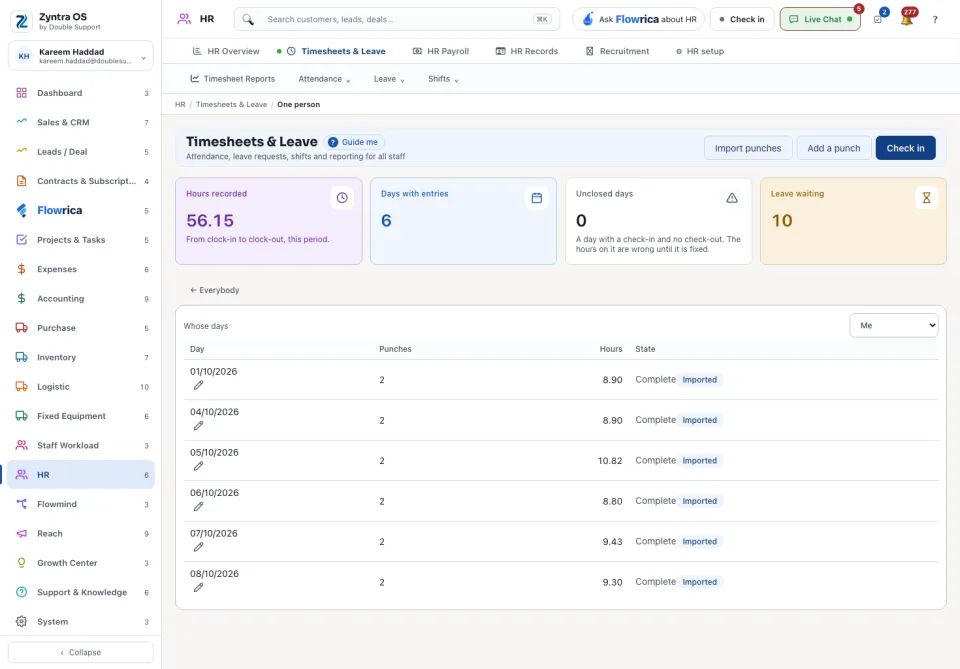
Press Fix on a person's row to open their days and correct one. ← Everybody goes back to the week.
A missed punch
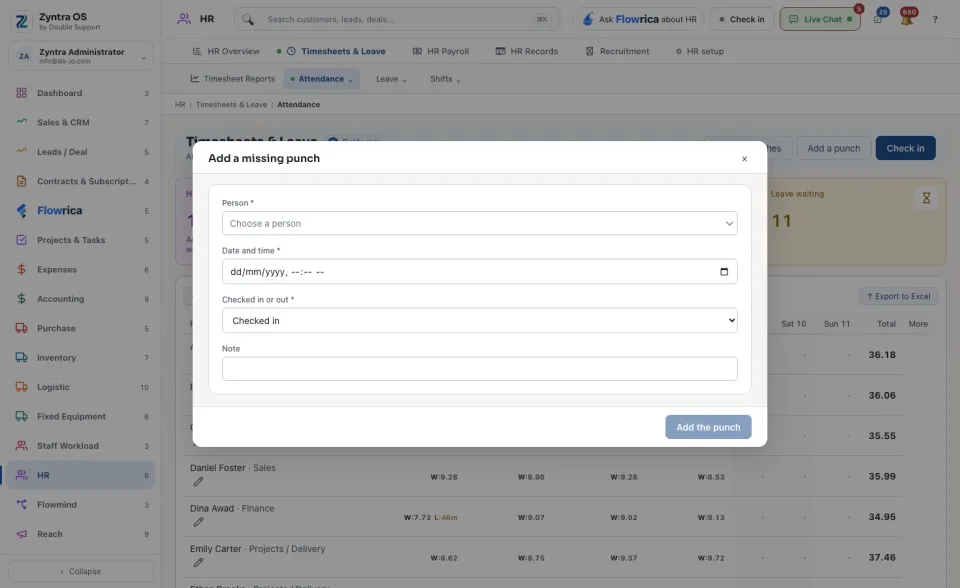
Press Add a punch: choose the Person, the Date and time, whether they Checked in or out, and a Note saying why. Press Add the punch.
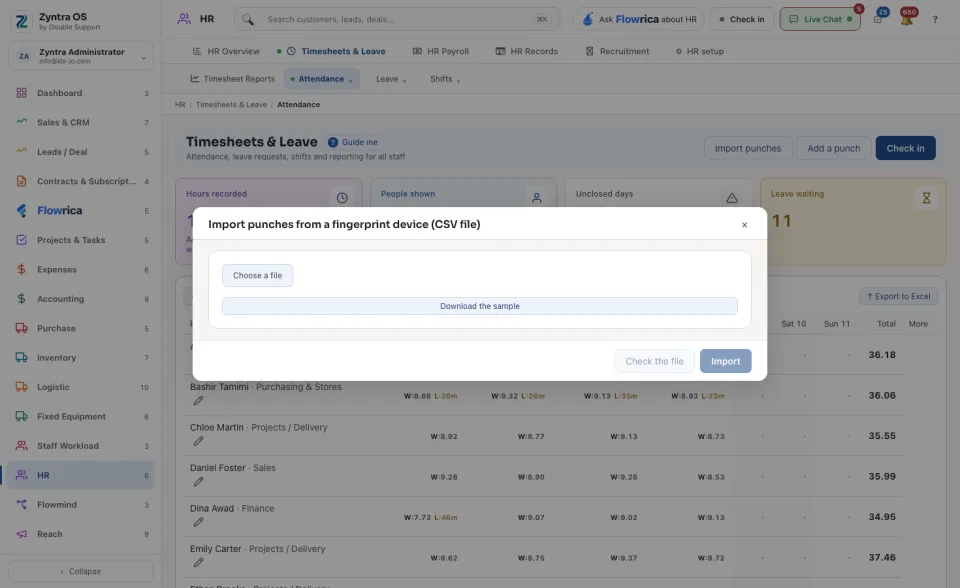
Import from a fingerprint device