

 Zyntra OS
 Zyntra Legal
 Zyntra Real Estate
 Zyntra Hotel
 Zyntra E-commerce
 Zyntra Appointments
 Zyntra Repair
 Zyntra Garage
 Zyntra Concierge
 Zyntra Contracting
 Zyntra Clinic
 Zyntra Dental
 Zyntra School
 Zyntra University
 Zyntra Social
 Zyntra Call Center
 Zyntra OTA
Where
Accounting › Money › BankingWho
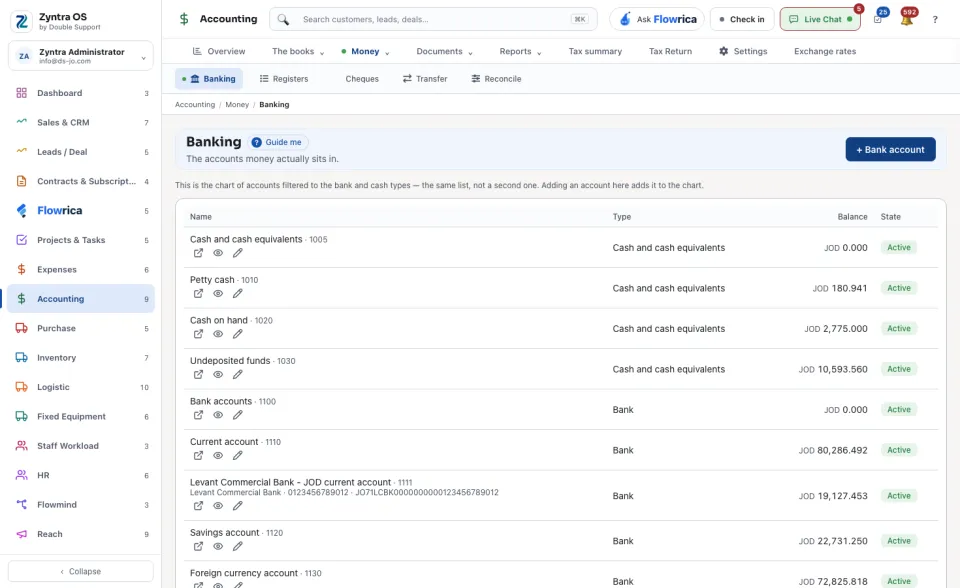
People whose role may see banking.The list is the chart of accounts narrowed to the bank and cash types: the same list, not a second one. Each row shows the account's Name, Type, Balance and State.
1
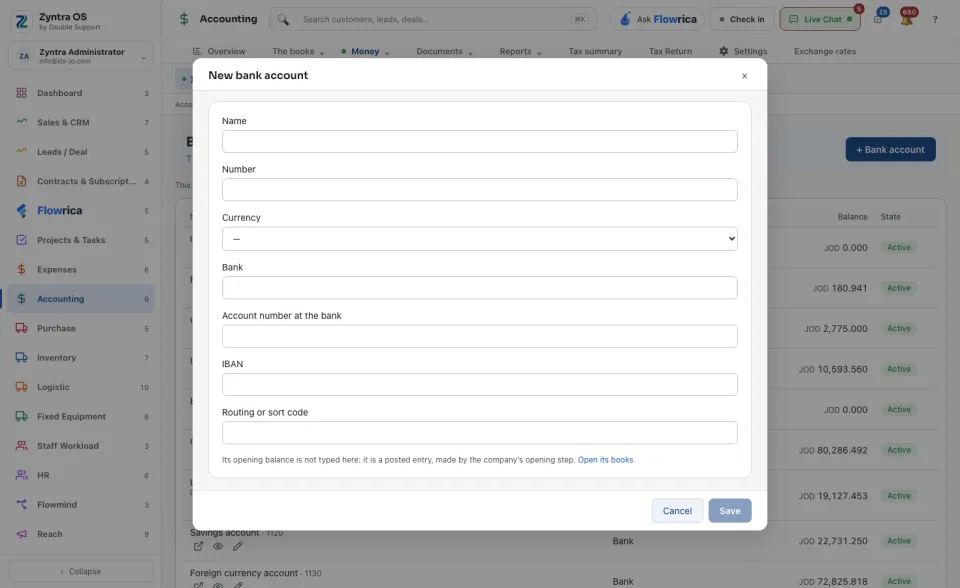
Press + Bank account. In New bank account fill in the Name, Number and Currency, then the Bank, the Account number at the bank, the IBAN and the Routing or sort code. Save. The account is added to the chart too.
2
Its opening balance is not typed here: it is a posted entry, made when the company's books are opened.
| On an account's row | What it does |
|---|---|
| Open its register | Every movement in and out of the account, with the running balance: see Registers. |
| Statement | The account's statement for a period. |
| Bank details | Changes the bank, account number and the other details above. |
| The cash box | On a cash account, not a bank: its Name, Number and description, as every screen shows it. |
| Fetch from the bank | The statement file fetched from the bank every day: see the steps below. |
| Bank feed | The account's lines taken from the bank through a bank feed provider: see the steps below. |
To check an account against what the bank says, see Reconcile. Guide me on this screen points at + Bank account.
A statement file in the bank's own format
3
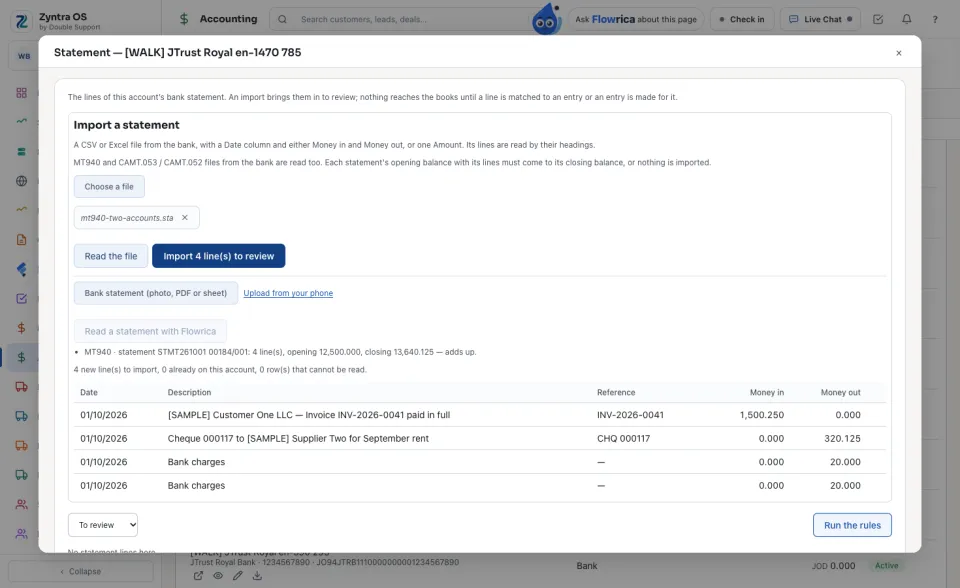
On the account's row press Statement. Under Import a statement choose the file the bank gave you: a CSV or Excel file, or an MT940 (.sta, .940) or CAMT.053 / CAMT.052 (.xml) file. Press Read the file. Each statement in the file is listed with its opening and closing balance, and its lines below.
4
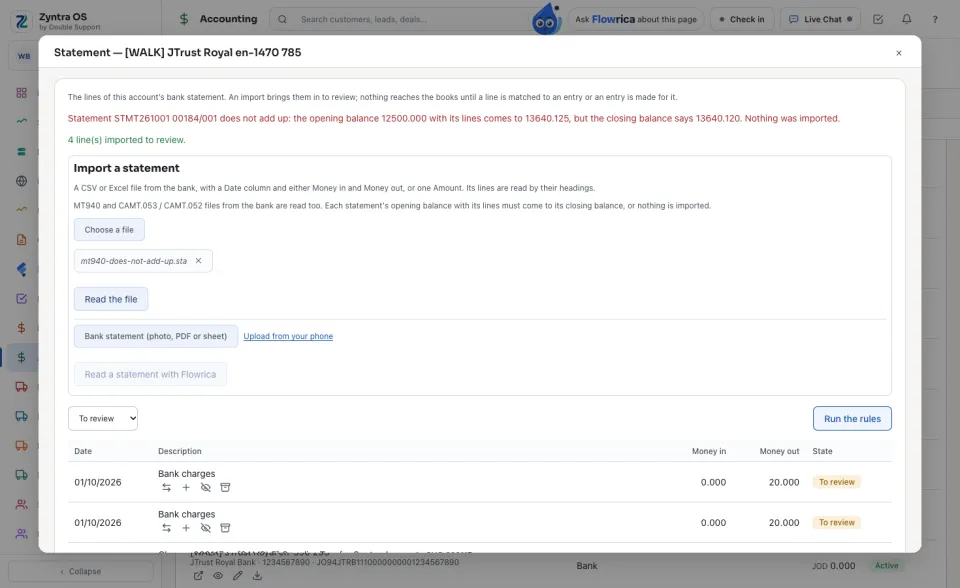
Press the import button below the file, which says how many lines it brings. The lines land on the account to review; nothing is posted. A file whose opening balance with its lines does not come to its closing balance is refused whole and says the figures; the same file a second time imports nothing.
The statement fetched from the bank every day
5
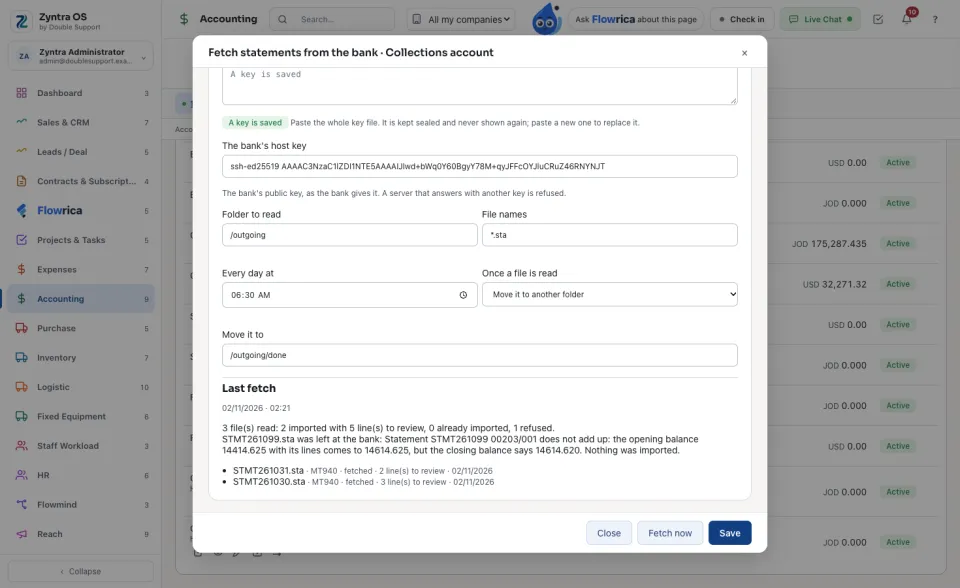
Your bank sets up host-to-host statements and gives you its SFTP server, a user, a key and its host key. On the account's row press Fetch from the bank, fill them in with the Folder to read, the File names, the time (Every day at) and what is done Once a file is read, tick Fetch the statement every day and Save. The key is kept sealed and never shown again.
6
Every day at that time the files are fetched and imported to review, as in step 4. Fetch now runs it at once. Last fetch says what was read, imported and refused; a refused file is left at the bank.
A bank feed
7
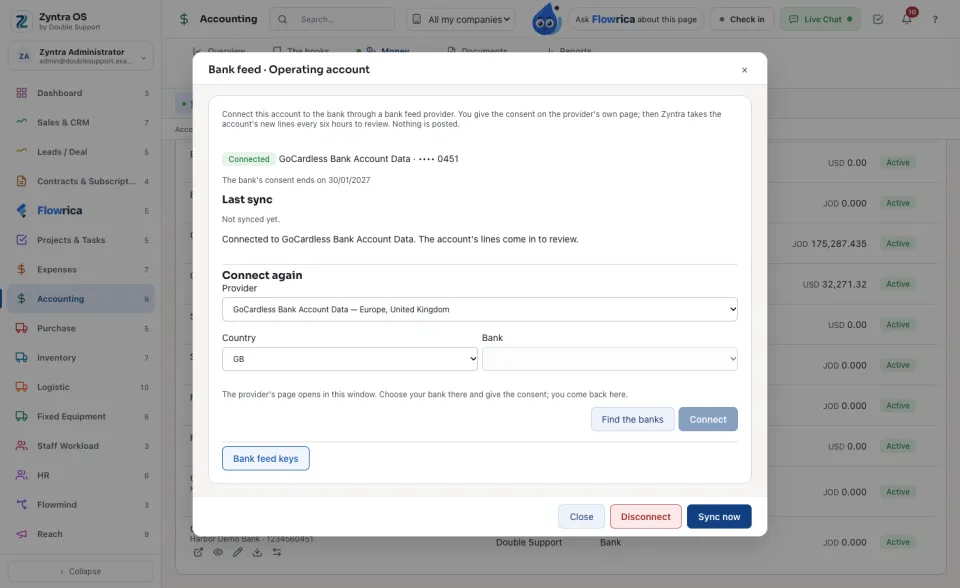
A bank feed provider reads the account at the bank with the company's consent: Plaid (United States, Canada), GoCardless Bank Account Data (Europe, United Kingdom), Salt Edge (many countries), Lean (Saudi Arabia, United Arab Emirates) or Tarabut (Saudi Arabia, United Arab Emirates, Bahrain). Whoever looks after the settings gives each provider's keys once, under Bank feed keys in the same window; they serve every company. The account needs its IBAN or number in Bank details first.
8
On the account's row press Bank feed, choose the Provider (for GoCardless the Country, then Find the banks and the Bank) and press Connect. The provider's own page opens: choose your bank there and give the consent. You come back to Banking. Only the bank's account that is exactly this one is connected; another one connects nothing.
9
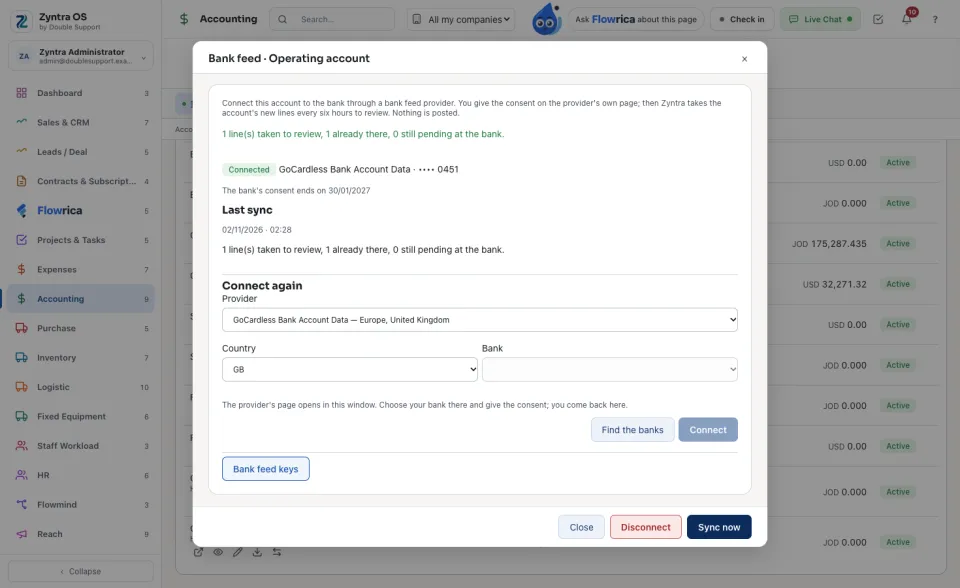
Every six hours the new lines are taken to review, as in step 4; Sync now takes them at once. Each line is taken once; a pending line waits at the bank; when the bank gives its balance, the lines must come to it or nothing is taken. Before the bank's consent ends the window says so: connect again. Disconnect withdraws the consent at the provider; the lines already taken stay.
What each line of a statement matches
10
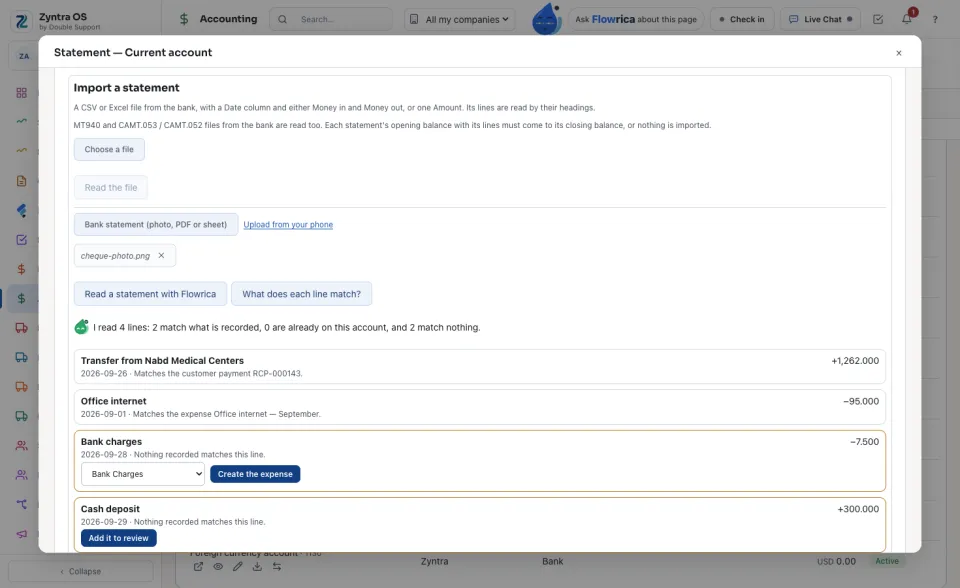
On the account's row press Statement. Under Read a statement with Flowrica choose the statement (a photo, a PDF or a sheet) and press What does each line match?. Flowrica reads it line by line and says, for each line, the customer payment, expense, supplier payment, cheque or entry of this company it matches, or that nothing recorded matches it. Nothing is recorded by reading.
11
A line that matches nothing has its own button: money out is Create the expense (choose its category first); money in is Add it to review, which puts the line on the account to review as in step 4. Each one has Undo: the expense is voided and kept, the line is archived.
Move money between two accounts
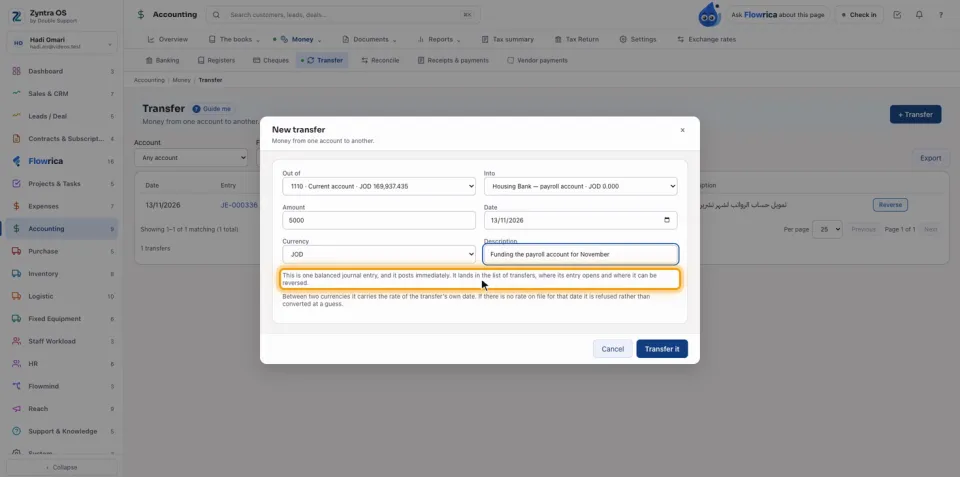
Open Transfer and press + Transfer. Choose the account the money leaves and the account it goes into, type the amount, the currency and a short description. A transfer is one balanced journal entry, posted at once. Press Transfer it: the transfer shows in the list.
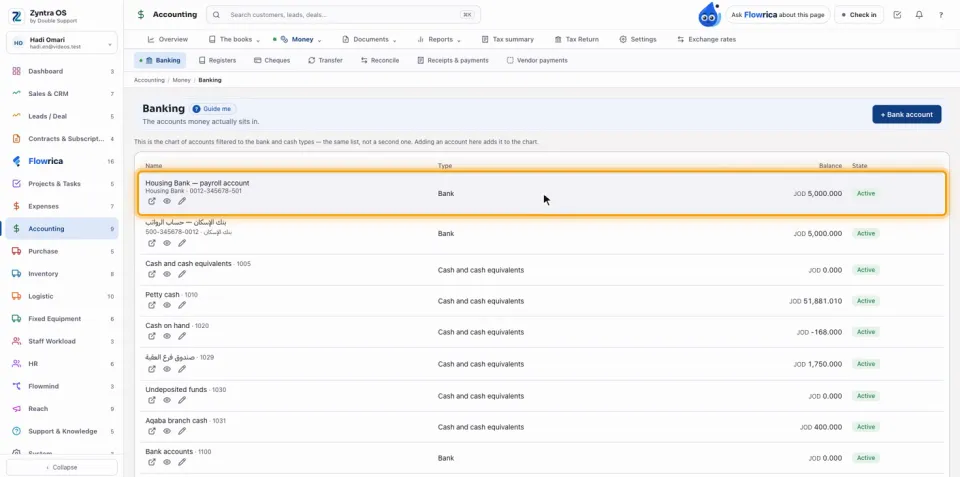
Back on Banking, the balance of the account that received it has updated by itself with the amount moved.
Before: Fiscal periods · Next: Accounting reports
Questions
Where is “Bank accounts and reconciling” in Zyntra OS?
Accounting › Money › Banking
Who can use “Bank accounts and reconciling”?
People whose role may see banking.