

 Zyntra OS
 Zyntra Legal
 Zyntra Real Estate
 Zyntra Hotel
 Zyntra E-commerce
 Zyntra Appointments
 Zyntra Repair
 Zyntra Garage
 Zyntra Concierge
 Zyntra Contracting
 Zyntra Clinic
 Zyntra Call Center
 Zyntra OTA
Where
System › Utilities › CalendarWho
Everyone. A customer sees in their portal only what is shared with them.1
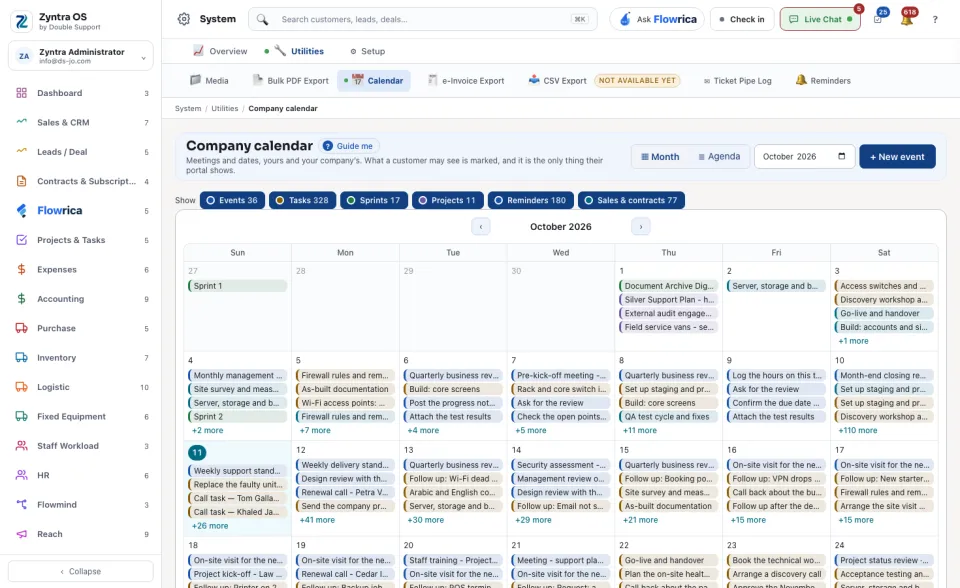
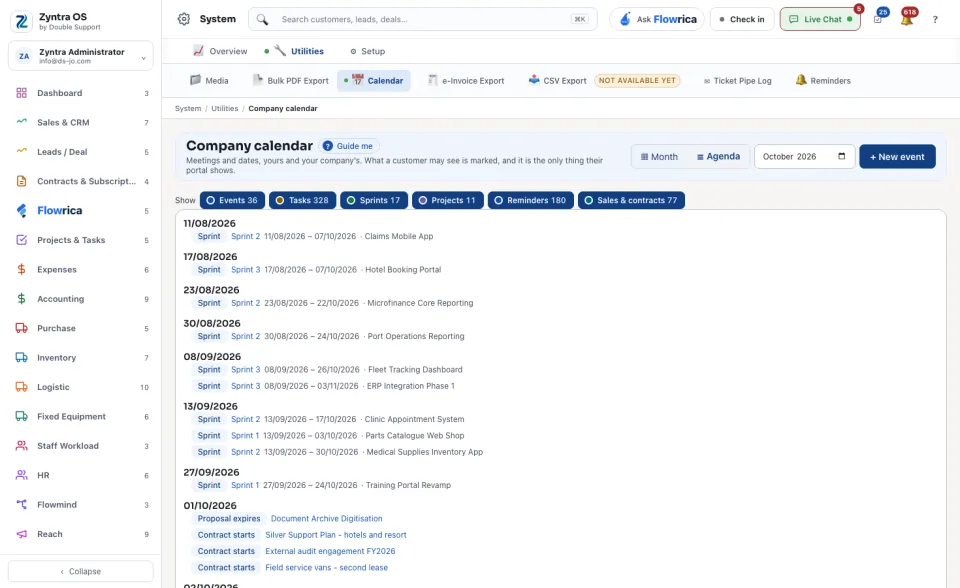
Choose how to look at it: Month for the grid, Agenda for a list day by day. The arrows beside the month move one month back or forward.
2
Under Show, press a kind to hide or show it: Events, Tasks, Sprints, Projects, Reminders, Sales & contracts. The number on each is how many the month holds. Press a name in a day to open that record; + more shows the rest of the day.
3
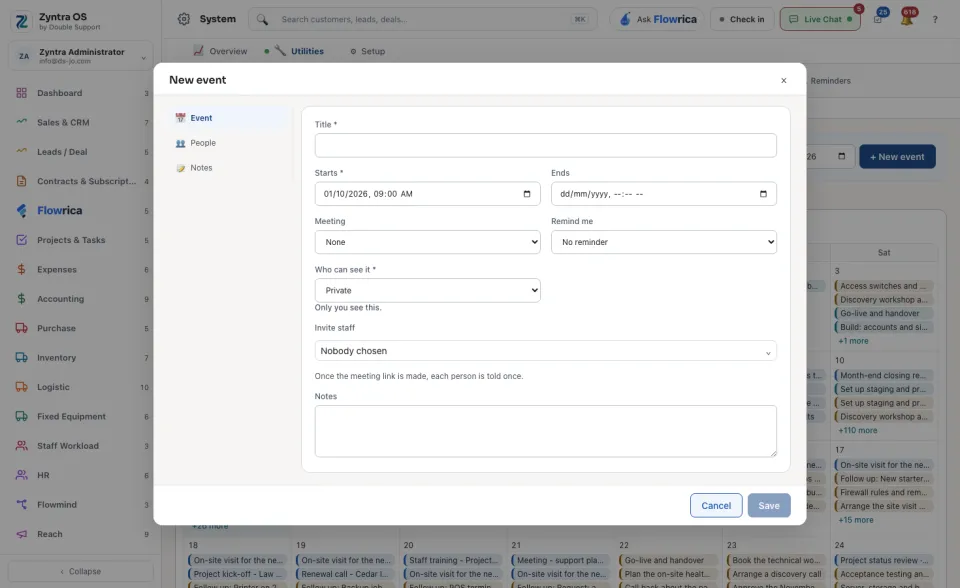
Press + New event. On the Event tab type the Title and when it Starts (both needed) and when it Ends. Under Meeting choose None, Teams or Inside Zyntra, and under Remind me how long before.
4
Choose Who can see it: Private, Everyone here or Shared with a customer. On the People tab use Invite staff to add colleagues; on the Notes tab write what the meeting is about. Press Save, or Cancel to leave without saving.
Connected calendars at the bottom of the page says whether an outside calendar is connected to this one.
Flowrica's walk on this screen points at + New event as the main thing to press.