

 Zyntra OS
 Zyntra Legal
 Zyntra Real Estate
 Zyntra Hotel
 Zyntra E-commerce
 Zyntra Appointments
 Zyntra Repair
 Zyntra Garage
 Zyntra Concierge
 Zyntra Contracting
 Zyntra Clinic
 Zyntra Dental
 Zyntra School
 Zyntra University
 Zyntra Call Center
 Zyntra OTA
Where
Flowrica › Scan an item; in the Flowrica app, Scan a barcode on HomeWho
Anyone who may see items. The quantities need a stock right (and show only the warehouses you may see); the cost needs «Inventory reports · View».1
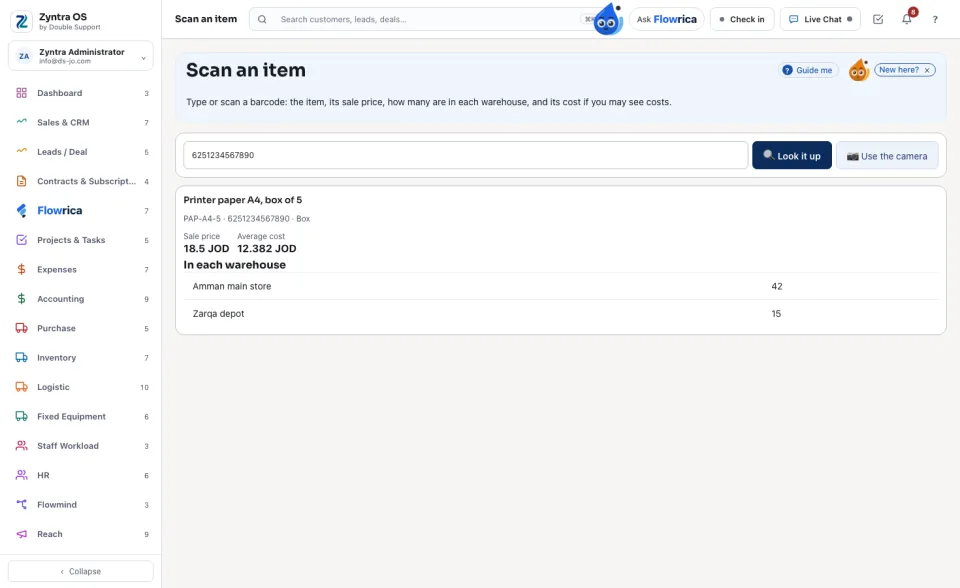
Type the Barcode or SKU and press Look it up, or press Use the camera and hold the barcode in front of it (where the browser can read barcodes).
2
The item shows its Sale price, its Average cost if you may see costs, and the quantity In each warehouse.
Questions
Where is “Scan an item” in Zyntra OS?
Flowrica › Scan an item; in the Flowrica app, Scan a barcode on Home
Who can use “Scan an item”?
Anyone who may see items. The quantities need a stock right (and show only the warehouses you may see); the cost needs «Inventory reports · View».