

 Zyntra OS
 Zyntra Legal
 Zyntra Real Estate
 Zyntra Hotel
 Zyntra E-commerce
 Zyntra Appointments
 Zyntra Repair
 Zyntra Garage
 Zyntra Concierge
 Zyntra Contracting
 Zyntra Clinic
 Zyntra Dental
 Zyntra School
 Zyntra University
 Zyntra Call Center
 Zyntra OTA
Where
Flowrica › Supplier price listWho
Whoever may see items and suppliers. Costs and margins are shown only to people who may see them; applying the new prices needs the right to edit items.1
Open Supplier price list, choose the file the supplier sent and press Read the list. The list needs a column for the price and a column for the item code or its name.
2
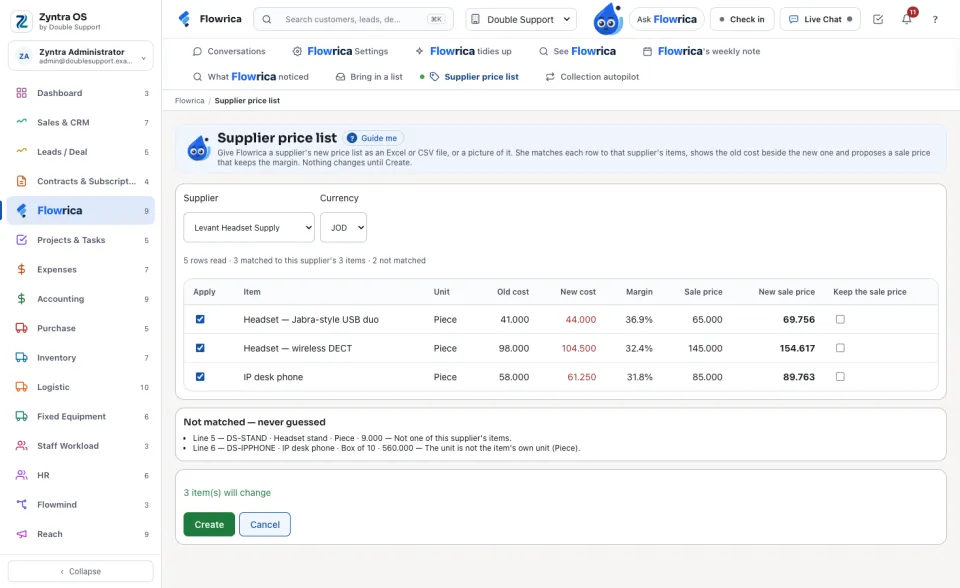
Choose the Supplier. Each row is matched to that supplier's items by the item's code, or by its exact name. Beside each item you see the old cost, the new cost, the margin today, the sale price and the new sale price that keeps the same margin.
3
Untick a row to leave it out, or tick Keep the sale price to change only its cost. The rows that did not match are listed under Not matched with the reason: Flowrica never guesses which item a row is.
4
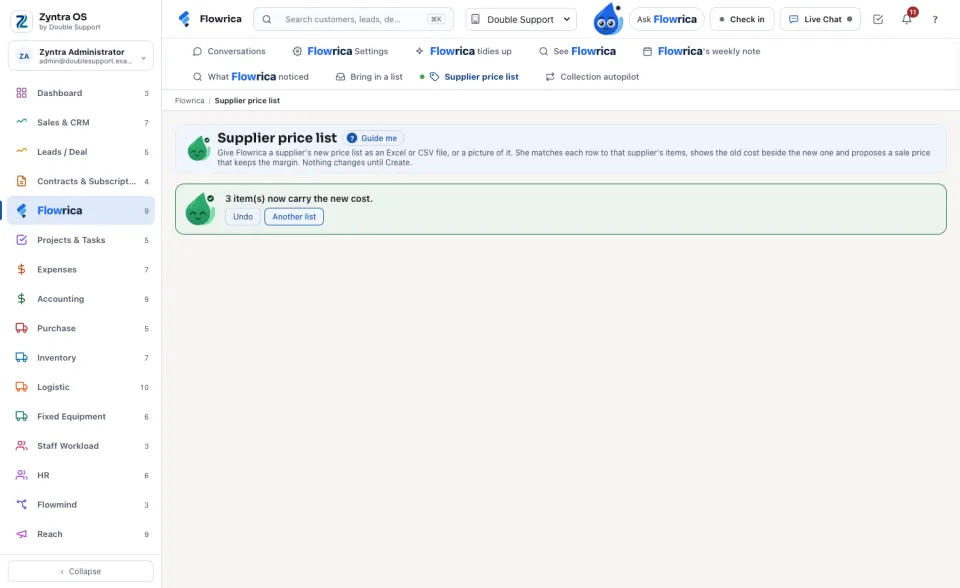
Press Create. The green card says how many items now carry the new cost. Undo puts back the old cost and price, and both changes are kept in each item's history.
A row whose unit is not the item's own unit is not matched, because its price is for another unit. A picture is read only when Flowrica Advance is on; an Excel or CSV file is read on your own system.
Questions
Where is “Supplier price list” in Zyntra OS?
Flowrica › Supplier price list
Who can use “Supplier price list”?
Whoever may see items and suppliers. Costs and margins are shown only to people who may see them; applying the new prices needs the right to edit items.