

 Zyntra OS
 Zyntra Legal
 Zyntra Real Estate
 Zyntra Hotel
 Zyntra E-commerce
 Zyntra Appointments
 Zyntra Repair
 Zyntra Garage
 Zyntra Concierge
 Zyntra Contracting
 Zyntra Clinic
 Zyntra Call Center
 Zyntra OTA
Where
Sales & CRM › Items & Price lists › ItemsWho
Anyone allowed to add items. Prices and cost are for administrators.1
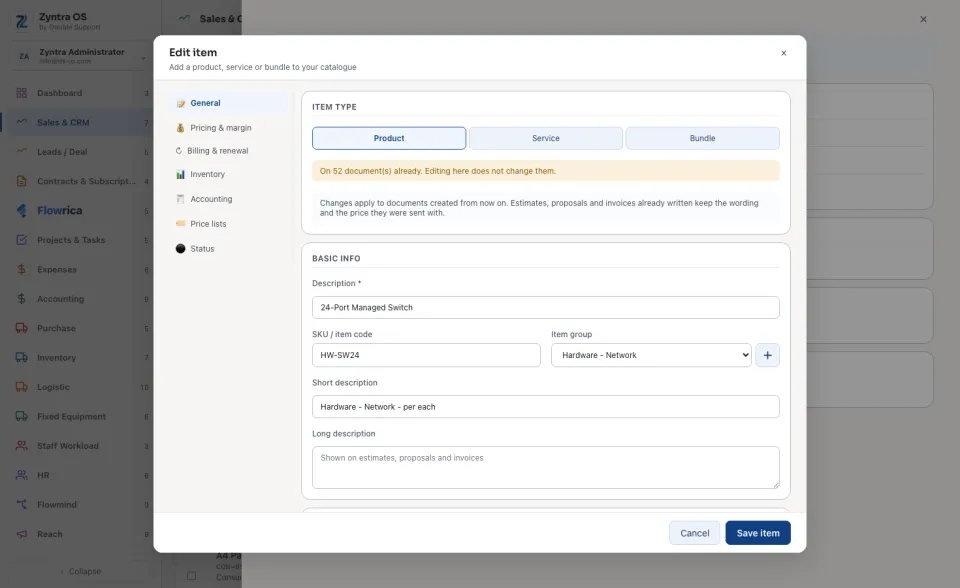
Press + New item. The form's parts are listed down its side: General, Pricing & margin, Billing & renewal, Inventory, Accounting, Price lists, Status.
2
Under General, choose the Item type: Product, Service or Bundle, and type its Description (the only box you must fill). Add an SKU / item code and an Item group if you use them.
3
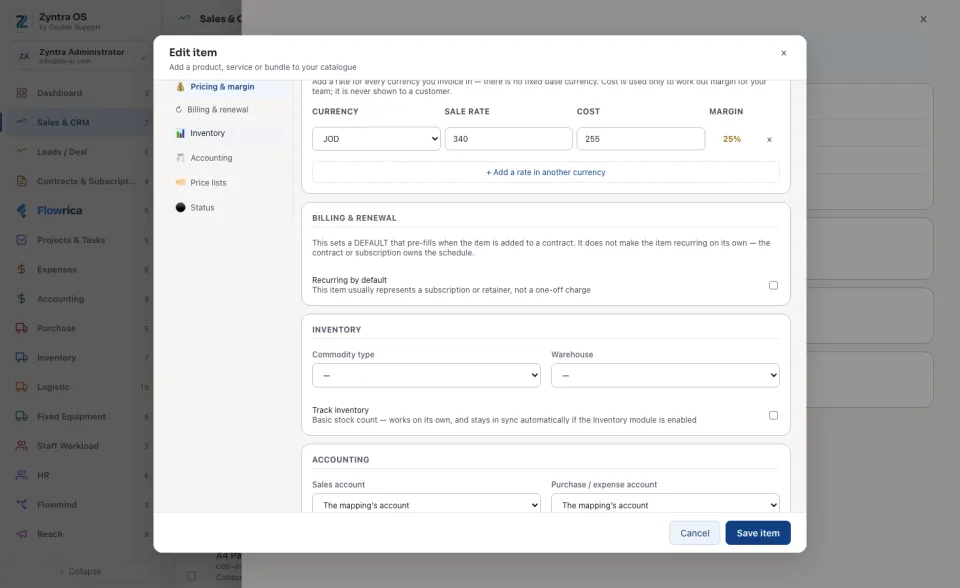
Under Pricing & margin, choose a currency and give the Sale rate and the Cost. Add a rate for every currency you invoice in with + Add a rate in another currency. The cost only works out the margin for your team; a customer never sees it. Under Accounting, choose its Taxes and Unit.
4
Press Save item. The item joins the list.
An item switched off under Status is hidden from new invoices, estimates and proposals. Old documents keep it.
The list
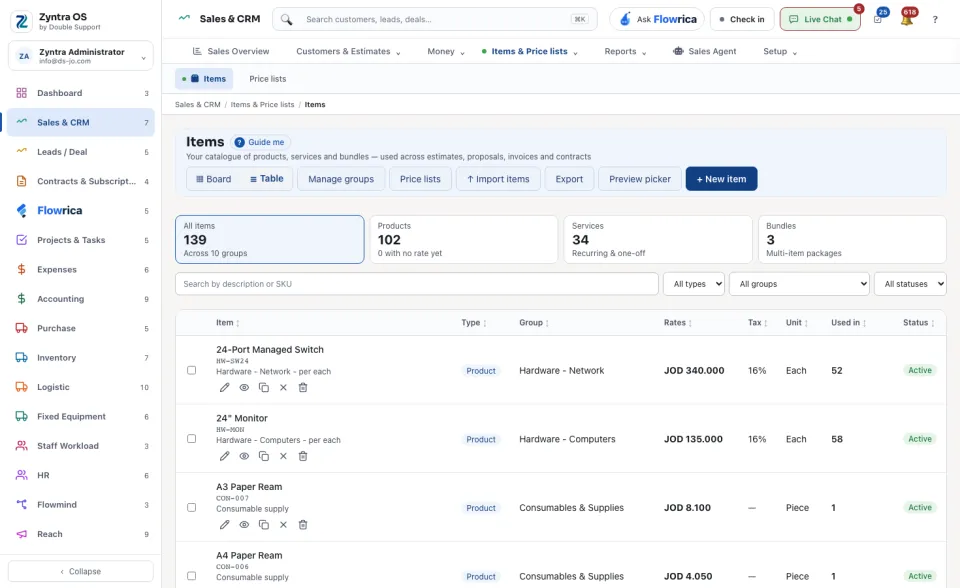
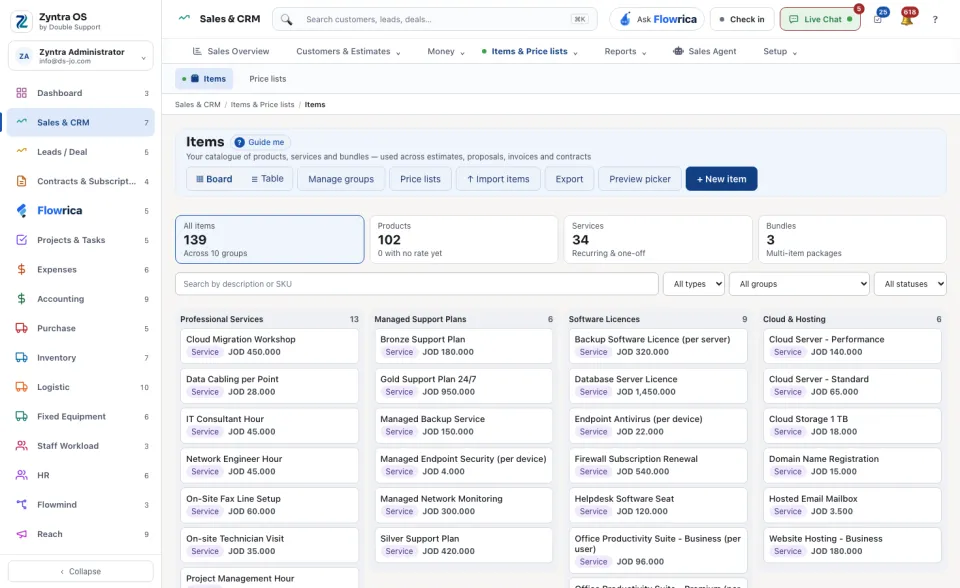
Four cards count All items, Products, Services and Bundles; press one to see only that kind. ▦ Board and ☰ Table change how the list is drawn. The table shows each item's type, group, rates, tax, unit, how many documents it is Used in, and its status. Manage groups edits the item groups, Price lists opens the price lists, Export takes the list out, and Preview picker shows the item chooser as it appears on a document.
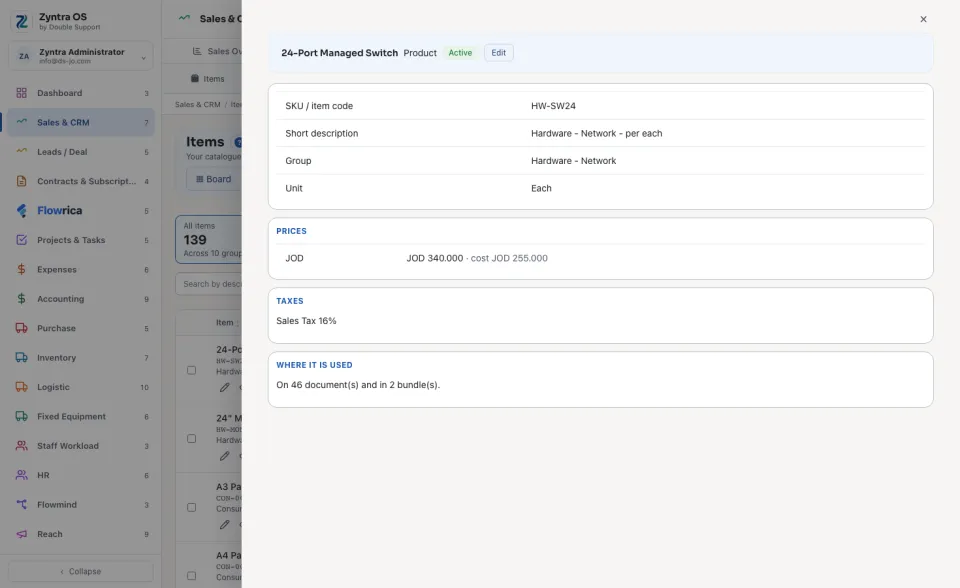
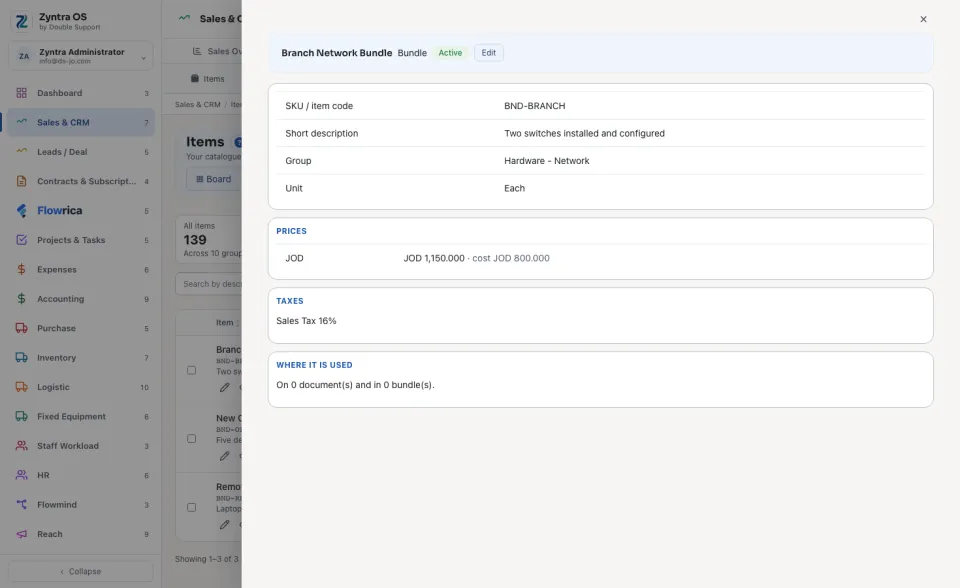
Click an item to open it in a panel over the list: its details, its Prices, its Taxes and Where it is used. Edit changes it.
Import many items at once
1
Press ↑ Import items. Press ↓ Download sample for a file with the right columns, fill it in, and choose it under Choose a CSV file.
2
Press Check the file. Nothing is written yet: Zyntra shows how many rows it read, how many would be added or skipped, and which new groups and units it would create.
3
If it looks right, press Import for real.