

 Zyntra OS
 Zyntra Legal
 Zyntra Real Estate
 Zyntra Hotel
 Zyntra E-commerce
 Zyntra Appointments
 Zyntra Repair
 Zyntra Garage
 Zyntra Concierge
 Zyntra Contracting
 Zyntra Clinic
 Zyntra Call Center
 Zyntra OTA
Where
System › Setup › National e-invoicing › PeppolWho
Turning Peppol on: people with E-invoicing — Turn Peppol on. Sending again: E-invoicing — Send by Peppol. Accepting received bills: E-invoicing — Accept bills received by Peppol.Set up the company
1
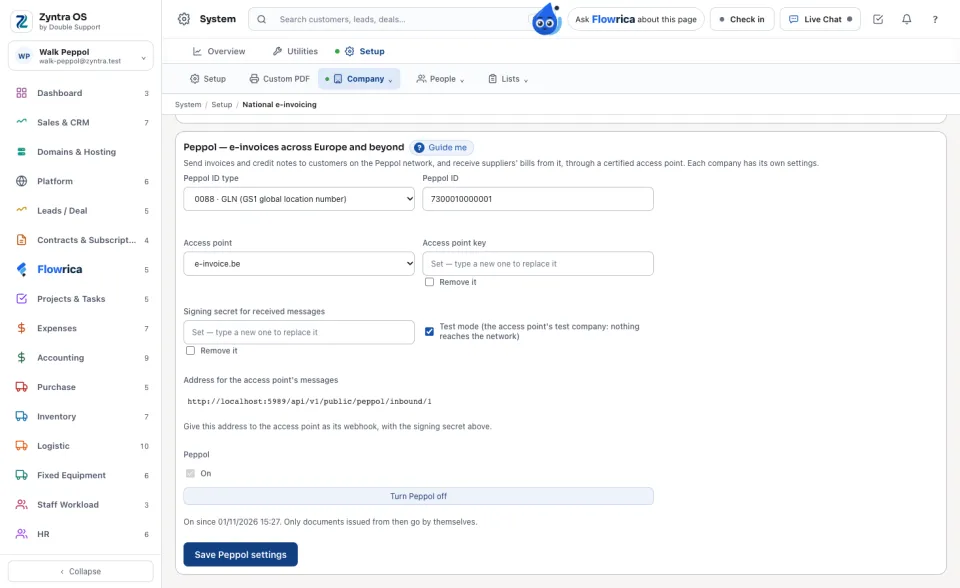
In the Peppol card, choose the company's Peppol ID type (for example 0208, the Belgian enterprise number) and type its Peppol ID. A slip in the digits is refused when you save.
2
Choose the Access point and type its Access point key and the Signing secret it gave you. They are kept sealed and never shown again; the card only says whether each is set.
3
Give the access point the Address for the access point's messages shown on the card, then press Save Peppol settings and Turn Peppol on. Only documents issued from then on go by themselves.
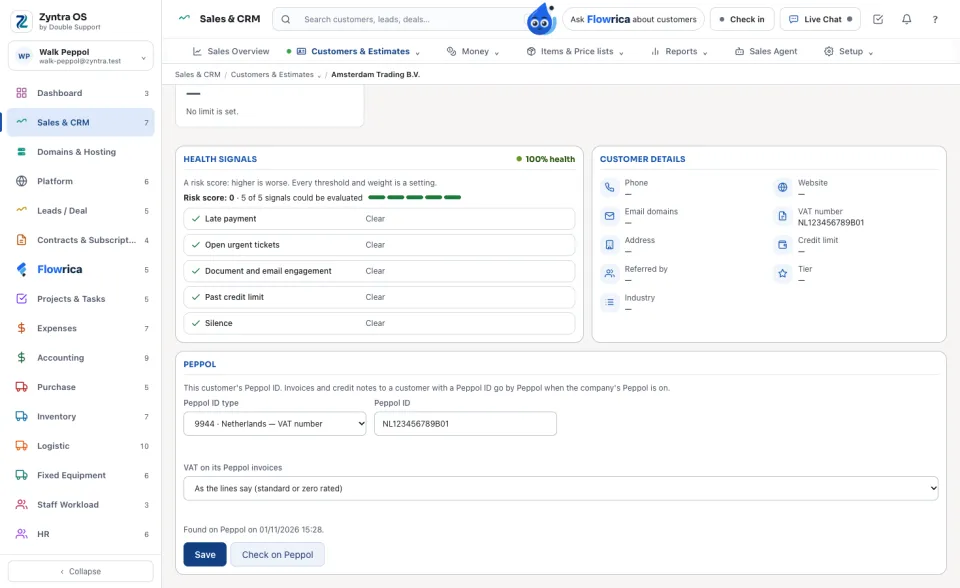
The customer's Peppol ID
4
On the customer's page, in the Peppol card, choose the type, type the customer's Peppol ID, and choose how VAT is said on its invoices (as the lines say, reverse charge, intra-EU supply, export or exempt). Press Save.
5
Press Check on Peppol: the card says whether the customer can receive Peppol invoices, and when it was checked.
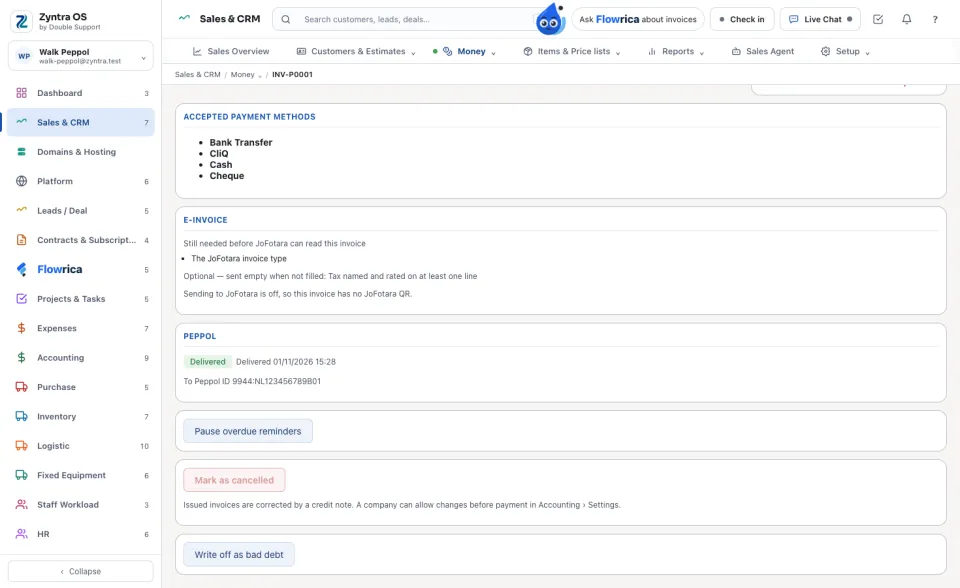
An invoice's Peppol status
6
Issue the invoice as usual. On its page the Peppol card says Queued, then Sent, then Delivered once the customer's access point has it. A credit note goes the same way when it is made.
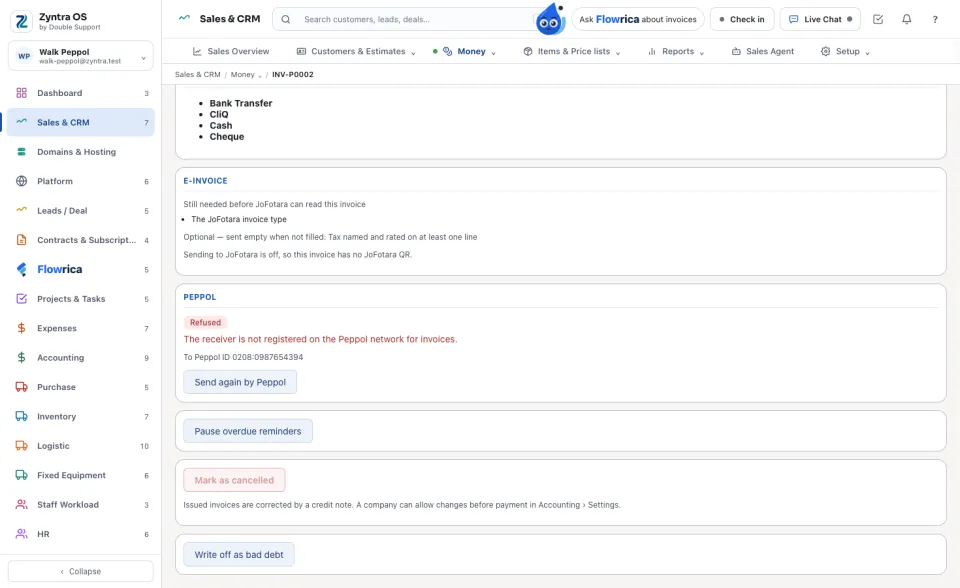
7
If it says Refused, the access point's own reason is under it. Correct what it names and press Send again by Peppol. Flowrica answers «Which invoices failed on Peppol?» and can send the invoice in view.
A document that went by Peppol cannot be changed: it is already in the customer's system. Correct it with a credit note.
A bill received by Peppol
8
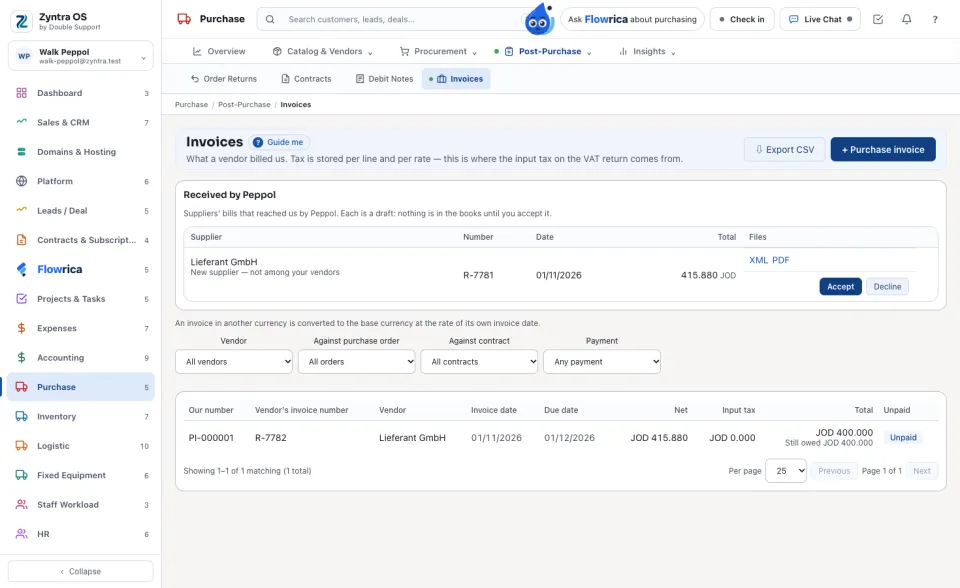
On Purchase › Invoices, the Received by Peppol card lists suppliers' bills that reached you. Each is a draft: nothing is in the books yet. Open its XML or PDF to read it.
9
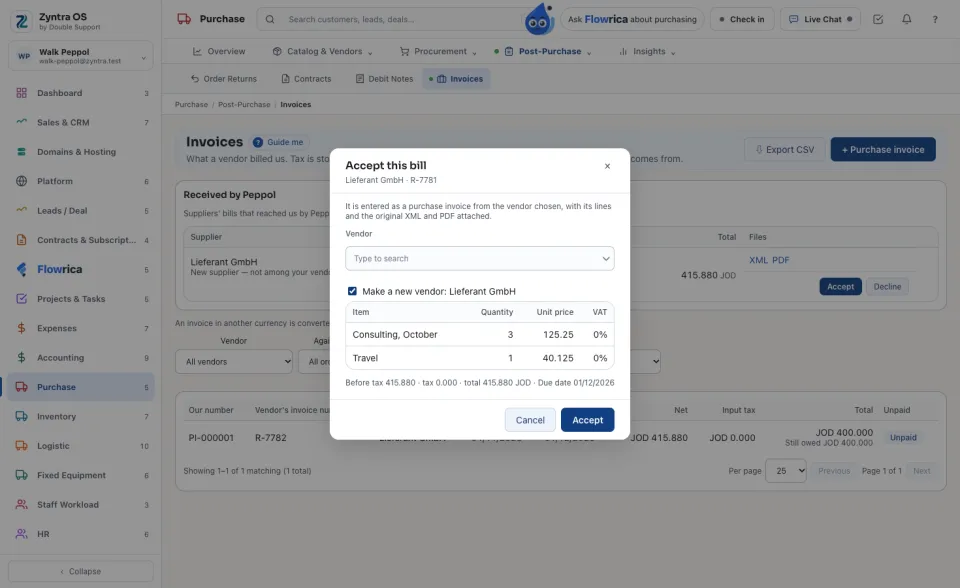
Press Accept, check the vendor (found by its Peppol ID or VAT number, or choose one, or make a new vendor from the bill) and accept: it is entered as a purchase invoice with its files attached. Or press Decline and say why.
Questions
Where is “Peppol e-invoices” in Zyntra OS?
System › Setup › National e-invoicing › Peppol
Who can use “Peppol e-invoices”?
Turning Peppol on: people with E-invoicing — Turn Peppol on. Sending again: E-invoicing — Send by Peppol. Accepting received bills: E-invoicing — Accept bills received by Peppol.