

 Zyntra OS
 Zyntra Legal
 Zyntra Real Estate
 Zyntra Hotel
 Zyntra E-commerce
 Zyntra Appointments
 Zyntra Repair
 Zyntra Garage
 Zyntra Concierge
 Zyntra Contracting
 Zyntra Clinic
 Zyntra Call Center
 Zyntra OTA
Where
Leads / Deal › LeadsWho
Anyone allowed to add leads.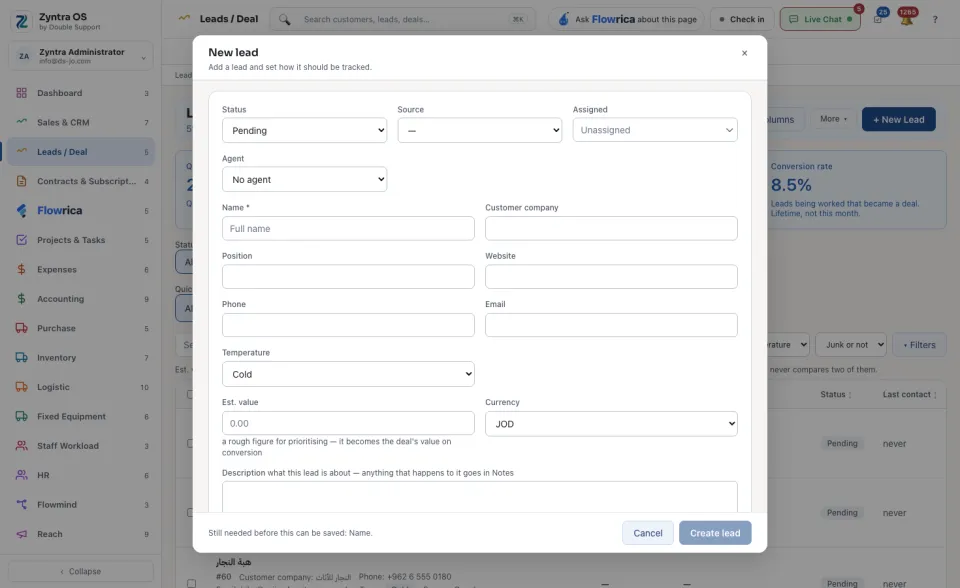
This may already exist; press Create it anyway only if it is new.
The list
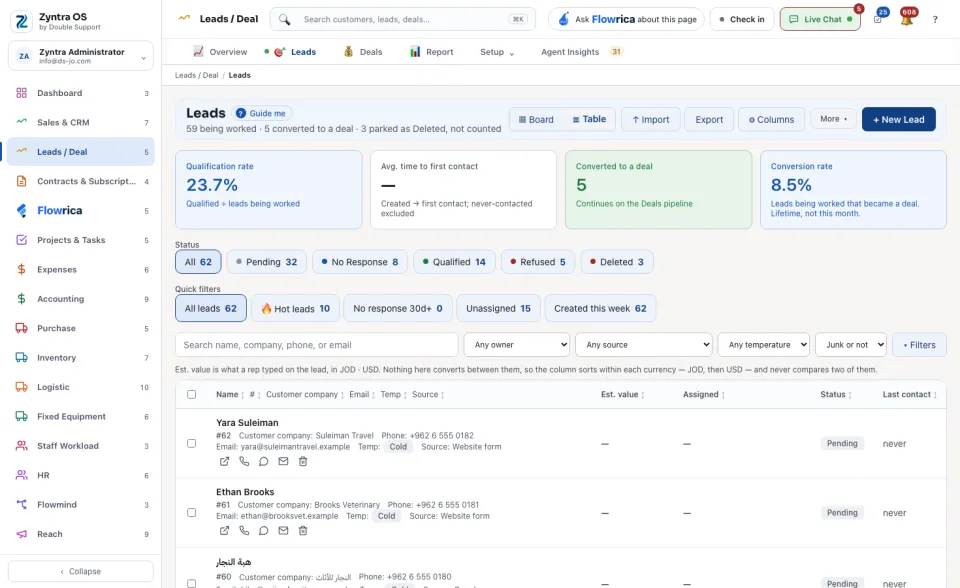
Four figures stand at the top: Qualification rate, Avg. time to first contact, Converted to a deal and Conversion rate. Under them:
| On the screen | What it does |
|---|---|
| ▦ Board / ☰ Table | The same leads as cards, one column per status, or as rows. |
| Status | Press Pending, No Response, Qualified, Refused or Deleted to see only those leads. |
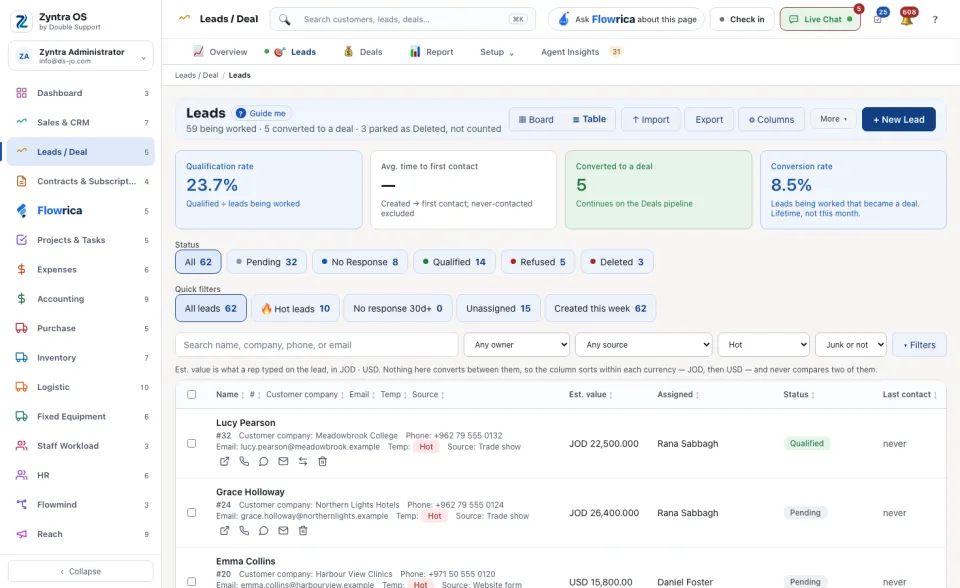
| Quick filters | 🔥 Hot leads, No response 30d+, Unassigned, Created this week. More choices are under ▾ Filters. |
| ↑ Import | Bring in many leads from a CSV file: press ↓ Download sample file, fill it, choose it, press Check the file, then Import for real. |
| Export, ⚙ Columns | Take the list out as a file; choose which columns the table shows. |
| More ▾ | ⇄ Auto-assign gives unassigned leads to the team; 🌐 Routing rules decide who gets a new lead. |
When leads have waited too long, a line above the list says so; press Review now → to see them.
The lead’s page
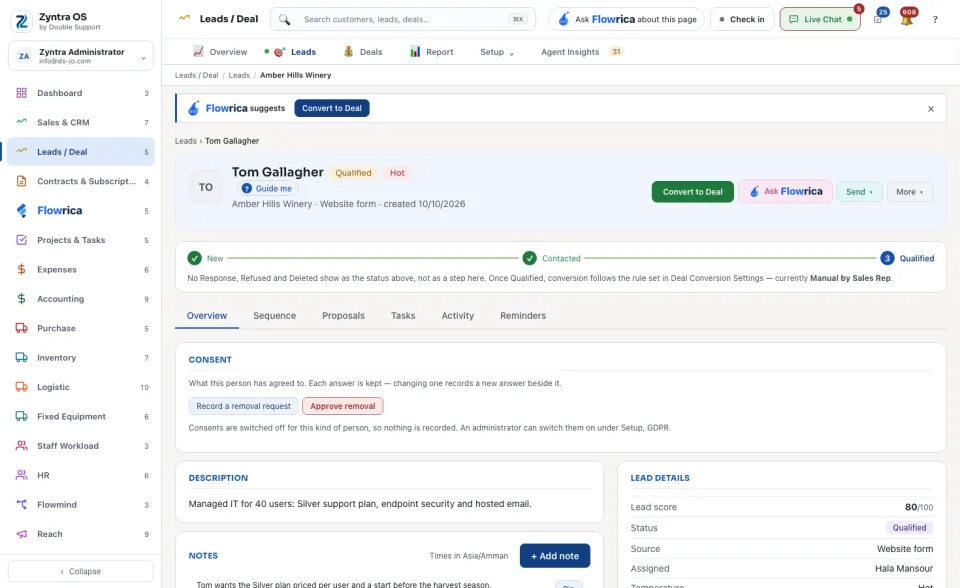
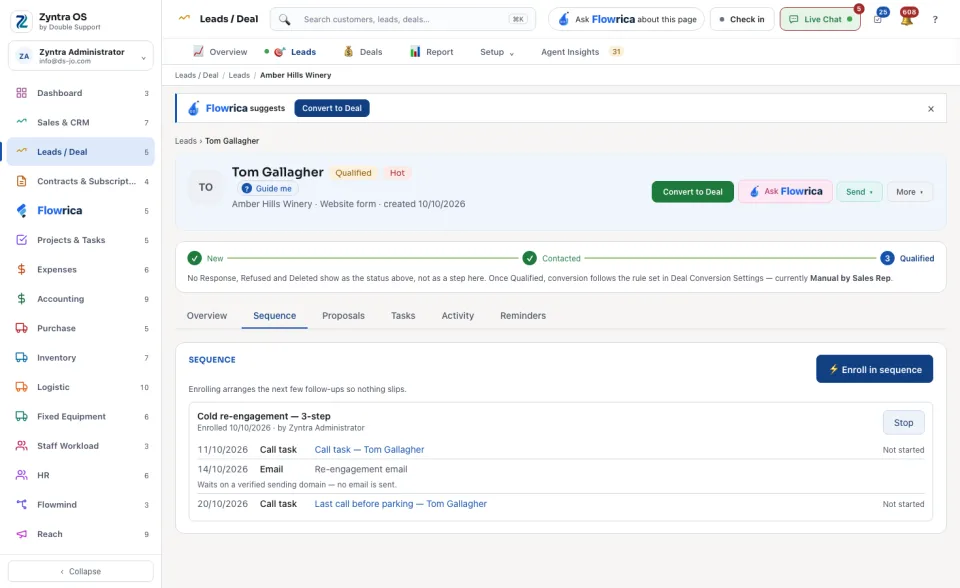
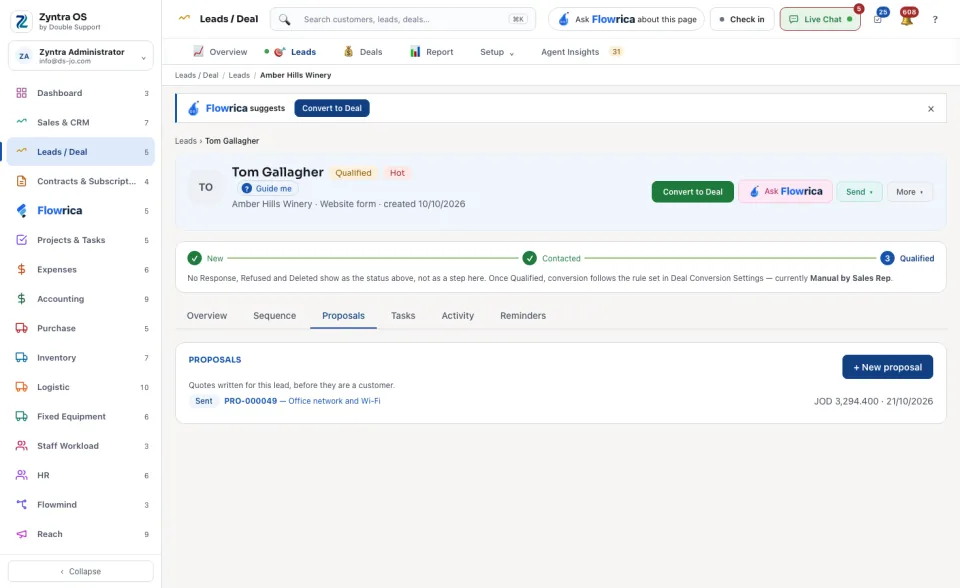
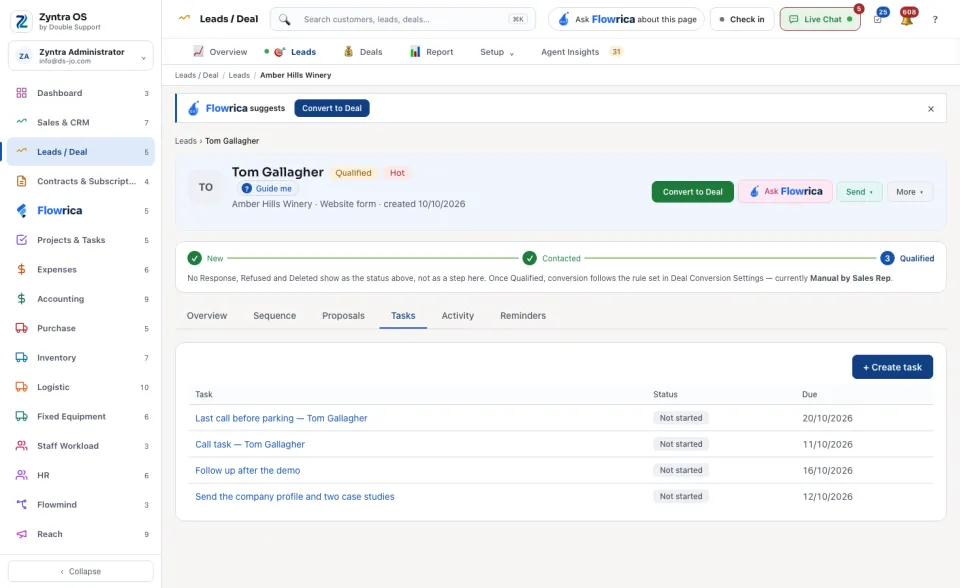
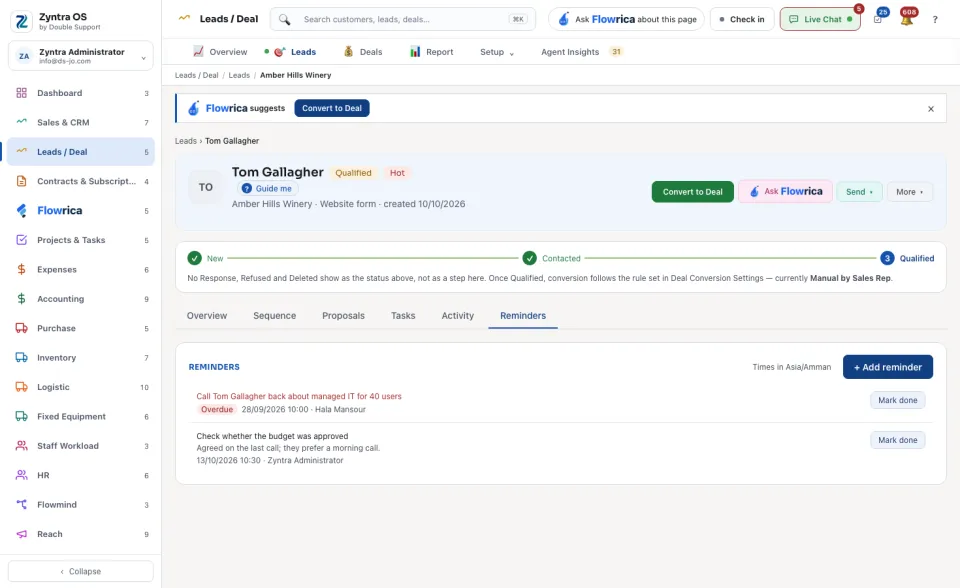
Click a lead to open it. The head shows its status and temperature, then the buttons: Convert to Deal (once the lead is qualified), Ask Flowrica, Send ▾ (☎ Call, 💬 WhatsApp, Log contact) and More ▾ (Mark qualified while it is not qualified yet, Mark as junk, Edit, Print sheet, Mark as refused, Delete). Under the head a line of steps shows how far the lead has come: New, Contacted, Qualified.
Press Send ▾ › Log contact each time you speak to them.
| Tab | What it is for | What you can do there |
|---|---|---|
| Overview | Notes, files, the lead's details with its Lead score, its Reach points, and what this person has agreed to. | + Add note (Pin keeps a note on top), + Upload file, Download all (zip), Sharing beside a file, + Tag. |
| Sequence | The follow-ups arranged for the lead, so nothing slips. | ⚡ Enroll in sequence; Stop ends a running one. |
| Proposals | Quotes written for the lead before they are a customer. | + New proposal; click one to open it. |
| Tasks | Tasks about the lead. | + Create task. |
| Activity | Everything that happened on the lead. | + Log activity. |
| Reminders | Reminders set on the lead. | + Add reminder; Mark done beside one closes it. |
Change many leads at once
In the ☰ Table, tick the leads, then press Change status in the bar that appears, choose the Status and press Apply.
What Flowrica does here
On the list she can add the lead with you, one question at a time (Create a lead); nothing is saved until you press the form's own button. On a qualified lead a band at the top says Flowrica suggests
with the next step, Convert to Deal. Ask Flowrica opens her on this lead, for example to ask what to do next.