

 Zyntra OS
 Zyntra Legal
 Zyntra Real Estate
 Zyntra Hotel
 Zyntra E-commerce
 Zyntra Appointments
 Zyntra Repair
 Zyntra Garage
 Zyntra Concierge
 Zyntra Contracting
 Zyntra Clinic
 Zyntra Call Center
 Zyntra OTA
Where
Sales › Point of Sale › Tills › a tillWho
Setting up the printer: people with Point of Sale — Set up tills, promotions and settings. «Open drawer» without a sale: Point of Sale — Open the cash drawer without a sale.Choose the till's printer
1
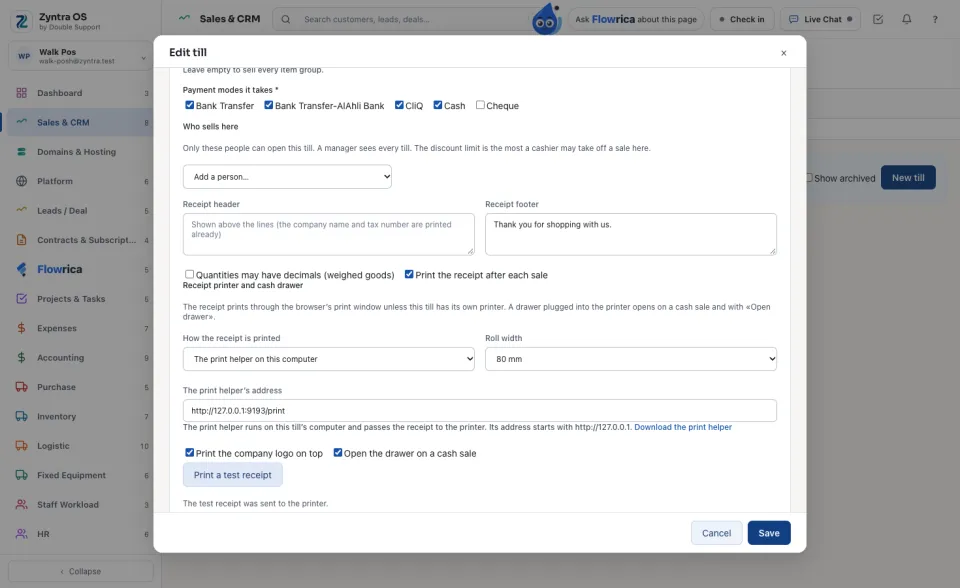
Open the till and go to Receipt printer and cash drawer. In How the receipt is printed choose A USB receipt printer or A serial receipt printer when the till runs in Chrome or Edge, or The print helper on this computer for any other browser or a printer on the shop's network.
2
Choose the Roll width (80 mm or 58 mm). For a USB or serial printer press Choose the printer on this computer once on each till computer; the browser remembers it. For the print helper, press Download the print helper, start it on the till's computer and keep its address (http://127.0.0.1:9101/print).
3
Leave Print the company logo on top and Open the drawer on a cash sale ticked, or untick them. Press Print a test receipt: it comes out of the printer, then press Save.
Selling
4
After a sale paid in cash the drawer opens and the receipt prints by itself, in the reader's language: an Arabic receipt is printed exactly as the screen draws it. A card sale prints the receipt and leaves the drawer shut.
5
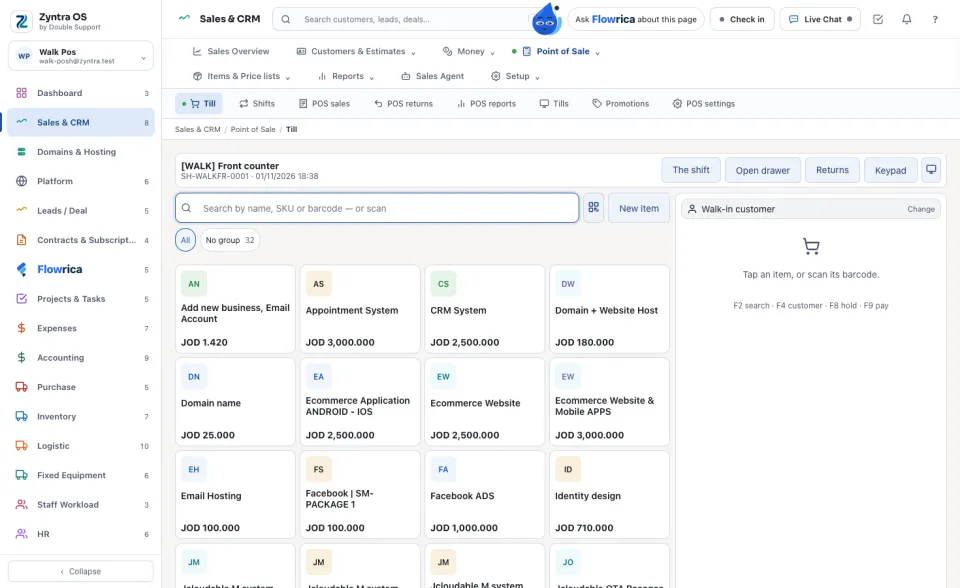
To open the drawer without a sale, press Open drawer at the top of the till. It is there only for people with the right, and only when the till has its own printer.
Who opened the drawer
6
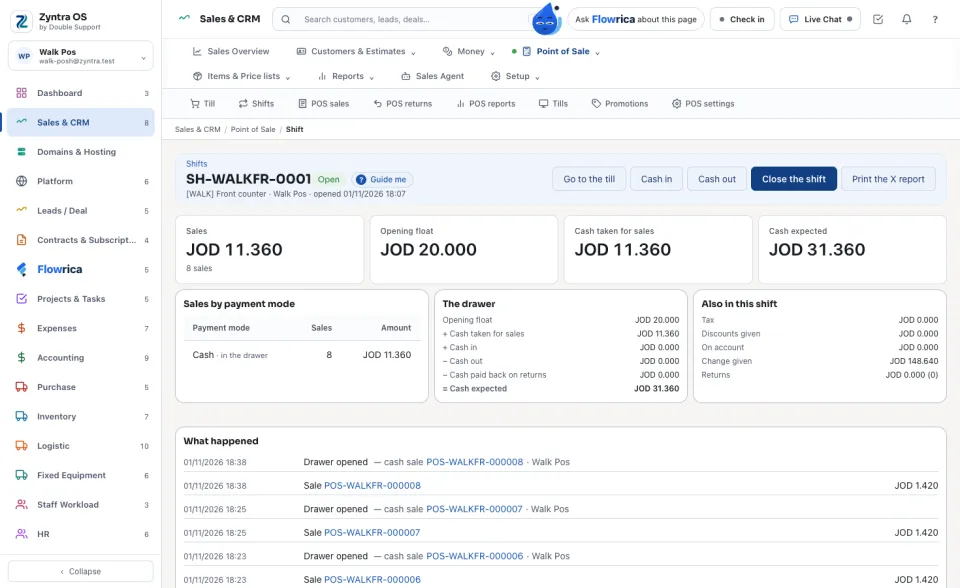
Open the shift: What happened lists every time the drawer was opened, who opened it, when, and on which sale or by Open drawer. If the printer did not take the kick, the line says did not open.
The print helper listens only on the till's own computer and answers only your company's site. Nothing is printed if the printer is off or out of paper: the till says so, and the drawer line says it did not open.
Questions
Where is “Receipt printer and cash drawer” in Zyntra OS?
Sales › Point of Sale › Tills › a till
Who can use “Receipt printer and cash drawer”?
Setting up the printer: people with Point of Sale — Set up tills, promotions and settings. «Open drawer» without a sale: Point of Sale — Open the cash drawer without a sale.