

 Zyntra OS
 Zyntra Legal
 Zyntra Real Estate
 Zyntra Hotel
 Zyntra E-commerce
 Zyntra Appointments
 Zyntra Repair
 Zyntra Garage
 Zyntra Concierge
 Zyntra Contracting
 Zyntra Clinic
 Zyntra Call Center
 Zyntra OTA
Where
Sales & CRM › Customers & Estimates › Proposals · a deal’s or a lead’s Proposals tabWho
Anyone allowed to create proposals.The list
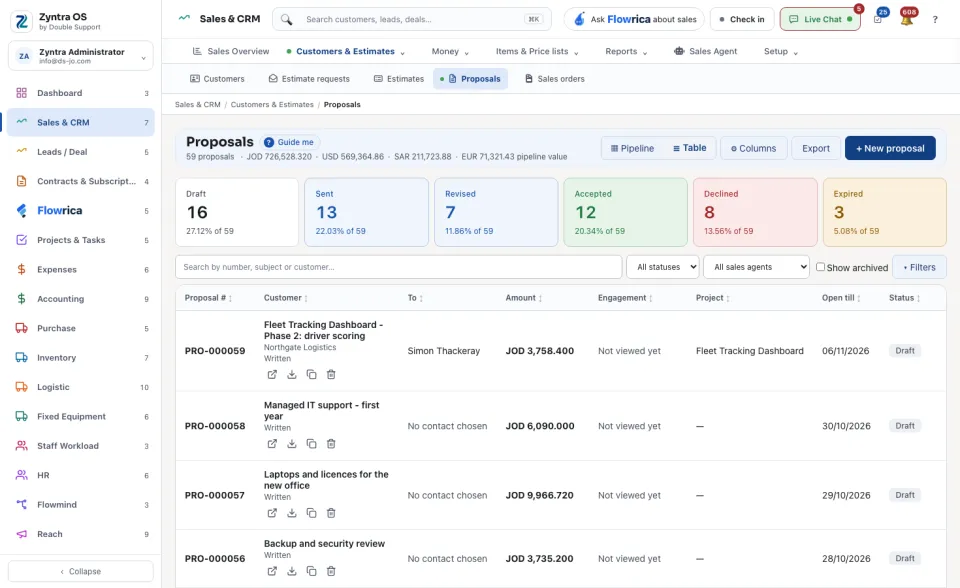
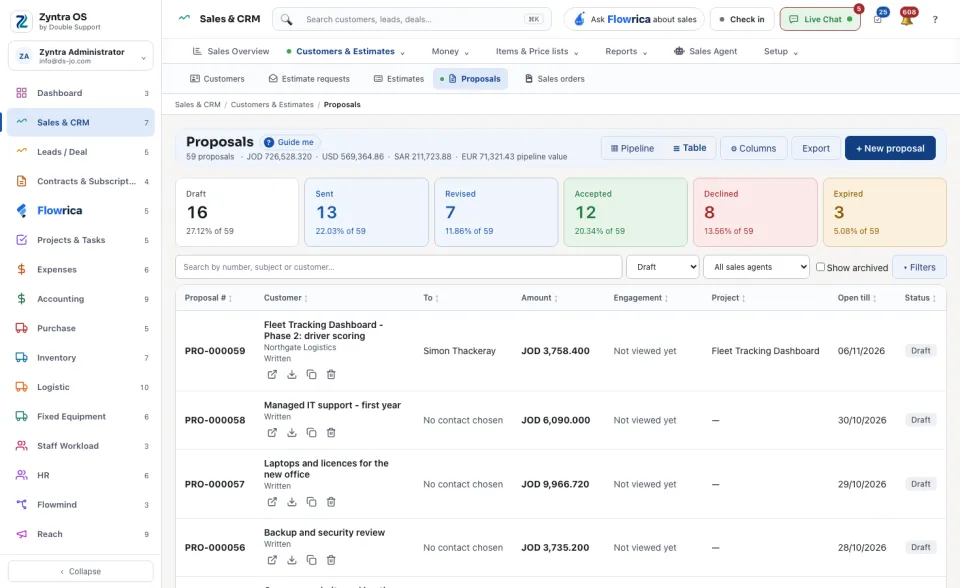
Under the screen's name one line counts the proposals and their pipeline value. A card for each status (Draft, Sent, Revised, Accepted, Declined, Expired) shows how many there are; press one to see only those. ▦ Pipeline shows them as columns, ☰ Table as rows. The Engagement column says whether the customer has viewed the proposal and how often. ⚙ Columns, Export and ▾ Filters work as on every list; Show archived brings back archived ones.
The proposal’s page
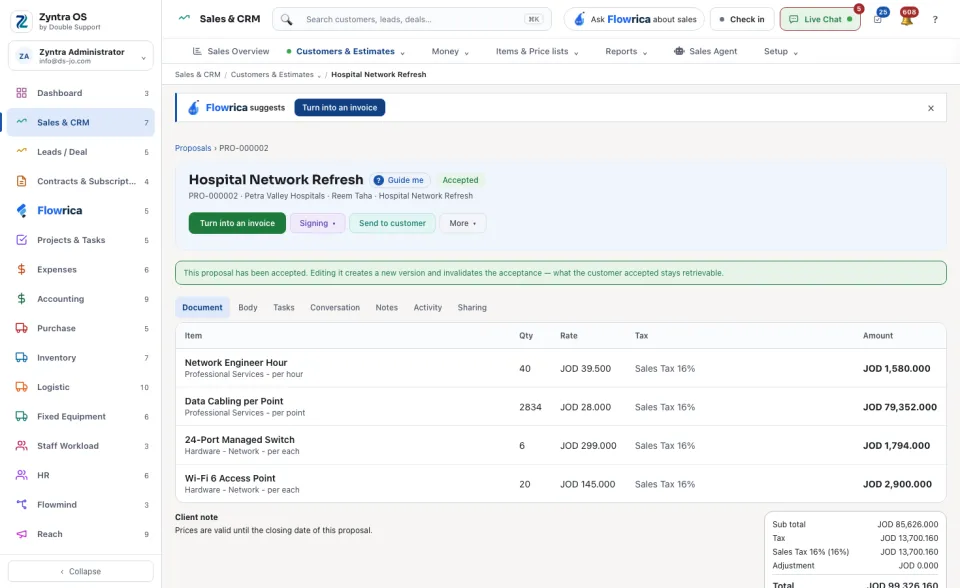
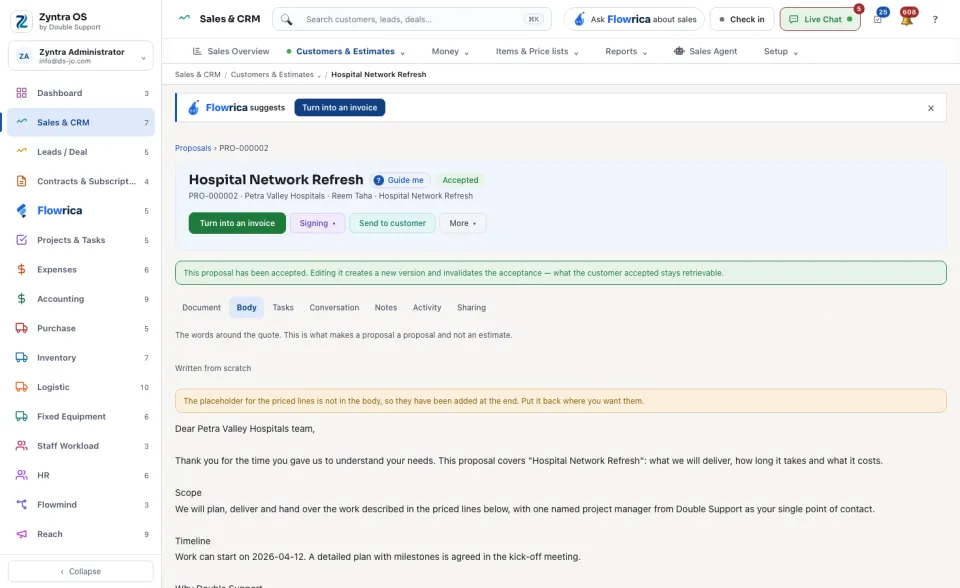
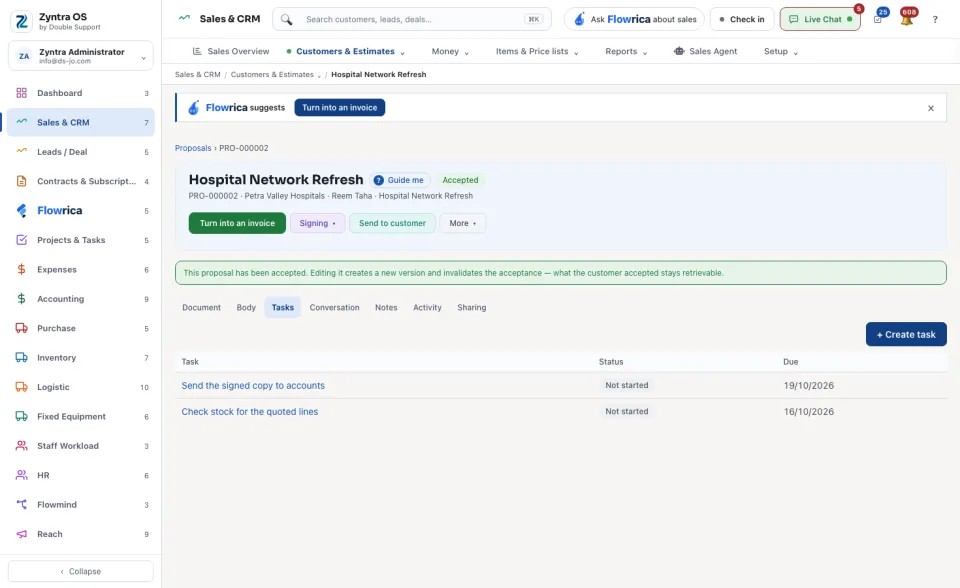
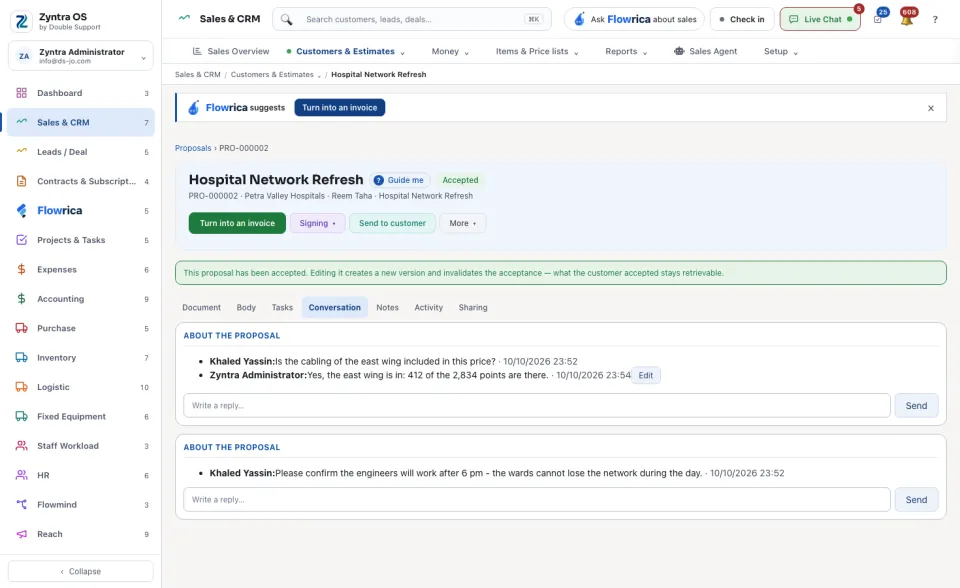
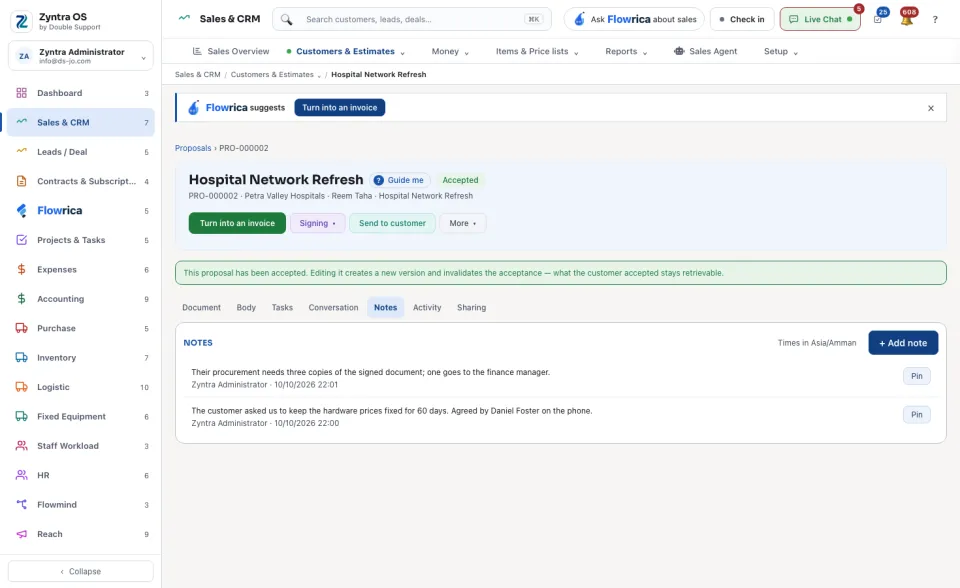
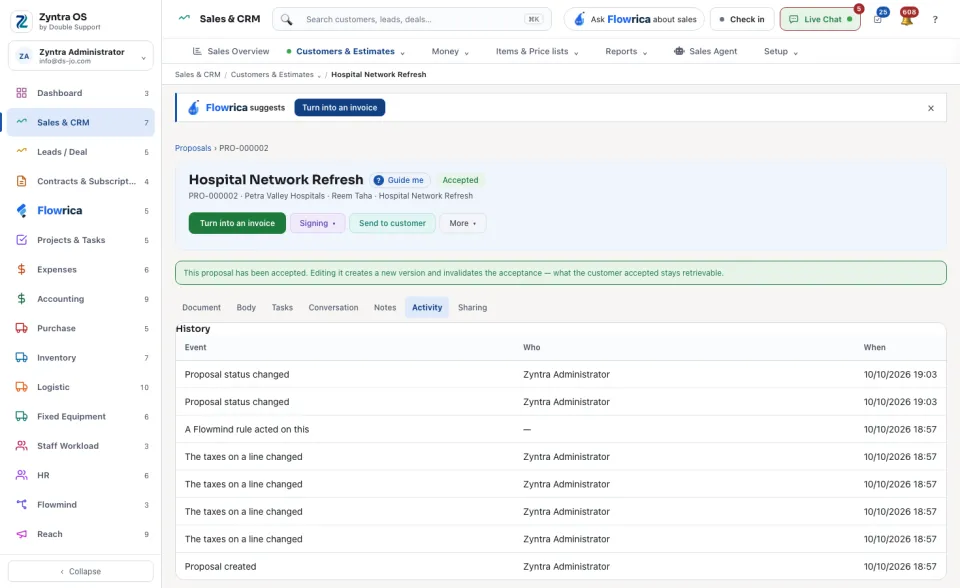
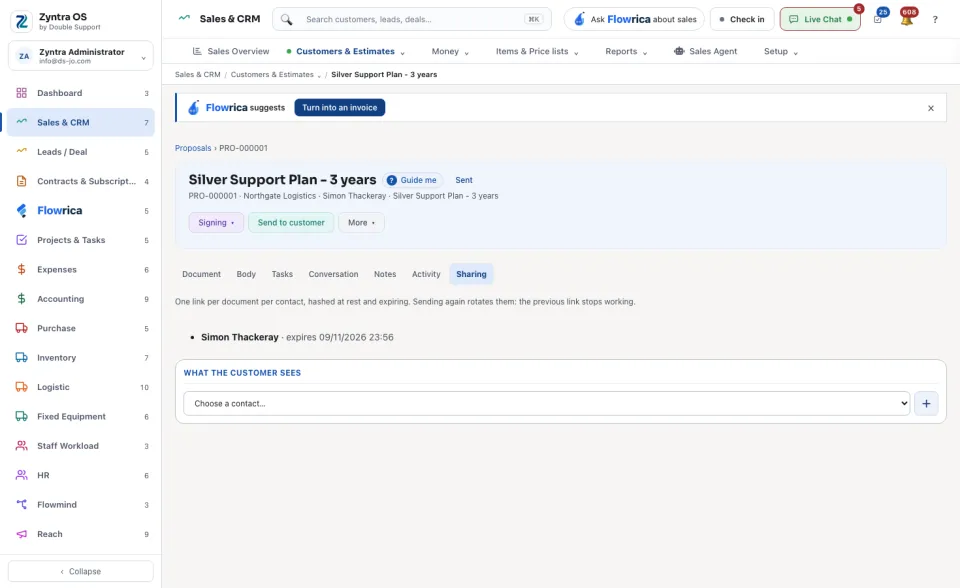
The head shows the number, the customer, the contact and the status, then Send to customer, Signing ▾ (🖊 Request signature, Send via DocuSign when it is connected, and Clear the acceptance on an accepted proposal) and More ▾ (Edit, View PDF, Download).
| Tab | What it is for | What you can do there |
|---|---|---|
| Document | The lines, totals, client note, terms, the internal note, the Payment milestones, signature and status. | The status buttons; Turn into an estimate, Turn into an invoice. |
| Body | The words around the quote: what makes a proposal a proposal. | Save as template. |
| Tasks | Tasks about the proposal. | + Create task. |
| Conversation | Questions the customer asked about it, and your answers. | Send. |
| Notes | Notes on the proposal. | + Add note. |
| Activity | What happened since it was sent: opened, accepted, turned into an invoice. | — |
| Sharing | The link sent to each contact and when it expires, and what the customer sees. Sending again replaces the link. | — |
What Flowrica does here
On the list she can make the proposal with you, one question at a time (Create a proposal); nothing is saved until you press the form's own button. In the form, once you have chosen who the proposal is for, its Body can be written with Flowrica.