

 Zyntra OS
 Zyntra Legal
 Zyntra Real Estate
 Zyntra Hotel
 Zyntra E-commerce
 Zyntra Appointments
 Zyntra Repair
 Zyntra Garage
 Zyntra Concierge
 Zyntra Contracting
 Zyntra Clinic
 Zyntra Call Center
 Zyntra OTA
Where
Sales & CRM › Customers & Estimates › EstimatesWho
Anyone allowed to create estimates.The customer opens the link and accepts or declines. The estimate's status moves through Draft, Sent, Accepted, Declined or Expired.
The list
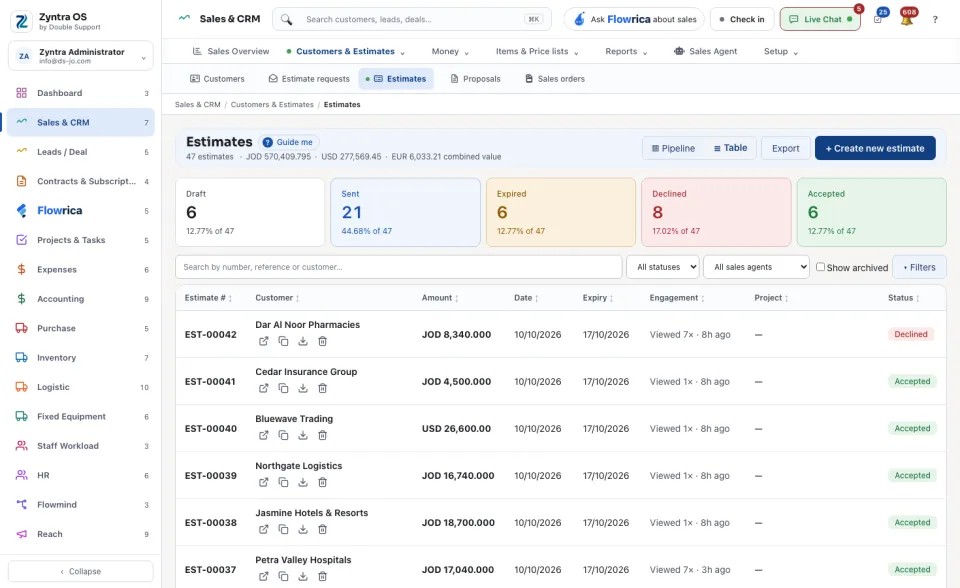
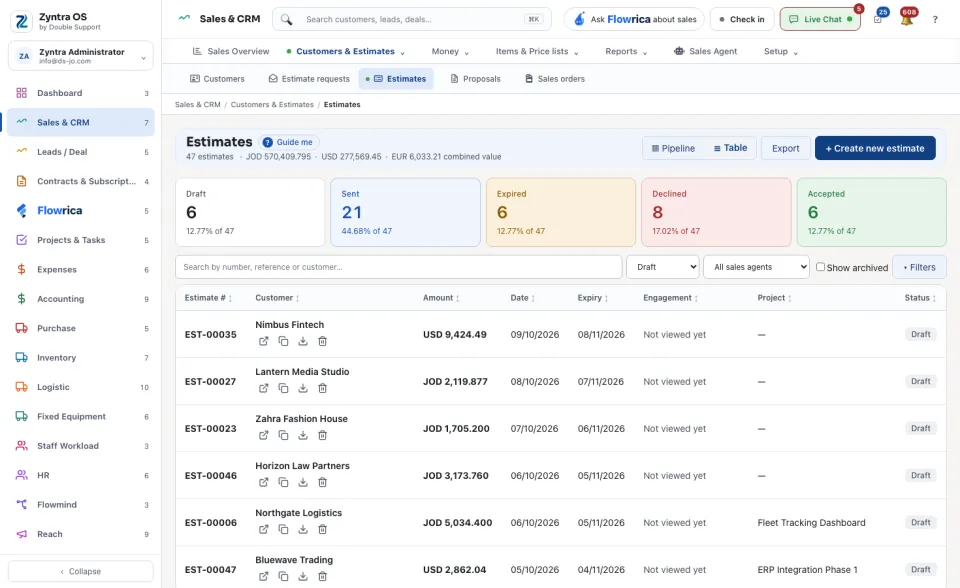
Under the screen's name one line counts the estimates and their value. A card for each status shows how many there are; press one to see only those. ▦ Pipeline shows them as columns, ☰ Table as rows. The Engagement column says whether the customer has viewed the estimate. Show archived brings back archived ones; ▾ Filters and Export work as on every list.
The estimate’s page
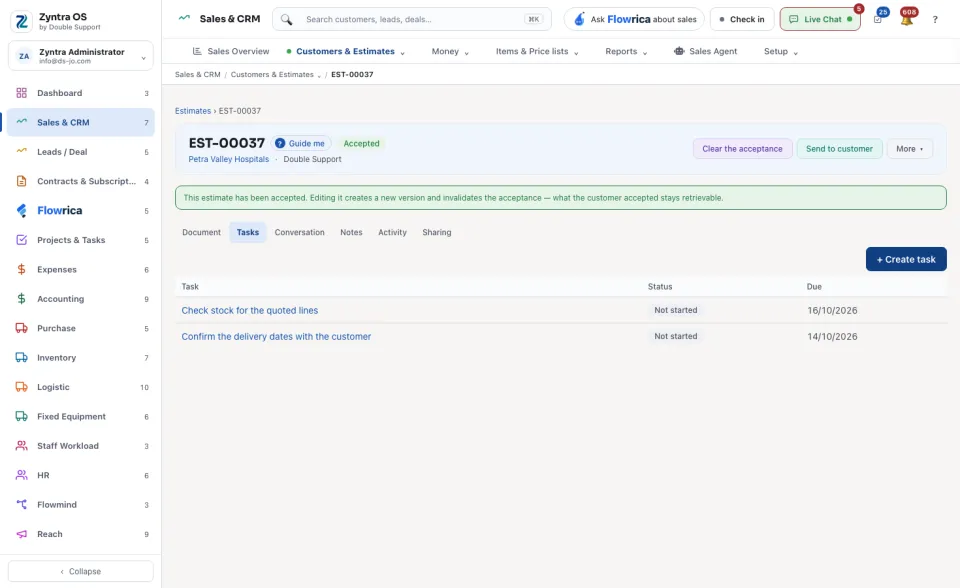
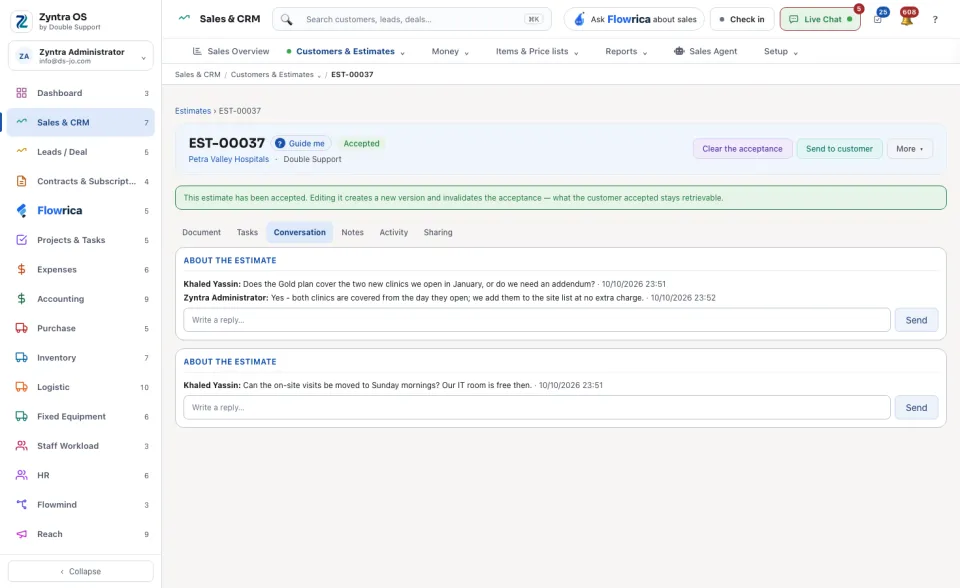
The head shows the number, the customer and the status, then Send to customer and More ▾ (Turn into an invoice, Turn into a sales order, Edit, View PDF, Download). Once the estimate is accepted, Turn into an invoice and Clear the acceptance stand in the head, and a band says that editing it makes a new version and cancels the acceptance.
| Tab | What it is for | What you can do there |
|---|---|---|
| Document | The lines, notes, totals, payment milestones, acceptance and status. | The status buttons, Clear the acceptance, Turn into an invoice. |
| Tasks | Tasks about the estimate. | + Create task. |
| Conversation | Questions the customer asked about it, and your answers. | Send. |
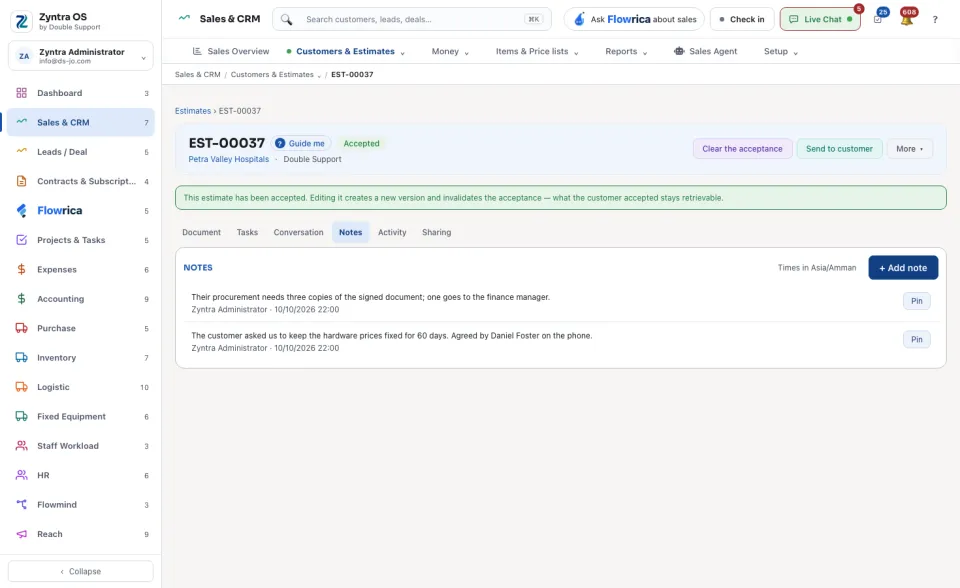
| Notes | Notes on the estimate. | + Add note. |
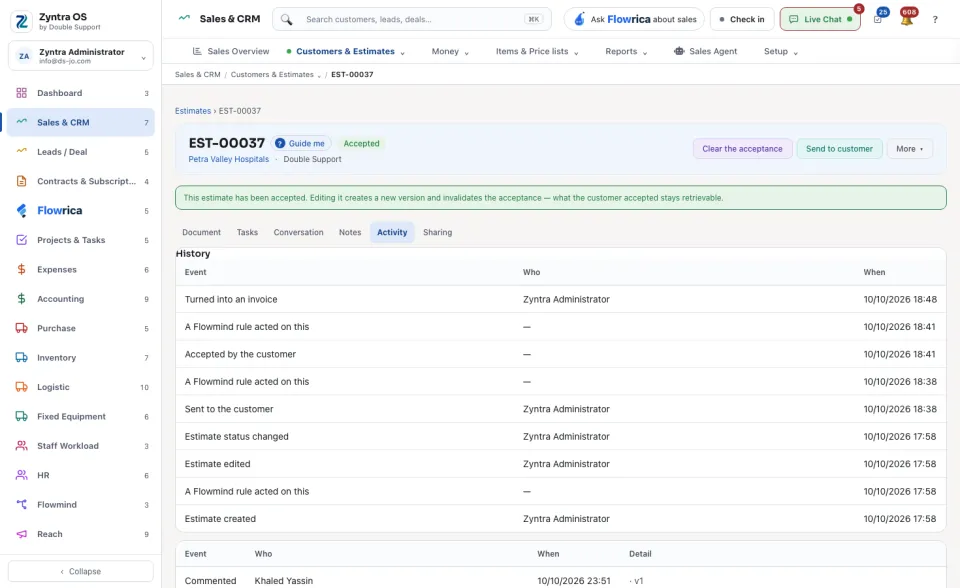
| Activity | What happened since it was sent: who opened it, and when. | — |
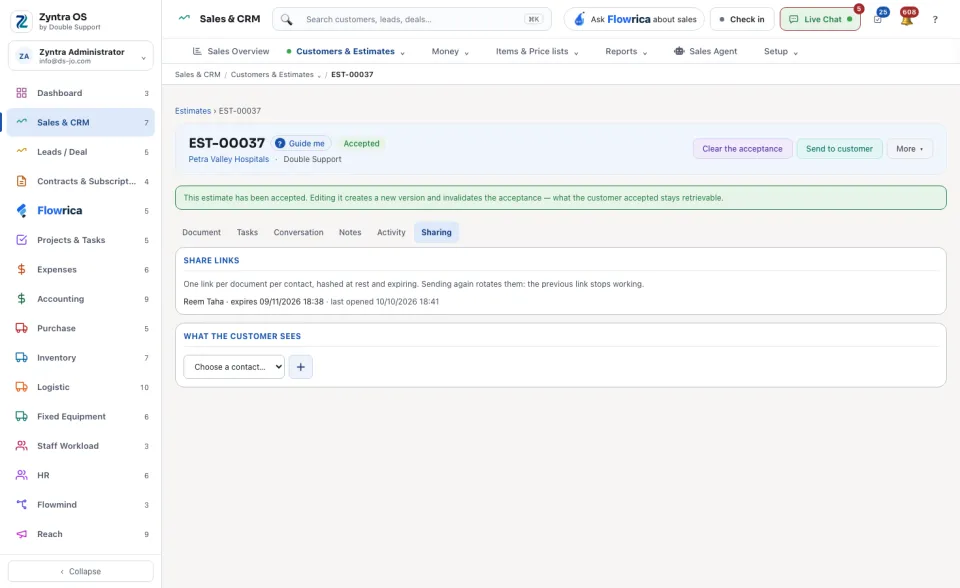
| Sharing | The links sent to each contact, and what the customer sees. | — |
What Flowrica does here
On the list she can make the estimate with you, one question at a time (Create an estimate); nothing is saved until you press the form's own button. You can ask her about the screen, for example How many estimates became invoices?