

 Zyntra OS
 Zyntra Legal
 Zyntra Real Estate
 Zyntra Hotel
 Zyntra E-commerce
 Zyntra Appointments
 Zyntra Repair
 Zyntra Garage
 Zyntra Concierge
 Zyntra Contracting
 Zyntra Clinic
 Zyntra Call Center
 Zyntra OTA
Where
Sales & CRM › Customers & Estimates › CustomersWho
Anyone allowed to add customers.The list
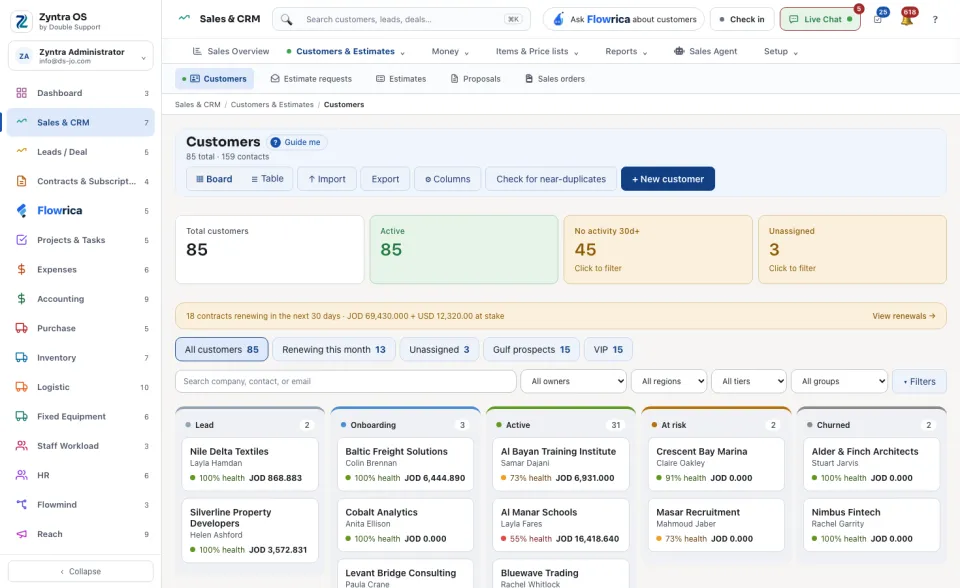
Four figures stand at the top: Total customers, Active, No activity 30d+ and Unassigned; the last two can be pressed to see only those customers. When contracts are about to renew, a line says how many; press View renewals →. The row of views under it (All customers, Renewing this month, Unassigned and your company's own) narrows the list, and ▾ Filters offers more. ▦ Board and ☰ Table change how the list is drawn; each row shows the customer's health and whether it has gone quiet.
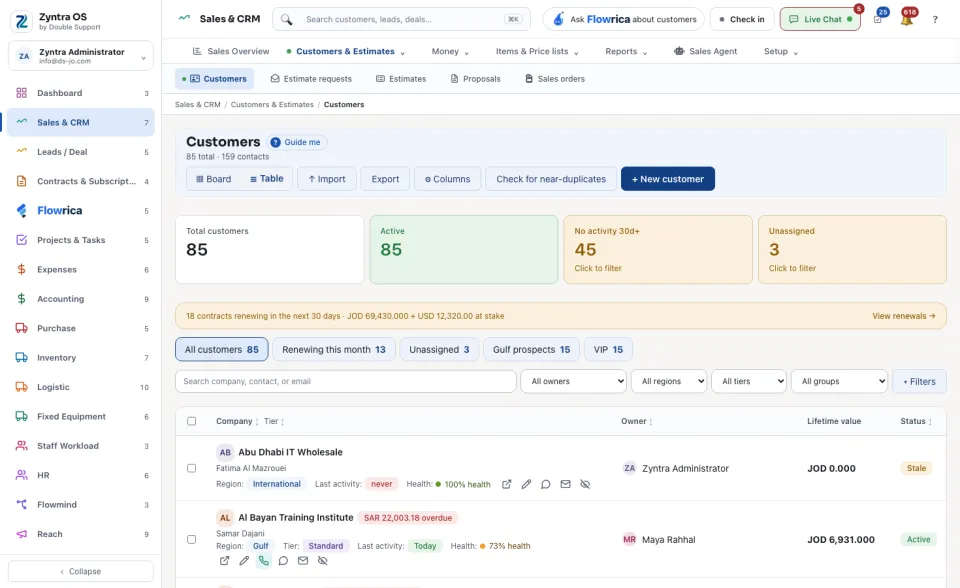
↑ Import brings in many customers from a file, Export takes the list out, and ⚙ Columns chooses the columns. Check for near-duplicates asks Flowrica to look for customers entered twice.
The customer’s page
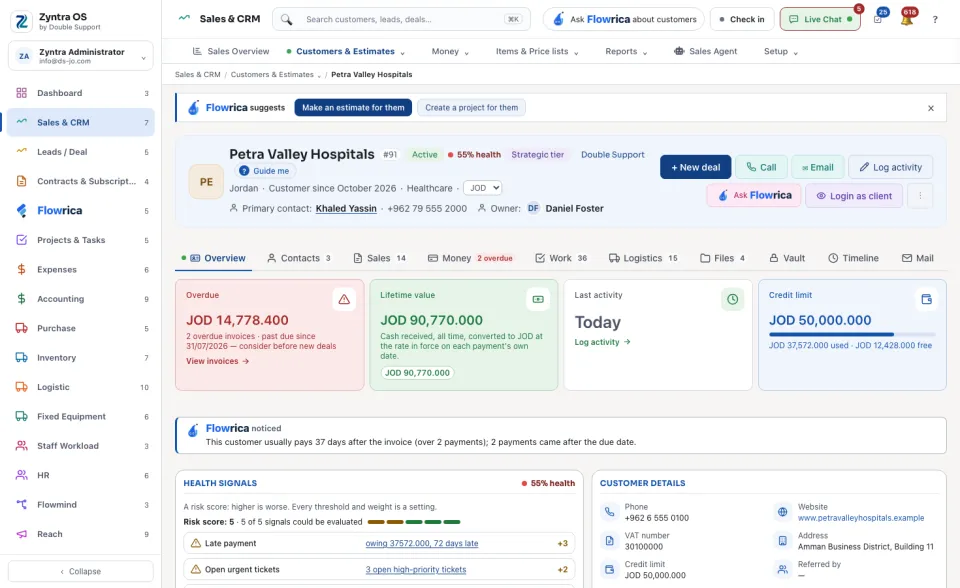
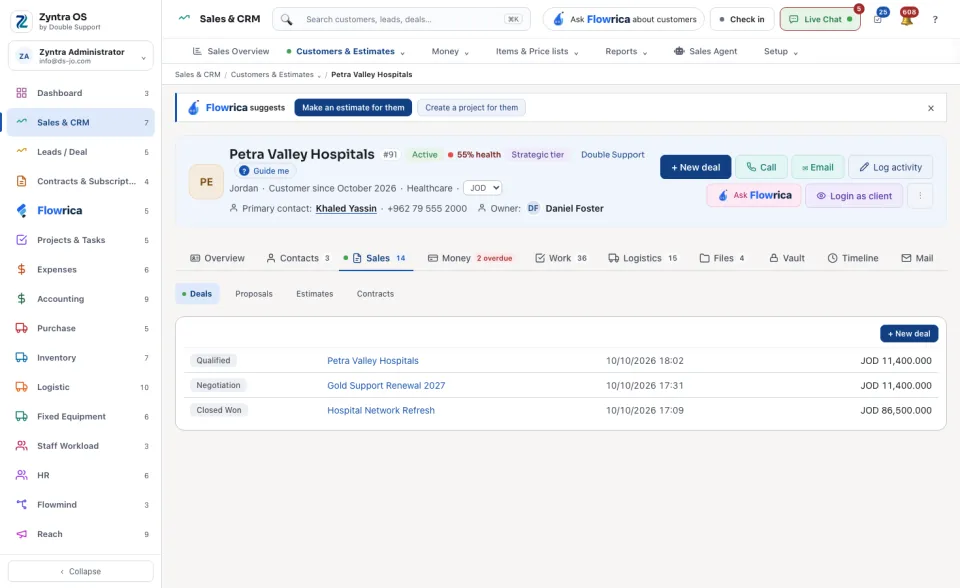
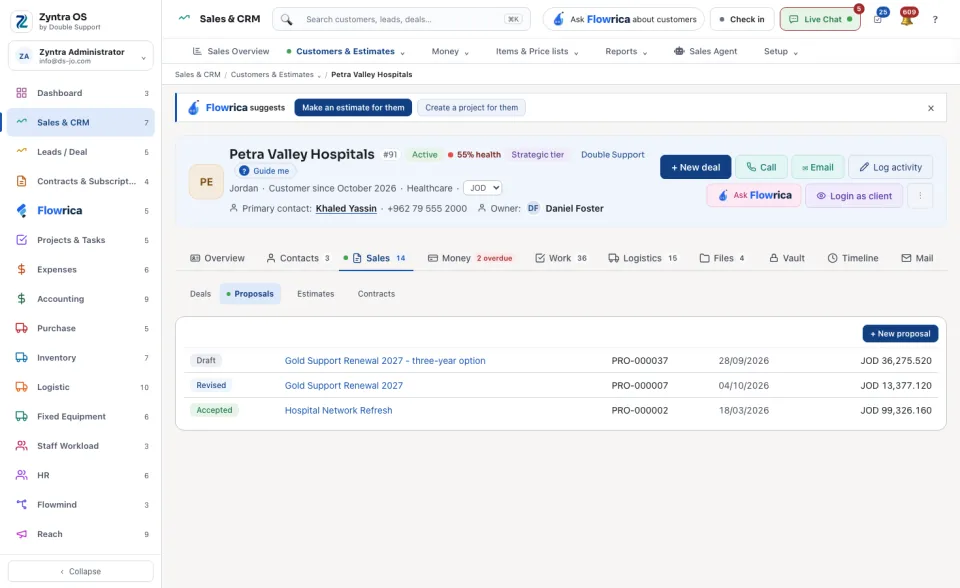
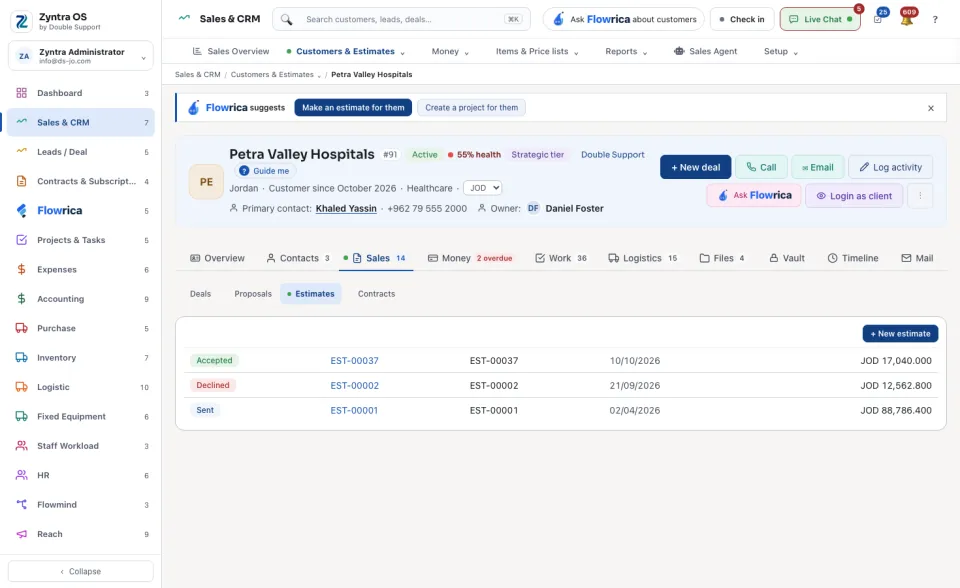
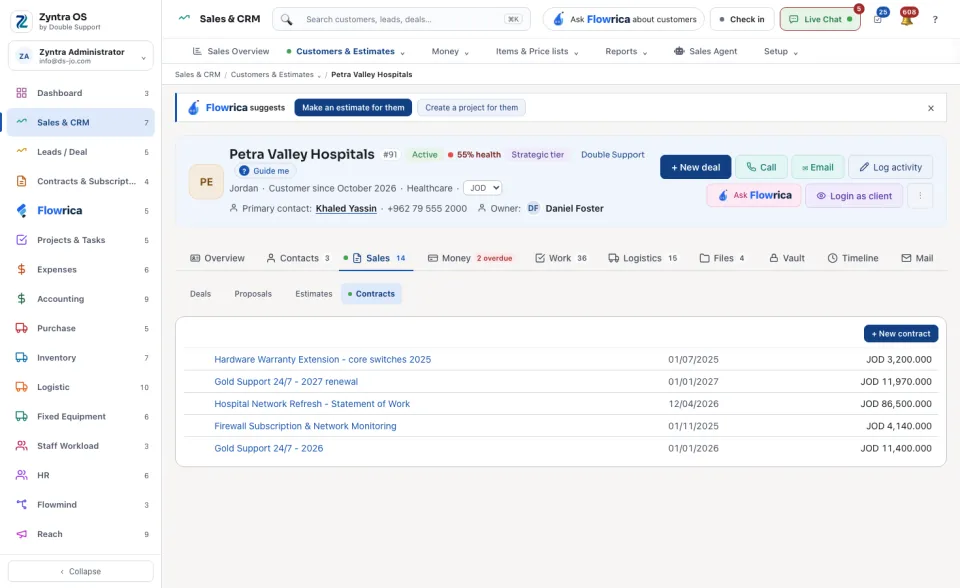
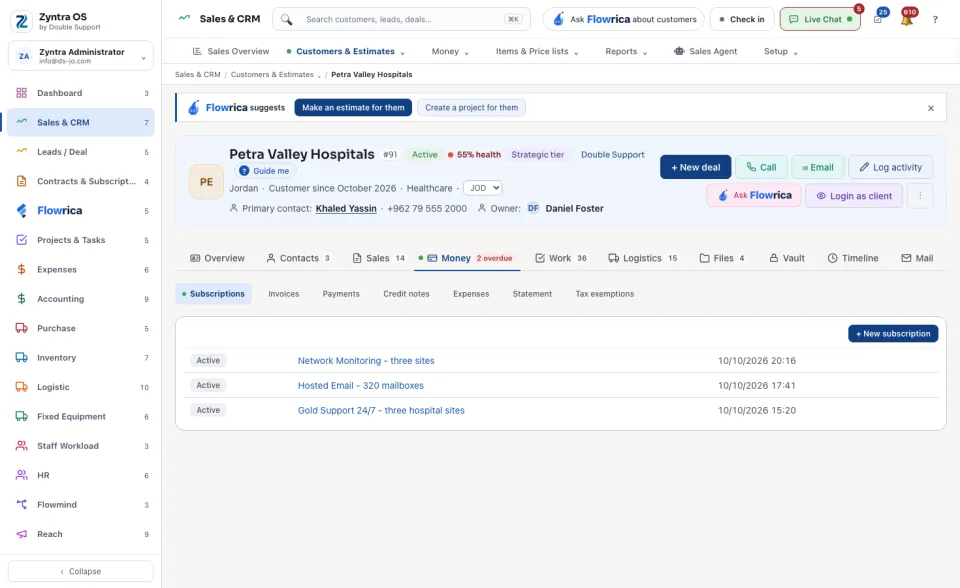
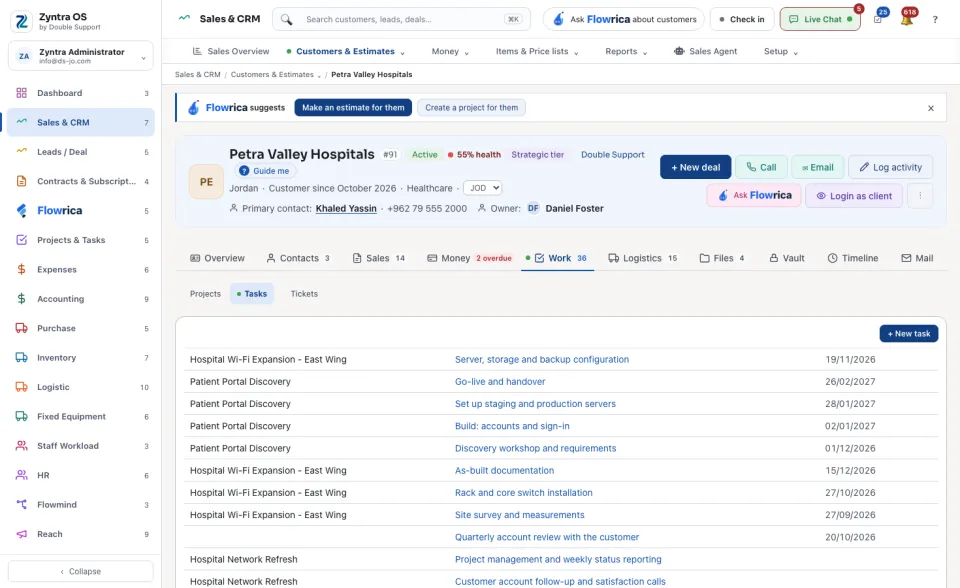
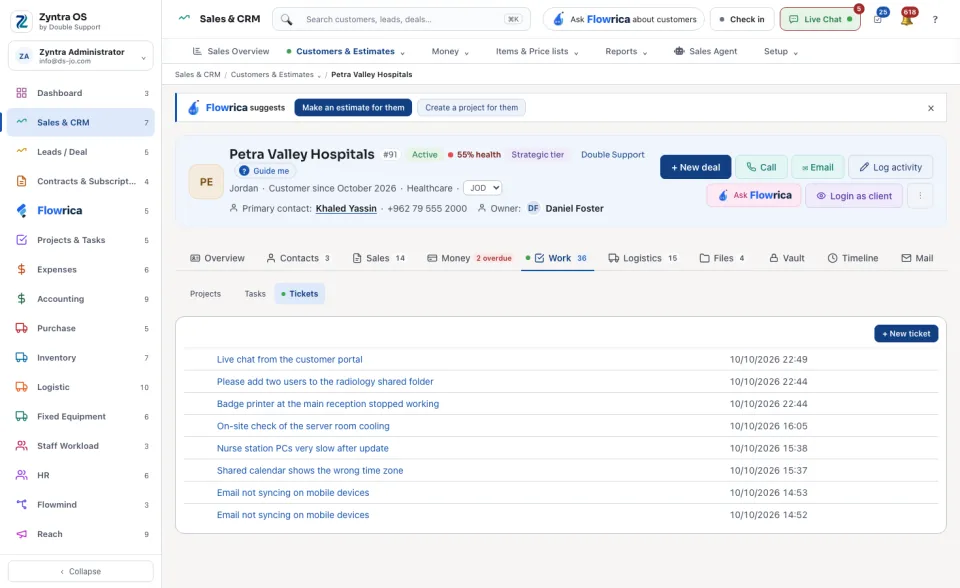
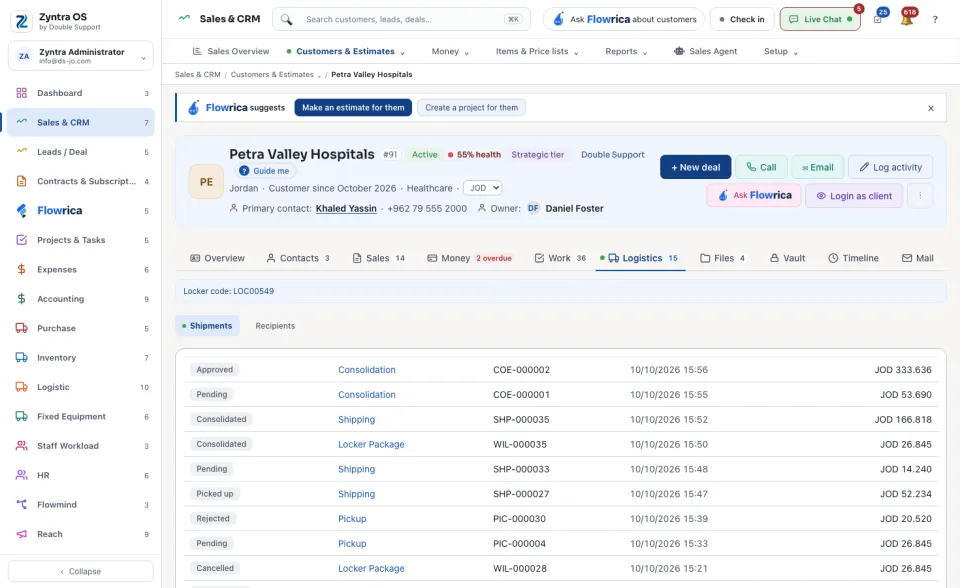
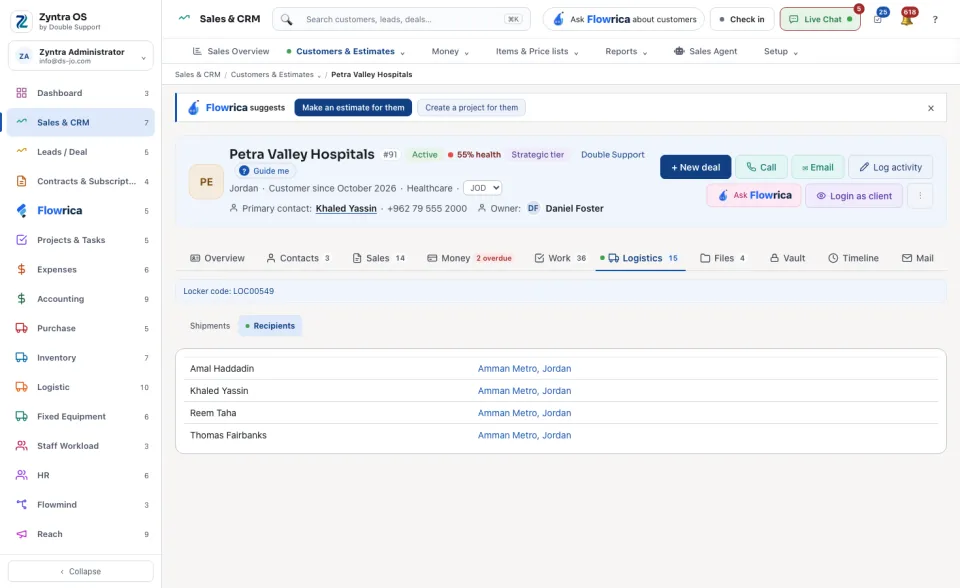
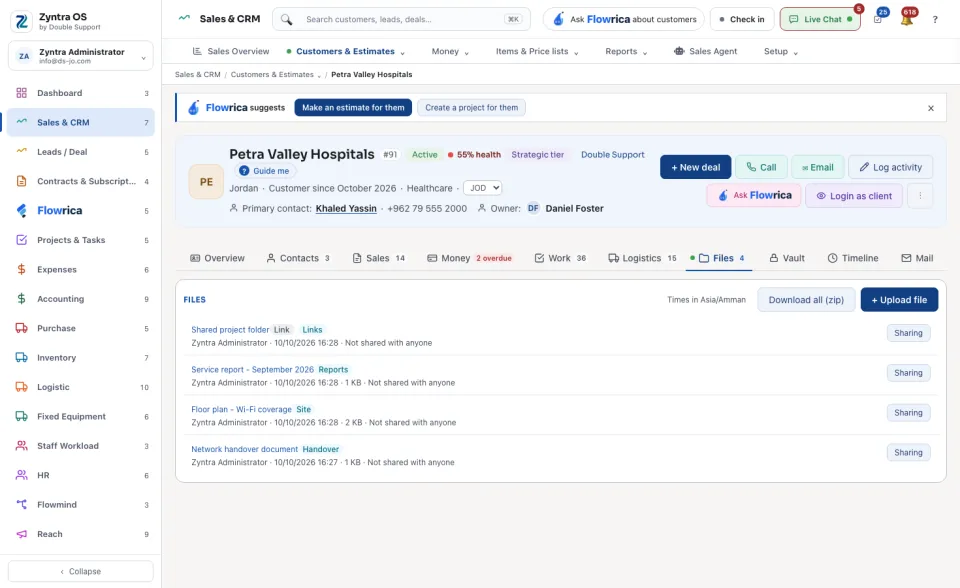
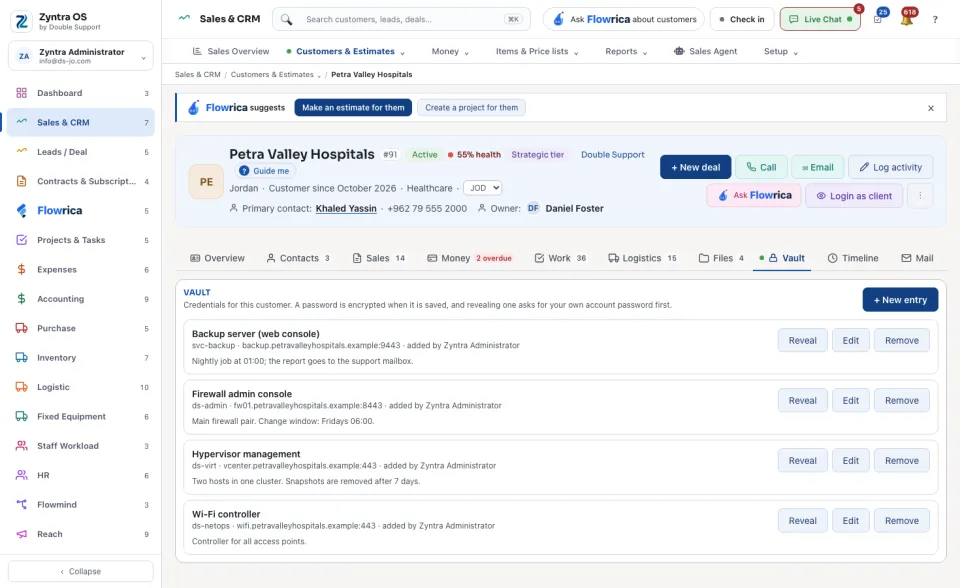
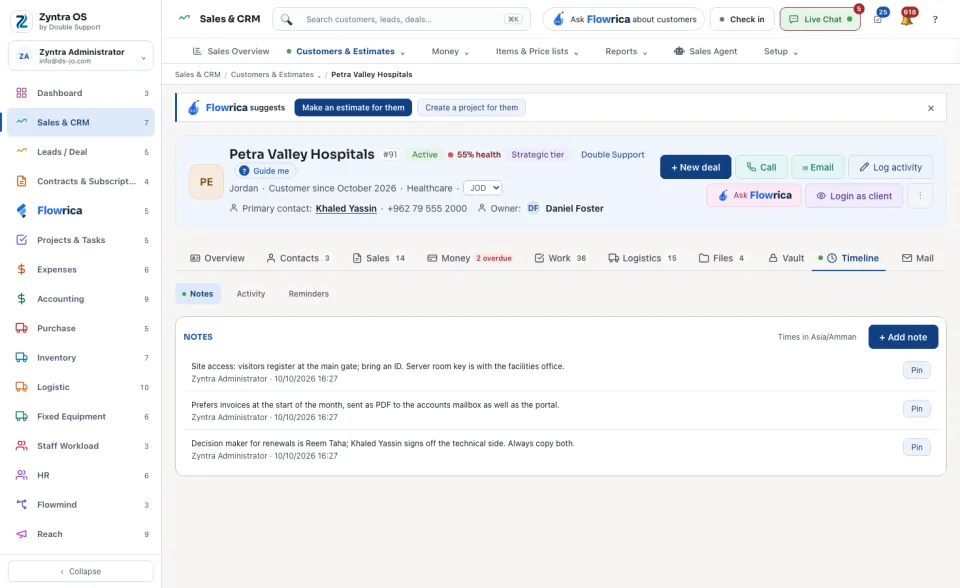
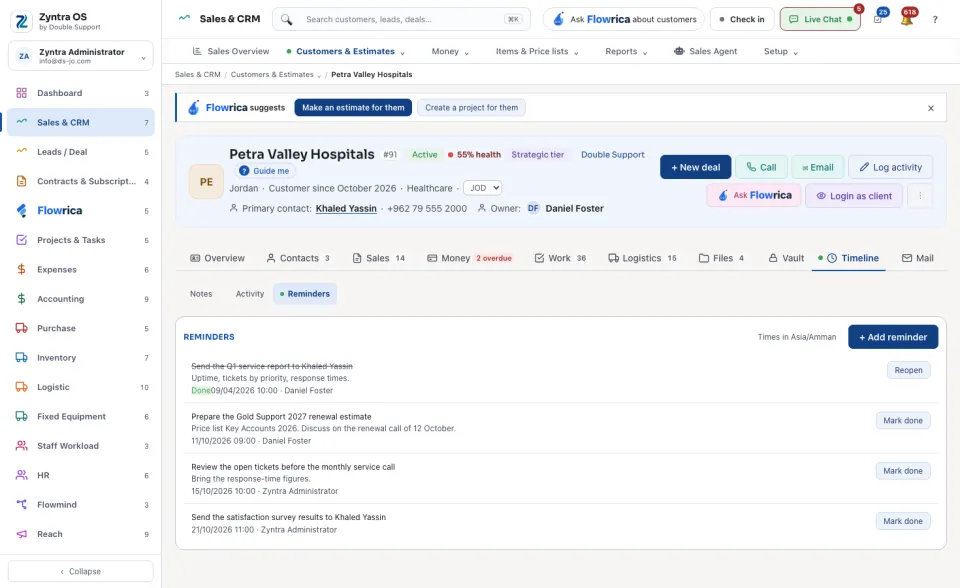
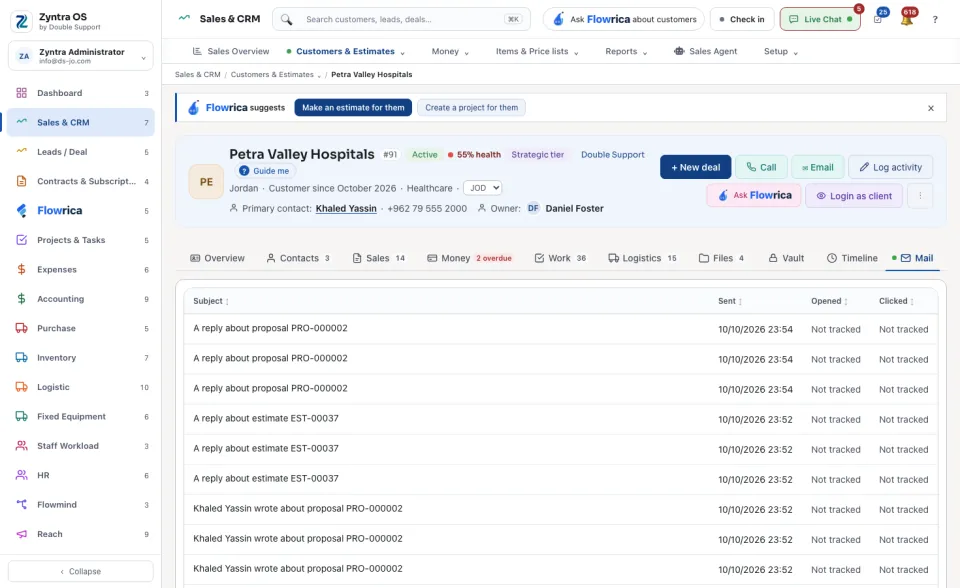
The head shows the name, whether it is Active, its health, city, primary contact and owner. Its buttons: + New deal, Call, ✉︎ Email, Log activity, Ask Flowrica, Login as client, and under ⋮: Edit customer, Reassign owner, Merge duplicate, Deactivate customer, Delete customer. A company can hide tabs it does not use.
| Tab | What it is for | What you can do there |
|---|---|---|
| Overview | The customer at a glance: what is overdue, Lifetime value, last activity, Credit limit used and free, the Health signals and the customer's details. | Log activity, Edit. |
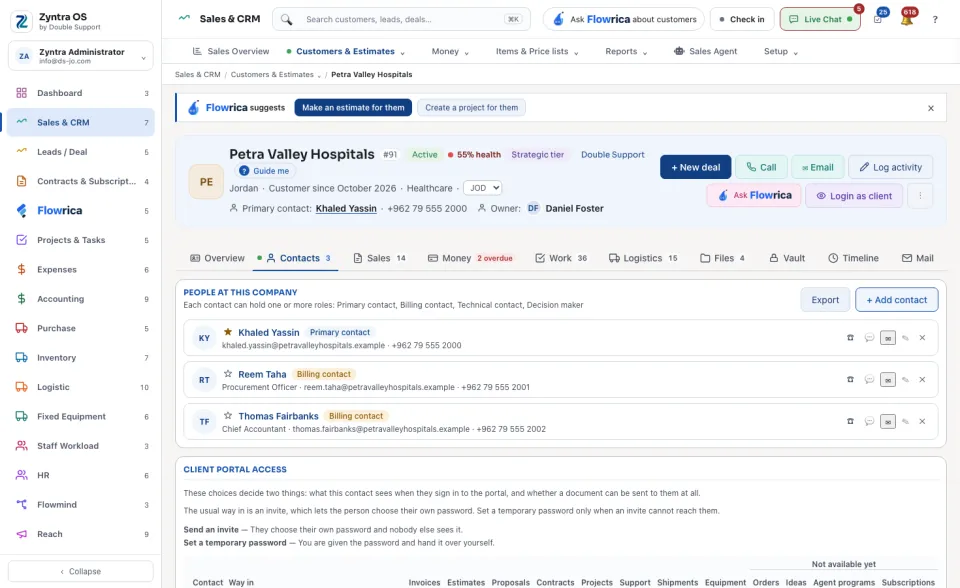
| Contacts | The people at the company, and their client portal access. See Add a contact. | + Add contact, Export. |
| Sales | The customer's Deals, Proposals, Estimates and Contracts. | + New deal, + New proposal, + New estimate, + New contract. |
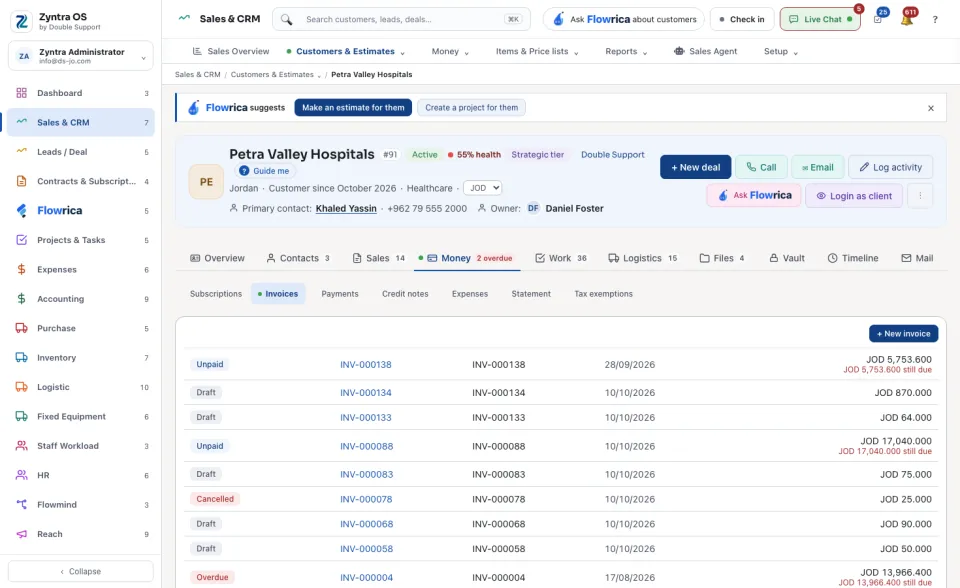
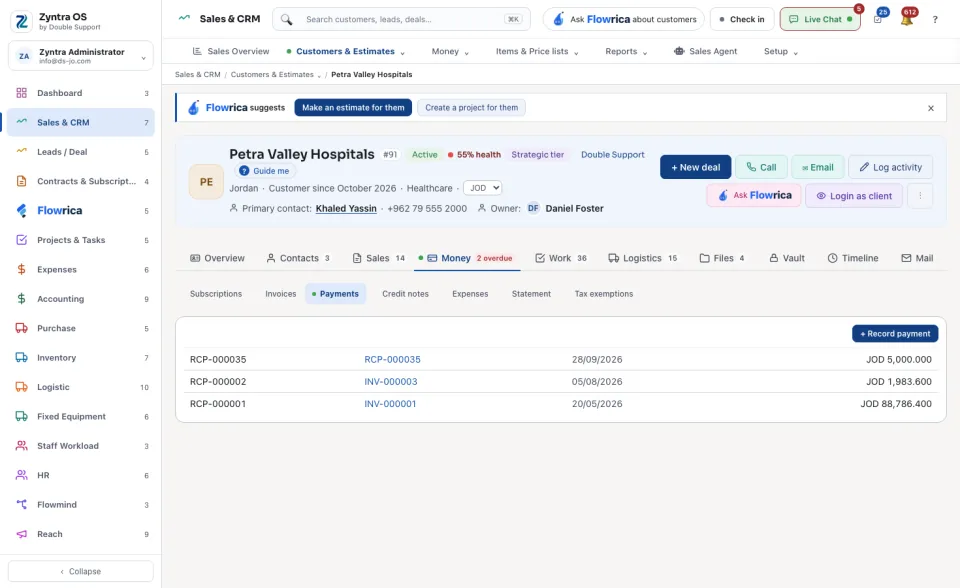
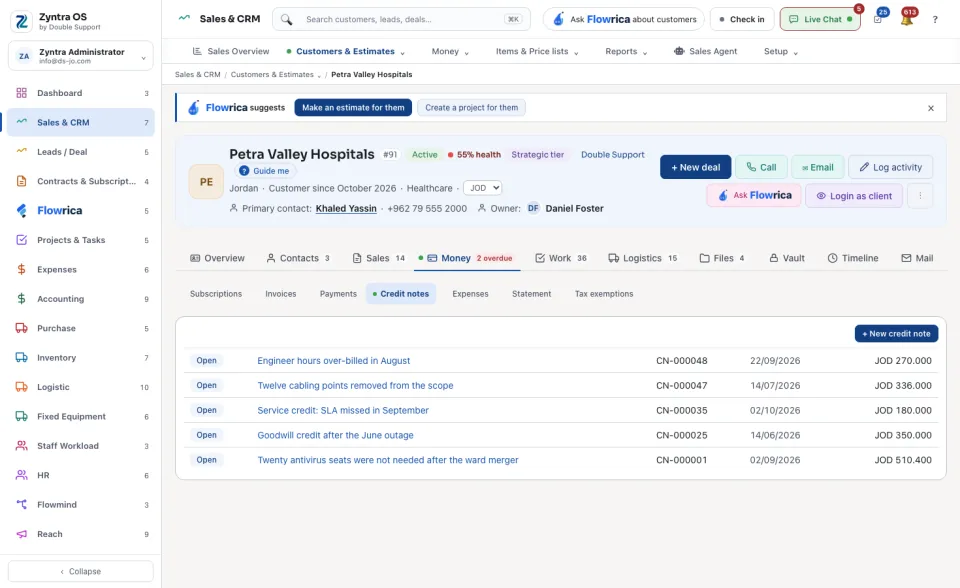
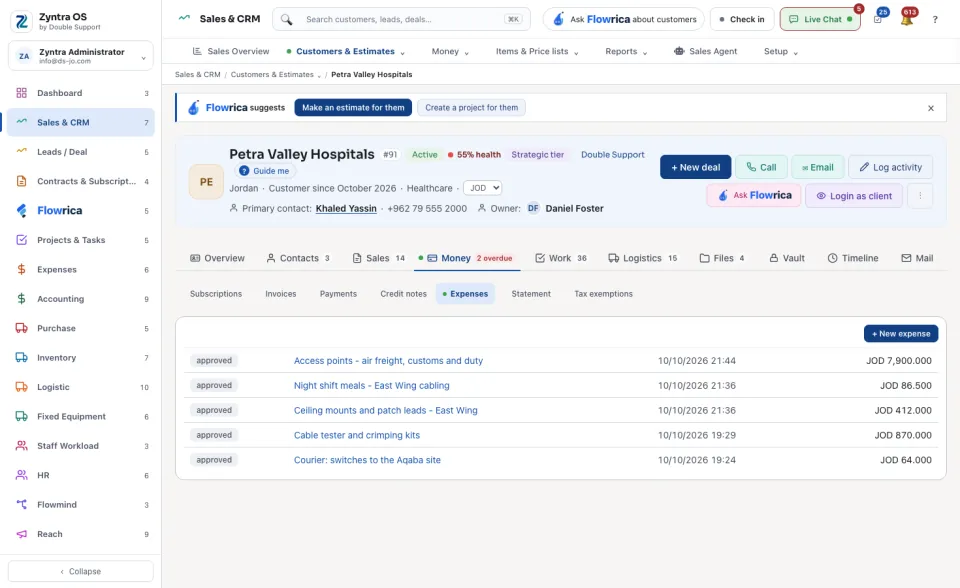
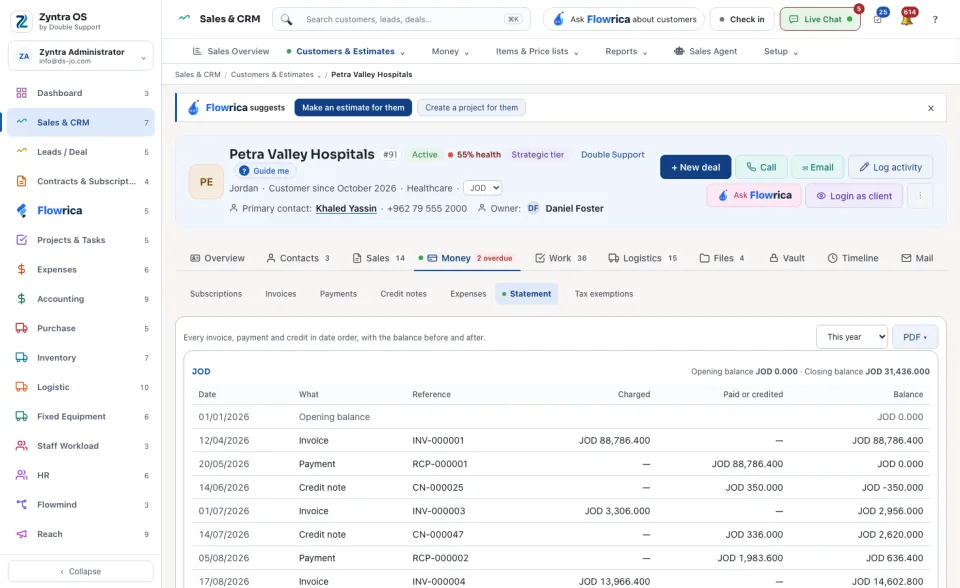
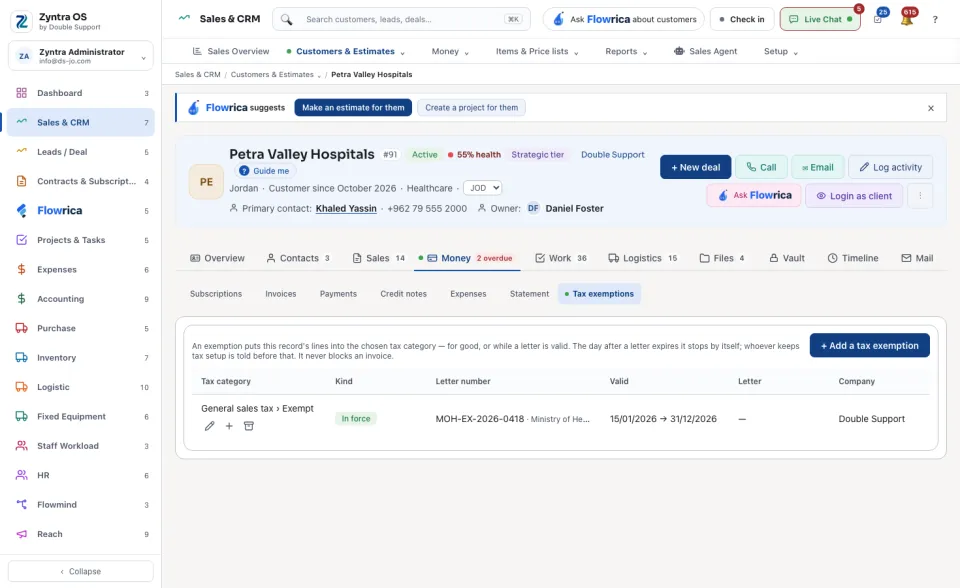
| Money | Subscriptions, invoices, payments, credit notes, expenses, the statement and tax exemptions. | + New invoice, + Record payment, + New credit note; the Statement for any dates as a PDF. |
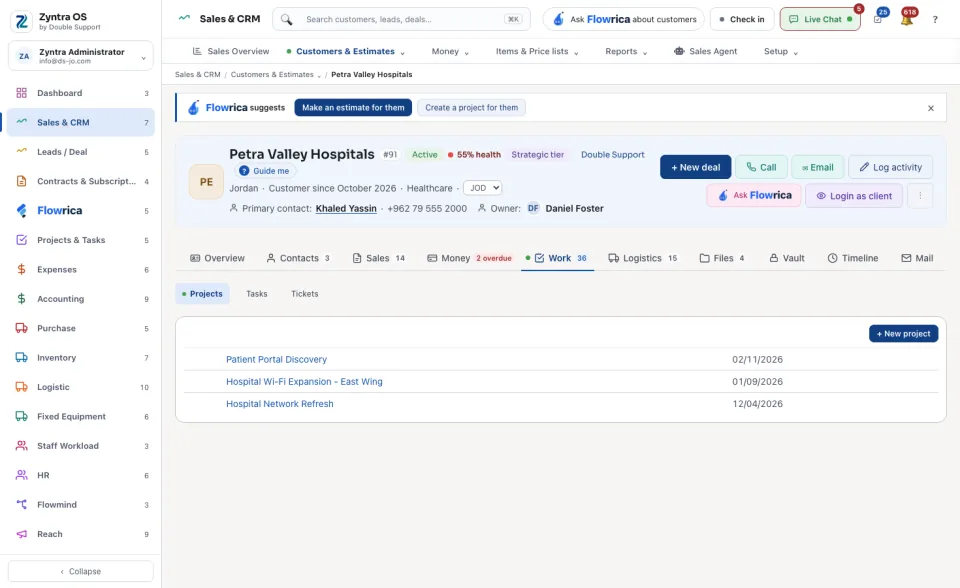
| Work | The customer's Projects, Tasks and Tickets. | + New project, + New task, + New ticket. |
| Logistics | Their Shipments and Recipients, and their locker code (for people allowed to see logistics). | — |
| Files | Files on the customer. | + Upload file. |
| Vault | Passwords and credentials for this customer, encrypted; revealing one asks for your own password first. | + New entry, Reveal, Edit, Remove. |
| Timeline | Notes, Activity and Reminders. | + Add note (a note can be pinned), + Log activity, + Add reminder. |
| Mail sent to the customer, and whether it was opened or clicked. | — |
What Flowrica does here
On the list she can add the customer with you, one question at a time (Create a customer), and from the same place start an invoice or an estimate; nothing is saved until you press the form's own button. You can ask her about the screen, for example How much is overdue?
On a customer's page, a band at the top says Flowrica suggests with the next steps she can start with you, Make an estimate for them and Create a project for them, and Ask Flowrica opens her on that customer. Under the figures of the Overview tab, the line Flowrica noticed says how this customer usually pays. When invoices are late, the Money tab carries a red count of the overdue ones.