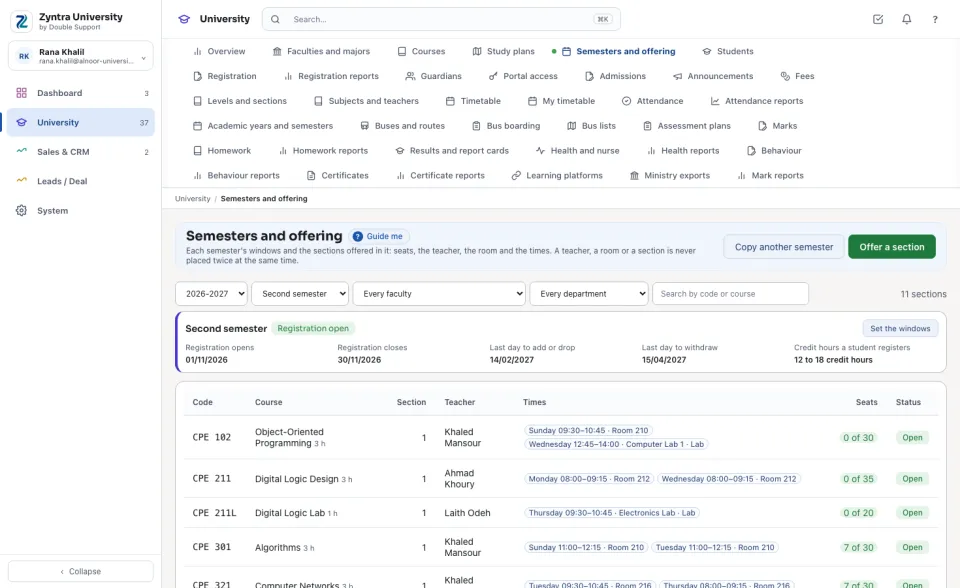
Each semester's windows and the sections offered in it: seats, the teacher, the room and the times. A teacher, a room or a section is never placed twice at the same time.
Where
University › Semesters and offering
Who
University — View reads it; University — Offer sections sets the windows, offers sections and gives the teachers their rank.
A semester is a semester of the academic year made on University › Academic years and semesters (a summer semester is a third one). Choose the year and the semester at the top; narrow the list by faculty, department or a code. Each section shows its Teacher, its Times, how many of its Seats are taken (amber when it is full, with how many are waiting) and its Status.
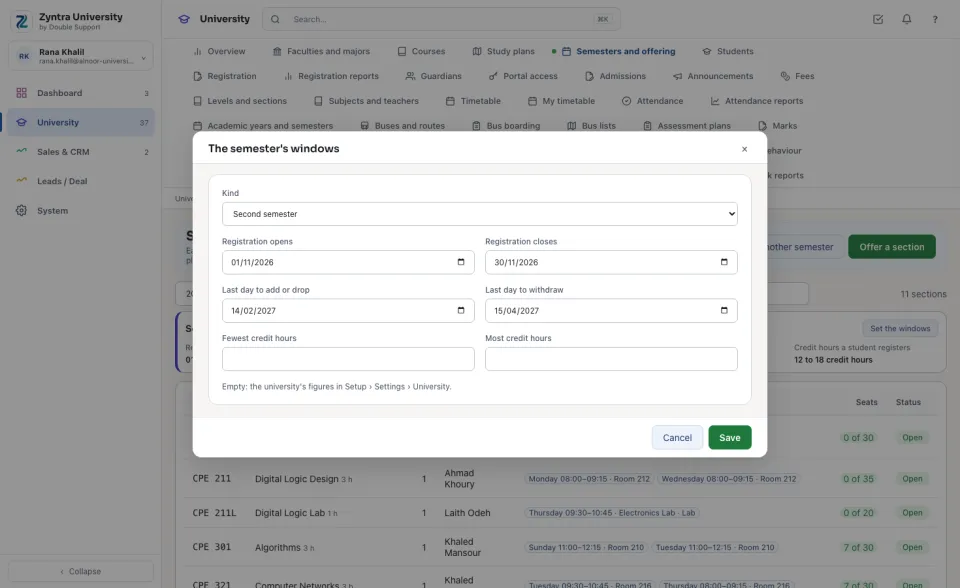
The semester's windows
1
Press Set the windows and choose its Kind: first, second or summer semester.
2
Type the days: Registration opens, Registration closes, Last day to add or drop and Last day to withdraw. They run in that order and end before the semester ends.
3
Leave Fewest credit hours and Most credit hours empty to use the university's figures (12 and 18, and 9 in a summer semester, on Setup › Settings › University), or type this semester's own. Press Save.
The pill beside the semester says where today falls: Registration open, Add and drop, Withdraw only or Closed. Students register only inside the windows; the registrar may act outside them with a reason.
Offer a section
1
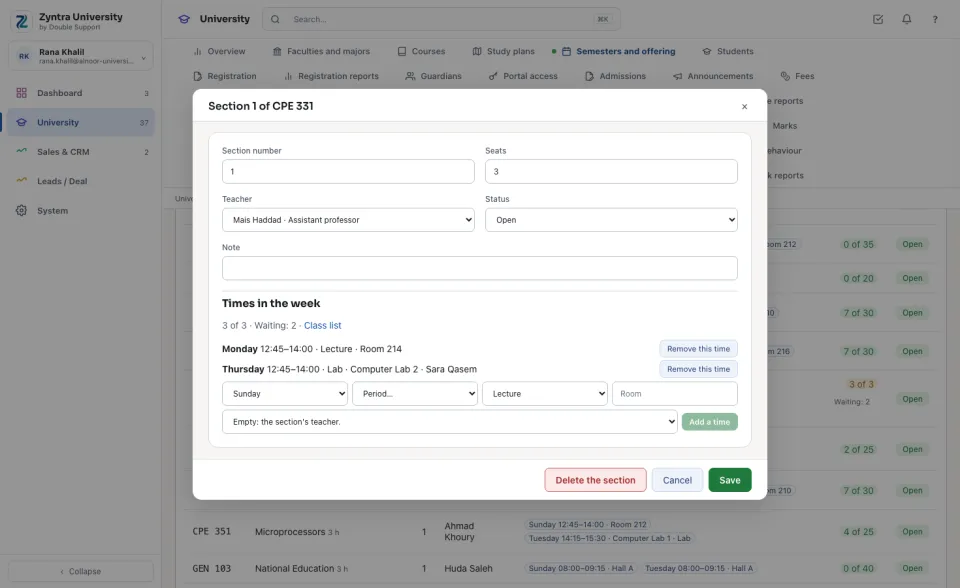
Press Offer a section, choose the Course, type the Seats and choose the Teacher from the staff. Leave Section number empty for the next one. Press Save.
2
Under Times in the week, choose the day, the period (the university's bell times), Lecture or Lab, the room and, when another person gives it, its own teacher. Press Add a time.
A time is refused when the teacher already teaches then (in another section, or a lesson of the timetable), when the room is already taken, when the section already meets then, or when one of its students has another course then. A section with students is never deleted: close it. Its seats are never cut below the students registered; raising them moves the waiting list up.
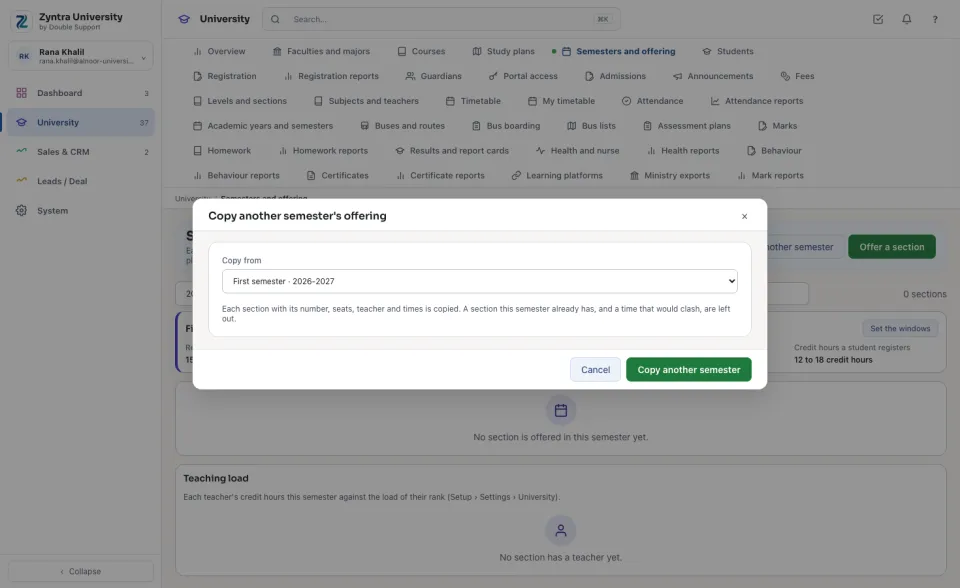
Copy another semester
1
In the new semester, press Copy another semester, choose the semester under Copy from (last year's of the same kind is chosen first) and press Copy another semester.
2
Each section is copied with its number, seats, teacher and times. A section the semester already has, and a time that would clash, are left out and counted.
Teaching load
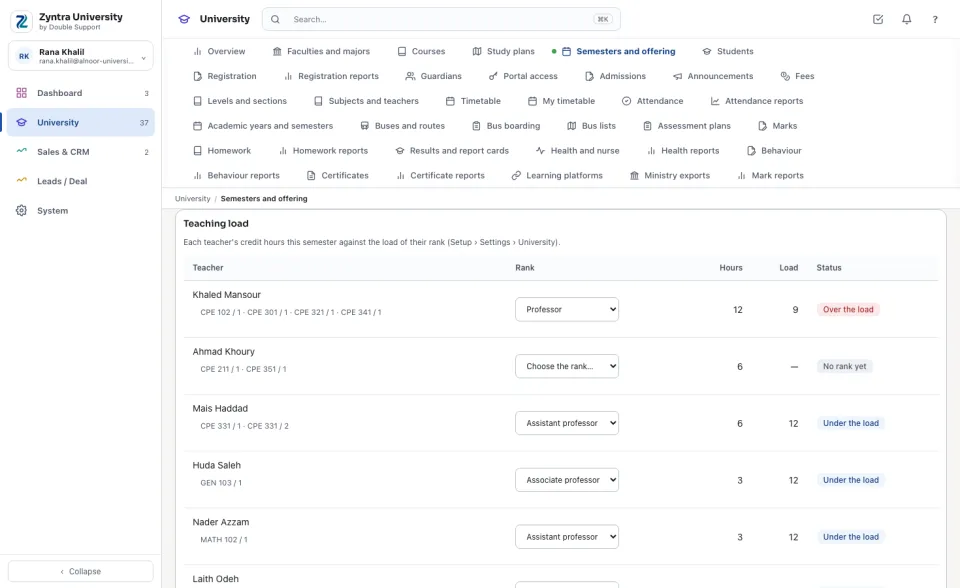
Under the sections, Teaching load lists each teacher with the credit hours they teach this semester (a lab they give in another's section counts an hour) against the load of their Rank, set on Setup › Settings › University. Choose a teacher's rank in the list; the Status reads Under the load, At the load or Over the load.


 Zyntra OS
 Zyntra Legal
 Zyntra Real Estate
 Zyntra Hotel
 Zyntra E-commerce
 Zyntra Appointments
 Zyntra Repair
 Zyntra Garage
 Zyntra Concierge
 Zyntra Contracting
 Zyntra Clinic
 Zyntra Dental
 Zyntra School
 Zyntra University
 Zyntra Call Center
 Zyntra OTA