

 Zyntra OS
 Zyntra Legal
 Zyntra Real Estate
 Zyntra Hotel
 Zyntra E-commerce
 Zyntra Appointments
 Zyntra Repair
 Zyntra Garage
 Zyntra Concierge
 Zyntra Contracting
 Zyntra Clinic
 Zyntra Dental
 Zyntra School
 Zyntra University
 Zyntra Call Center
 Zyntra OTA
Where
University › Registration, and the student's own Portal › RegistrationWho
University — Register students registers, drops, withdraws and names completed courses; University — Act outside the windows and the hour limits raises a student's most hours. A student registers only themself.Find the student
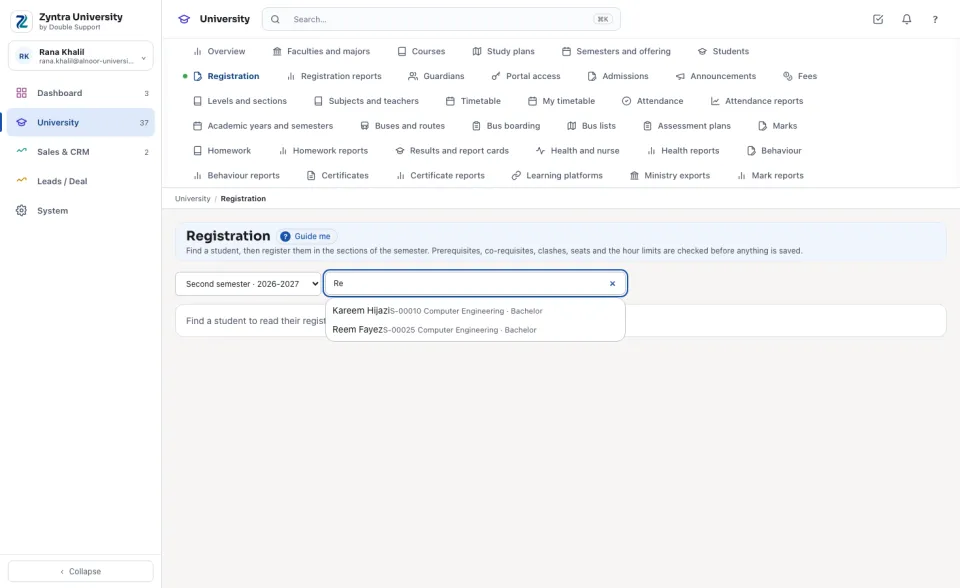
Choose the semester (the one open for registration comes first) and type a name or a number in Find a student by name or number. Only students studying a major are found; press one to open their registration.
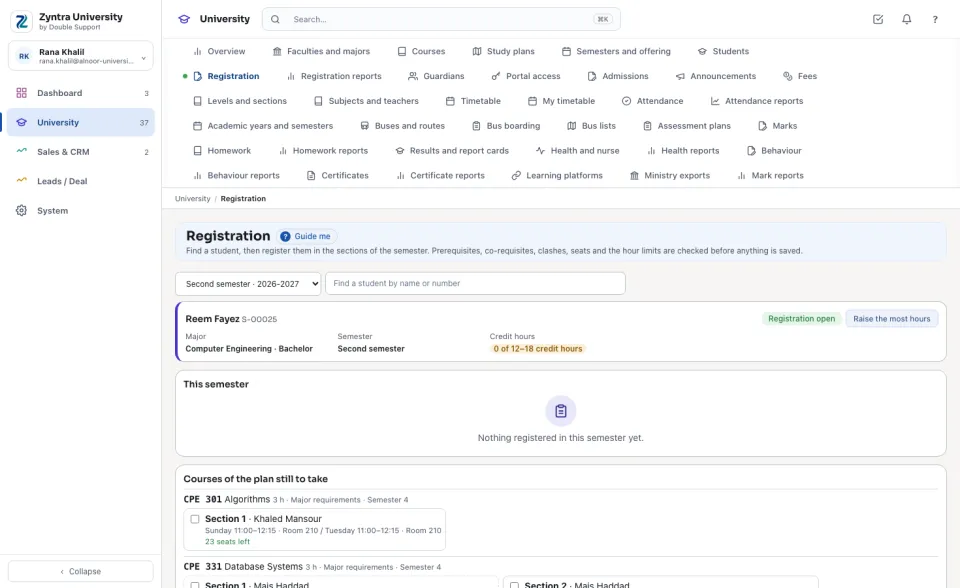
At the top: the student's Major, the Semester with where today falls in its windows, and their Credit hours against the fewest and the most (amber when outside them).
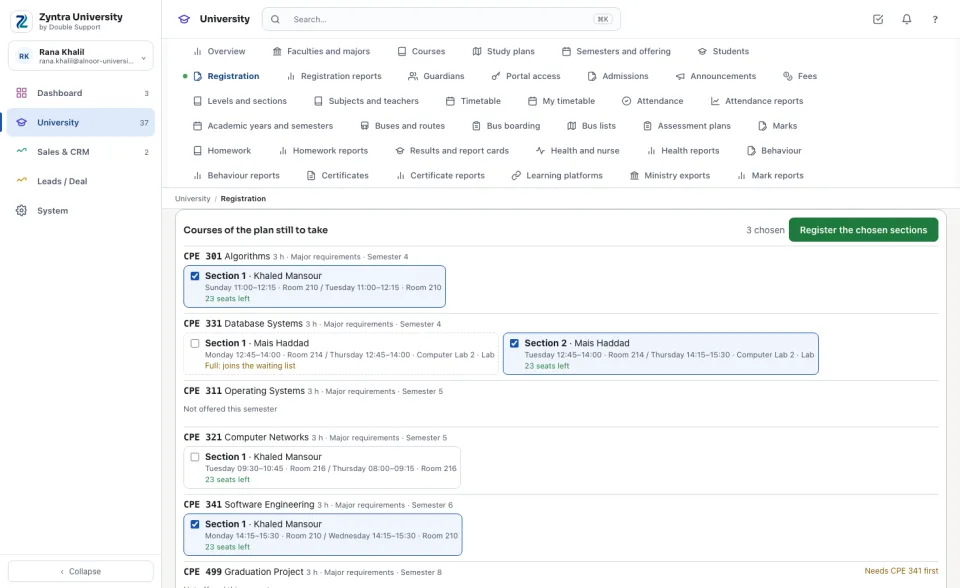
Register
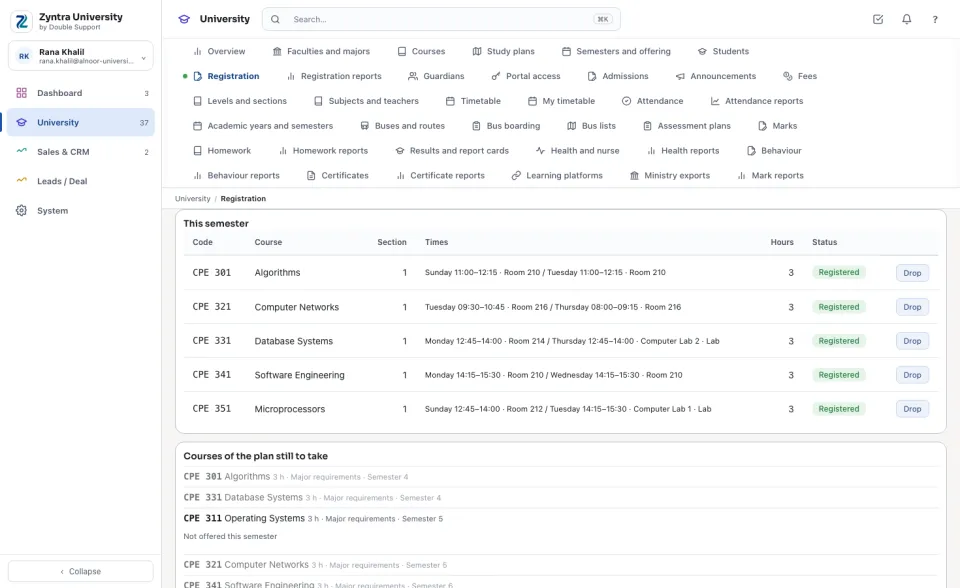
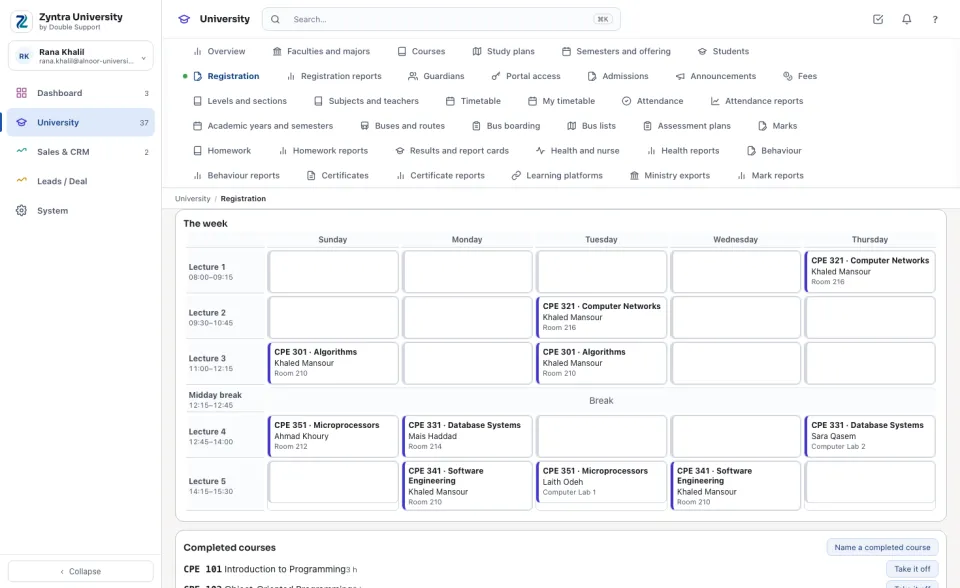
Drop, leave the waiting list, withdraw
This semester lists every registration with its section, times, hours and status: Registered, Waiting (with its number), Dropped or Withdrawn (W).
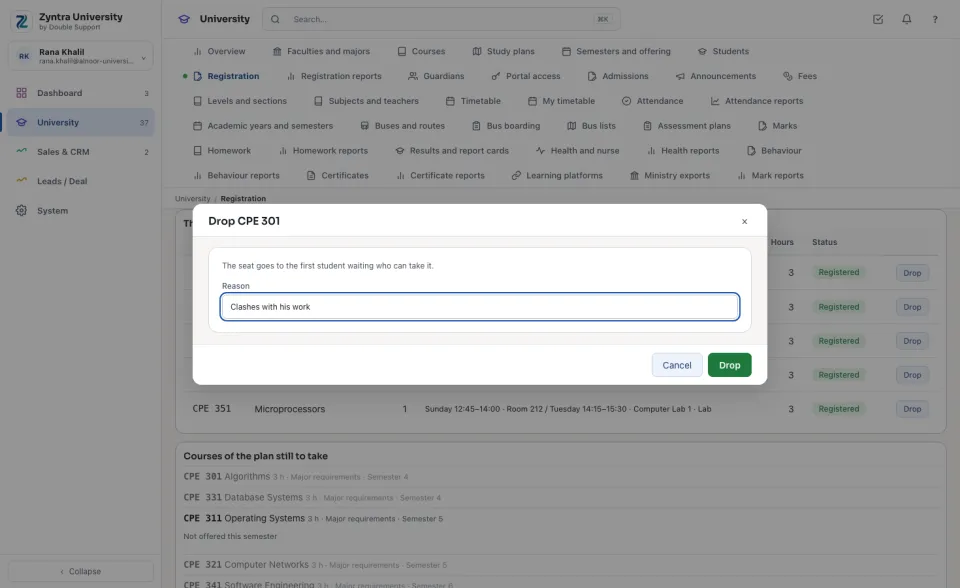
The week draws the registered sections on the university's bell times, day by day.
Completed courses and the most hours
Completed courses lists what the student completed; the prerequisites are checked against it. Name a completed course adds one (a transfer or an exemption, with a note) until the semester's grades fill the list. Raise the most hours lets the dean allow more credit hours to this student in this semester only, with the reason.
The student registers in the portal
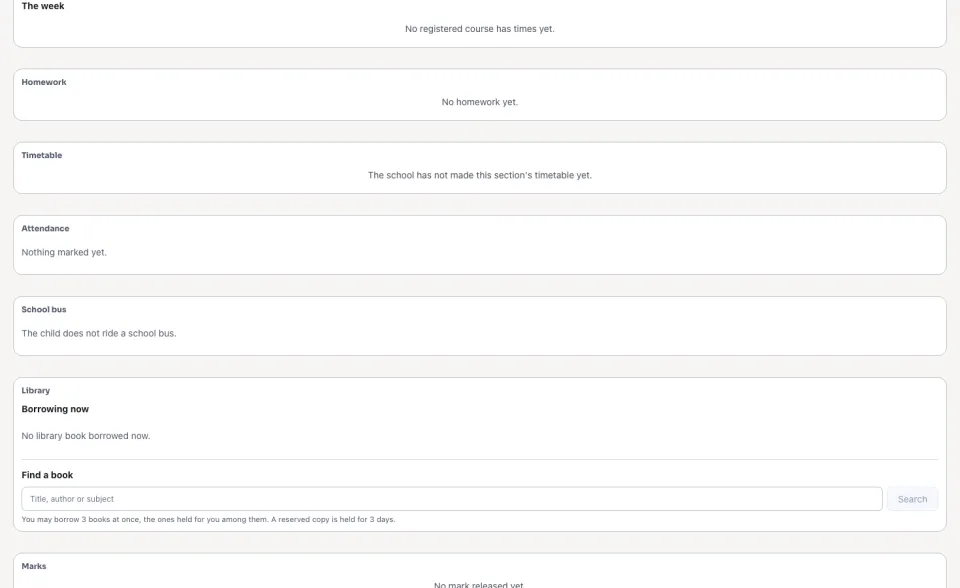
In the student portal the student reads Registration: the semester and its windows (a switch when another semester is open too, for a withdrawal), their hours, My courses this semester with Drop or Withdraw, and Courses of my plan with the sections offered and their seats.
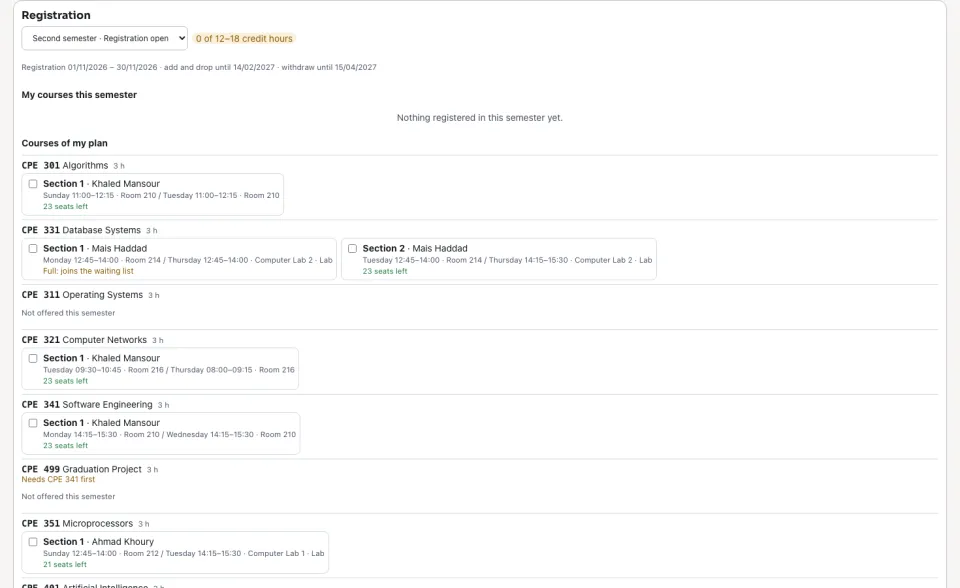
They tick a section of each course and press Register. Every check above runs the same; a course outside their plan is refused. A guardian reads the same part and never registers.
Questions
Where is “Registration” in Zyntra OS?
University › Registration, and the student's own Portal › Registration
Who can use “Registration”?
University — Register students registers, drops, withdraws and names completed courses; University — Act outside the windows and the hour limits raises a student's most hours. A student registers only themself.