

 Zyntra OS
 Zyntra Legal
 Zyntra Real Estate
 Zyntra Hotel
 Zyntra E-commerce
 Zyntra Appointments
 Zyntra Repair
 Zyntra Garage
 Zyntra Concierge
 Zyntra Contracting
 Zyntra Clinic
 Zyntra Call Center
 Zyntra OTA
Where
Reach › Components › FormsWho
Anyone allowed to create Reach components.1
Open Forms and press + New form.
2
Type the Form name. Choose the Lead source and the person Responsible for the new leads.
3
Type the Submit button text and the Message after sending.
4
Under Status of new leads choose a status, or keep The usual status for new leads. Tick Mark new leads as public to let your whole staff see them.
5
Under Allow duplicate leads, either let every submission make a new lead, or say when Two leads are the same when they share: Email, Phone or Name. Tick Create a task when a duplicate arrives to have someone look at it.
6
Under Tell these people about each new lead, choose who gets a notification with a link to the lead.
7
Press Save & open builder to add the form's fields now, or Save to add them later.
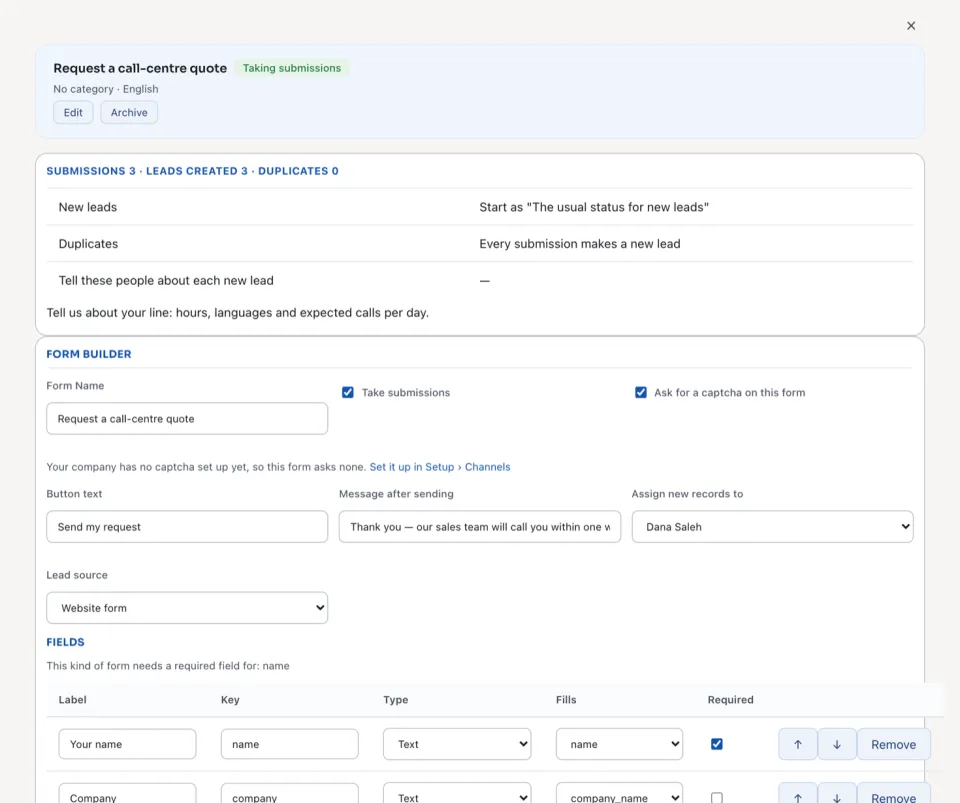
An open form counts its Submissions, the Leads created and the Duplicates, and says how its new leads start and what a duplicate does. Under the form builder each field has its Label, its Type, the lead field it Fills and whether it is Required.
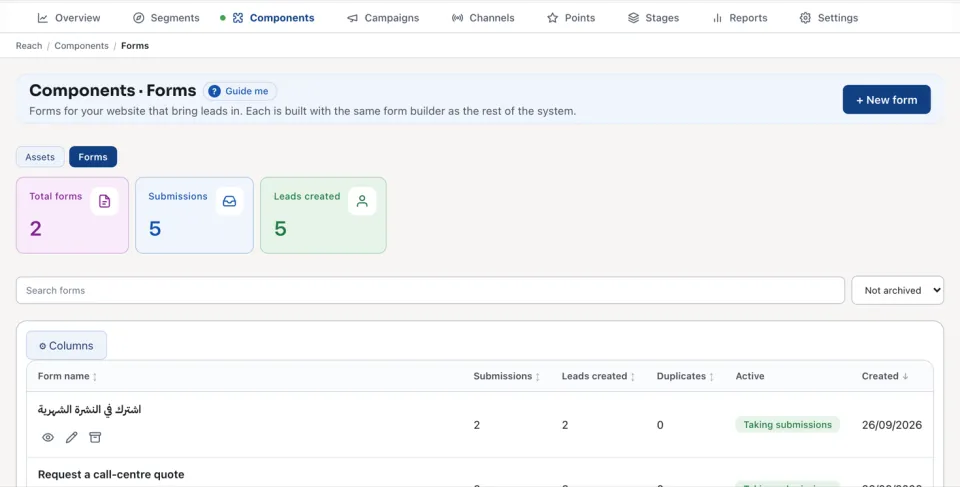
The list counts the Total forms, the Submissions and the Leads created. A form is Taking submissions or Paused. Archive stops it taking submissions now; its submissions and the leads it made stay.
A sent form can start a rule in Flowmind (A lead submits a Reach form) and give Reach points through a point action. See Reach points.
Questions
Where is “Reach forms: leads from your website” in Zyntra OS?
Reach › Components › Forms
Who can use “Reach forms: leads from your website”?
Anyone allowed to create Reach components.