Trip, photo and medical consent, and surveys: the school builds a form with its own questions, sends it to a section, a grade, an activity's members or chosen children, and the family answers and signs it in the parent portal. A form may carry a fee (a trip), billed when the family agrees. The results say who signed, who did not, and what each answered.
Where
School › Forms and consent
Who
«Manage forms and consent» builds and sends forms. «Activity and form reports» reads the results. The guardian answers in the parent portal; a university's student answers themself.
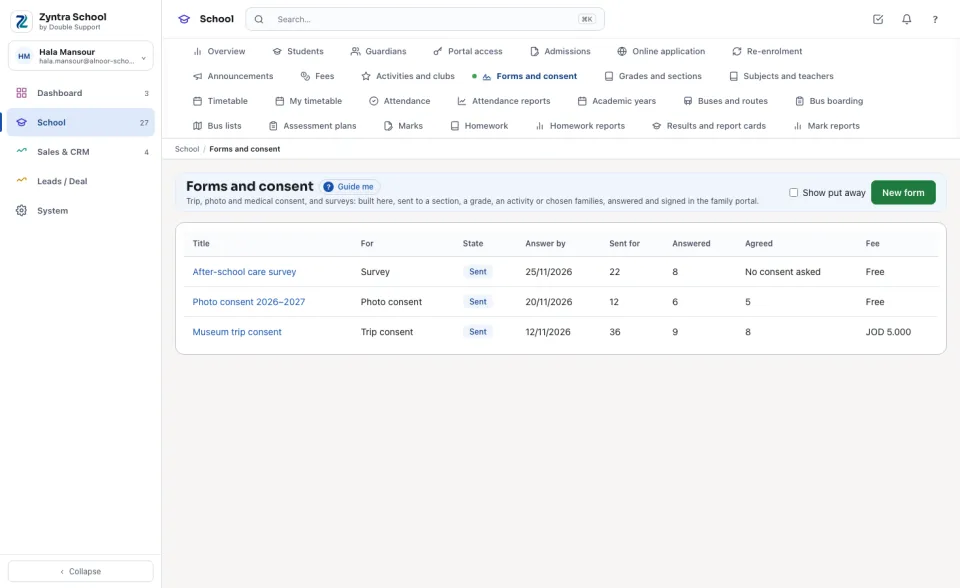
The school's forms
Each form shows what it is For, its State (Draft, Sent, Closed), the day to Answer by, how many it was Sent for, how many Answered and Agreed, and its Fee.
Build a form
1
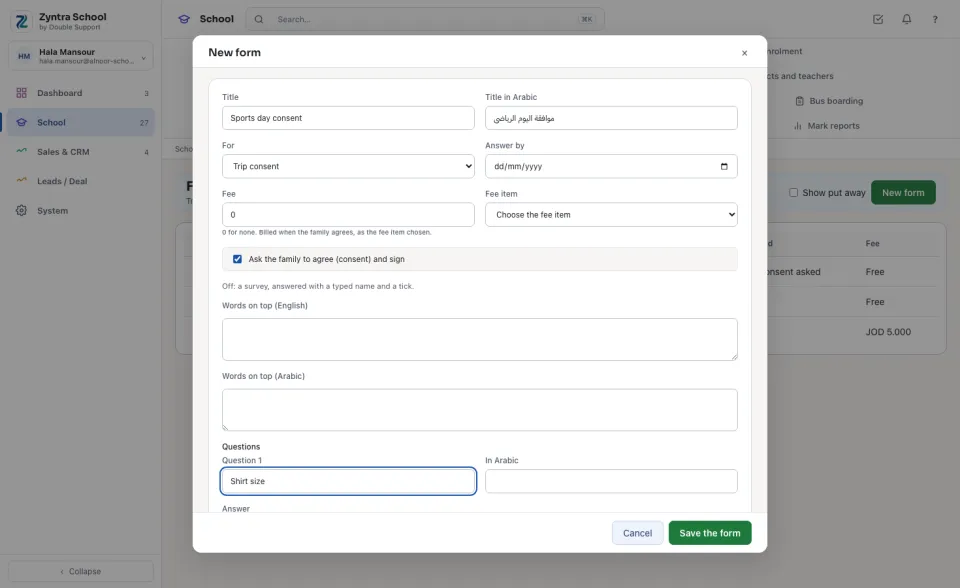
Press New form. Type the Title and the Title in Arabic, choose what it is For and the day to Answer by.
2
Keep Ask the family to agree (consent) and sign ticked for a consent; untick it for a survey. A trip may carry a Fee with its Fee item: it is billed when the family agrees.
3
Type the words on top, then press Add a question for each question: its words in both languages, the Answer it takes (a short or long answer, yes or no, one of a list, a day, a number) and whether it is Required. Press Save the form.
The questions, the fee and the consent are fixed once the form is sent. To ask something else, make a new form.
Send it
1
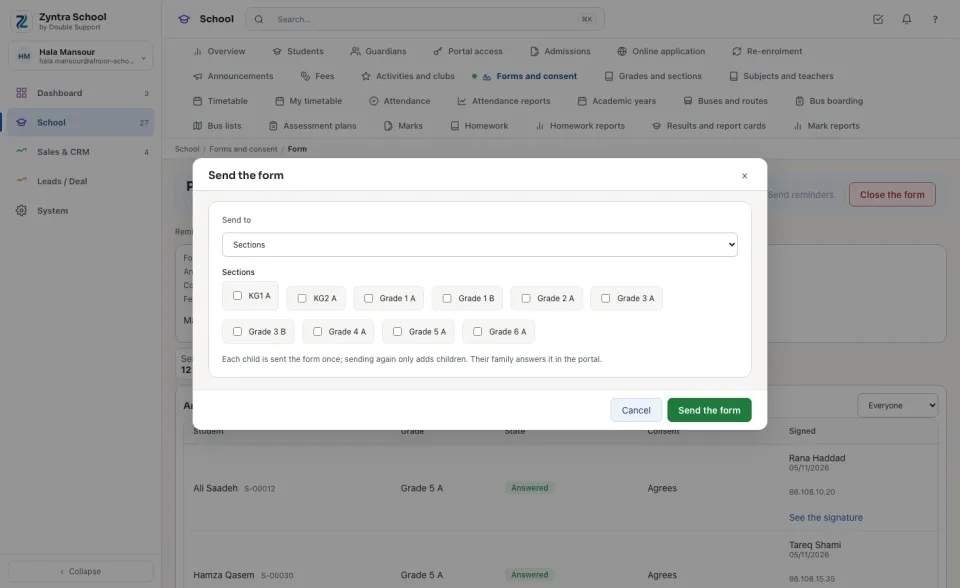
On the form's page press Send.
2
Choose Send to: Sections, Grades, Activity members or Chosen students, tick them (or find each student) and press Send the form. Each child is sent the form once; sending again only adds children.
An activity that asks a form signed first sends it by itself to each child who registers, and confirms the child once the family agrees (Activities and clubs).
The results
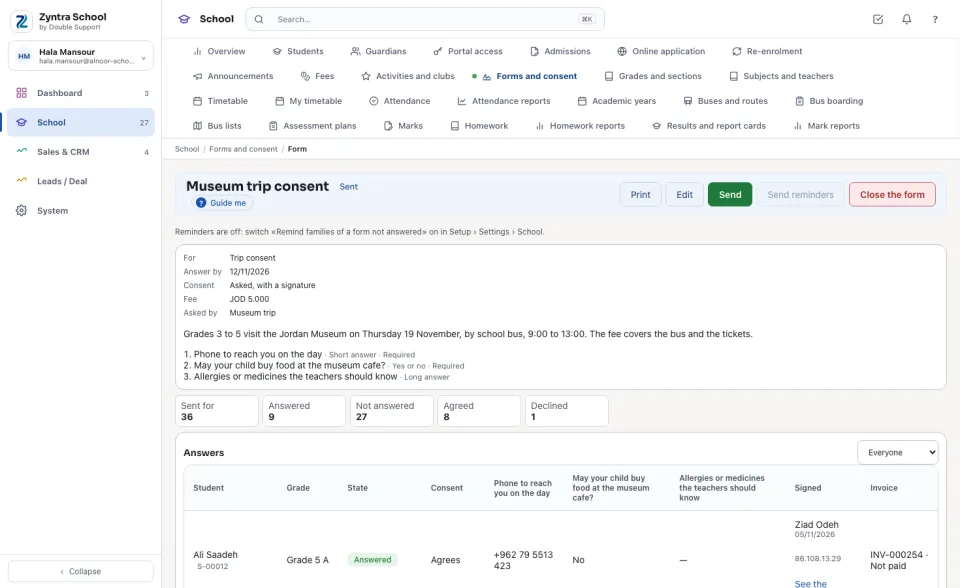
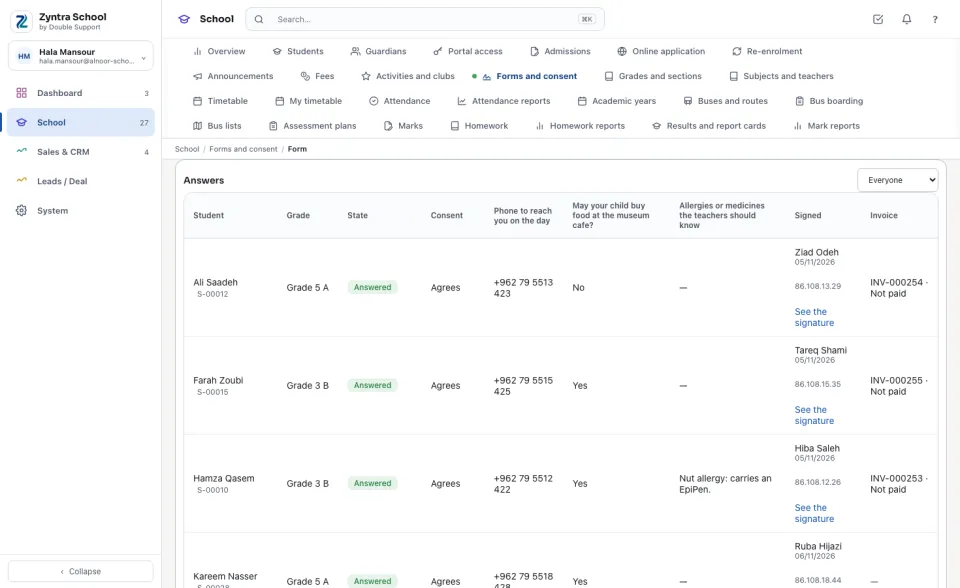
The figures on top count the children it was Sent for, Answered, Not answered, Agreed and Declined. Under Answers each child shows the state, the consent, each answer, who Signed, when and from which address, the fee's invoice, and See the signature opens the signature drawn.
1
Send reminders queues an email to the guardian of each child not answered yet. It works only while Remind families of a form not answered is on in Setup › Settings › School; while it is off, nothing is sent.
2
Print prints the results. Close the form takes no more answers (they are kept); Open it again takes them again. Put away hides a closed form.
What the family does
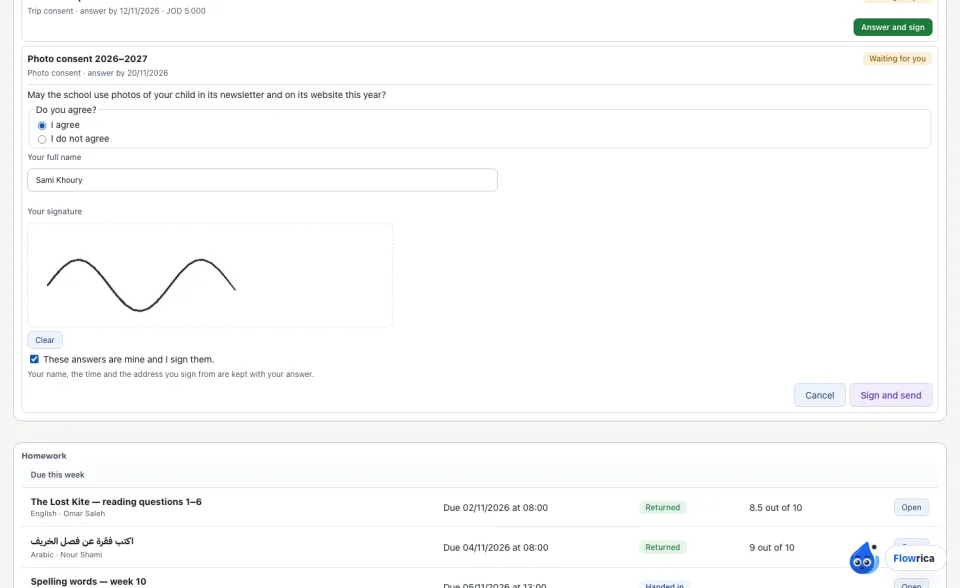
In the parent portal each child's page lists «Forms to answer». The guardian presses «Answer and sign», answers each question, chooses «I agree» or «I do not agree», types their full name, draws their signature, ticks the box and presses «Sign and send». The name, the time and the address it came from are kept with the answer. A form is answered once.
«Manage forms and consent» builds and sends forms. «Activity and form reports» reads the results. The guardian answers in the parent portal; a university's student answers themself.
FlowricaUsually replies instantly
We’d like to use Google Analytics to see how this site is used. Nothing is set unless you accept.


 Zyntra OS
 Zyntra Legal
 Zyntra Real Estate
 Zyntra Hotel
 Zyntra E-commerce
 Zyntra Appointments
 Zyntra Repair
 Zyntra Garage
 Zyntra Concierge
 Zyntra Contracting
 Zyntra Clinic
 Zyntra Dental
 Zyntra School
 Zyntra University
 Zyntra Call Center
 Zyntra OTA