

 Zyntra OS
 Zyntra Legal
 Zyntra Real Estate
 Zyntra Hotel
 Zyntra E-commerce
 Zyntra Appointments
 Zyntra Repair
 Zyntra Garage
 Zyntra Concierge
 Zyntra Contracting
 Zyntra Clinic
 Zyntra Dental
 Zyntra School
 Zyntra University
 Zyntra Call Center
 Zyntra OTA
Where
The client portal, School (a student reads My school).Who
A guardian the school switched on; a student whose own sign-in the school opened.For a guardian
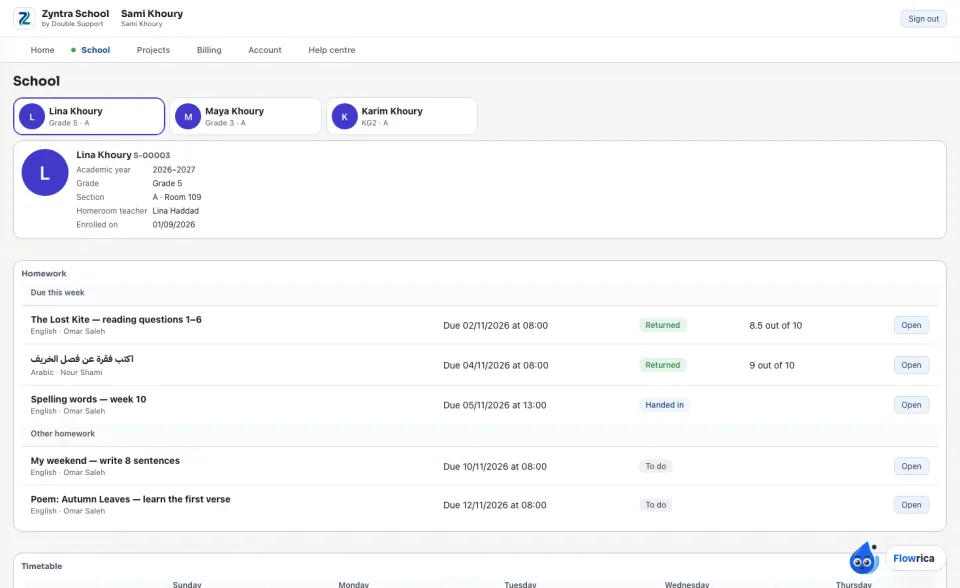
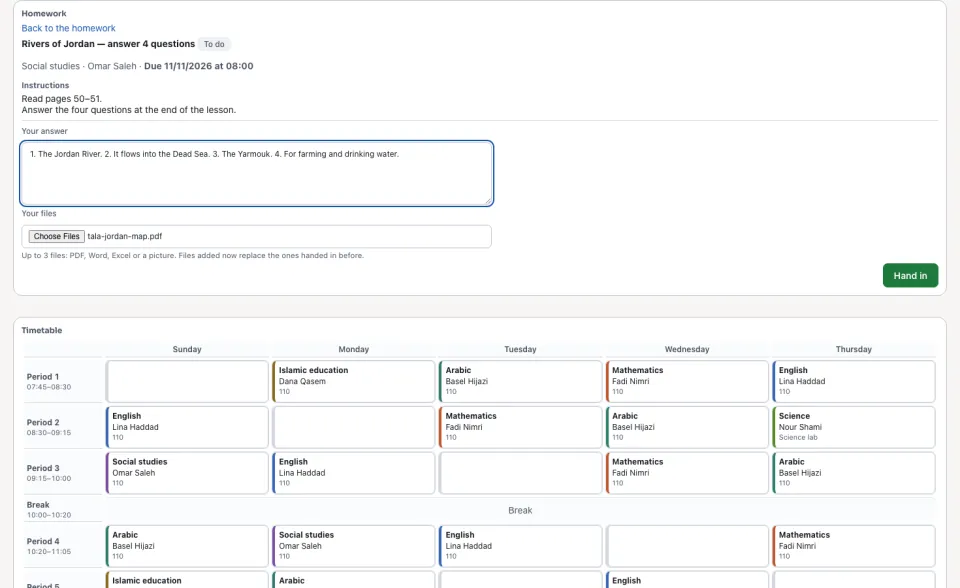
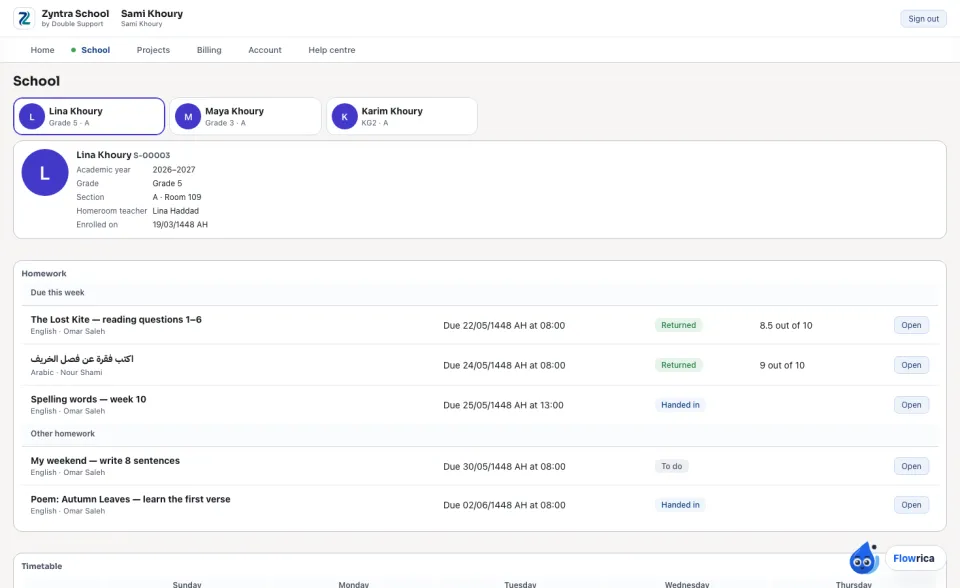
Under the class, the child's Timetable: the week the school made for their section, each lesson with its subject, teacher and room.
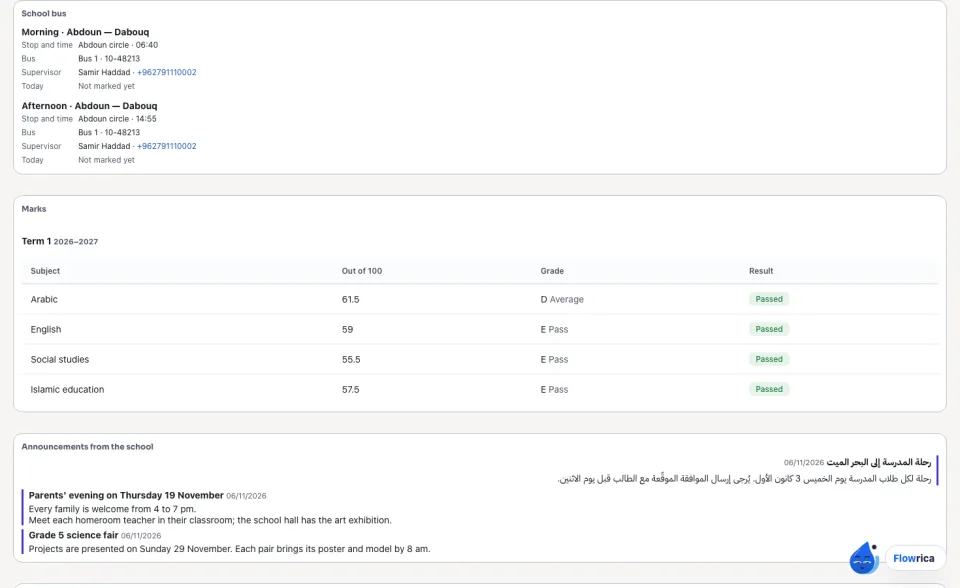
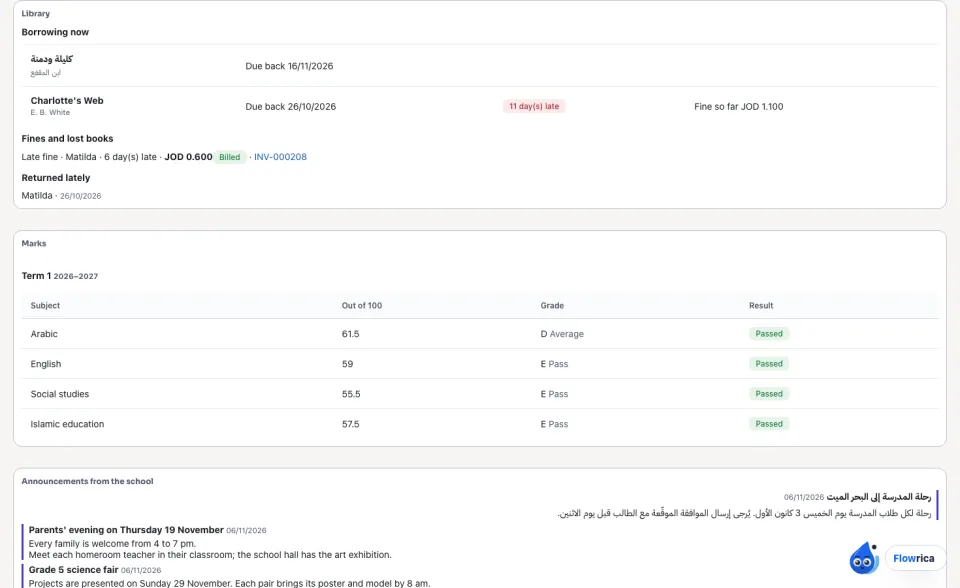
Attendance shows the share of the year the child was there (Attendance this year), the Days absent, and every mark that was not «present» with its day and note. Marks lists, term by term, each subject's mark out of 100, its grade and whether it passed — only the marks the school released; nothing still being typed or approved.
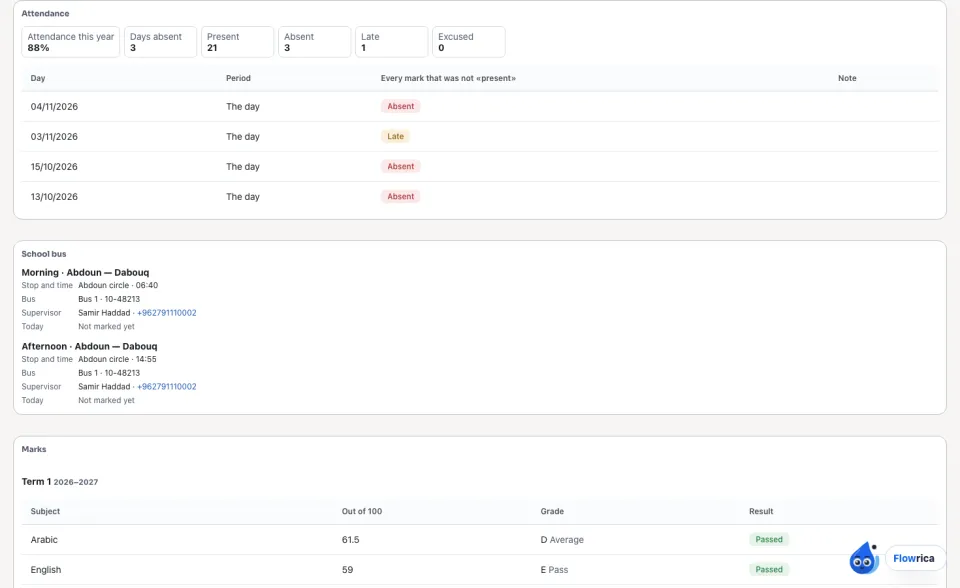
School bus shows, for the morning and for the afternoon, the child's route, the stop and its time, the Bus and its plate, the Supervisor with the phone to call, and Today: Boarded or Not boarded once the supervisor marked the run, else «Not marked yet». A child who does not ride says so.
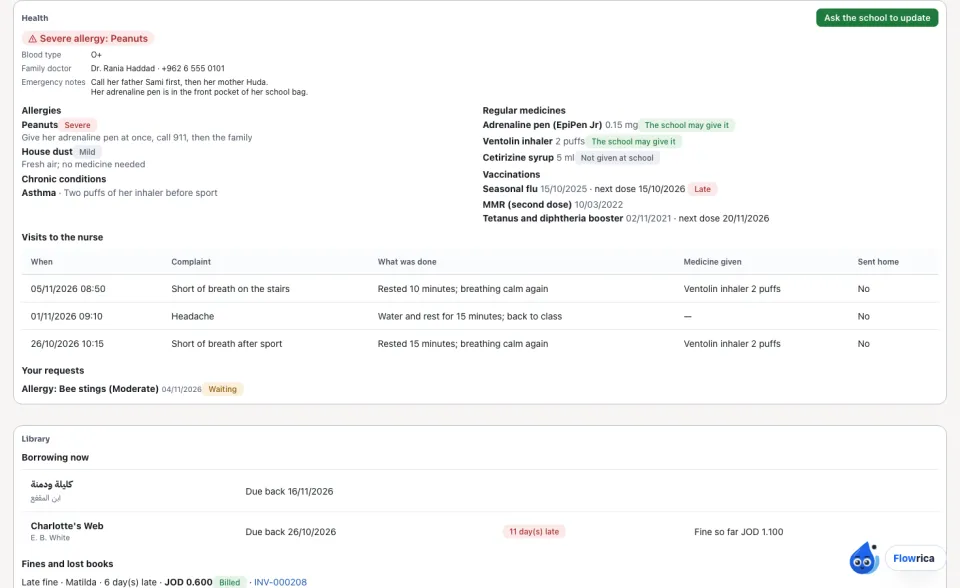
Health
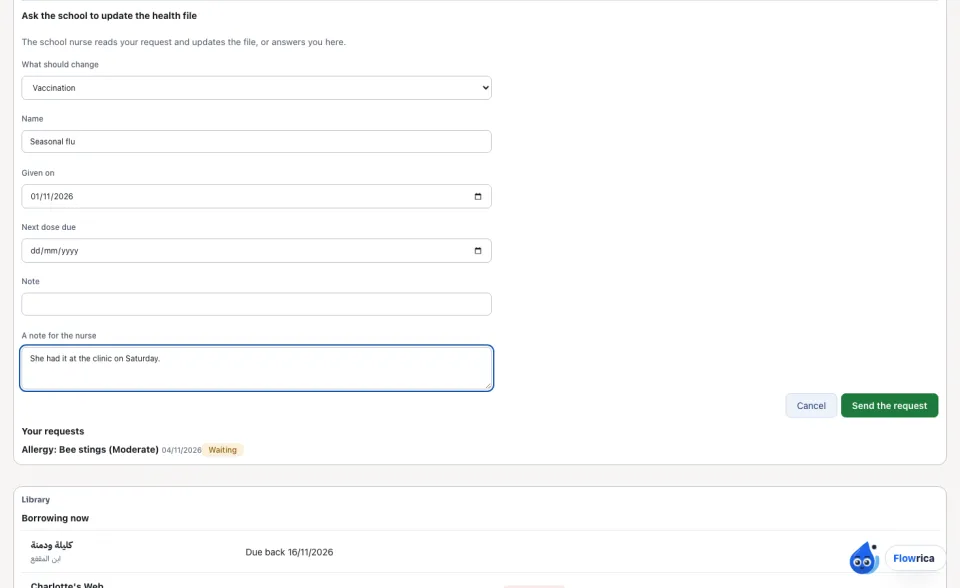
For a guardian, Health shows what the school keeps of the child's health: a Severe allergy in red, the Blood type, the Family doctor and the Emergency notes, the allergies, chronic conditions, regular medicines (and whether The school may give it), the vaccinations with the next dose, and the Visits to the nurse. The student's own sign-in does not show it.
Behaviour
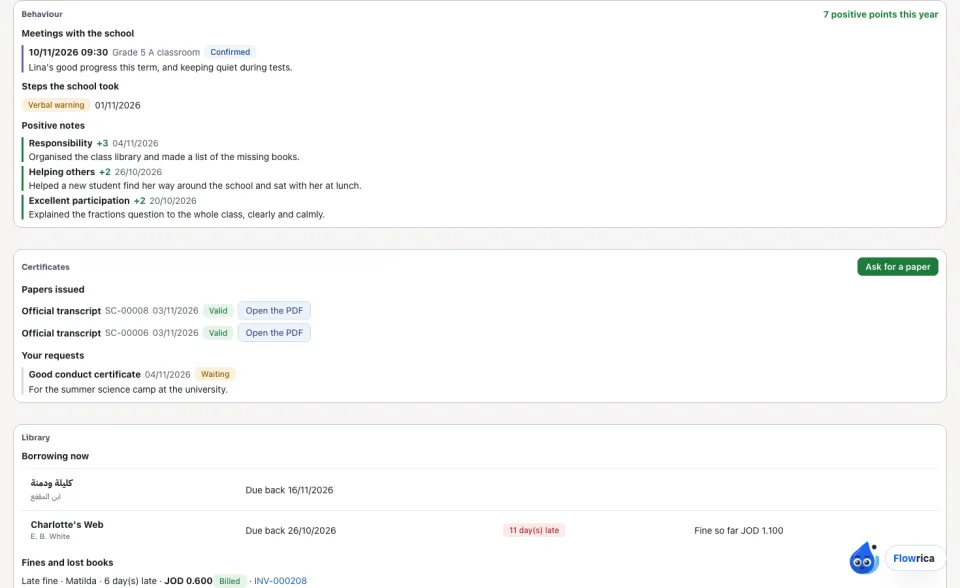
For a guardian, Behaviour shows this year's Positive notes about the child — the category, the points and what the teacher wrote — with the positive points of the year, the Steps the school took (a warning, the guardian called in, a suspension with its days) and the Meetings with the school. Nothing of an incident is shown: no other child's name, no description, no reason. The student's own sign-in does not show it.
Certificates
For a guardian, Certificates lists the Papers issued for the child — each opens with Open the PDF (a withdrawn one says Withdrawn and does not open) — and Your requests with the school's answer.
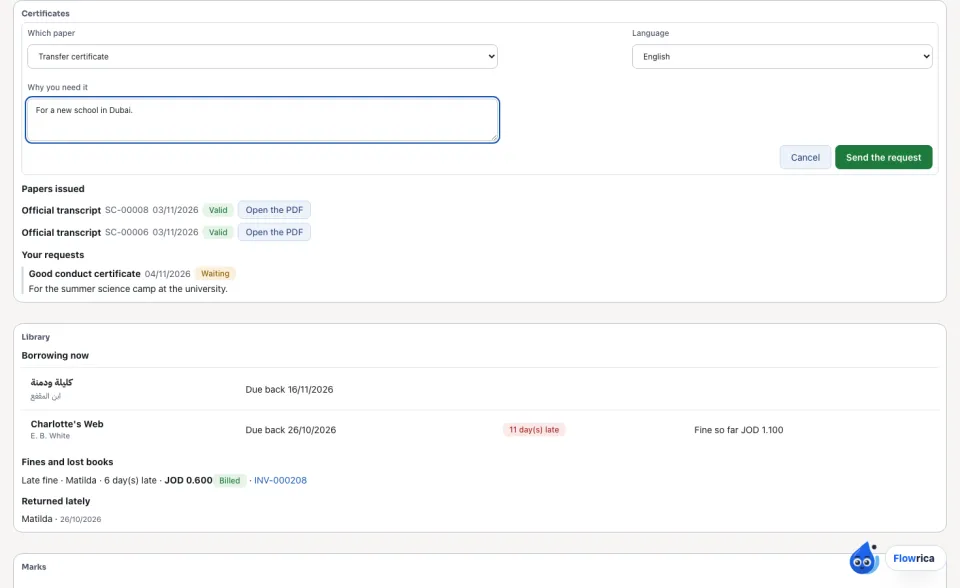
The student's own sign-in shows his papers only when the school allows it, and asks for none.
Homework
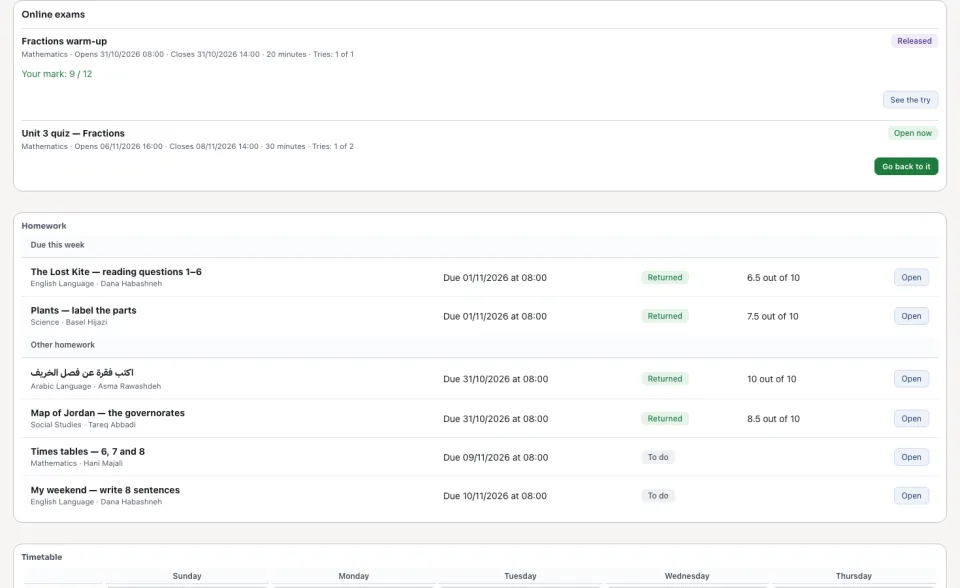
Right under the class, Homework lists the homework of the child's section: Due this week first, then Other homework. Each line has its subject and teacher, when it is due, and its state — To do, Handed in, Handed in late, Missing or Returned — and the mark once the teacher returned it (8.5 out of 10).
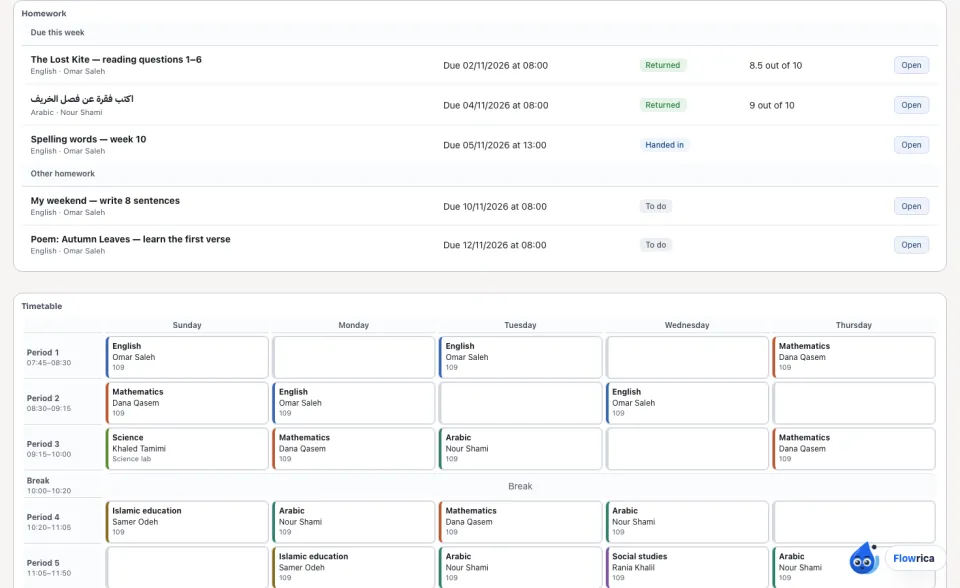
Press Open to read the Instructions and The teacher's files, what your child handed in and when, and once it is returned the Mark and The teacher's remark. A mark the teacher has not returned yet is not shown. If the school switched it on, you also receive an email when a homework was not handed in by its due time.
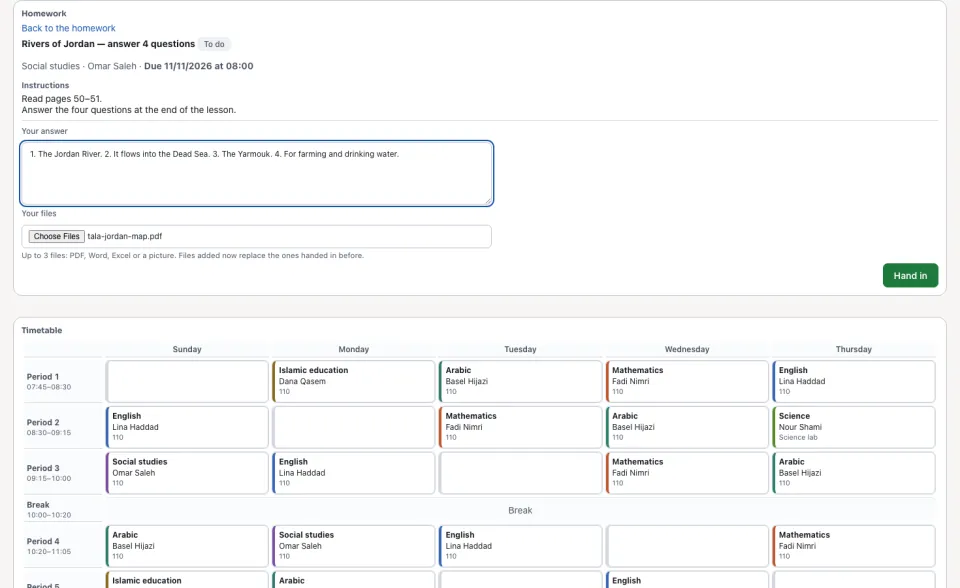
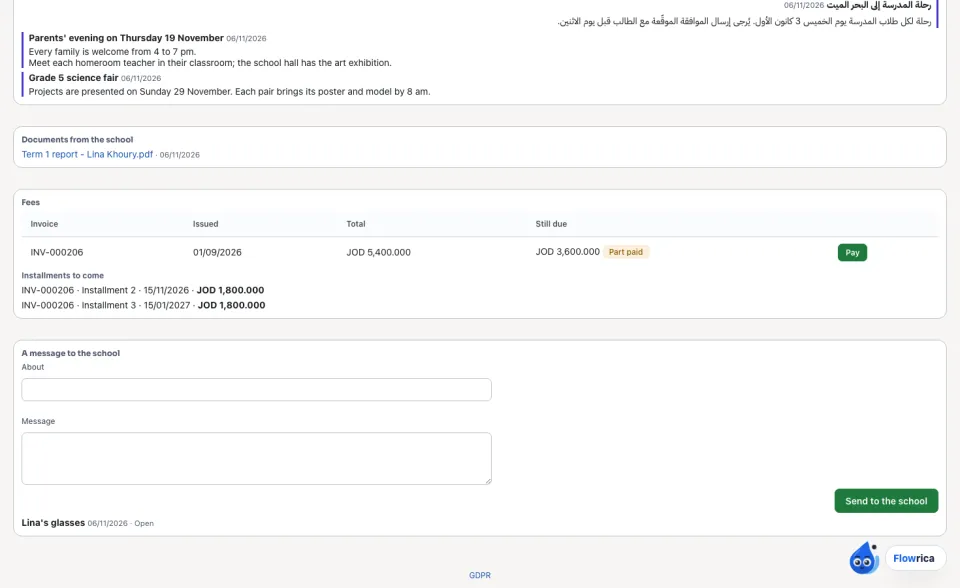
Below them: Announcements from the school for your child's school, grade and section, and the Documents from the school it shares with you.
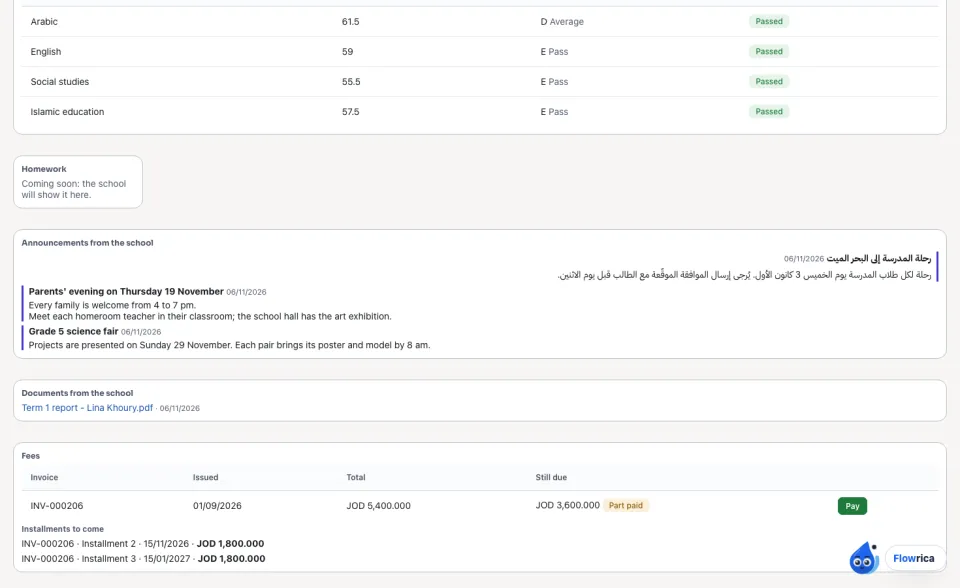
Library
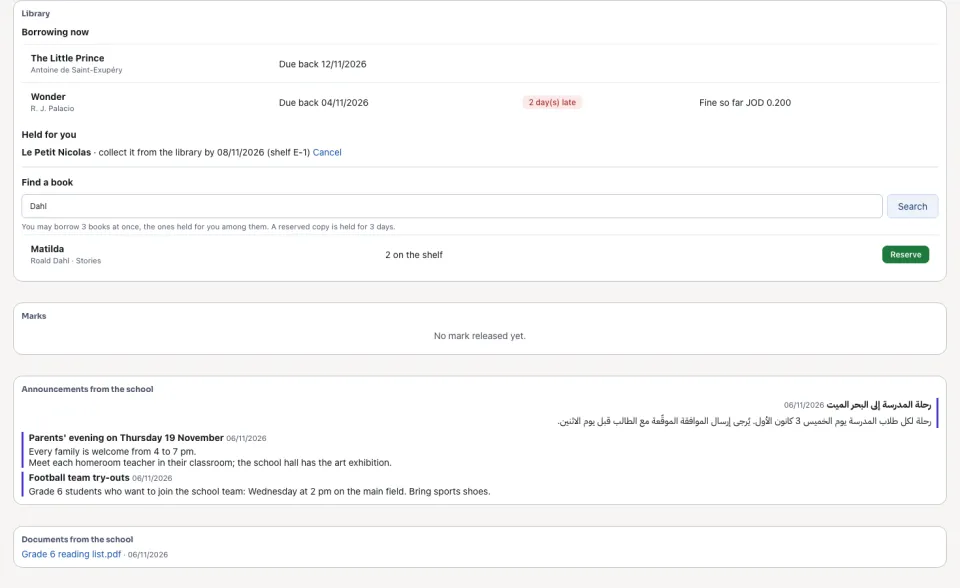
Library lists the books your child is Borrowing now, each with the day it is due back; a late one says how many days late and the Fine so far when the school charges fines. Under it, a book Held for you (to collect from the library by the day shown), any Fines and lost books with the invoice once the school billed it (press the number to open it and pay), and the books Returned lately. If the school switched it on, you also receive one email when a book is past its due day.
Canteen
Canteen shows what your child's canteen wallet holds (Balance), what is Left for today of the daily limit, and every purchase with what was bought. To put money in, type the amount under Top up the wallet and press Top up and pay: the invoice of the top-up opens, to pay online on its own page; the money is in the wallet once it is paid (a top-up still to pay waits under Top-ups to pay). If the school switched it on, you receive one email when the wallet runs low.
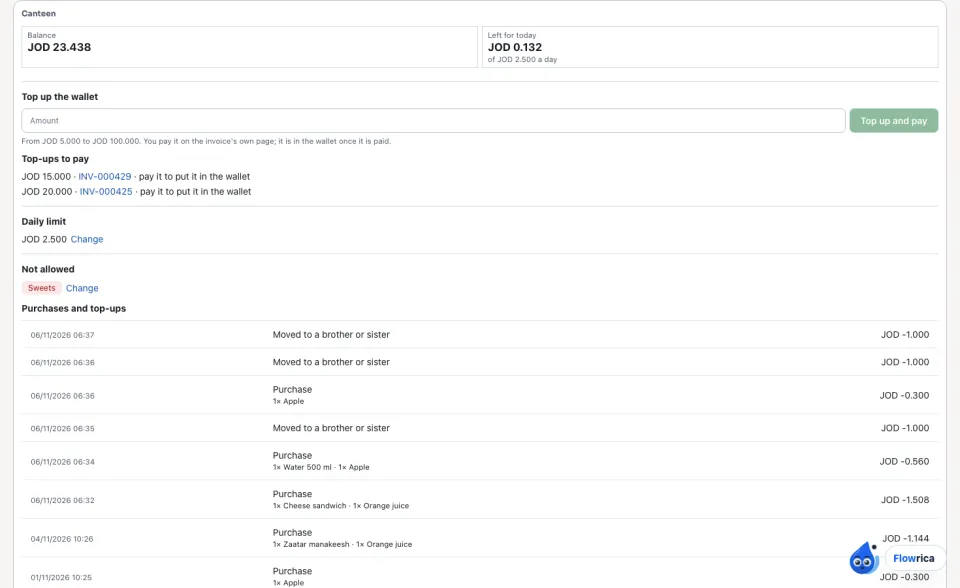
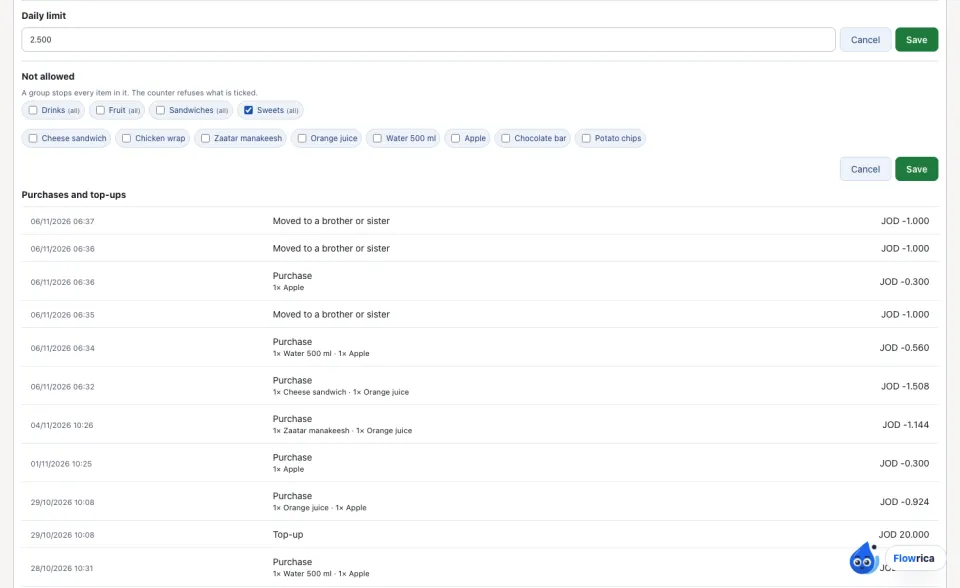
A student signed in to his own page sees his balance, what is left for today and his purchases; only a guardian tops up and sets the limit and bans.
Activities and forms
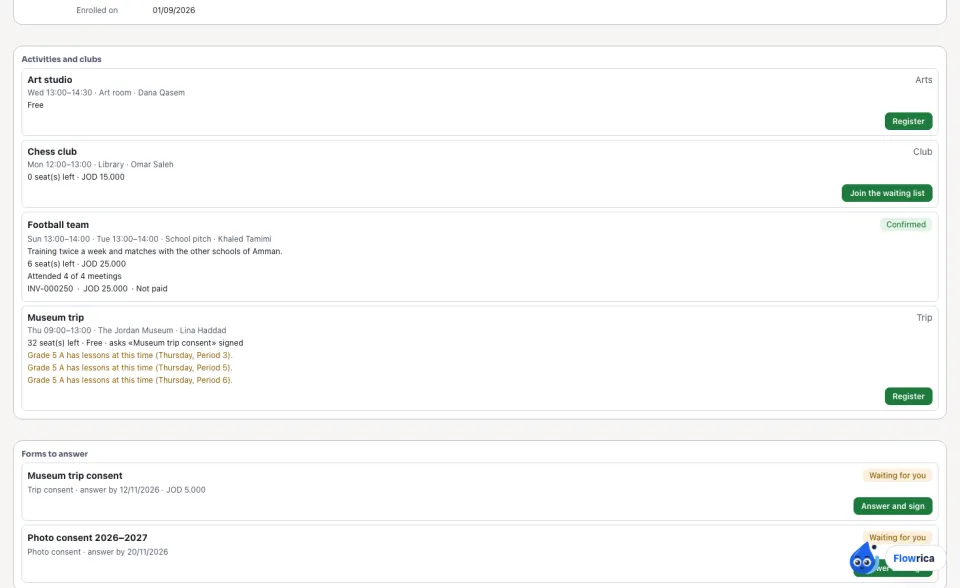
Each child's page lists the Activities and clubs open to them — the days and hours, the seats left, the fee and the form it asks — and any clash with the child's own lessons. Press Register (or Join the waiting list when it is full); a paid activity's invoice is paid online from the same place. Under Forms to answer press Answer and sign on a trip, photo or medical consent or a survey (Forms and consent). A university's student registers and signs themself.
Fees
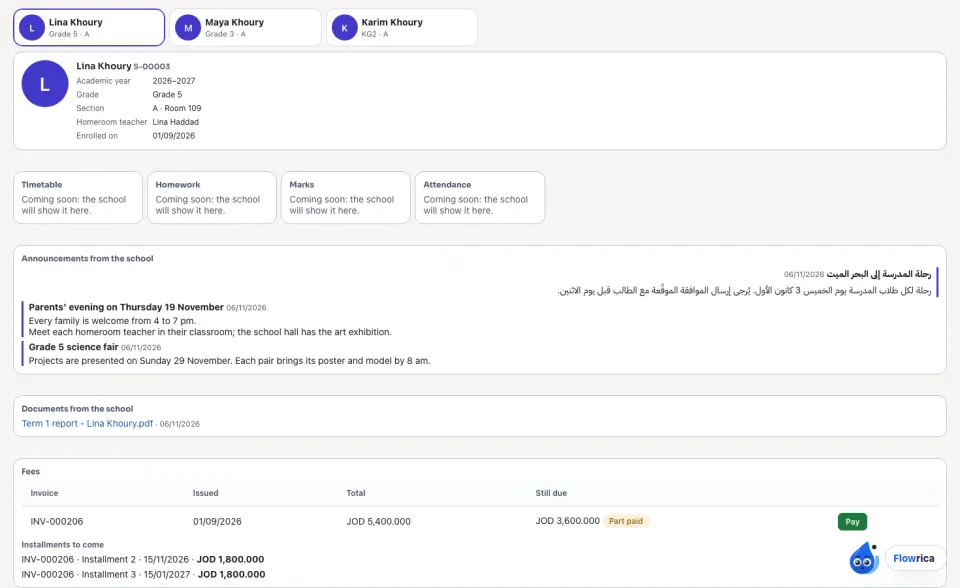
Fees lists the family's invoices with what is Still due, and the Installments to come with their dates. Press Pay to open the invoice and pay it online.
Next year: re-enrolment
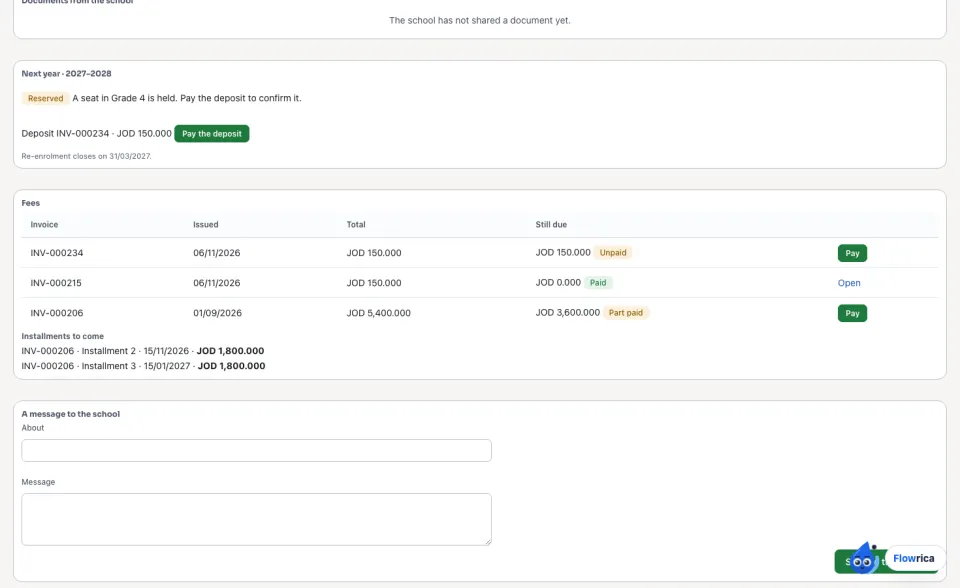
While the school has re-enrolment open, each child's page shows Next year. Press Re-enrol in the next grade: while the grade has a seat it is Reserved and the seat deposit is an invoice to pay with Pay the deposit; once paid the place is Confirmed, and the deposit is taken off next year's bill. A full grade puts the child on the Waiting list with their number in line; the school gives the next seat that is free.
A message to the school
For a student
A student's portal opens on My school: their own class, their homework, timetable, attendance and released marks, the announcements for students, and the documents the school shares with them. It shows no fees and no other child.
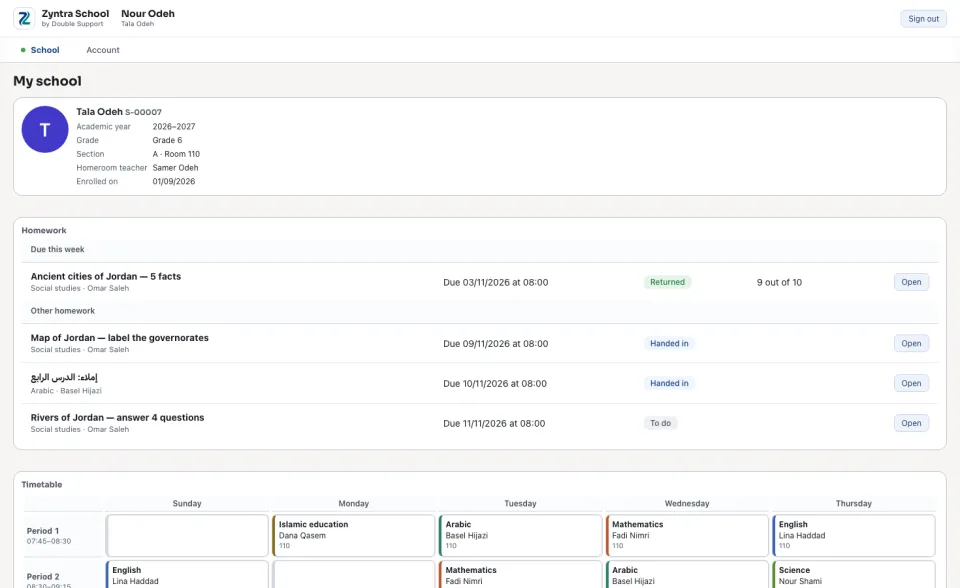
Hand in a homework (the student)
Find and reserve a book (the student)
Days in Hijri
When the school reads its days in Hijri (Hijri dates), the portal says every school day the same way: the day of enrolment, homework due, attendance, the library and the canteen.
Messages with the teachers
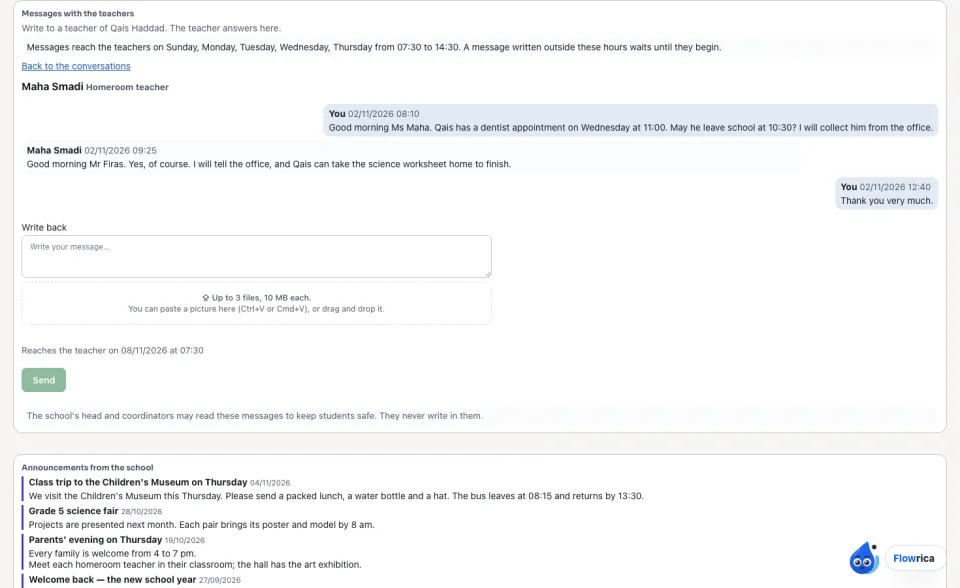
Under Messages with the teachers a guardian writes to a teacher of the child: choose the teacher in To (each one with what they teach the child — the homeroom teacher and the subject teachers), type the message, add up to 3 files and press Send. When the school keeps office hours, the card says them, and a message written outside them says when it reaches the teacher. Each conversation is listed with the teacher and the new answers; press one to read it and Write back. The card says under it that the school's head and coordinators may read these messages to keep students safe. A student writes to their own teachers in the same way, in conversations of their own (see Messages).
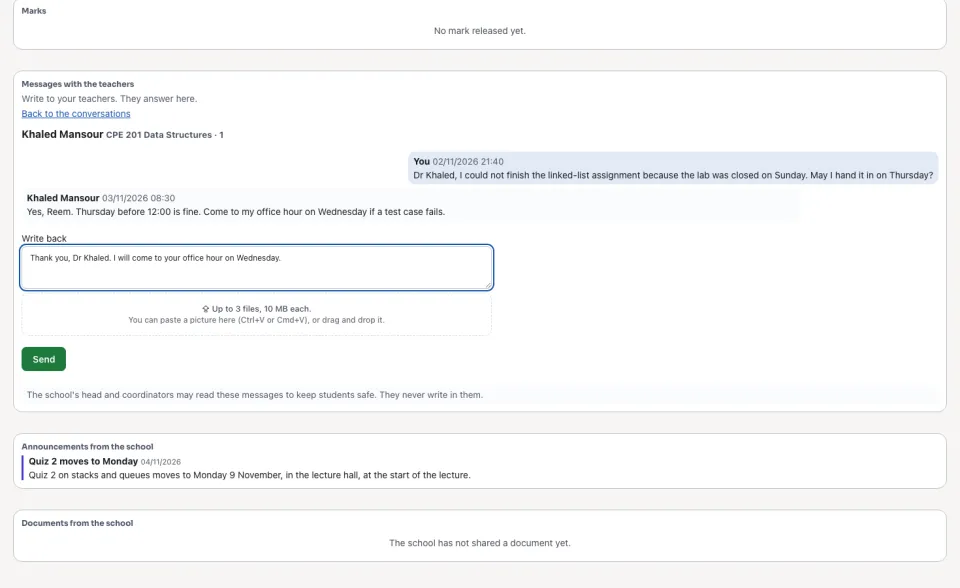
A university student writes to the teacher of each section they are registered in this semester; the course and the section are named beside the teacher. A teacher's announcement to a course section reaches the students registered in it.
Exams and attendance (a university student)
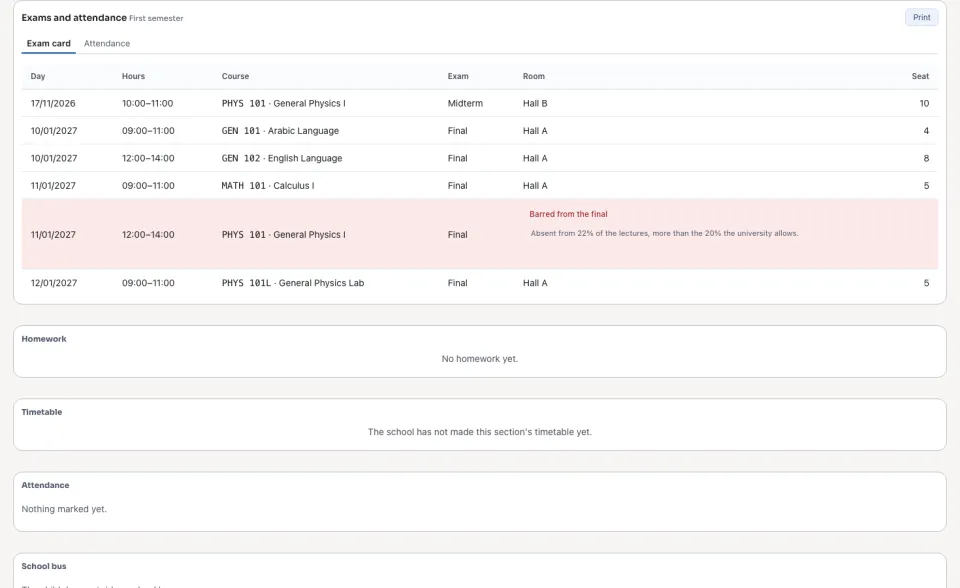
A university student, and a guardian of theirs, read the Exam card: each exam of the semester with its day, hours, room and seat. A final the student is barred from shows as barred, with why, and no seat. Attendance shows each course's lectures, absences and the share missed against the university's limit. Press Print to take the card to the exams.
My requests (a university student)
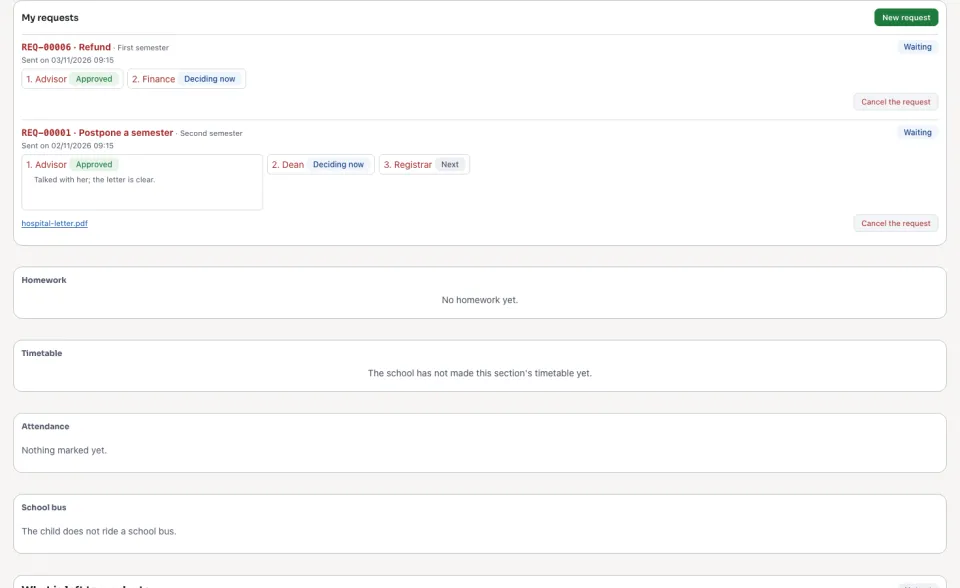
A university student asks here to postpone a semester, withdraw, have a course counted from another university, get a refund, change major, or add or drop a course late, with the reason and up to 3 files, and follows each request's steps and outcome. A guardian of theirs reads them. See Student requests.
Online exams (the student)
A student with their own sign-in sees their exams under Online exams: when each opens and closes, its time and the tries used. While one is Open now, press Begin: the answers are saved as the student goes, the Time left is counted by the school, and the try is handed in by itself when the time is up. The mark shows at once or once the school releases the results, as the exam says; then See the try shows the right answers. A guardian reads the results once they are released. See Online exams.
Questions
Where is “The parent and student portal” in Zyntra OS?
The client portal, School (a student reads My school).
Who can use “The parent and student portal”?
A guardian the school switched on; a student whose own sign-in the school opened.