

 Zyntra OS
 Zyntra Legal
 Zyntra Real Estate
 Zyntra Hotel
 Zyntra E-commerce
 Zyntra Appointments
 Zyntra Repair
 Zyntra Garage
 Zyntra Concierge
 Zyntra Contracting
 Zyntra Clinic
 Zyntra Call Center
 Zyntra OTA
Where
Growth Center › GoalsWho
Anyone allowed to set goals.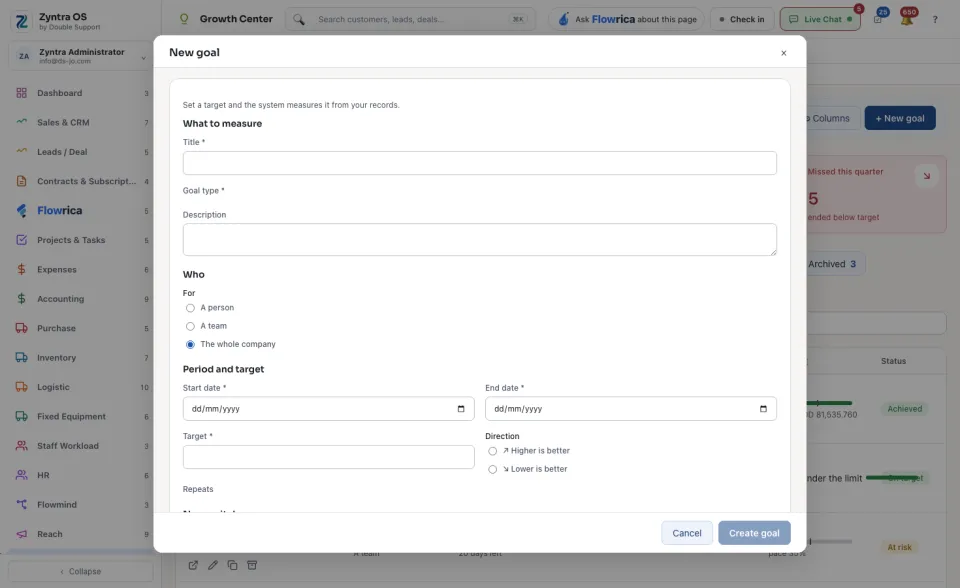
The list
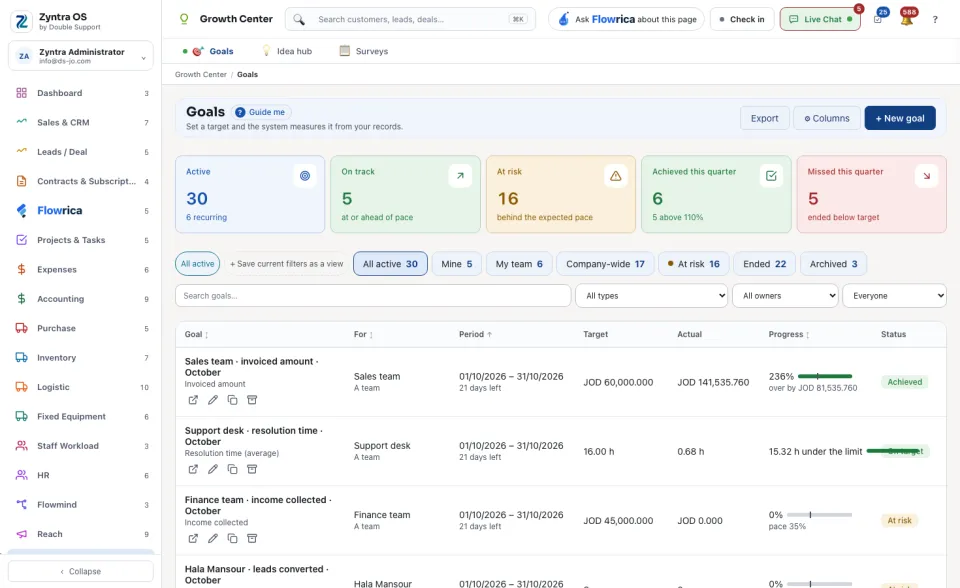
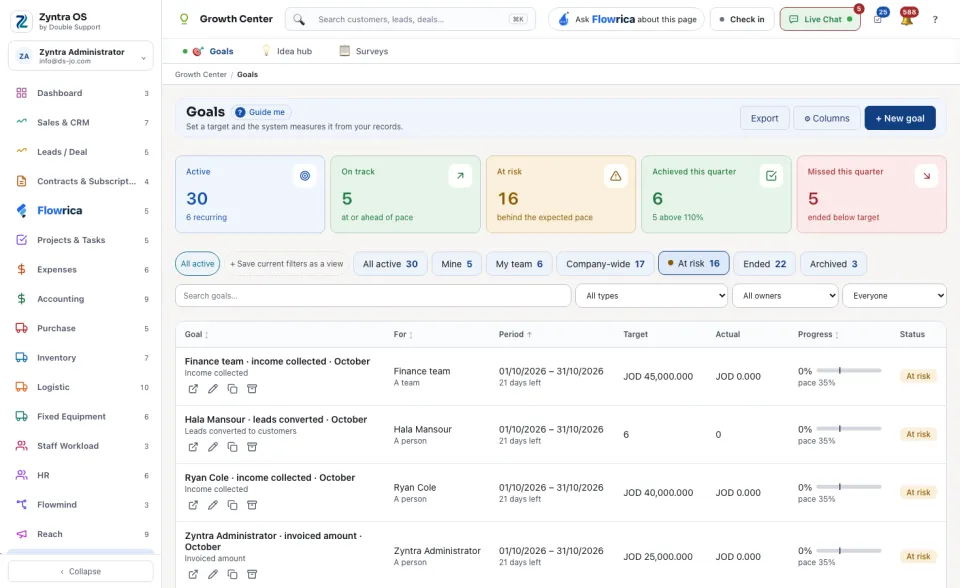
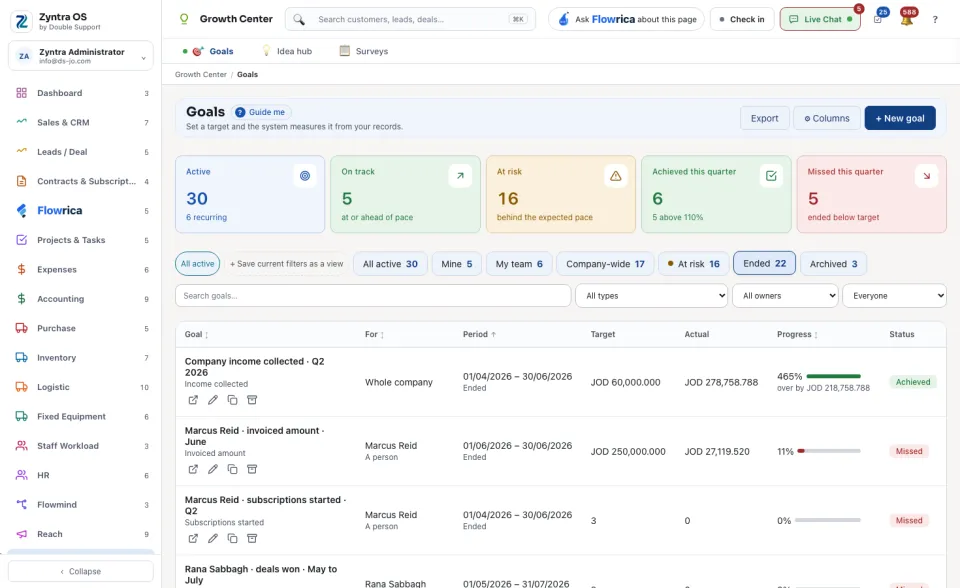
The cards count the goals that are Active, On track, At risk, Achieved this quarter and Missed this quarter. The views are All active, Mine, My team, Company-wide, At risk, Ended and Archived. + Save current filters as a view keeps your own view. Search goals… finds one. Export and ⚙ Columns work on the table.
The goal's page
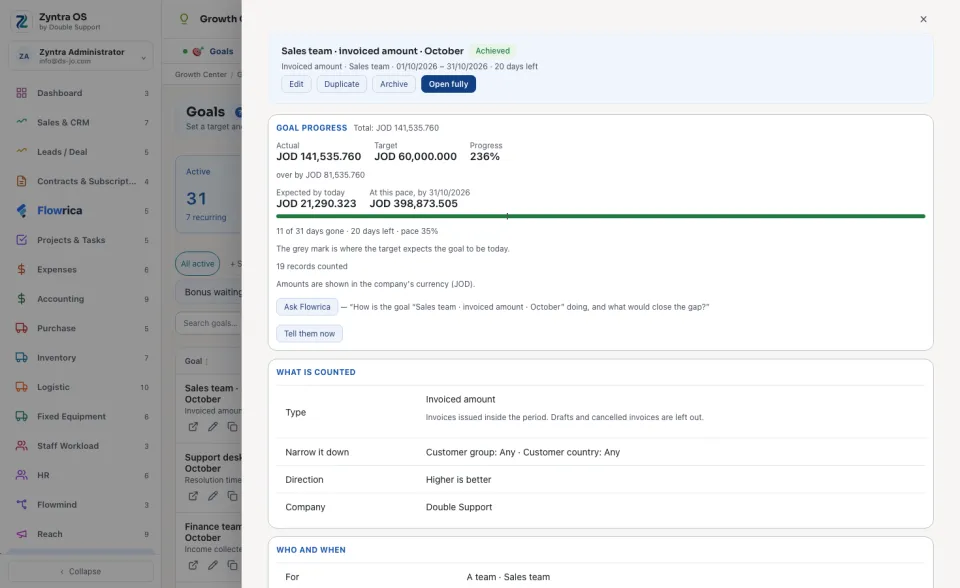
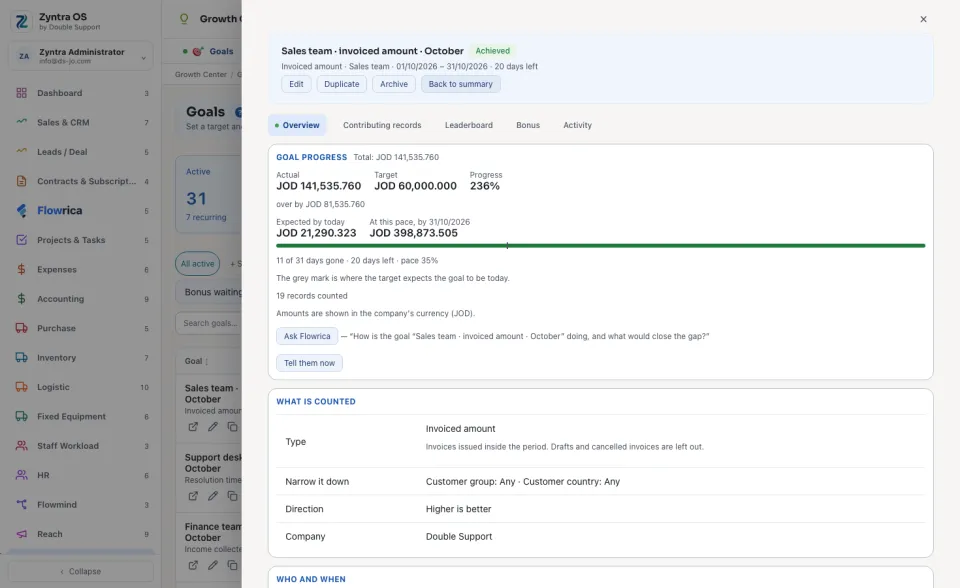
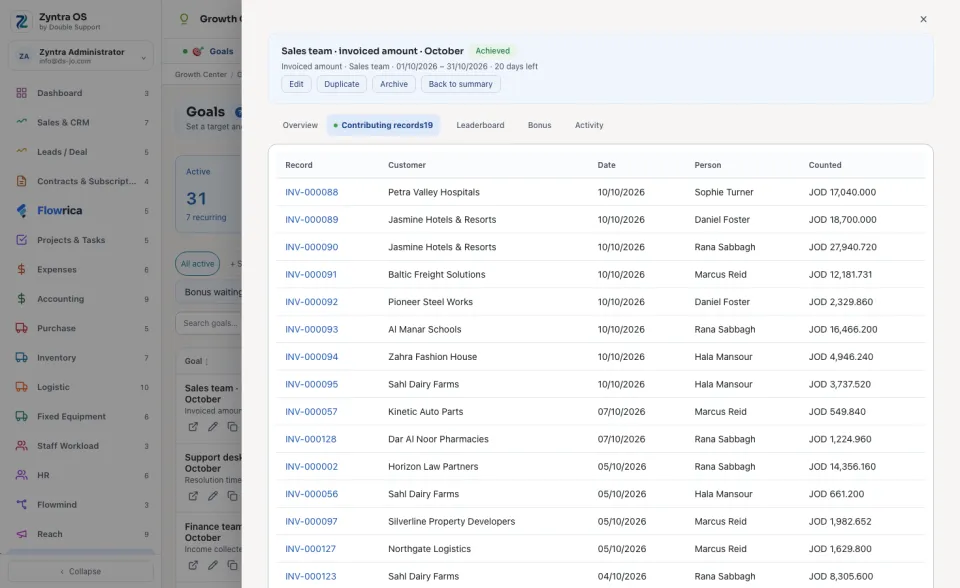
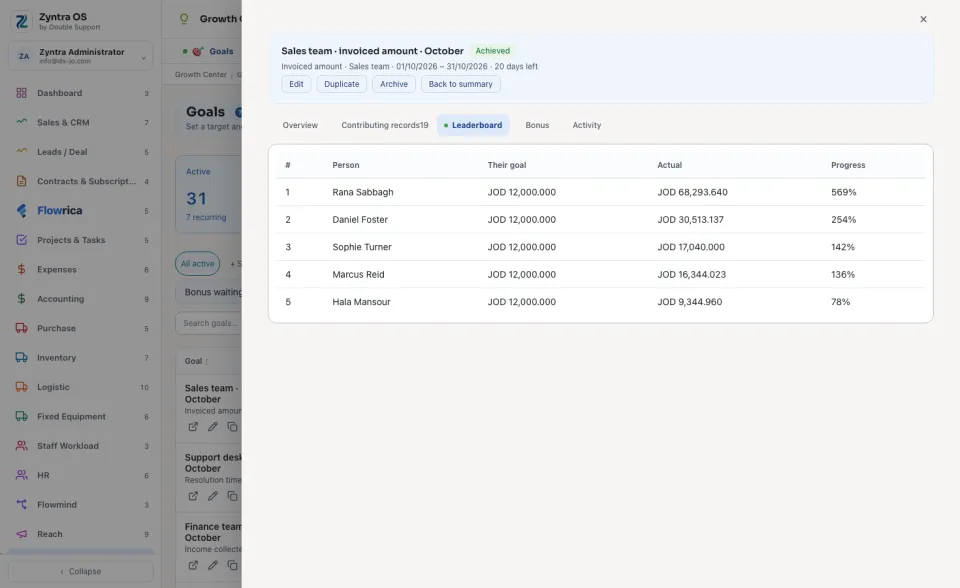
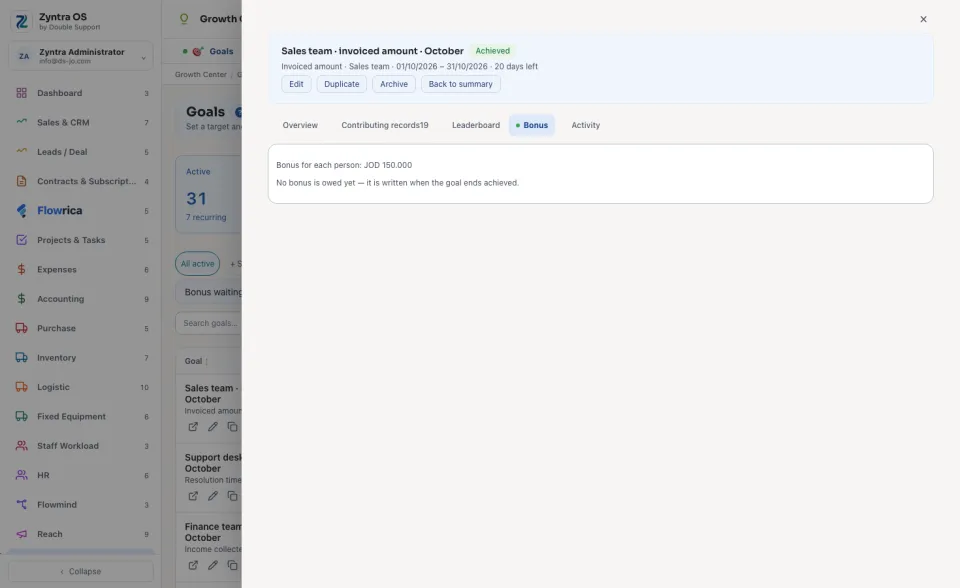
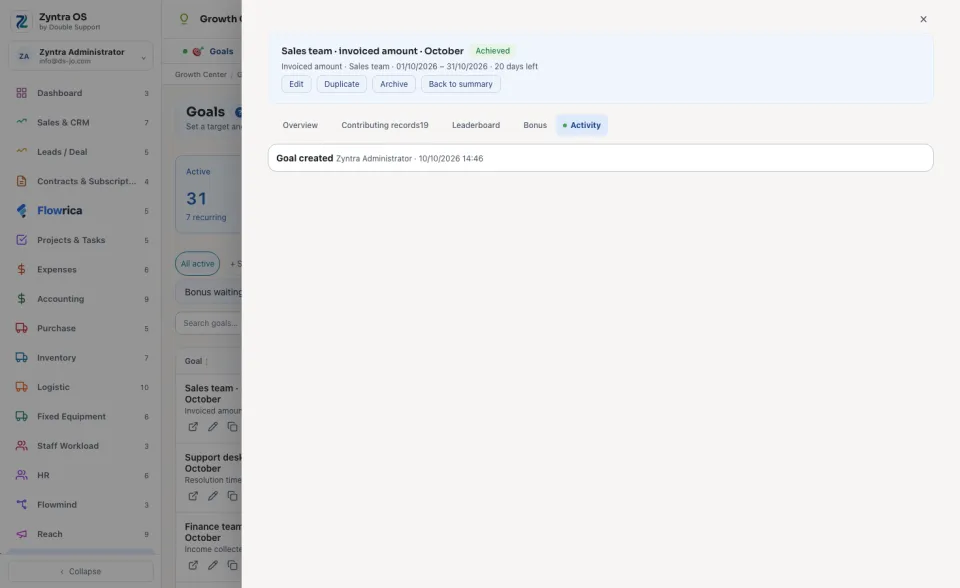
Press a goal's name to open it. A side panel shows the Goal progress (the actual figure, the target, and where the pace leads), What is counted and Who and when. Its buttons are Edit, Duplicate, Archive and Tell them now. Open fully adds the tabs: Overview, Contributing records (each record that was counted), Leaderboard (each person's own goal and progress), Bonus and Activity. Back to summary returns to the panel. On the list, the view Bonus waiting shows the goals whose bonus waits for approval.
Flowrica on this screen
Press Guide me and Flowrica points at each part of the screen. You can ask her, for example, “How are our goals doing?”.